GitHub
Linear supports linking your GitHub pull requests, automating workflow statuses, and syncing issues between GitHub and Linear.
Overview
The GitHub integration offers two core functionalities:
Permissions
The integration needs the following permissions for Pull Requests and GitHub Sync:
- Read access to checks, commit statuses, deployments, members, merge queues, and metadata
- Read and write access to actions, code, issues, pull requests, and workflows
To grant Linear organization-level access in GitHub, the integration must be installed by a GitHub organization owner. If you only need repository-level access, a repository administrator can install the integration instead.
We support both the Linear application and Linear Code, that support access to your codebase. Both of these are necessary for maintaining comprehensive Github functionality.
Configure
Enable the GitHub integration
- Go to Setting > Features > Integrations > GitHub
- Click Enable
- Select the GitHub organization you want to connect
- Select All repositories or Only select repositories and choose the repositories you want to connect
- Click Install
- Authenticate into your personal GitHub account
GitHub Enterprise options
If it's relevant to your organization, GitHub Enterprise Cloud and GitHub Enterprise Server require additional setup compared to GitHub.com. See the following section for details of each.
GitHub Enterprise Cloud has a dedicated Linear integration for organizations on *.ghe.com.
To get started, go to Settings > Integrations > GitHub Enterprise Cloud. Select Enable and enter your .ghe domain name. Follow the steps through to set it up. One GitHub organization is selected during install. To connect additional organizations, repeat the flow. Once all organizations are added, people should add their personal connection.
If your GitHub organization has an IP Allow List enabled—this applies to GitHub.com organizations as well as GitHub Enterprise Cloud—you'll also need to turn on Enable IP allow list configuration for installed GitHub Apps setting to enable Linear's GitHub integration. Read more here.
Alternatively you can grant access to Linear's IP addresses:
35.231.147.226
35.243.134.228
35.196.141.51
34.140.253.14
34.38.87.206
34.62.119.29
34.134.222.122
35.222.25.142
34.60.255.158
The table below provides a comparison of available features across GitHub.com, GitHub Enterprise Cloud, and GitHub Enterprise Server.
| Feature | GitHub.com | GitHub Enterprise Cloud (*.ghe.com) | GitHub Enterprise Server |
|---|---|---|---|
| Installation Method | Linear GitHub App | Linear GitHub App | Separate GHES App |
| IP Requirements | None | IP Allow List config required if enabled | No additional network setup required |
| Multiple GitHub Orgs | Yes | Yes | No |
| PR Linking | Yes | Yes | Yes |
| Branch Name Formatting | Yes | Yes | Yes |
| Status Automation from PRs | Yes | Yes | Yes |
| Magic Words for Linking | Yes | Yes | PR description only |
| Commit Linking | Yes | Yes | No |
| GitHub Issues Sync | Yes | Yes | No |
| Issues Sync → Multiple Repositories to Single Team | Yes | Yes | No |
Add multiple GitHub organizations
Click the + icon under Connected organizations to add another GitHub organization. This will take you through the same flow as when you connected the first organization. Currently, we support multiple organizations for the PR automation only. You will only be able to use commit linking with a single GitHub organization.
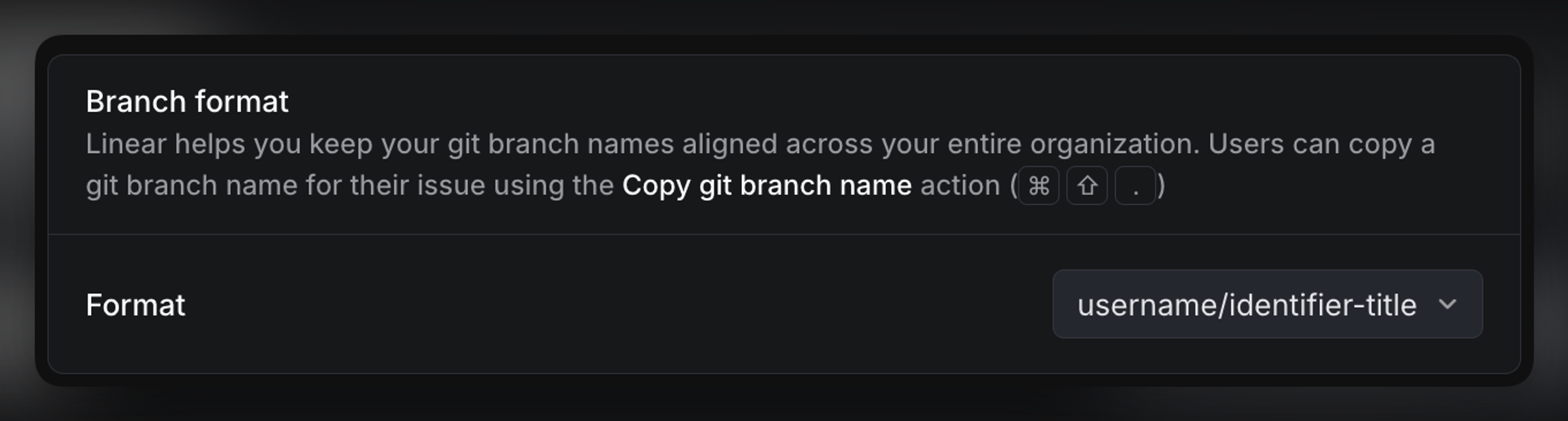
Branch format
Select the branch format you want to use when copying the branch name using Cmd + Shift + . from a Linear issue and pasting it into your branch name.
Personal account connection
In addition to the organization-level setup, each member should connect their personal GitHub account. This ensures that the activity feed, synced comments, and assignees are mapped directly to the connected user in Linear, rather than appearing as generic GitHub activity.
To connect your account, navigate to Settings > Connected accounts. Once connected, any synced activity from GitHub will be correctly attributed to you in Linear.


Enable commit linking
- Turn on the toggle for Link commits to issues with magic words at the bottom of the GitHub settings page.
- Go to Settings → Webhooks in your GitHub organization or repository.
- Click Add webhook button
- Input the Payload URL and Secret provided in Linear, and select
application/jsoncontent type. Leave "Push events" selected. - Click Add webhook.
- Go back to Linear and click Done.

Configure GitHub Issues Sync
Watch this video to see how GitHub Issues sync works:
From the GitHub Issues section of the GitHub integration settings, click the + icon, then select the GitHub repo and Linear team to link.
You can choose to sync:
- One-way: issues created in GitHub will create a synced copy in Linear, or
- Two-way: issues created in either the GitHub repo or Linear team will create a synced copy in the other software
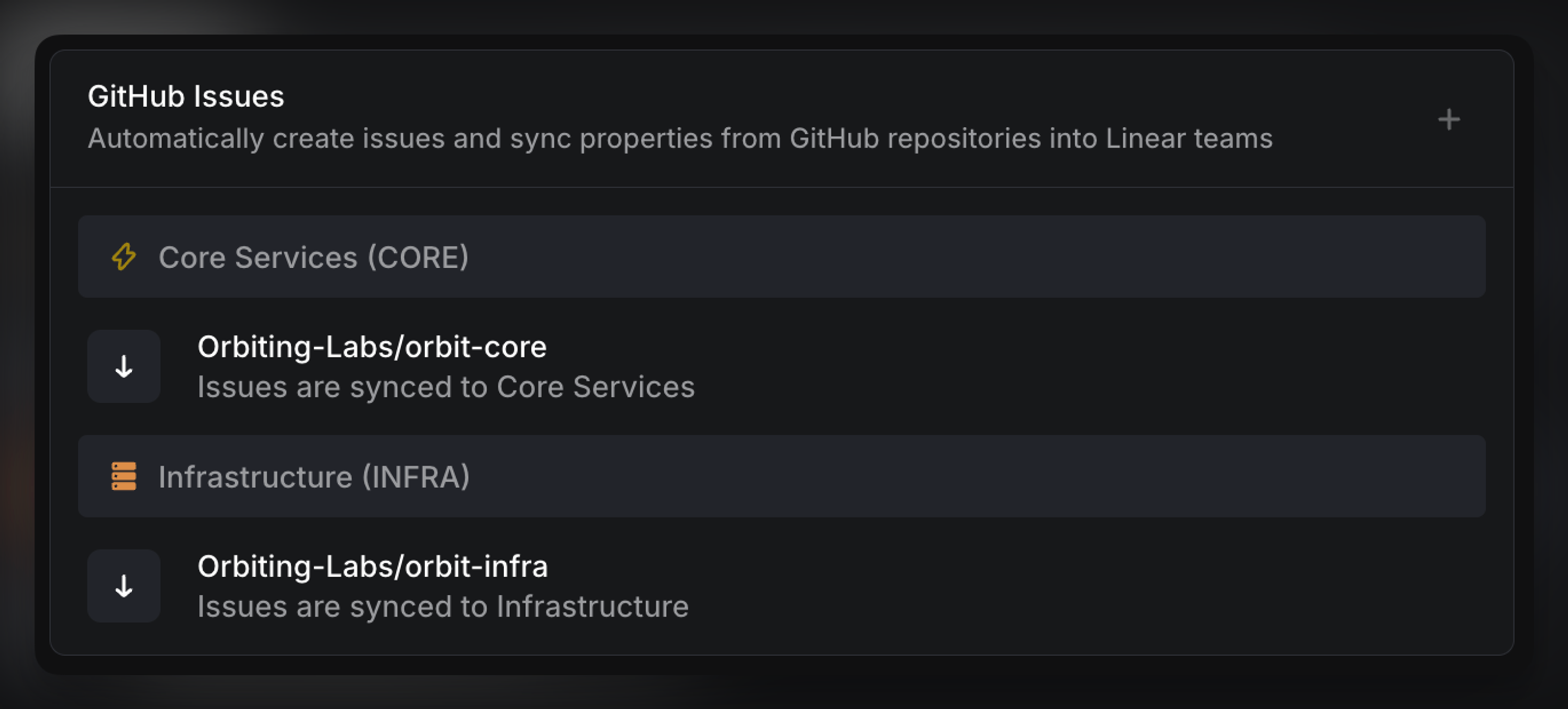

Multiple repositories can be connected to create issues to a single Linear team through one-way sync when issues are created in GitHub. However, only one repo can be configured for two-way sync at a time.
You can enable two-way sync when connecting a repo to Linear, or change this to another repo by pressing ... > Edit Link on an existing repo connection.
Properties that are synced between Linear and GitHub issues include:
| title | |
|---|---|
| description | |
| status | Please note that any custom statuses set at the GitHub Project level do not sync to Linear. |
| assignee | Linear users can connect their GitHub account to be synced as the issue assignee. |
| labels | |
| sub-issues | Multi-level & cross-repository/team hierarchies are supported. If parent issue is not a synced issue (e.g. it's in a different GH repo/Linear team), the sub-issue can still get synced, but will have no parent issue set on the other end. |
| comments | Comments made not in the synced thread of the Linear issue will not get synced to the GitHub issue. This allows for private discussions. |
Moving GitHub synced Linear issues between Linear teams will maintain the synced relationship. You can also transfer GitHub issues between two synced repos; this will appropriately update the team of the associated issue in Linear.
To manually stop syncing, remove the attachment from the Linear issue through its overflow menu.
Issue sync banners
Once an issue is synced between GitHub and Linear, a banner will appear at the top of the issue to make this clear. The banners will display information to show current sync status or will surface any errors with syncing.

Linking Linear issues to GitHub PRs
You can link a Linear issue using pull requests or commits.
Watch this video for a quick demo on the available linking methods:
Link through pull requests
Branch name
Include issue ID in the branch name. Use the Copy git branch name action or shortcut Cmd/Ctrl + Shift + . when viewing or highlighting an issue and paste it into the new branch name in GitHub.
Issue ID in Pull Request title
Include the Linear issue ID (e.g. ID-123) in the title when creating pull requests.
Use a magic word + issue ID in the PR description or title (for example, Fixes ENG-123 or Fixes https://linear.app/workspace/issue/ENG-123/title) to link the PR to the issue. If the issue is unassigned when linking takes place, you will be added as the assignee of the issue.
Magic words
Linear offers closing and non-closing magic words so you can customize your workflow. When you use a closing magic word, the issue will move through your mapped automation workflow when the branch is pushed and to the status configured for On PR or commit merge when the PR or commit is merged.
When you use a non-closing magic word, the linked PR or commit will still move the issue through other statuses per your workflow settings, but it will not apply the On PR or commit merge status when the PR or commit merges.
When you use a relation magic word, Linear simply marks the PR as related to the issue, with no status changes.
The closing magic words are: close, closes, closed, closing, fix, fixes, fixed, fixing, resolve, resolves, resolved, resolving, complete, completes, completed, completing, implement, implements, implemented, implementing, linear issue.
The non-closing magic words are: ref, refs, references, part of, contributes to, toward, towards.
The relation magic words are relates to, related to.
To prevent a specific issue from being linked automatically, use skip or ignore with that issue ID. For example: Ignore ENG-123.
Create an issue with a magic word
Add {TEAM}-NEW to a pull request description to create and link an issue in that team. Replace {TEAM} with the team’s key, for example ENG-NEW. This new issue is created in Started status and assigned to the pull request author when possible.
On Business and Enterprise plans, Linear uses AI to write the title and description and automatically sets labels, projects, and milestones based on the pull request content and the author’s recently completed issues. On other plans, Linear creates the issue in the specified team using the pull request title, without AI enhancements.
Link using commits
Use a magic word before the issue ID in commit message to link issues. We'll move the issue to In Progress when the commit is pushed and Done when the commit reaches the default branch.
Link multiple issues
Link multiple issues to one PR
Include multiple issue IDs after a magic word in the PR title or description (for example, Fixes ENG-123, DES-5, and ENG-256). Linking happens after you save your changes. Magic words in PR comments won't create links.
Link multiple PRs to one Linear issue
You can link multiple PRs to a single Linear issue using any linking technique. The Linear issue status will be updated when the final linked PR moves to the required state from your workflow.
For example if you have 2 PRs linked to 1 issue, you'll need merge both PRs before the Linear issue status will change.
Viewing a linked Linear issue
Remove a PR from an issue
To remove a PR from a Linear issue, open the issue, click on the three dots on the PR attachment, and select Remove. You can also do this through the command menu in Linear by viewing or selecting an issue, then searching for git.
PR review state
When individual reviewers comment, request changes, or approve your PR, we'll display their avatars and their actions on the GitHub attachment visible on the linked Linear issue. You can use this feature to quickly parse the review state of your PR without needing to return to GitHub.

If you request a team review instead of a review from specific individuals, we display "review requested" or "in review" on the GitHub attachment in place of user avatars.
Pull request preview links
If your PR contains one or multiple preview links, this will add a preview link shortcut to the Linear issue.
Preview links are automatically detected for popular platforms like Vercel, Netlify, Cloudflare and AWS Amplify if you have connected Linear with your GitHub repository. For custom preview links, add a Markdown link whose visible label ends with "Preview" (case-insensitive). The destination can be any valid HTTPS URL. Put "Preview" inside the link label—not only in surrounding text. Linear parses links in the pull request description and in eligible comments from the pull request author or a GitHub bot.
Multiple previews for a single PR are available in a dropdown menu, with customizable names and icons for easy identification (e.g. mobile and desktop previews). Icons are automatically chosen to reflect best their name, such as a mobile icon for mobile release links. Preview links are automatically removed after 30 days of inactivity on the PR.

Pull request preview link accepted formats
Links that end with "preview" in your PR descriptions and comments will get added to the Linear issue as a preview link.
For example:

Workflow automation
Issue status updates
Updates to PRs can automatically update the status of their linked Linear issues.
Watch this video to explore more about how issue status automation works:
You can customize the automation in Settings > Team > Workflows & automations > Pull request and commit automations. Since this is a team setting, it must be configured for each team in your workspace.
You can configure status updates when PRs are drafted, opened, have a review requested, are ready for merge, and merged. By default, we will move linked issues to "In Progress" when PRs are open and "Done" when PRs merge.

Automatic PR Cancellation
When you directly cancel an issue, Linear closes open GitHub pull requests linked with the Closes or Contributes relationship. Marking an issue as duplicate has the same effect. A pull request remains open when it is also linked to another open Linear issue or is linked only as a reference. Completing an issue and automated cancellations do not close pull requests.
Custom merge queues
If you use a custom merge queue that merges changes and then closes the pull request, be sure to add the externally-merged label before closing it. This tells Linear to treat the pull request as successfully merged even though it was closed.
Branch protection rules
Once a review is requested, if you do not have branch protection rules set up in GitHub, the issue will skip the "review request or activity" state and move to "ready to merge”. Without branch protection rules, a PR is considered always mergeable. Please note that "ready to merge" automations will not fire if a "review request or activity" automation is not also configured.
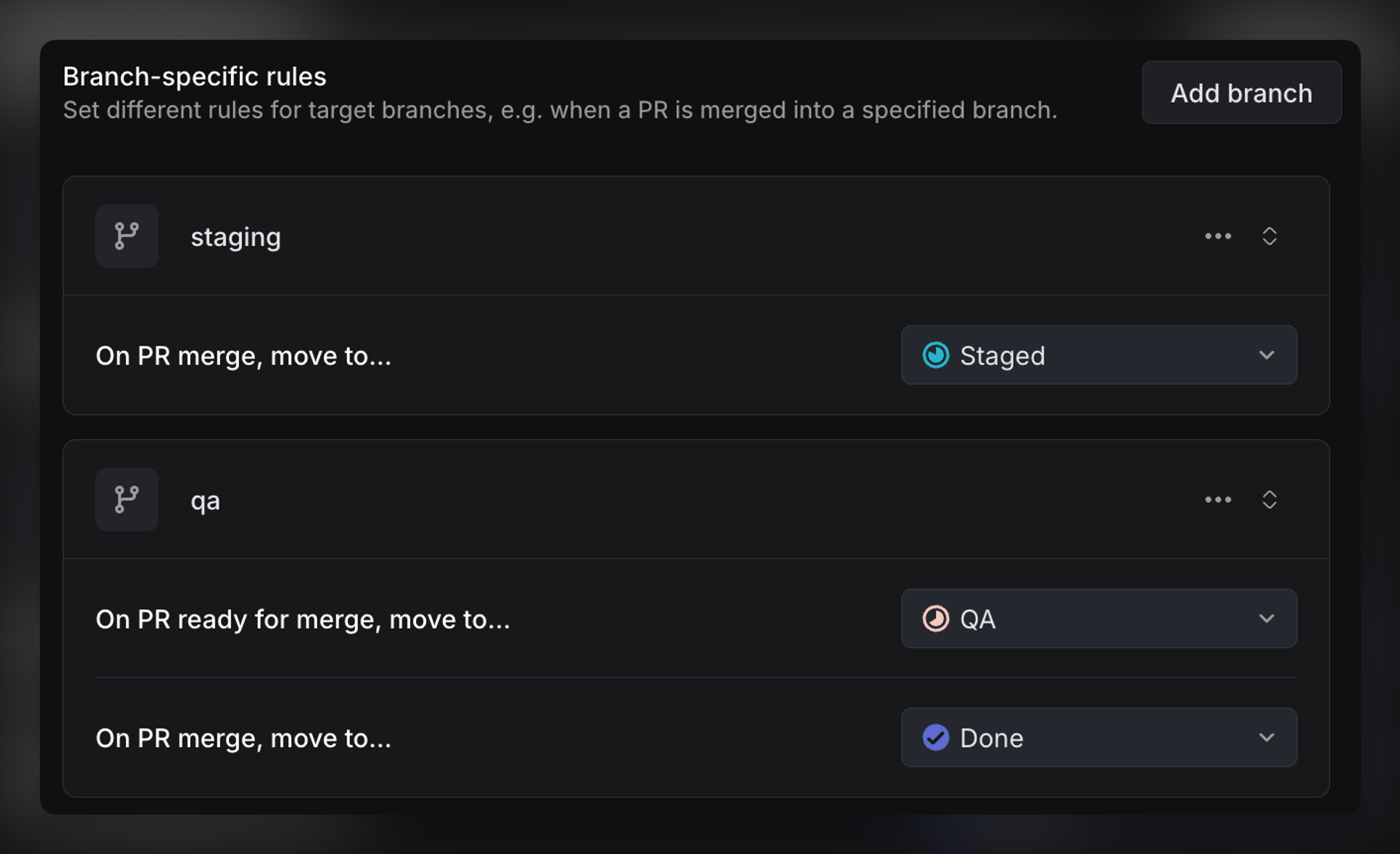
Branch-specific rules
You can also set custom workflow automations based on particular target branches.
For example, you can now configure that when a PR is merged to:
staging, the issue status should change to “In QA”main, the issue status should change to “Deployed”
Watch this video to visualize how branch-specific rules work:
You can also override a default rule in a particular branch with “no action” if desired, so that issues linked to a change in that branch will not change status. Branch rules can be specified using regex, e.g: ^fea/.* can set automations for all feature branches.
Auto-assign and move issue to start
Save yourself a few steps by toggling on our automations that moves a Linear issue into a started status when you copy the git branch name. To set up this automation, refer to your Code & reviews settings.
You can also configure an automation to always assign issues you create to yourself, and extend this by automatically assigning issues you move to a started status. These settings are configured in your Preferences.
Other settings
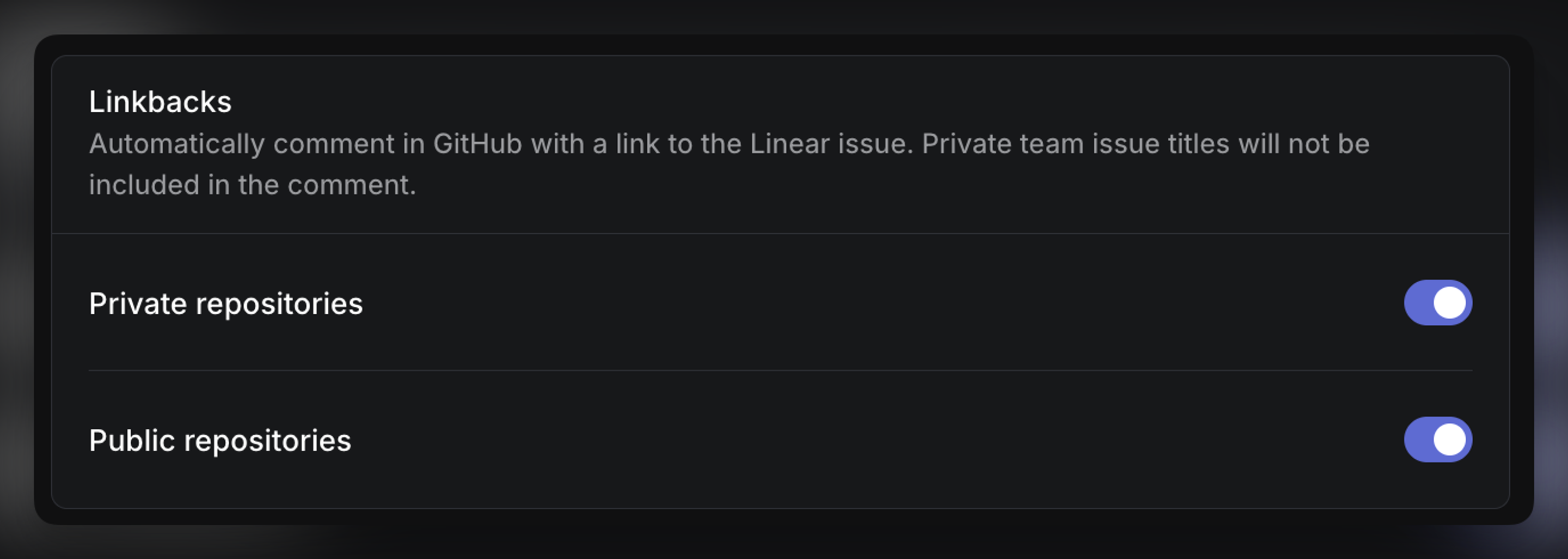
Linkbacks
When an issue is linked with a pull request, commit or GitHub Issue, Linear posts a linkback message as a comment with the issue title and description—including any images or attachments that exist within the description. All the pull requests are also listed in the issue details in Linear. This cross-referencing makes it faster to retain context without jumping between apps.
If enabled for private teams, the issue titles will not be included in the comment. The link will go to your Linear issue and be accessible only by users who are part of that private team.
Enable Autolink
If you want to automatically resolve your Linear issue IDs (e.g. ENG-123) in PR descriptions or comment to links, you can enable this using GitHub's Autolink references feature. See instructions on GitHub.
Use the following URL format: https://linear.app/<workspace>/issue/ID-<num> where workspace corresponds to your workspace's URL and ID is the issue identifier key for your team. You need to add each team separately as they all have a different ID pattern.
If you change your Linear team name/ID, you may need to reconfigure the Autolink settings.