Custom Views
Create durable filtered views of issues, projects, or initiatives that you can save and share with others in your workspace.
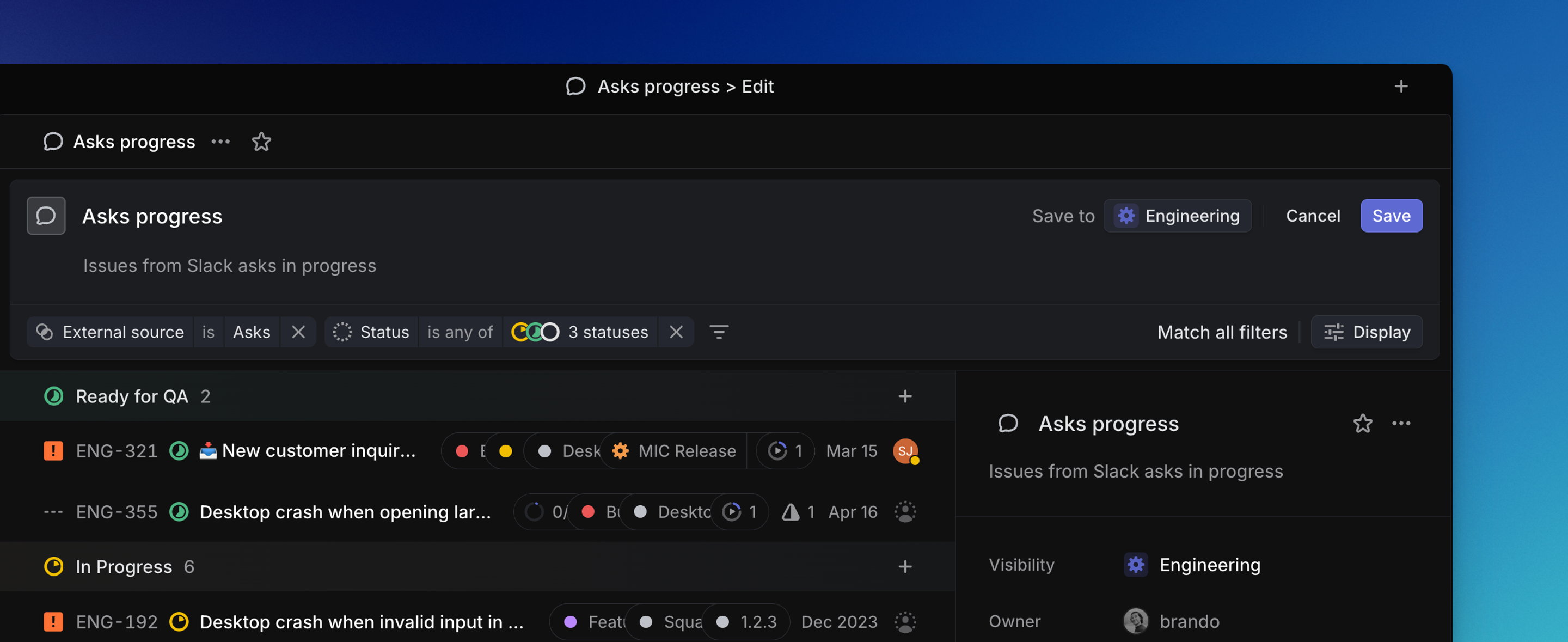
Overview
Create custom views using filters to show only the items you want to see. Save, share and favorite these views for easy access and faster team collaboration.
Basics
Open views
Open views in the team or workspace Views pages in your sidebar, or search for views to open with O then V.
Create views
To build a custom view from scratch, click on Views in the sidebar, select the type of view you wish to create (Issue, Project, or Initiative) and click New view.
You can also save any filtered board or list as a custom view with the keyboard shortcut Option/Alt V or by clicking on the Save view icon. The icon appears next to the Display Options icon after you've added at least one filter to any team-specific list or board.
Edit views
To edit an existing view, click on the view name from within the view itself and choose the Edit view… option in the pop-up menu.
You also have the option to duplicate an existing view from here, just click on the Duplicate view... option.
Share views
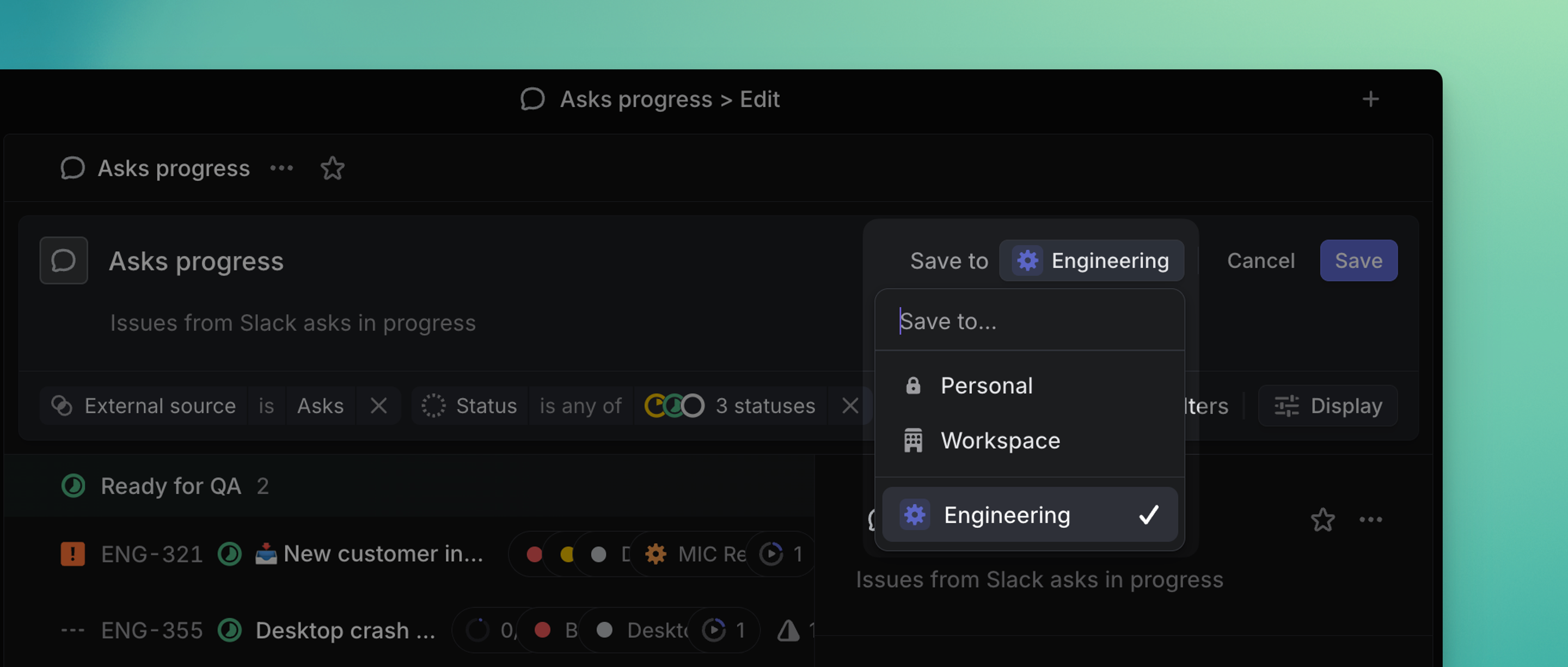
If a shared view is created at the workspace level, then the view will appear under Workspace views on the Views page and is available to full members. If you select a specific team, project, or initiative when creating the view, the shared view is available within that team, project, or initiative scope and will be listed under Team views in the Views page.
To share a view across multiple teams but limit it to projects or issues within a specific team or teams, create an All teams view and use filters to refine the list.
Create views attached to Teams or Projects
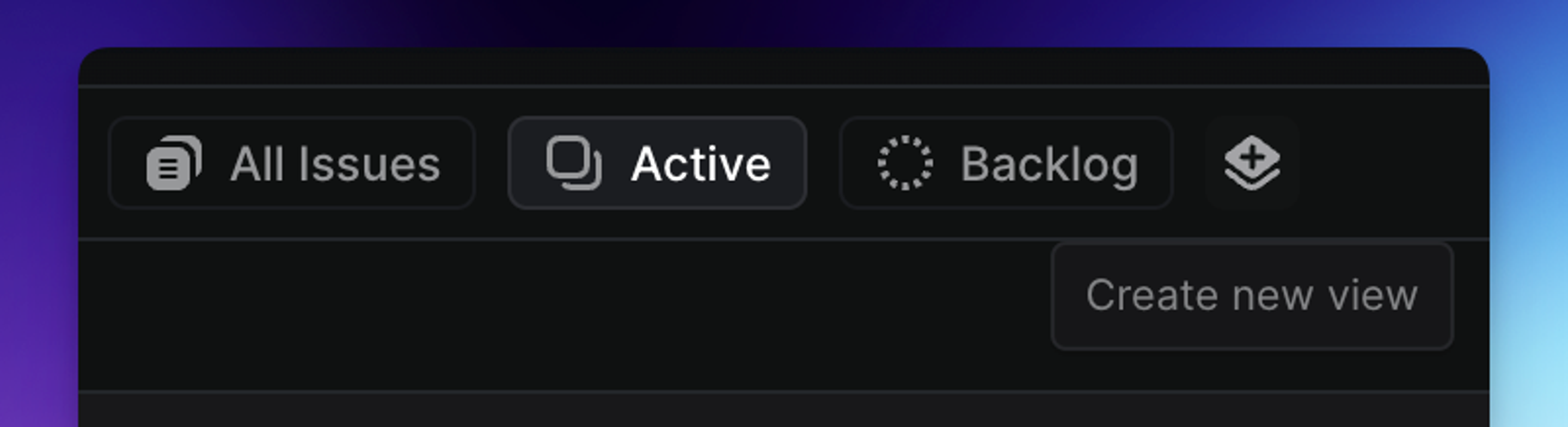
From your team's Issues and Projects sections, you can create new views that appear alongside the team's default views (All Issues, Active and Backlog.)
Unlike shared team views in the Views menu, Contextual views are shown in the Issues, Projects, and Initiatives sections.
Copy view link
To share a specific view in Slack or wherever you discuss work, copy a link by clicking the custom view's three-dot menu icon and selecting Copy view URL or by copying the View's URL in the browser. Sharing a link does not automatically give anyone access to a view, it must be shared first.
The browser URL can also include temporary filters applied to the view. Opening the link applies those filters, but sharing the link doesn't grant access to the view.
Share a one-off list of issues
If you want to share or revisit a one-off set of issues, you can open them together using a comma-separated list of issue identifiers in the URL. Add the identifiers after /issues/, such as linear.app/{workspace}/issues/ENG-123,ENG-456,ENG-789. Linear will open a view containing only those issues.
This is useful when you want to share a short list of issues for review or discussion without creating a custom view or applying a label.
Favorite views
Favorite views that you access frequently to add them to your sidebar. Do this by clicking on the star next to the view name or from the overflow menu. Favoriting custom views lets you select them as your default page when opening Linear in Settings > Account > Preferences.
Collapse view group headers
Expand or collapse group headers when in list view by hovering over the group and pressing t, or clicking on the toggle icon at the left side of the group header.
View sidebars
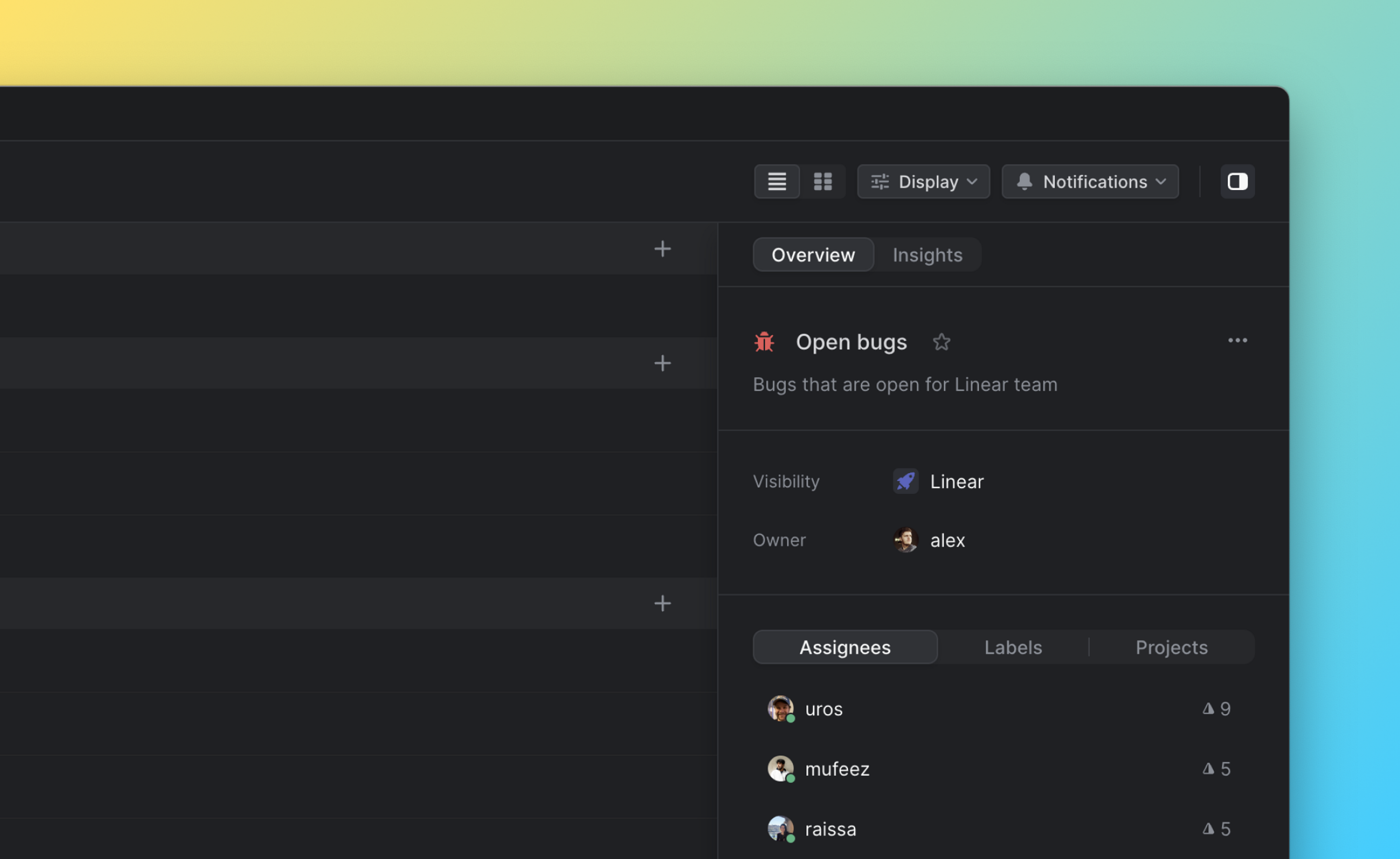
The righthand sidebar clarifies the view's contents and allows you to quickly filter for common properties. Project view sidebars display information on those projects' leads, teams, projects, initiatives and health. Issue view sidebars display assignees, labels and projects.
Issue view subscriptions
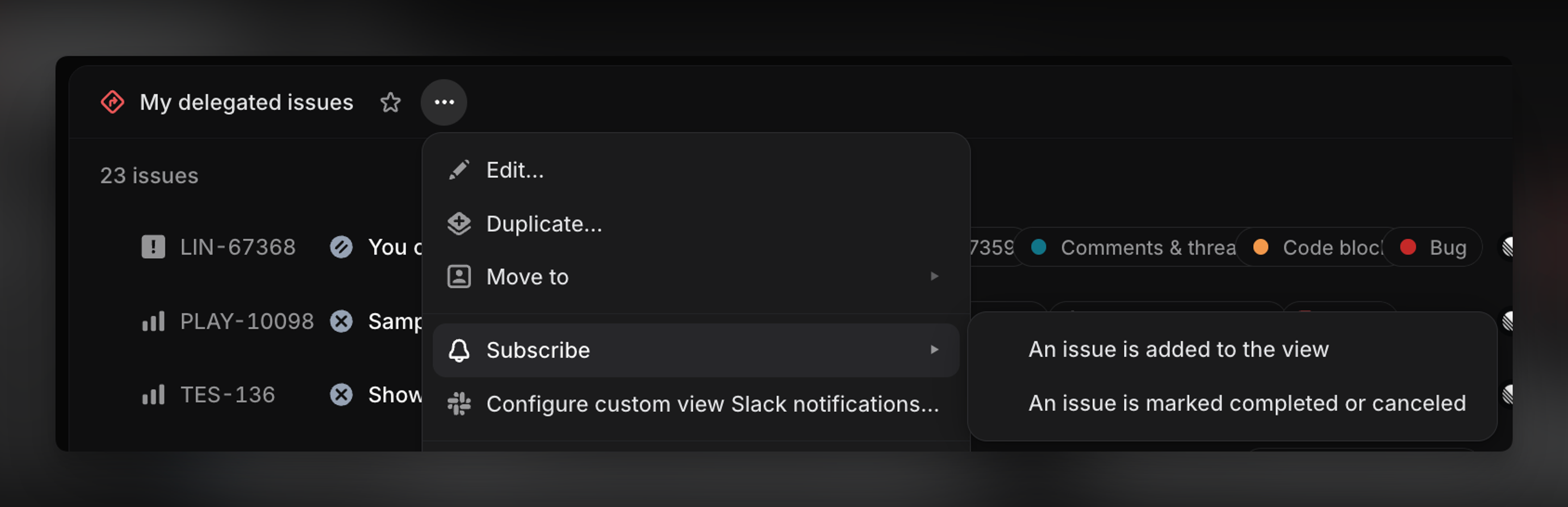
Configure personal or Slack channel notifications when an issue meets specific parameters defined by a view, or when an issue in a view is closed.
To manage subscriptions for a custom view, open the overflow menu, then select Subscribe to access the view subscription options. Select whether you'd like to be notified for when an issue is added to the view, marked completed or canceled, or both.
To reduce notification noise, you won't receive notifications in views you subscribe to for actions you take yourself.
Once you've configured a view subscription, manage the subscription in notification settings.
View owners
Every view has an owner property visible in that View's dedicated sidebar as well as on the main Views page in Linear's main sidebar. This field defaults to the creator of the view but can be changed to other users as desired. Before deleting a view, we advise checking in with its owner to ensure it's no longer needed.