Customer Requests
Bring the voice of the customer into product development.
Overview
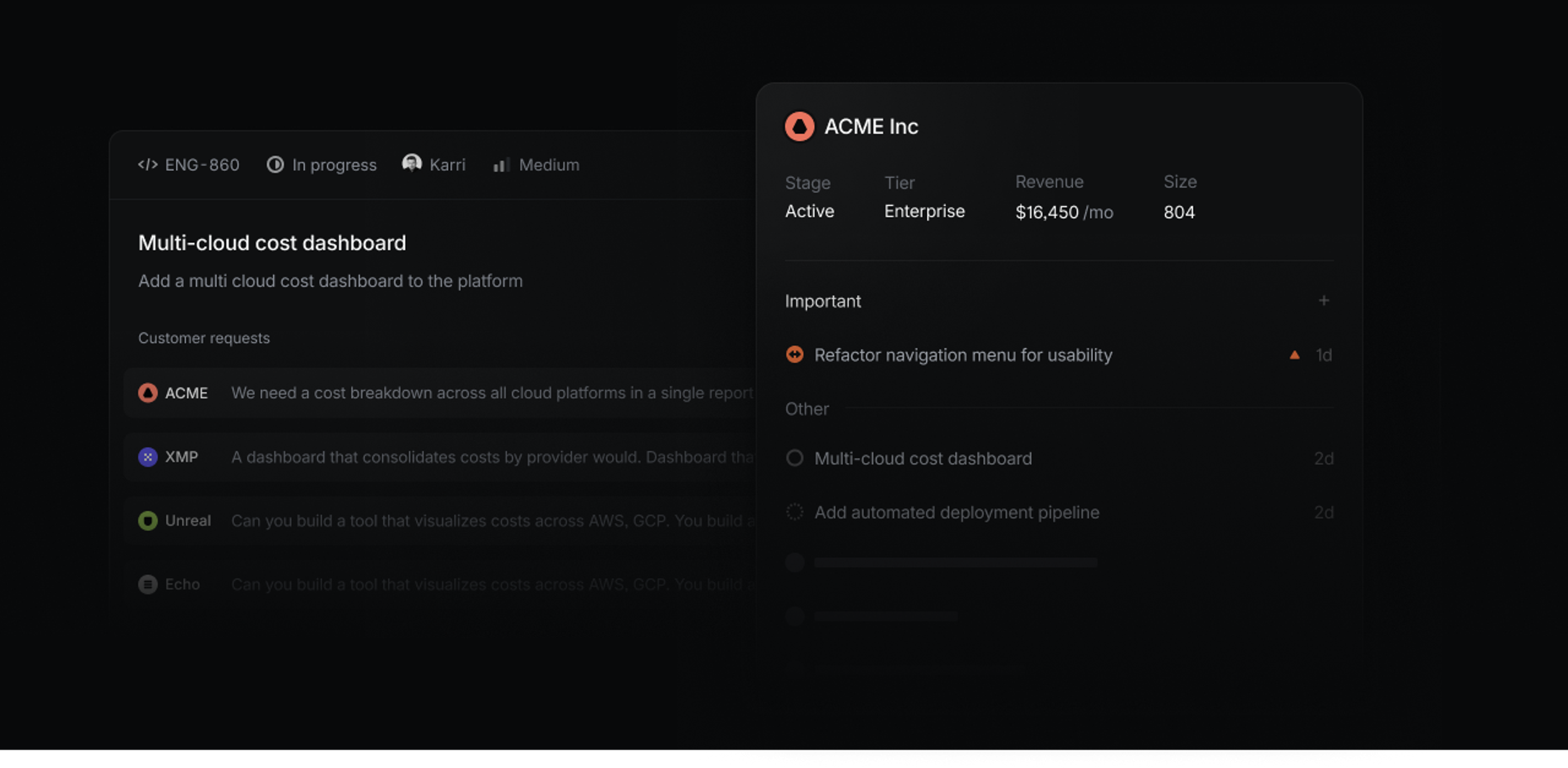
Customer Requests allow you to add detailed user feedback and customer attributes to Linear to better align product work with real user needs:
- Link customer requests to specific issues or projects in Linear to make feedback accessible to your product team
- See customer pages displaying all requests made by specific customers along with attributes like revenue, size, and tier
- View and filter issues or projects by customer name, count, status, tier revenue, and size to identify high impact product work
Watch this video to see how Customer Requests works:
Configure
Admins can enable Customer Requests in Workspace Settings > Customer requests. Once enabled, anyone in your workspace can view customer pages, create and update customers, and add customer requests to issues and projects in Linear or from a supported integration.
When an issue is created from integrations with Intercom, Zendesk, Front, or Asks, it will automatically add a request pointing back to the source. Requests can also be added manually and are viewable in their associated issue and the customer's page.
From settings, add further customizations. Choose a team to receive new issues created from a request by default (we recommend selecting a team exclusively used to track feedback). You can also customize revenue units and tiers for different plans or products you offer. Revenue, Tier and Size fields will be automatically populated if you use the Intercom integration, or can be filled when creating customers manually.
Customers
A Customer in Linear represents an organization using your product. Customers have a unique domain, name, logo, and attributes which can be viewed on their page.
Customer pages
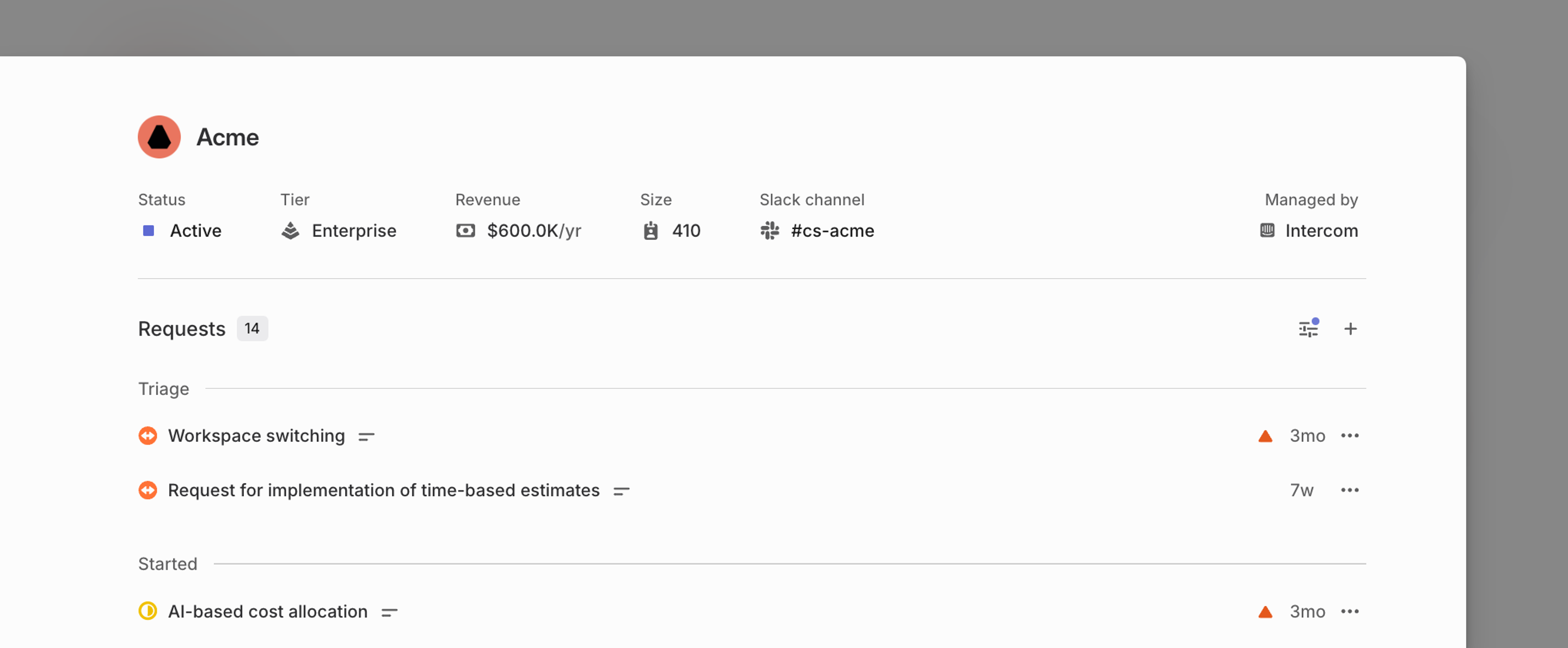
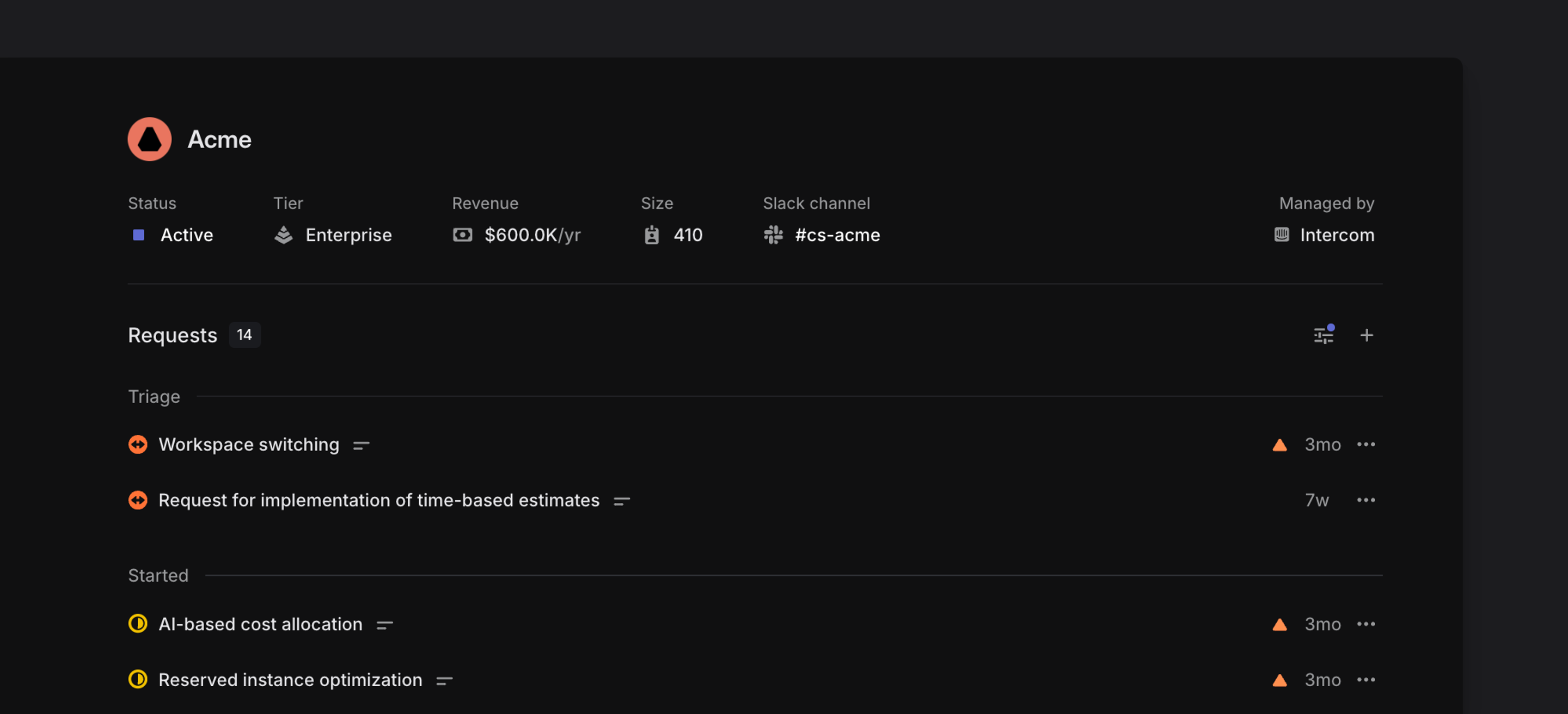
Customer pages show all issues and projects with a request associated with that customer. You can group and order this list of issues to see what issues have been marked as important or what issues are in progress. Click on individual issues to open and view their request on that issue in full detail.
For customers created through Intercom or manually, you'll also see attributes like the customer's revenue, status, tier, and size on the customer page. Individual customer pages can be favorited so that they're easy to access from the sidebar.
Open Customer pages
- Use O then Q, then search for the customer's name
- Open the full customer list with G then Q, then search to narrow down results
- Search for the customer in the Cmd/Ctrl + K menu
Create Customers
In most cases, customers will be created automatically through an integration at the same time their first request is created. Linear will use the customer's email domain to correctly map the request.
Customer requests
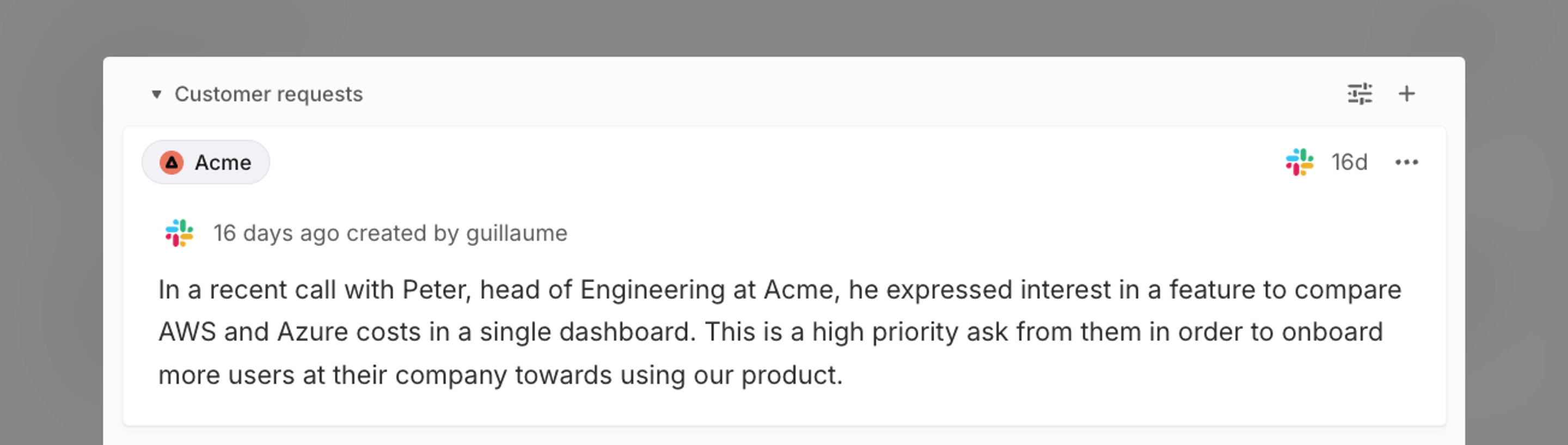
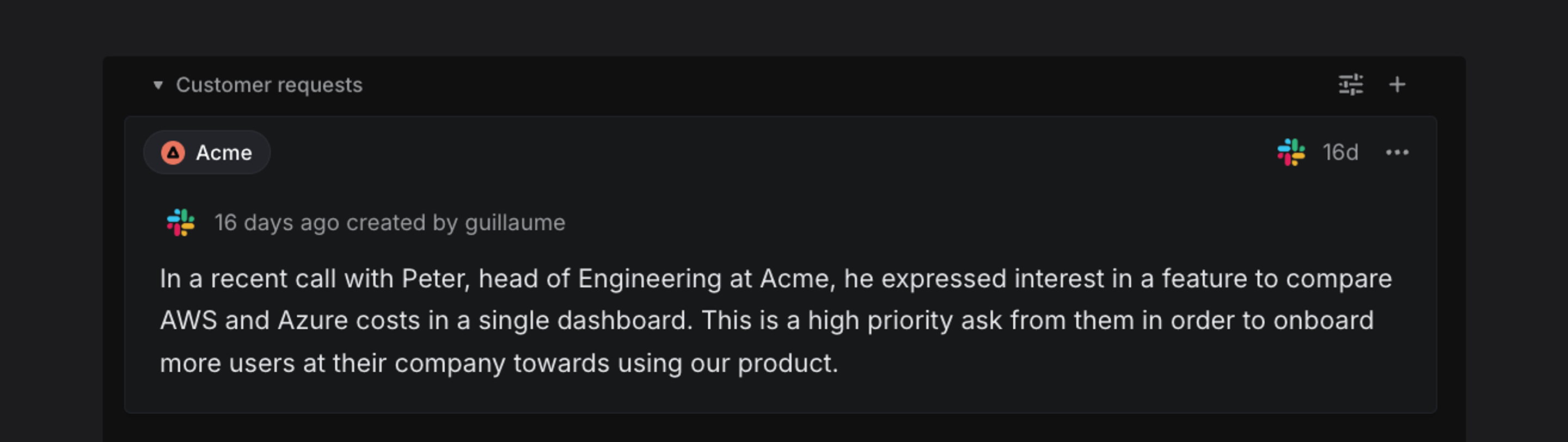
Customer requests link user feedback to specific issues in Linear.
Add requests to issues or projects
A customer request is created automatically whenever you create or link to an issue or project from a supported integration. The request will appear both on the issue/project itself as well as on the associated customer's page.
When made from an integration, the customer request will quote the original message from the user. This request can be edited in Linear to add images, videos, or extra context. Requests also include a link to the source (e.g. Intercom conversation), name of the user associated with the request, and timestamp.
Integrations
The following integrations can create issues with customer requests:
Requests are created when you create new issues or link to an existing issue or project from the Intercom integration. Customer attributes such as size and revenue can be synced with and managed from Intercom.
Mark as important
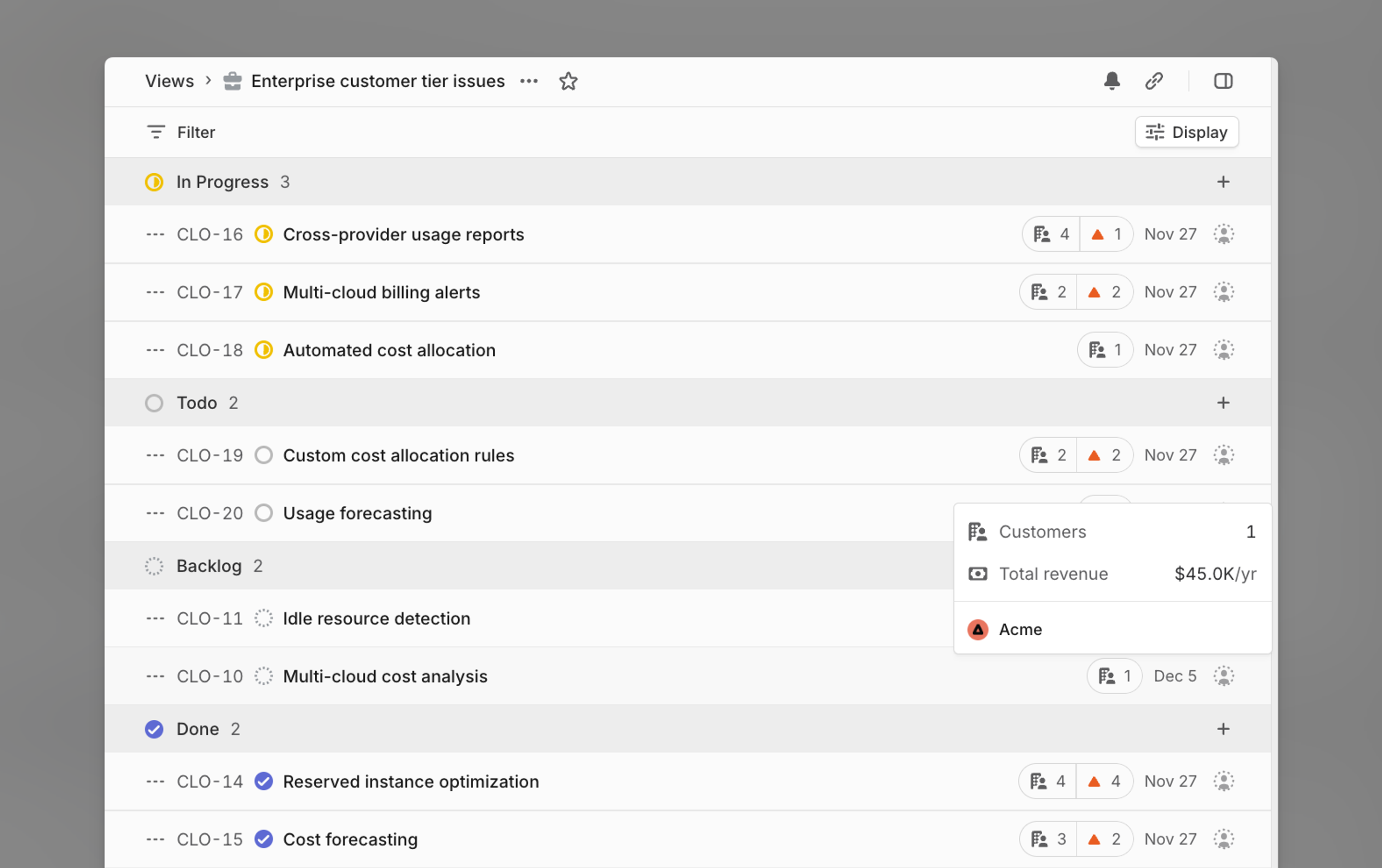
Requests can be flagged as important to specific customers. For instance, an issue or project may have requests from five different customers but be marked as important by only one of those customers. This binary indicator, shown as a triangle, lets customer-facing teams separate requests that represent a critical need from those expressing a nice-to-have feature.
Synced Attributes
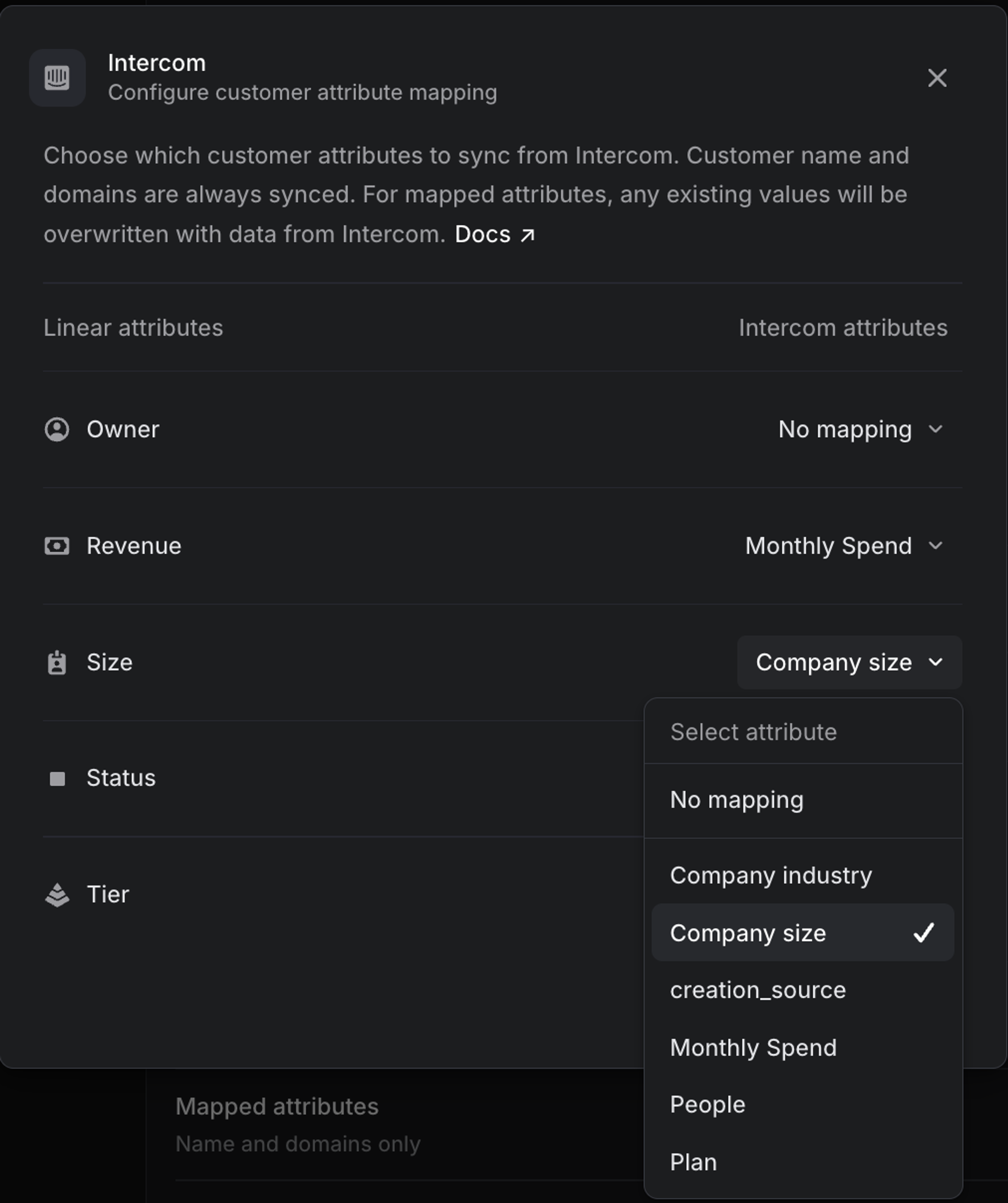
From Settings > Customer Requests > Customer attributes data source, you can choose a data source for Linear customer attributes such as Intercom, Zendesk or Front and create mappings between source tool attributes and attributes on Linear Customers. You can also choose None as a data source to allow more control via the API or directly in the interface. Once an external source is configured the company name and domain are automatically synced.
Owner, Revenue, Size, Status & Tier can be remapped to pull from data in your source tool. These values are regularly kept up to date as they will be synced with your source.
You can also choose to enable manual edits for any attributes that are unmapped. Attributes will always be editable via the Linear API regardless of this UI-specific setting.
Build customer views
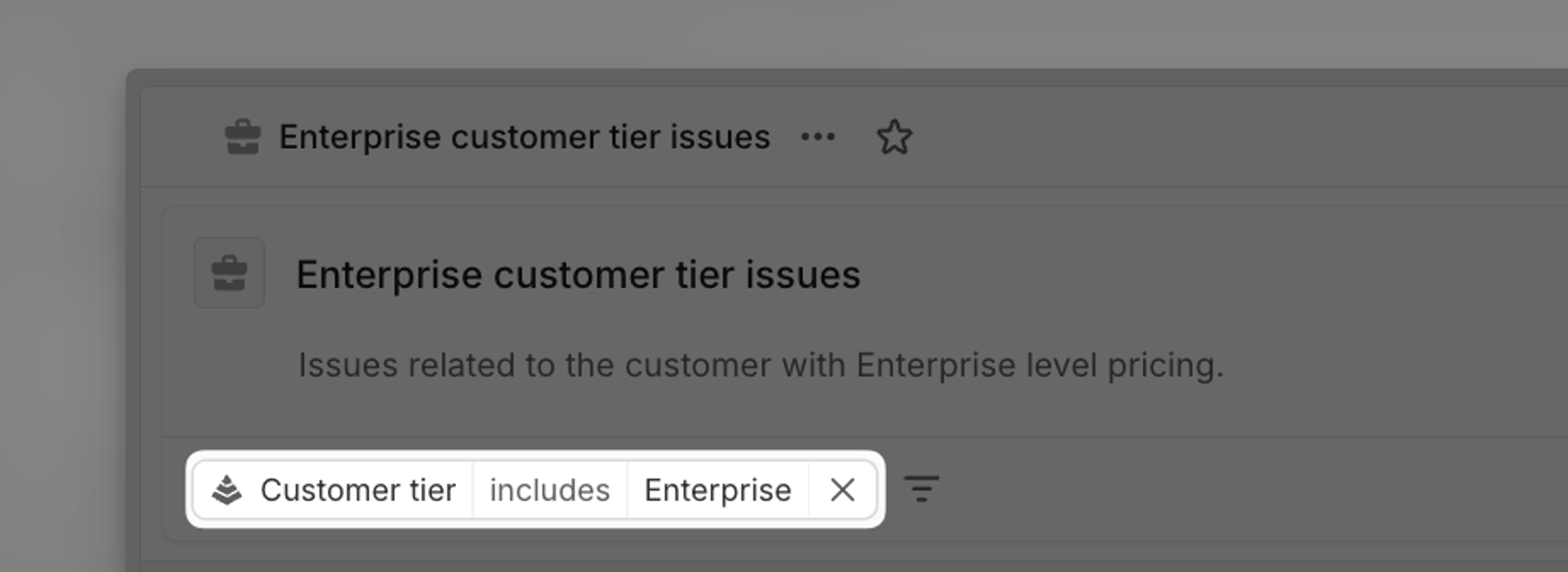
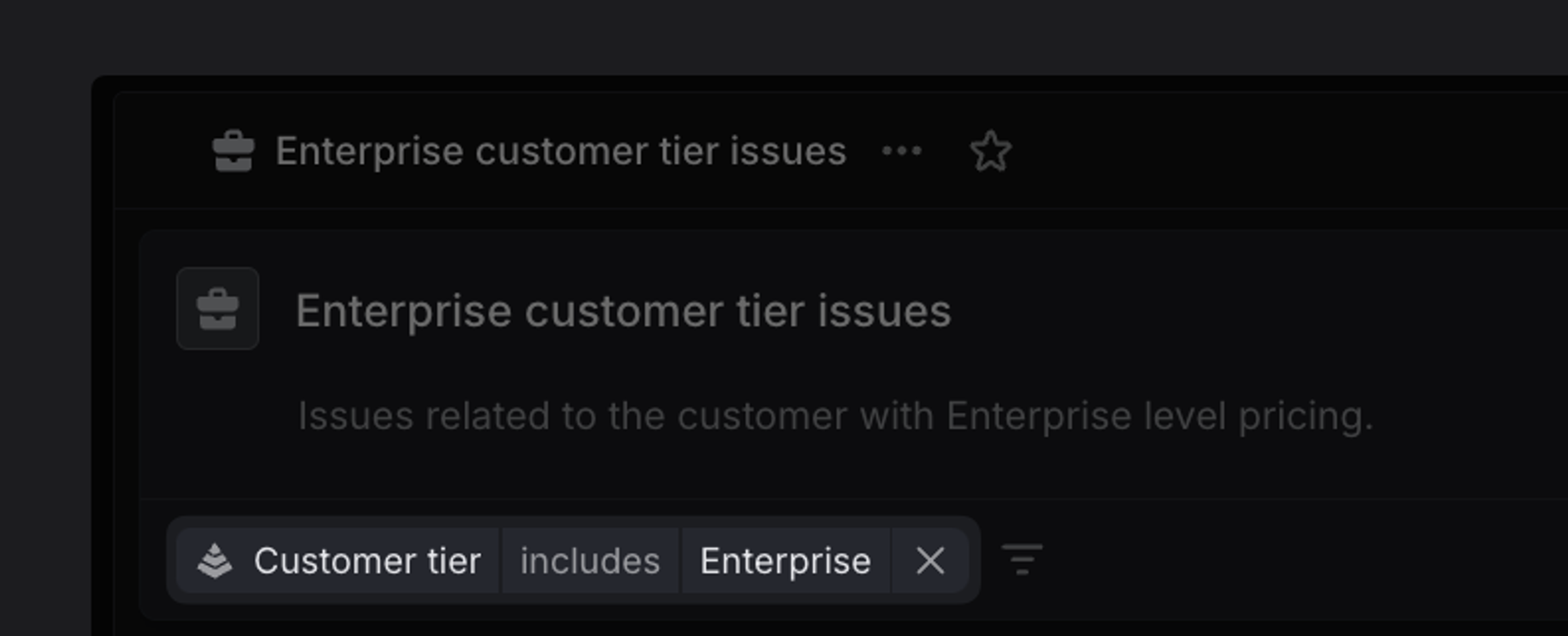
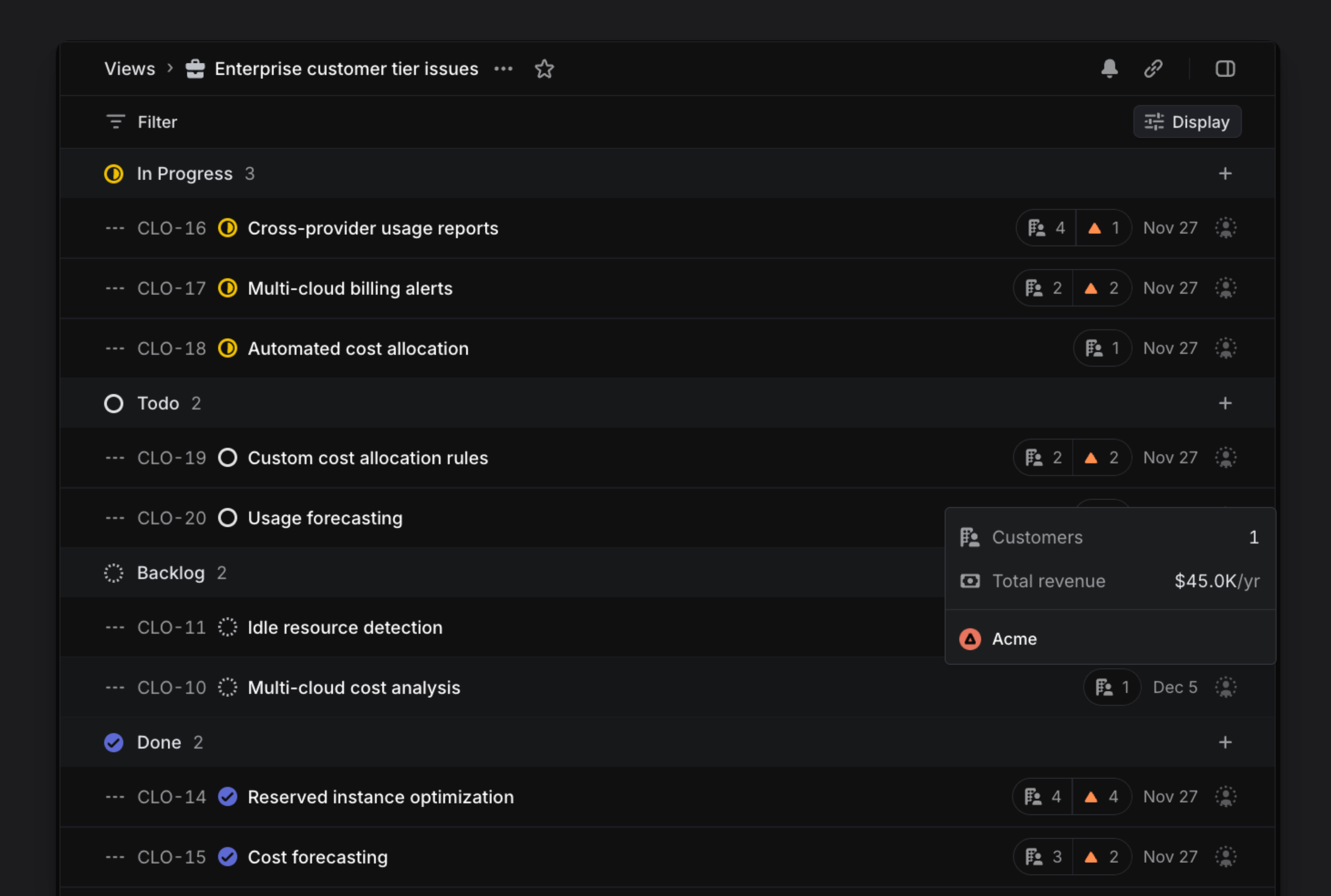
All customer data brought into Linear can be used to create custom views for both issues and projects to surface the impact of your work on your customers. For example, create a view of issues with requests from Enterprise customers ("Tier" property from Intercom), where each issue has at least 20 requests. Ordering this view by customer count surfaces the most highly requested issues to the top. Triangle icons indicating requests marked important surface urgent needs. Consider consulting this view when planning upcoming cycles to ensure what you ship aligns with the needs of the users.
Notifications
You'll receive Inbox notifications automatically when new requests are added to issues you subscribe to so you're always in the loop. Optionally, configure additional notification styles for new requests here.
Subscribing to custom views is the best option for more targeted alerts. For example, you might wish to stay aware of issues commonly raised by customers who churn. To track that, create a custom view defined by Customer status includes Churned, and ordering the issues by customer revenue. Click the bell icon to be alerted when a new issue is added to the view, or configure notifications to a Slack channel for greater visibility.
You can also open a specific customer page (O then Q) and under the bell icon subscribe to get notified when a request is added, marked important, completed or cancelled.
Export Customer Requests
Should you need to export your customer requests from a particular customer, issue, or project, an option exists in the Cmd/Ctrl + K menu. Search the command menu and select Export customer requests as CSV to take that action.