Notifications
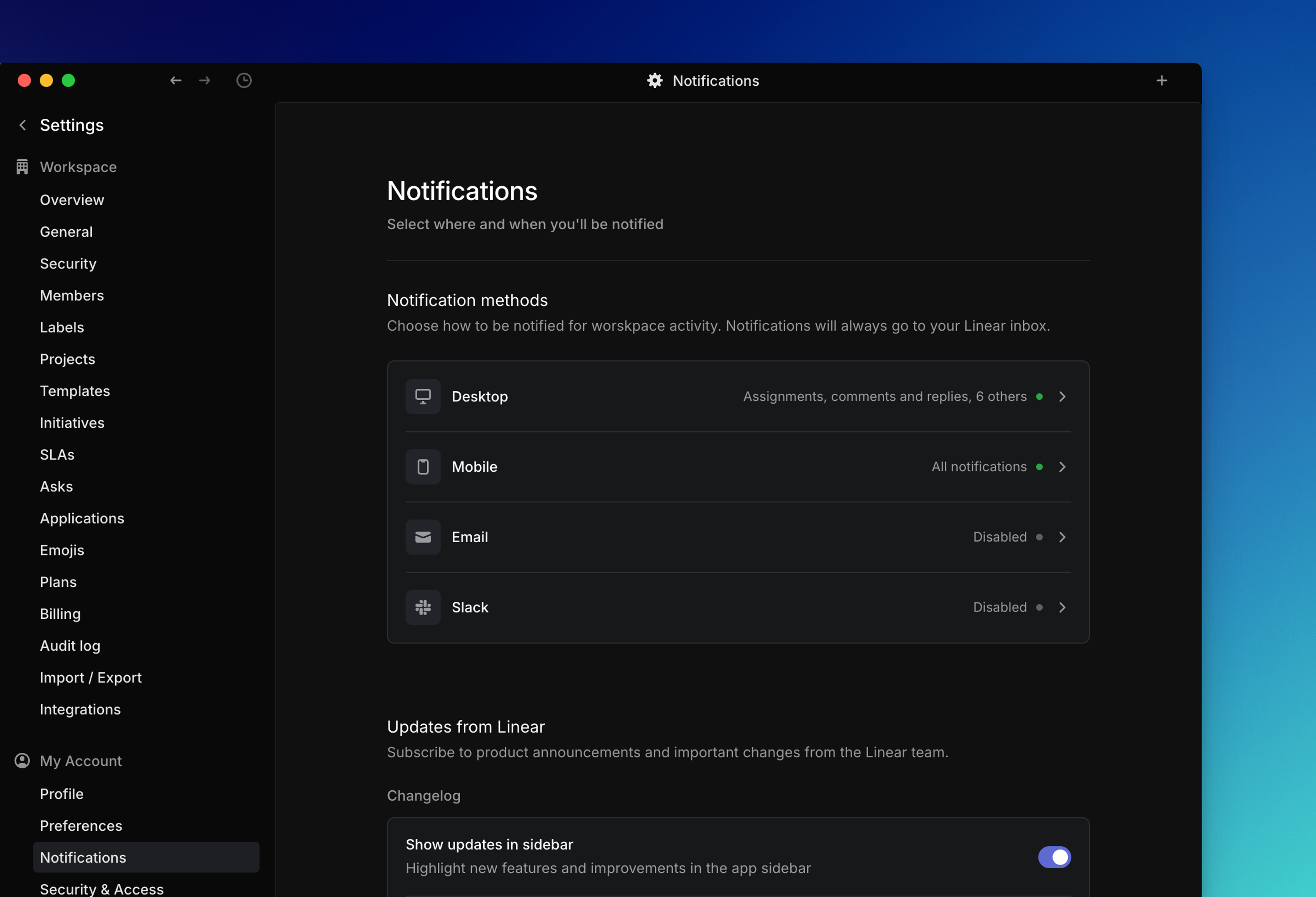
Receive alerts on important updates in the Linear desktop app, mobile app, Slack, or email.
Overview
You’ll always see notifications in your Linear inbox. For real-time alerts, you can use the Linear desktop app, mobile app, Slack, or email digests.
Configure
Go to Settings > Account > Notifications to manage your notifications.
You can customize the types of updates you'd like to receive from Linear, such as changelogs, DPA updates and other communications.
Notifications are categorized by channel: Desktop, Mobile, Email, and Slack. A green dot next to a channel means that notification method is enabled, while a gray dot means it is disabled.
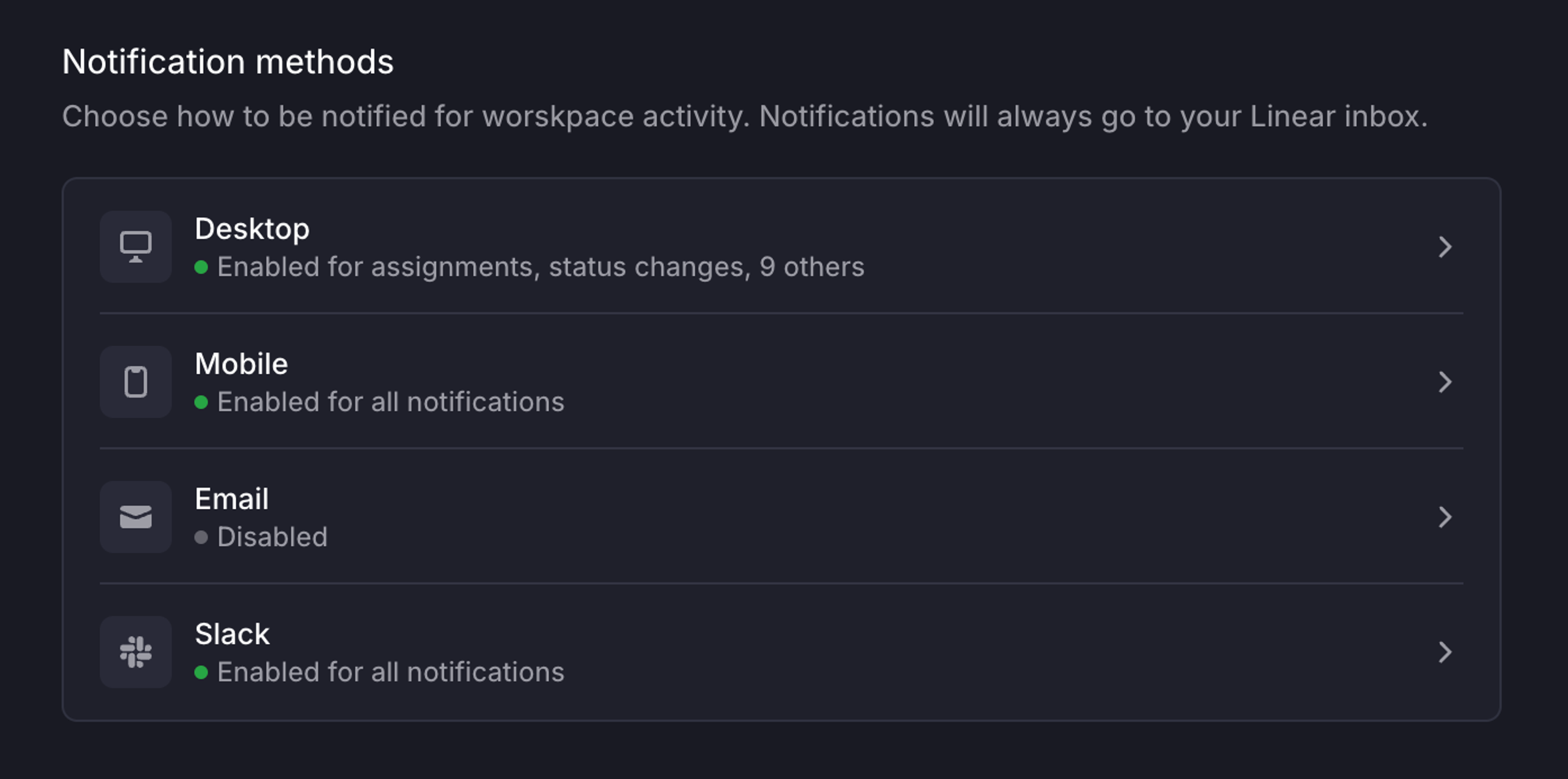
To enable a notification, select the notification method you'd like to configure and click the toggle to turn on the notification. You can then enable or disable each notification type.
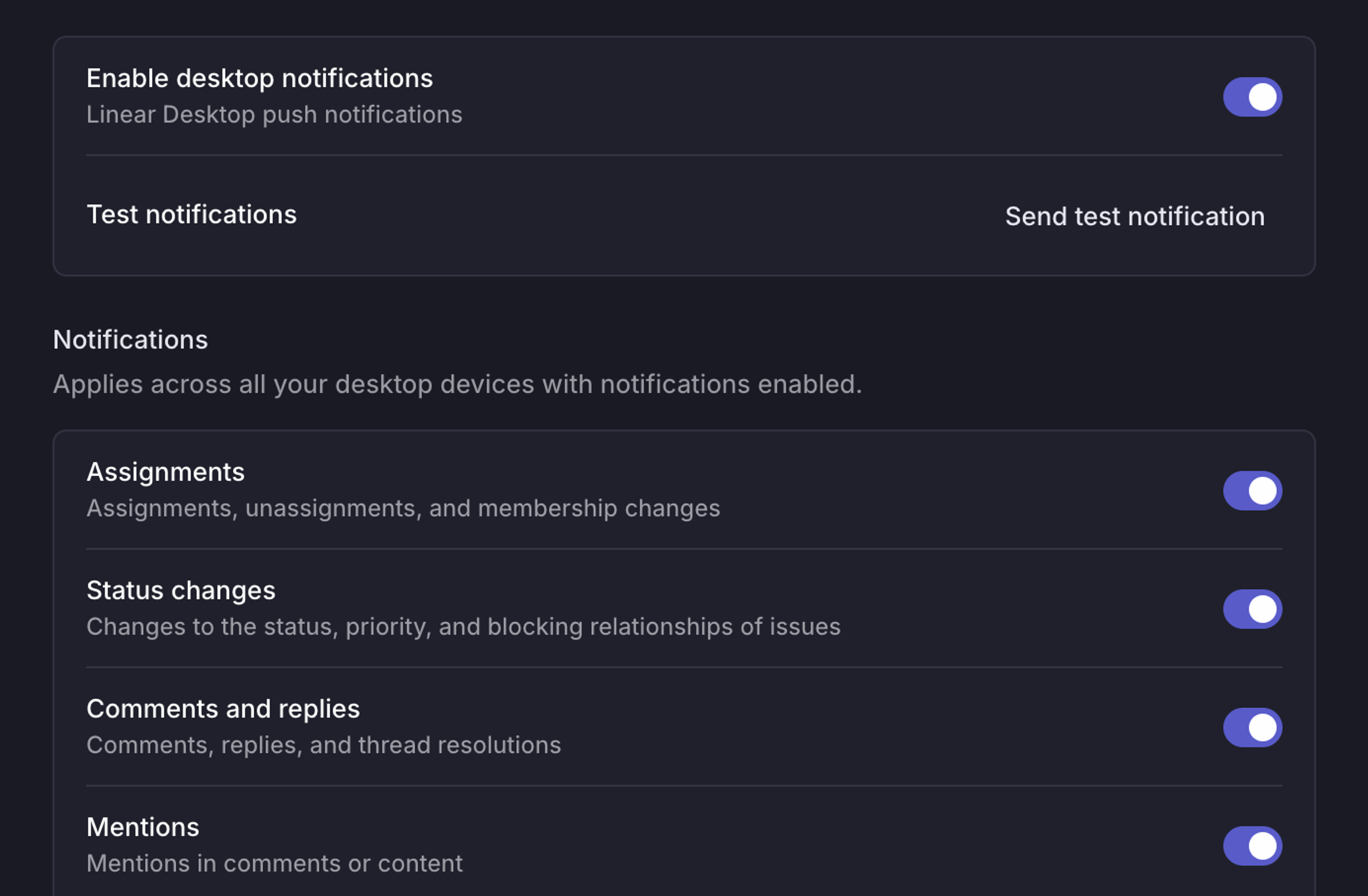
Notifications are grouped. For example, the status-changes category includes issue completions and cancelations, urgent-priority changes, and changes to blocking relationships. You cannot select only status changes.
Notification timing
Desktop, mobile and Slack notifications are sent in real-time. Email digests send with time delays based on urgency, and are only sent if you haven't already read the Linear inbox notification.
Email notifications
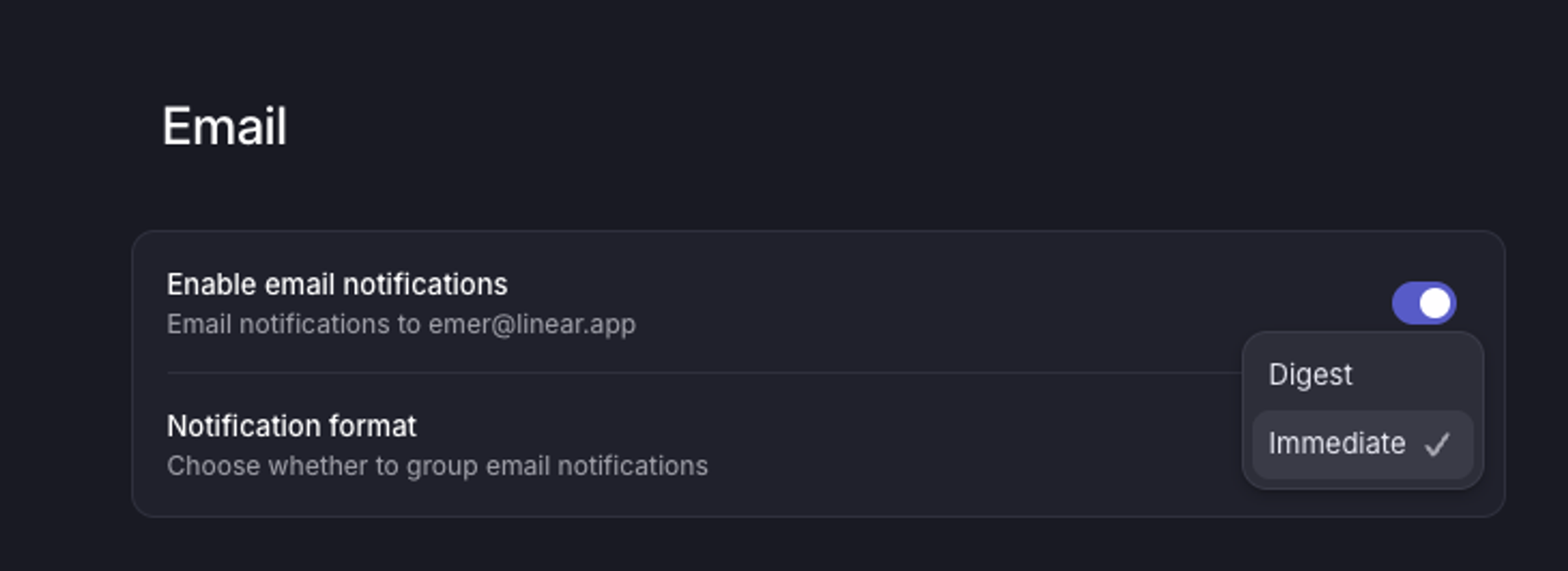
There are two settings you can have for email notifications - email digest or immediate delivery. You can select your preferred frequency by clicking on the dropdown arrow in the Notification format selector.
Email digests provide a summary of unread notifications. They’re configured to send out after a certain amount of time has elapsed depending on properties such as issue status. By default, notifications are grouped into digests and sent based on urgency.
Subscribing to an issue
Subscribing to an issue determines whether notifications are received for that issue, based on notification preferences. You are automatically subscribed to an issue when you create it, are assigned to it, are @mentioned in an issue comment or description, or if you use the menu in the Activity section to subscribe manually. If you are @mentioned in a comment in an issue thread, you will be automatically subscribed to the thread, but not to the overall issue.
To manage subscriptions, open issues individually and then press Shift S to subscribe or Cmd/Ctrl Shift S to unsubscribe. View all subscribed issues under My Issues > Subscribed.