Asks with Email
Email Asks lets teams receive requests by email and turn each incoming email into an ask in Linear.
Overview
Use Email Asks when teams want to:
- Accept requests through a familiar shared inbox or custom email address
- Let requesters create asks without needing Slack or a Linear account
- Keep follow-up conversation synced between email and Linear
- Route incoming requests into a team's Triage queue for review
Each incoming email creates a new issue in Linear using the email subject as the issue title and the message body as the description.
You can also choose to send an automatic confirmation email to the sender, and customize that message.
Requesters can keep the conversation going by replying to email, and teams can respond from the synced thread in Linear.
Configure
Permissions
Admins can add new email, edit, or delete a custom intake email. Members can change settings related to the configured email (team/template/sync-reply/customer requests).
Create an intake email
- Go to Settings → Asks.
- Click the + icon for Add Asks intake email.
- Select the Linear team and, optionally, the issue template that should apply to incoming emails. Please note only Standard templates can be selected, Form templates are not compatible Email Asks.
- Copy the unique forwarding email created by Linear.
- Configure email forwarding so emails sent to your custom email address are forwarded to the unique Linear email address.
- (Optional) If you want your replies to appear from your custom email address, configure outbound forwarding using the provided DNS records
Configure Email Forwarding
Configure your mail provider so that messages sent to your custom address are forwarded to the unique Linear intake email.
For example, you might forward mail from helpdesk@yourcompany.com to the generated Linear intake address.
Configure the reply sender email address
If you want replies to appear from your custom email address instead of the default Linear address (issues@linear.app), add the DNS records provided in Asks settings to your DNS hosting provider.
You can also share those records with your engineering team for implementation.
If you skip this step, or if the custom reply address or domain is not fully verified or supportedreplies will still be delivered, but they will come from issues@linear.app instead of your own domain.
Configure DMARC policy requirements
These requirements matter when configuring replies to come from your own domain.
Linear Asks email integration supports a wide range of DMARC configurations, but domain alignment must be relaxed:
aspf=r(relaxed SPF alignment)adkim=r(relaxed DKIM alignment)
Strict alignment (aspf=s or adkim=s) is not supported and will cause delivery or authentication issues:
Default policy
We recommend starting with a neutral monitoring policy:
v=DMARC1;p=none
This is our default recommendation because it does not interfere with existing email setups and allows domains to collect DMARC reports before enforcing stricter rules.
Enforced policies
More restrictive policies are also supported as long as relaxed alignment is maintained, including:
p=quarantinep=reject
Synced email thread behavior
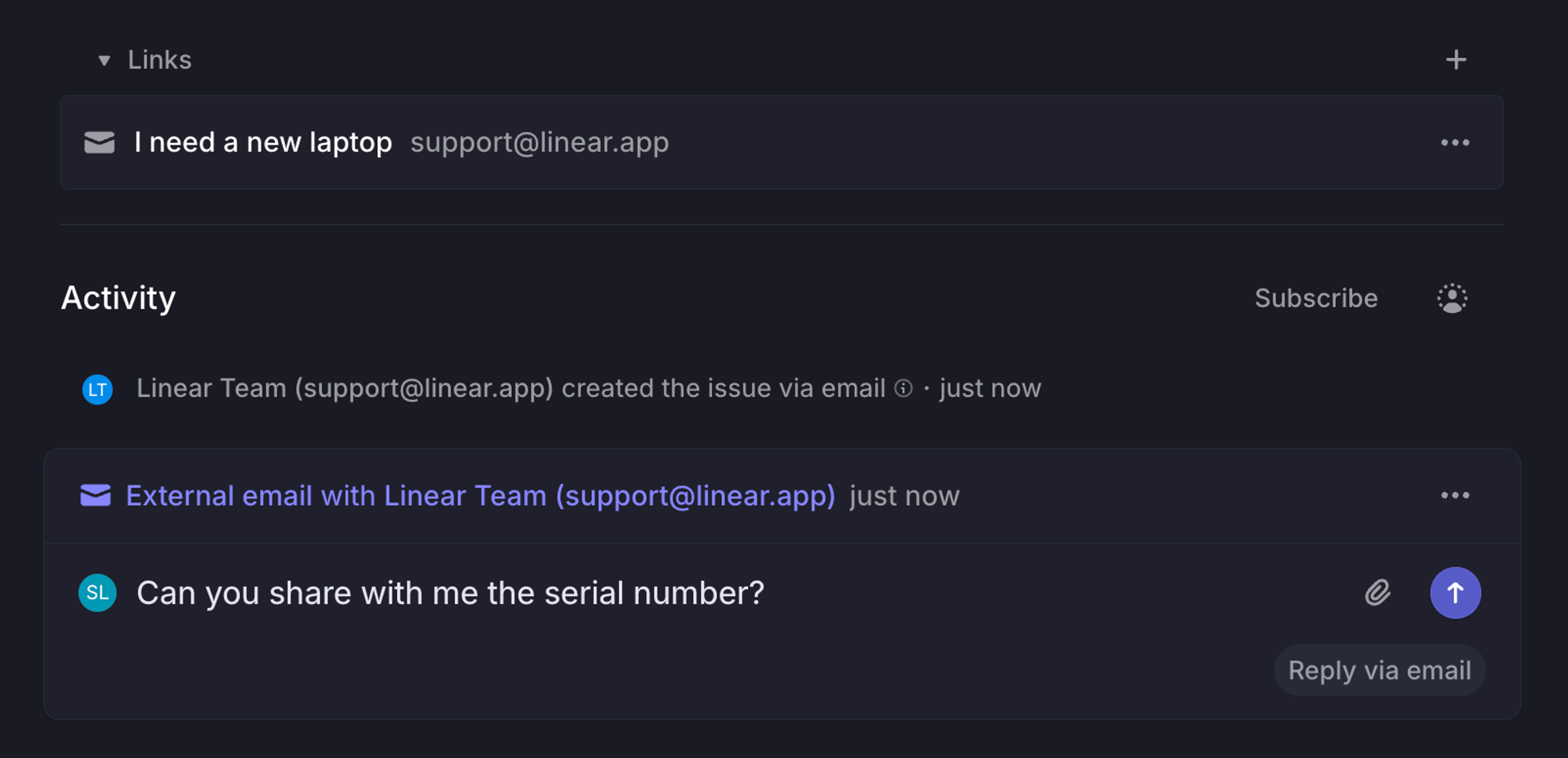
When an issue is created from an email, a synced thread appears on the issue in Linear.
That means:
- Any new email reply to the original email thread appears in the synced thread on the issue in Linear
- Any new comment in the synced Linear thread is sent as a new email to the email thread
This keeps all context centralized in Linear while allowing seamless communication with people who are not using Linear directly.
Replies to the email thread are added to the issue as comments, and quoted reply history is removed to keep the thread readable.
Customize auto-replies
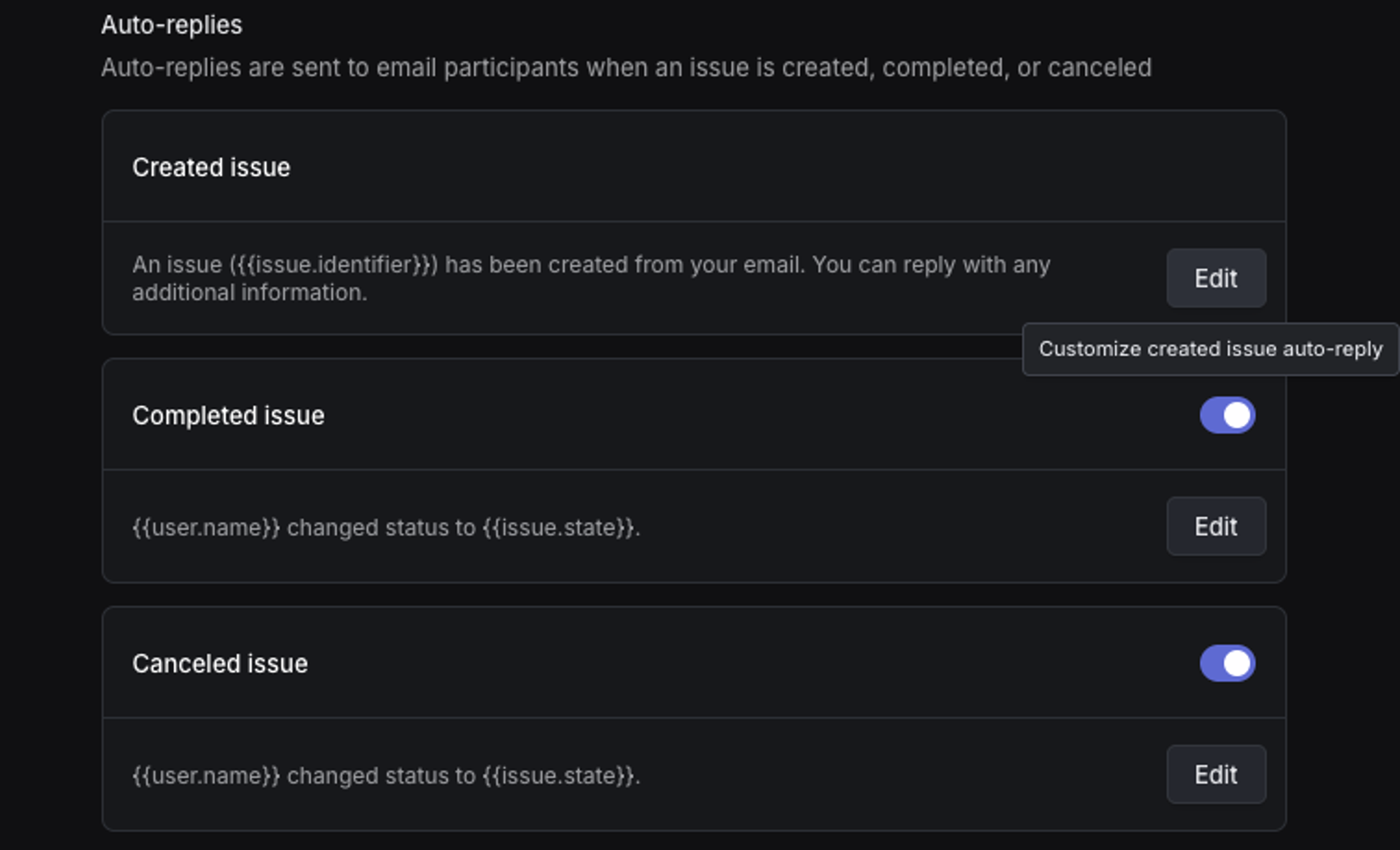
By default, Email Asks can send messages when an issue is created, completed, or canceled.
You can customize which of these messages are sent, along with their copy, in Settings → Asks → Email Intake → the relevant email address.
Enable Customer Requests
Enable customer requests to automatically link inbound emails to customers based on the sender's email domain. This is useful when you want email asks to connect directly to customer context in Linear.