Asks with Slack
Linear Asks with Slack lets teams turn Slack conversations into issues in Linear without leaving the thread where the request started.

Overview
Linear Asks gives organizations a powerful tool to manage common workplace requests. Once enabled, anyone can create an Ask to send their request to the relevant Linear team via Slack, even if they don’t have a Linear account.
Use Slack Asks when teams want to:
- Capture requests directly from Slack conversations
- Keep discussion connected to the original Slack thread
- Let people submit requests without needing a Linear account
- Intake bug reports, internal requests, questions, and operational needs from the conversation channels where they already happen
When an Ask is submitted to a Linear team, it lands in that team’s Triage for review, prioritization, and assignment.
Purpose and use cases
@Linear Asks is ideal for Slack request intake from people who do not have Linear accounts. It uses channel-specific configuration and templates to turn those messages into structured requests in Linear.
Use it when you want requests from Slack to follow a more consistent intake flow, with the destination and available templates controlled by the channel’s setup.
@Linear are often a better fit.Linear Asks vs Advanced Linear Asks
Slack Asks is available on both Business and Enterprise plans, with additional Slack-specific functionality available through Advanced Linear Asks on Enterprise.
Configure Slack Asks
Install Asks
- Go to Settings → Features → Asks.
- Click the + icon under Slack intake to connect the Asks integration.
- Authenticate into a Slack workspace.
Permissions and visibility
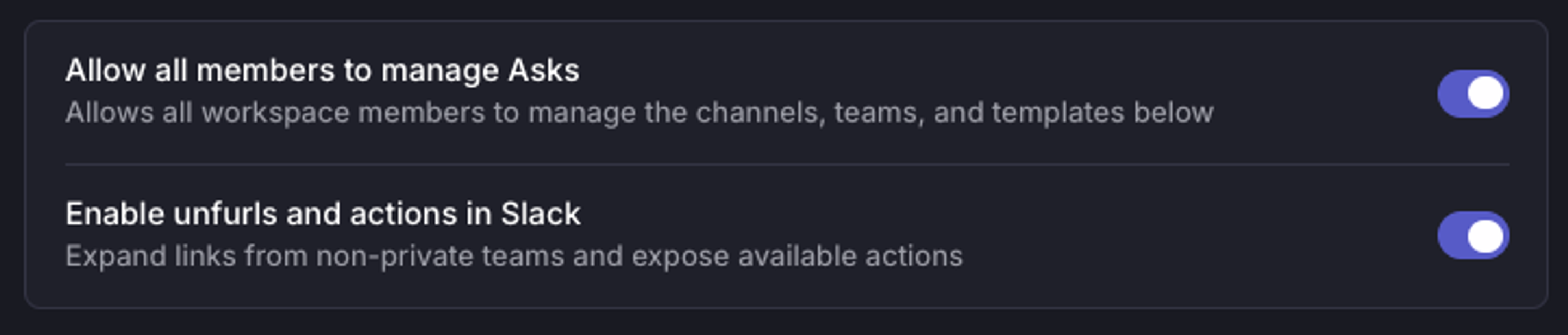
Managing Asks configuration
Workspace Admins or Owners can choose whether Asks channels, teams, and templates are managed by:
- Admins only (or Owners & Admins on Enterprise workspaces)
- All users
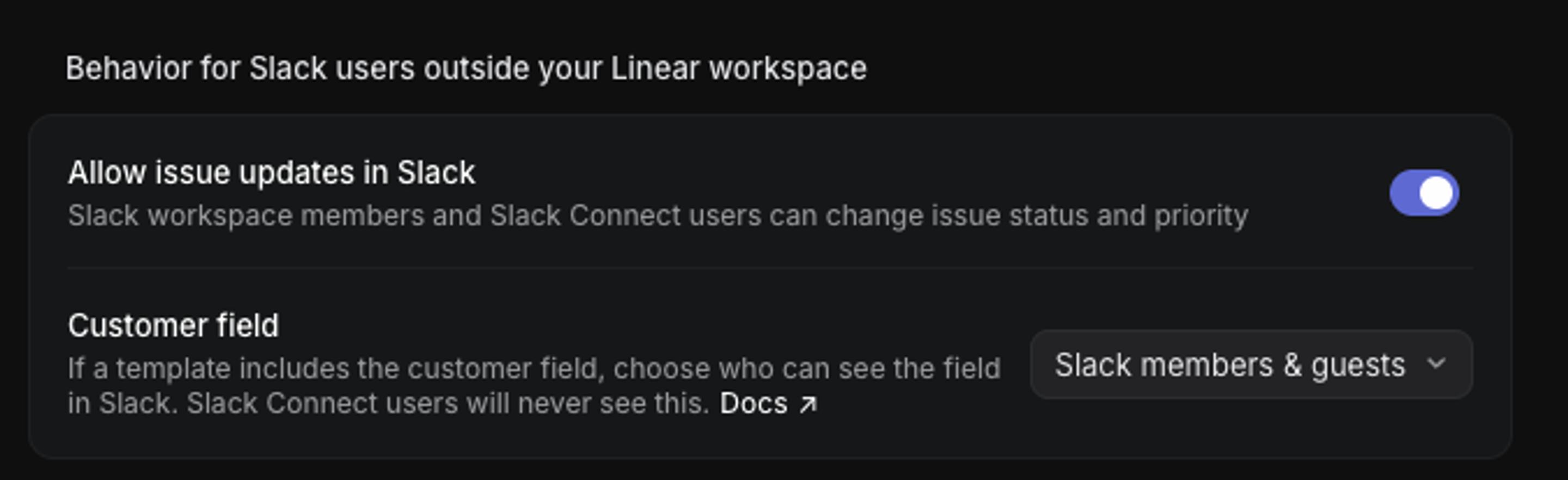
Behavior for Slack users outside your Linear workspace
You can control if Slack users outside your Linear workspace can update the issue status and priority in Slack. Also, if Customer Requests are enabled, Slack Asks can surface a customer field. This is useful when someone in Slack wants to associate a message with a specific customer. With customer requests enabled, this can happen automatically when the Slack message came from the actual customer, but not when the request is being raised internally.
Because this field exposes customer data, admins can restrict visibility to:
- Linear users only in Slack
- All members of the Slack workspace
- Slack members and guests if it is in a template (Slack Connect users outside your Slack workspace will never see this field).
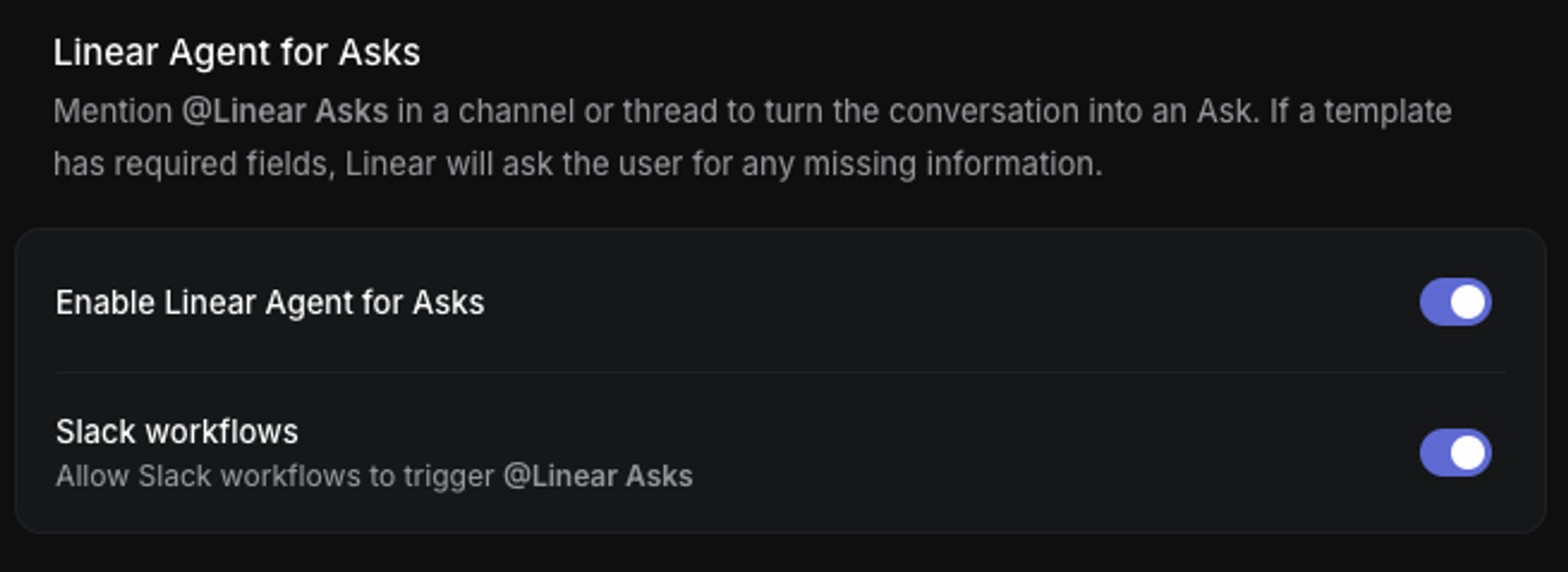
Linear Asks Agent
There is the option to enable Linear Asks Agent. This gives you the ability to create an Ask by mentioning @Linear Asks in a Slack channel or thread. If the channel is configured with templates that have required fields, Linear will prompt the requestor to reply with all required information before creating the Ask.
Connect teams and invite the app
After connecting Slack, connect Linear teams to Private Asks or to specific public channels.
- Click the three dots next to Private Asks or All public Slack channels.
- Hover over Add teams to channel.
- Select the team to add to a private Ask or public Slack channel.
- Repeat this for each channel that should support Asks.
- Then, in Slack, invite the app to each channel with
/invite @Linear Asks.
Use Private Asks for requests that should stay private between the requester and the team managing the issue.
Private Asks includes Asks created in DMs or in the Asks app home in Slack. Templates added to Private Asks are also available when creating Asks in DMs.
DMs do not need to be added as channels. Private Asks configuration covers Asks created in DMs and from the Asks app home in Slack.
Per-channel configuration (Enterprise)
Use per-channel configuration when you need different behavior for a specific channel, including support for private channels. You can add Linear Asks to a private channel and create Asks manually, but auto-creating an Ask for every new message is only supported in public channels.
- Click Add channel.
- Select the correct Slack workspace.
- Select the specific channel.
- Click Allow.
- In Slack, invite the app to each configured channel with
/invite @Linear Asks.
Add templates to channels
- In Linear, go to Settings → Features → Asks.
- Under the relevant channel or Private Asks, click the three dots next to the team.
- Select the templates you want to make available for that channel.
- Select available templates under each team in your Asks settings.
- Workspace-level templates are not available for use with Asks.
- Templates added to Private Asks are available when creating Asks in DMs.
Supported fields include Text, Long text, Dropdown, Checkboxes, Date, File upload, and Instructions. You can also include customer, label group, priority, title, and due date fields.
If multiple Ask templates are available in a Slack channel, Linear chooses the best match based on the message context and the templates configured for that channel. In most cases, people do not need to name or invoke a specific template manually.
Enable auto-creation
You can configure Slack Asks to create Asks automatically in public channels. Auto-creating an Ask for every new message is not available in private channels, even on Enterprise plans.
- To set a default template, hover over the template you want to use and click Set as default.
- The default template applies to auto-created Asks in that channel type or specific channel.
- For auto-created Asks, the template description is replaced by the user’s message.
- If you only want to set a default team, consider using Create Asks without a template.
- If the default template has required form fields, auto-creation options won’t be available for that channel.
Submitting Asks from Slack
People can create Asks from connected Slack channels in several ways:
- From the overflow menu on an existing Slack message
- With the
/asksslash command - In a DM with Linear Asks by creating a Private Ask
- By applying the 🎫 emoji to a message
- By mentioning
@Linear Asksin a message, if enabled - Automatically on every new message in configured public channels
Once created, Linear Asks posts a threaded reply with a link to the connected issue.
Synced thread behavior
Slack Asks creates a synced comment thread between Slack and the Linear issue.
That means:
- Replies in the Slack thread are posted to the issue’s synced thread in Linear
- Replies in the synced Linear thread are posted back to the Slack thread
- Comments and files can be shared across both applications
This keeps the requester and the team working from the same conversation without moving the discussion elsewhere.
People who submit Asks can:
- See the issue status and assignee from Slack
- Reply in the synced thread
- Receive thread updates for key Ask status changes, such as when an Ask leaves Triage or reaches a terminal status, depending on the channel's Asks notification settings
Users with a Linear account can also use Slack quick actions to update the Ask, including changing its status or assigning it to themselves.
Managing Asks from Slack
In the Linear Asks app home in Slack, requesters can:
- View active and closed Asks
- Open the original thread for an Ask
- See the real-time status and assignee
- Mark an Ask as urgent
- Close their own Ask by changing its status
Marking an Ask as urgent also adds a 🚨 reaction for visibility in Slack.
They can also use the Messages tab to view Asks and their threads, including private Asks.
Requesters are notified in the original thread when comments are posted and for key status changes configured for that Asks channel.
People in shared Slack channels can create Asks from Slack, including with @Linear Asks. The exact experience can vary depending on your workspace setup, channel configuration, and whether the person is an internal or external participant.