Slack
Combine Linear with Slack to keep everyone in sync.

Overview
Create Linear issues from Slack messages, sync threads between Slack and Linear, set up personal and channel-specific notifications, display rich unfurls in Slack and more.
Configure
Integration setup
Connect your Slack workspace to Linear in integration settings. You must be a Linear admin to complete this step (or owner, on Enterprise.)
Once completed, others in your Linear workspace can:
- Mention @Linear in Slack to take actions like creating issues, or asking questions about data in your workspace
- View and take actions from rich unfurls in Slack that show key issue, comment, document, initiative or project details
- Enable personal Slack notifications
- Send team and project updates to dedicated Slack channels
Connect multiple Slack workspaces
Linear's Enterprise plan supports connecting multiple Slack workspaces to Linear to use the Slack integration. If you're using Slack's Enterprise Grid plan for example, this allows you to use the Slack integration across your workspaces. To add a new workspace, go to Linear's Slack integration settings and click the button under connected workspaces. This action requires admin permissions (or owner, on Enterprise.)
Linear Agent for Slack
Mention @Linear in discussions on Slack to take actions in Linear based on your conversation’s context. Use natural language to specify the details or simply let the agent infer what's needed.
For example, try sending:
- @Linear file a bug, assign me
- @Linear make feature requests from this thread
- @Linear who usually works on notifications?
To use @Linear in Slack, setup depends on the type of conversation:
- Public channels: You can mention
@Lineardirectly. In some workspaces, Linear can join the channel automatically when needed. - Private channels: Add Linear to the channel first with
/invite @Linear. - Group DMs: You have to invite the Linear Agent at the creation of the group DM, and Linear Agent cannot be added to existing DMs.
In settings, you can choose to allow Slack’s workflow builder to mention @Linear to support automating actions.
Set Linear Agent guidance
Linear Agent considers instructions you write in Slack integration settings on how to create issues. Use this field to refine the agent's behavior and give it more context about how you use Slack.
You might give it context about your channel naming structure and how it relates to your Linear projects, what statuses you prefer it create in, the team it should use when unsure, and more.
Outside of this field, the agent also uses contextual clues to help infer where to create issues (for example, if you're sending project updates from a project to a channel that sounds related, issues created in that channel will favor creation in that project.)
Use Slack with Loops
Loops can connect to your workspace’s Slack integration to work in public Slack channels: read message history from Slack links, post messages, send direct messages to full Slack members, and add or remove emoji reactions. They can also continue conversations in public-channel threads started by a Loop.
To connect with a loop, an admin must enable Linear Agent and allow Loops access in Settings → Integrations → Slack → Workspace. Then, in the Loop draft, select Slack from the connector menu and choose a connected Slack workspace.
Learn more about using Slack with Loops →
Linear with Slackbot
Connect Linear's MCP server to Slackbot to bring Linear context into your Slackbot conversations.
Find more information here.
If you're looking to create issues and take actions by mentioning @Linear in Slack, see the section above.
Create issues with message actions
You can also create issues using More actions → Connect to apps → Create new issue… on a Slack message if you prefer to specify all the details of your created issue.
If you select a team in the resulting window that uses default templates, that template's text will appear in the description field.
Use templates
Your issue templates in Linear can also be used in Slack. Add templates to your Slack integration from workspace template settings or the Slack settings page. Admins can make up to 10 issue templates available in your Slack integration, which any Linear members in your Slack workspace can view and apply during issue creation. If you have a default template set for your team, it’ll show up as an additional template option after the team has been selected.
Templates in private teams are not available to the Slack integration (nor in other integrations that support templates like Intercom and Zendesk.) If you need to allow users to create issues using templates in private teams, consider using Asks where this use-case is supported.
Sync threads
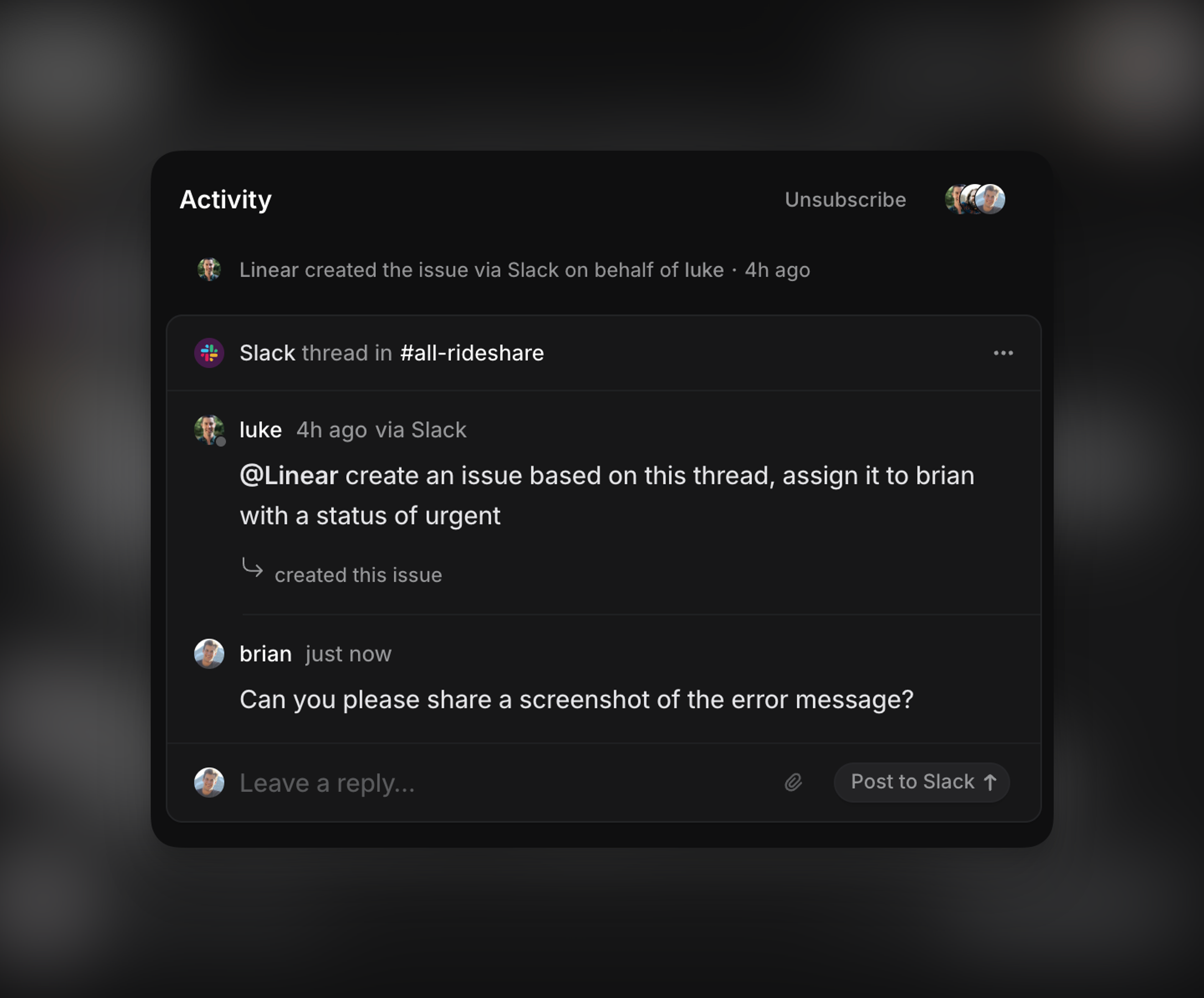
/invite @Linear. Synced threads are not available in DMs. Files from direct messages can't be attached to issues.To create a synced thread, create an issue from Slack through More actions → Connect to apps → Create new issue… on a Slack message.
When you create an issue from Slack, you can also create a synced comment thread. If Linear is available in the channel, comments will stay in sync between Linear and Slack. Otherwise, the issue is created without thread sync.
When people in your company report issues in Slack, syncing threads is a great way to keep them in the loop regardless of whether they're in your Linear workspace. Comments made in the synced Linear thread will also appear in Slack, and the Slack thread will be updated when the issue is completed, canceled, or marked as a duplicate.
If an issue synced to a Slack thread is marked as a duplicate of another issue, we'll also update the Slack thread where the duplicate was created once the original issue is resolved.
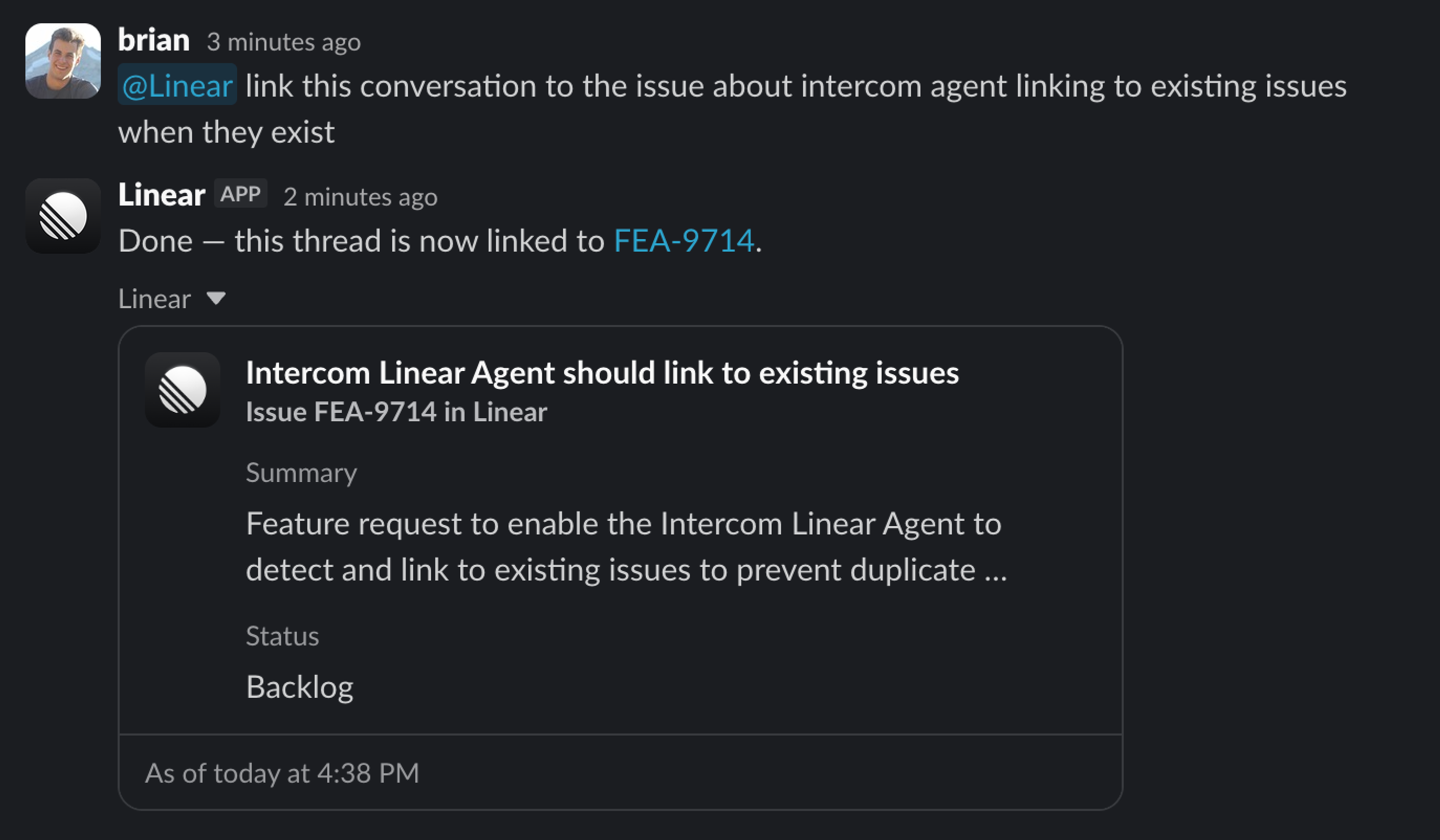
Add Slack messages to existing issues
There are a few options to link Slack messages to existing Linear issues.
Notifications
Slack notifications are available for teams, projects, initiatives, individuals, and views. Once the Slack integration has been configured for your workspace, any user can set up the notification types available to them.
Team notifications
Set up team notifications from the team’s Slack notifications settings menu Authenticate to Slack and then choose a channel for the notifications to post to.
Team notifications post updates to a specific Slack channel for issue activity, including issue creation, comments, status changes, and project updates.
Project & initiative notifications
Set up project and initiative notifications from the individual project or initiative page. Click the bell icon in the top right, authenticate to Slack, and choose a channel for the notifications to post to.
Project and initiative Slack channel notifications post updates to a specific Slack channel for selected activity related to that project or initiative.
Personal notifications
Set up personal Slack notifications from Settings > Personal > Notifications. Authenticate to Slack and then choose which notifications to receive.
Personal Slack notifications can send the same updates you normally receive in Inbox, email, or desktop push notifications. These notifications are sent in a direct message from the Linear app in Slack.
View subscriptions
Open the view’s … menu and select Configure custom view Slack notifications. Turn on the toggle and authorize Linear to post to a particular channel.
Choose whether to be notified when an issue is added to the view, completed or canceled, or both. Moving forward, notifications for those selected changes will be sent as messages to the chosen Slack channel.
Project Slack channels
If you create a Slack channel to discuss each project you work on, you can automate project channel creation with this integration. When enabled, a new connected channel is created in Slack each time a new project is created in Linear. Project updates post to that channel, and every project member is added to the channel by default.
Enabling auto-creation
Admins can turn this on in Slack settings under the Create channel for new projects sub-section of Project channels.
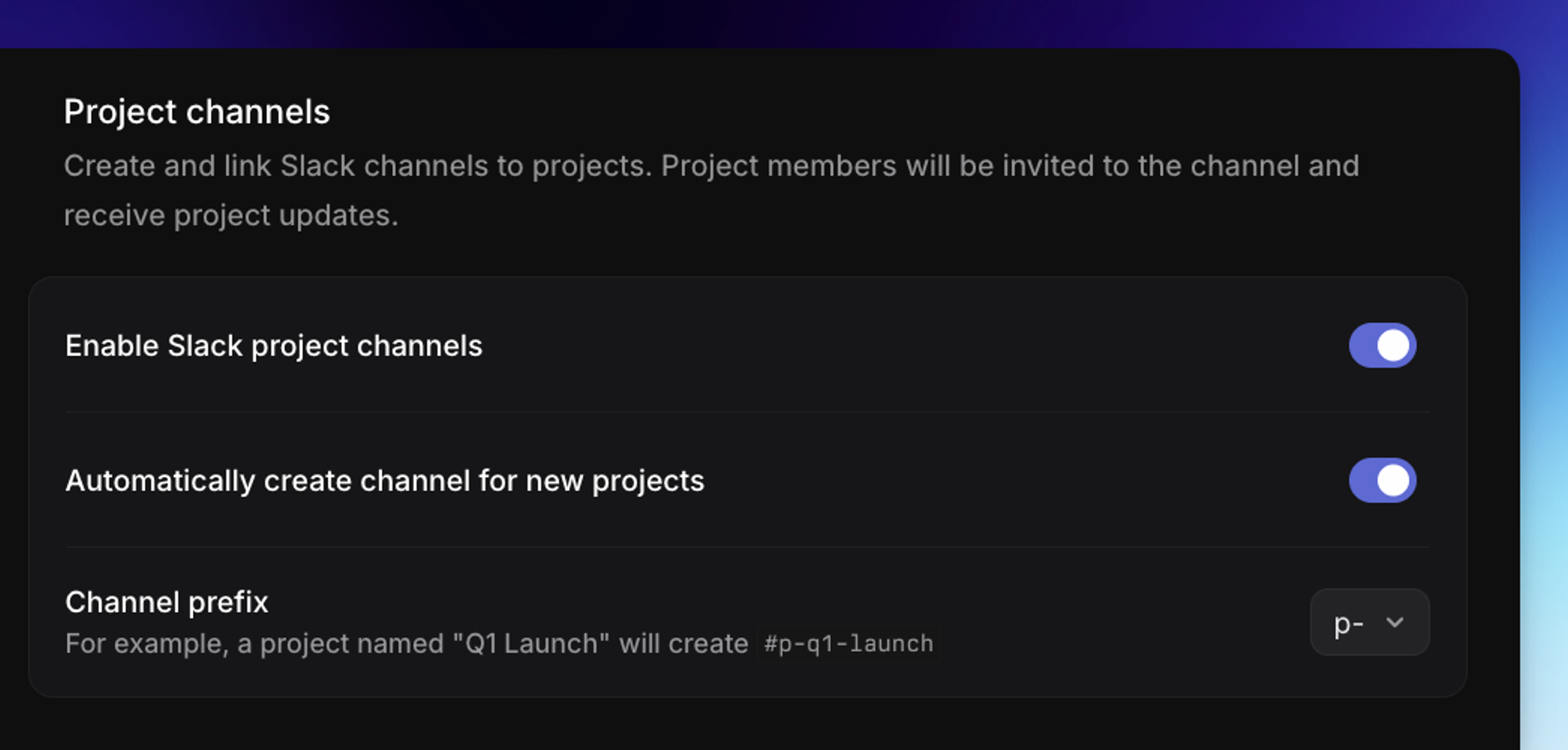
Once enabled, Linear will automatically:
- Create a public Slack channel for each new project
- Invite all project members to that channel
- Add a bookmark in the channel linking back to the Linear project
If your workspace connected to Slack before these permissions were added, you'll be prompted to reauthorize the integration. A workspace owner or admin must complete the reauthorization before auto-creation will work.
Note: Changing the name of the project automatically changes the name of the Slack channel.
Rich unfurls and issue actions
Once you've connected the integration for Slack, we'll show expanded links anytime you post issue, project, document, or initiative links from public teams in Slack.
URLs associated with private Linear teams never unfurl. Unfurling can be disabled in Settings > Integrations > Slack if desired.
Issue links show the issue title, description, status, assignee, and creation date.
They also give other Linear users in Slack the option to update the assignee, comment on the issue, and subscribe or unsubscribe to the issue directly from Slack. You can also engage Slack sync in an existing thread from this menu.