MCP server
The Model Context Protocol (MCP) server provides a standardized interface that allows any compatible AI model or agent to access your Linear data in a simple and secure way.
Connect to our MCP server natively in Claude, Cursor, and other clients or use the mcp-remote module for backwards compatibility with clients that do not support remote MCP.
Linear's MCP server follows the authenticated remote MCP spec, so the server is centrally hosted and managed. The Linear MCP server has tools available for finding, creating, and updating objects in Linear like issues, projects, and comments — with more functionality on the way, and feedback on its functionality is welcomed.
For help getting started after setup, see some of our example prompts.
Setup
General
Our MCP server uses Streamable HTTP as the primary transport, accessible at the following address. The interactive setup flow uses OAuth 2.1 with dynamic client registration. You can also authenticate directly with a bearer token or Linear API key — see the FAQ for details.
Read-write access is provided through https://mcp.linear.app/mcp by default.
For read-only access, you have two options:
- Connect to
https://mcp.linear.app/mcp/readonly, which only ever exposes read tools. - Use the standard
/mcpendpoint, but only request thereadOAuth scope. Clients that requestreadare granted read-only access, and the underlying token can't reach write APIs.
For instructions for specific clients, read on. Dedicated setup pages are also available for Claude, Cursor, VS Code, Windsurf, and Zed.
Claude
Team, Enterprise (Claude.ai)
Navigate to the connectors page and connect Linear.
Free, Pro (Claude desktop)
From Claude settings > Connectors you can add the Linear connector.
Enterprise-managed authorization
If you use Okta, first configure SAML for Linear using Okta’s OIN. Then enable MCP enterprise managed authentication from the bottom of your Okta identity provider settings in Linear.
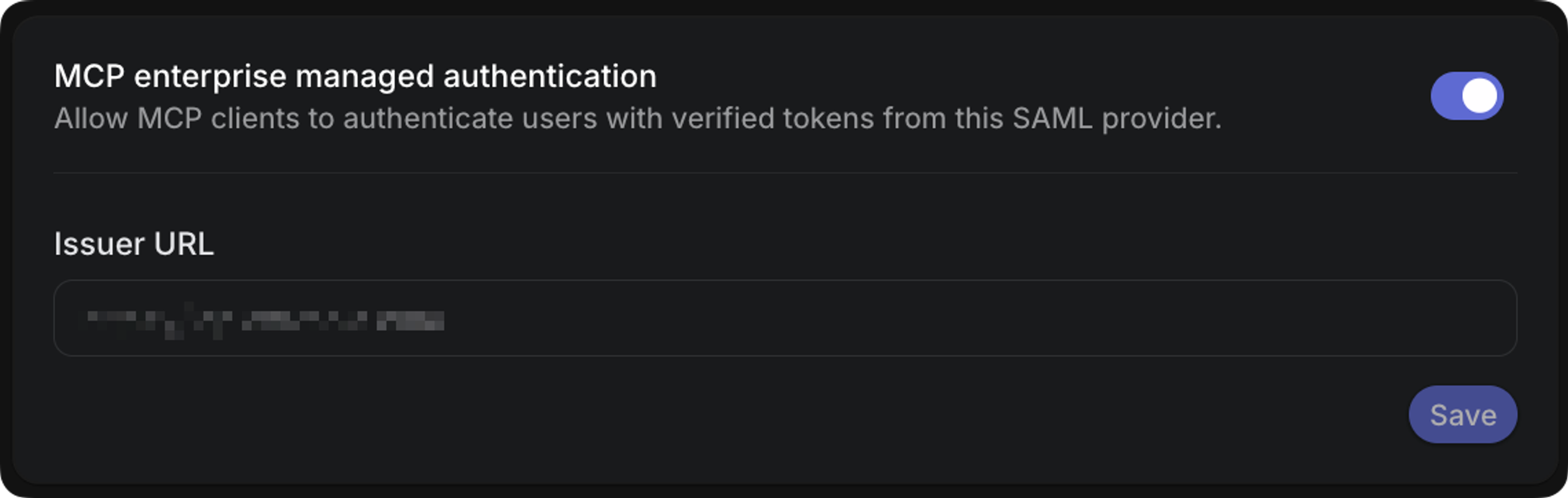
Once this is toggled on, copy the Issuer URI for the authorization server from Okta’s side and paste this into your Linear settings:
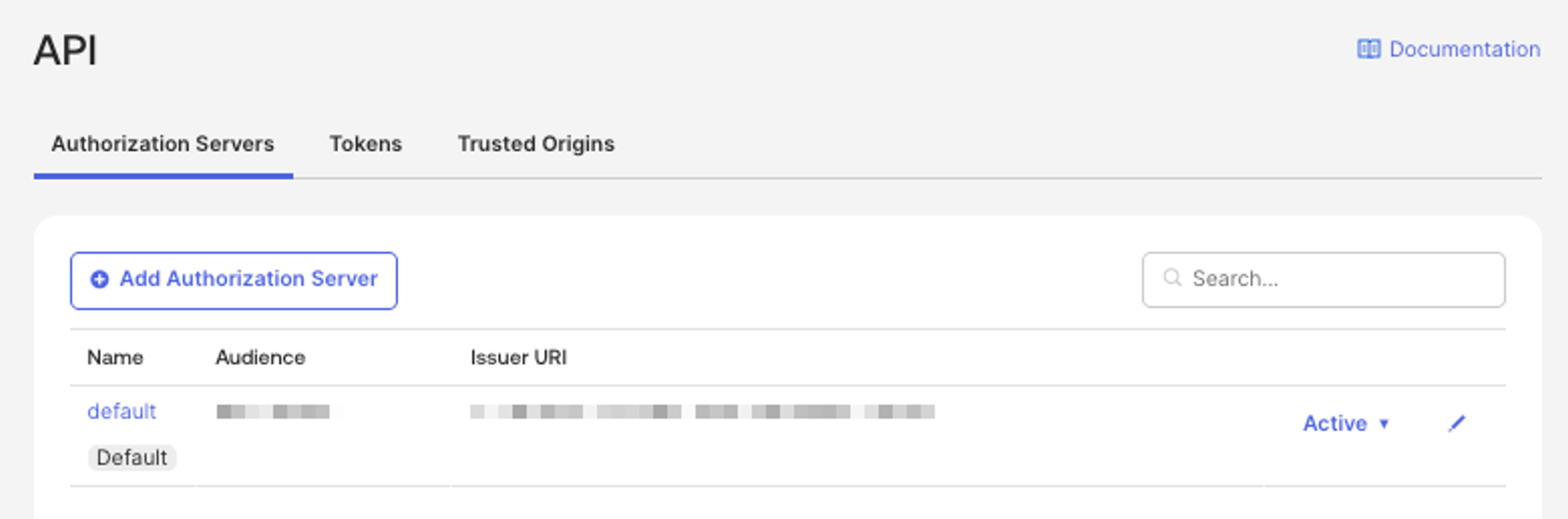
This allows supported external MCP clients such as Claude to authenticate users automatically using your Okta-managed access policies.
Claude Code
Then run /mcp once you've opened a Claude Code session to go through the authentication flow.
Codex
The setup steps for the MCP server are the same regardless of whether you use the IDE Extension or the CLI since the configuration is shared.
Configuration via CLI:
Run the following command in Terminal:
This will automatically prompt you to log in with your Linear account and connect it to your Codex.
Note: If this is the first time you are using an MCP in Codex you will need to enable the rmcp feature for this to work. Add the following into your ~/.codex/config.toml:
Configuration through environment variables:
- Open the
~/.codex/config.tomlfile in your preferred editor - Add the following:
Run codex mcp login linear to move through the authentication flow.
Cursor
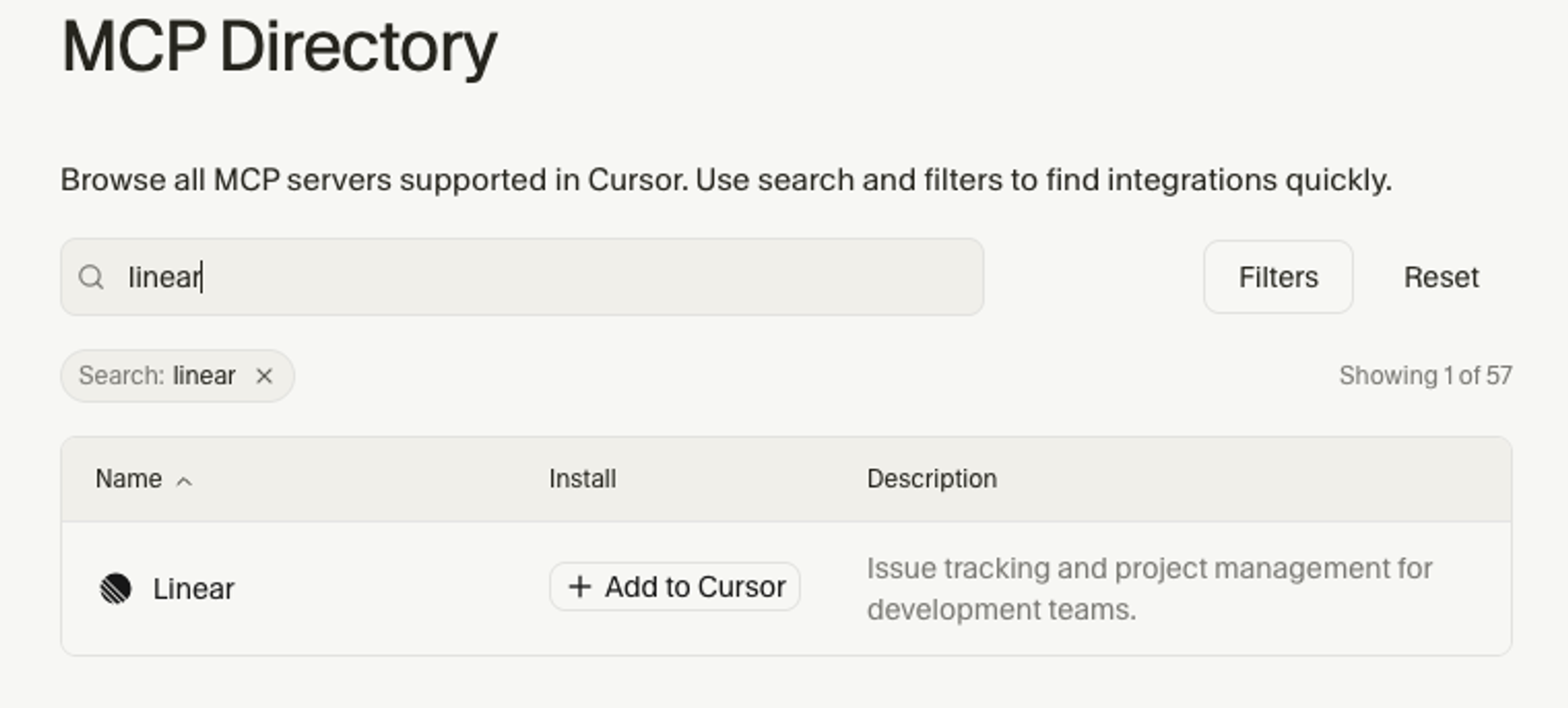
To add the MCP to Cursor, you can install by clicking here, or searching for Linear from Cursor's MCP tools page.
Jules
- In Linear, go to Settings > Account > Security & Access
- Generate a new API key and copy it somewhere secure
- Now in Jules, go to MCP Settings
- Select Connect on the Linear server and paste your API key
Visual Studio Code
- CTRL/CMD P and search for MCP: Add Server.
- Select Command (stdio)
- Enter the following configuration, and hit enter.
npx mcp-remote https://mcp.linear.app/mcp
- Enter the name Linear and hit enter.
- Activate the server using MCP: List Servers and selecting Linear, and selecting Start Server.
v0 by Vercel
To add the MCP to v0, you can install from the connections page.
Windsurf
- CTRL/CMD , to open Windsurf settings.
- Under Scroll to Cascade -> MCP servers
- Select Add Server -> Add custom server
- Add the following:
Zed
- CMD , to open Zed settings.
- Add the following:
Others
Hundreds of other tools now support MCP servers, you can configure them to use Linear's MCP server with the following settings:
- Command:
npx - Arguments:
-y mcp-remote https://mcp.linear.app/mcp - Environment: None
Common use cases
The MCP server lets you work with your Linear data from any compatible AI client. To help get started with the Linear MCP tooling, feel free to copy some example prompts into your own client to explore what’s possible.