Inbox
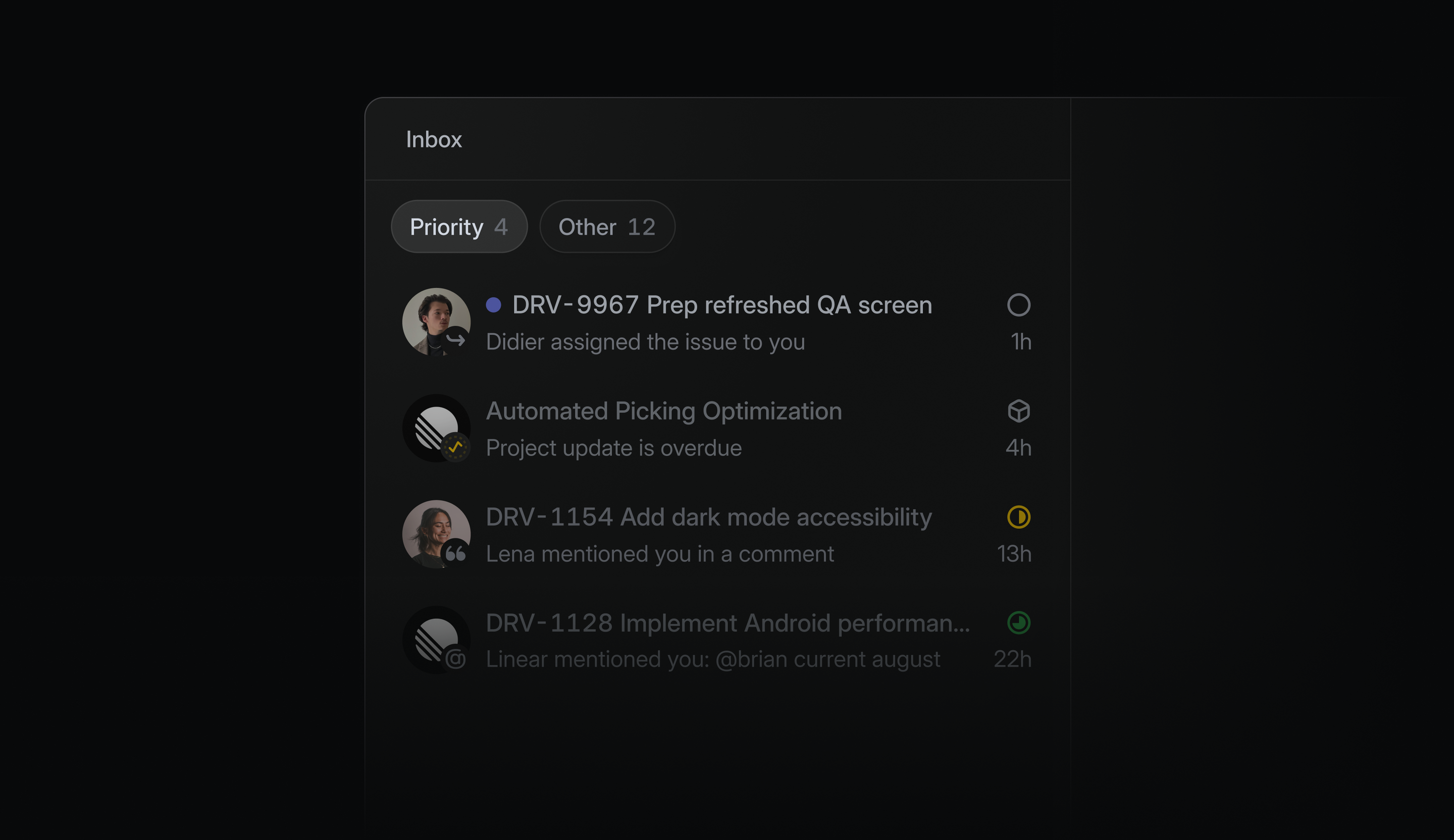
The Inbox is your notification center in Linear and where you’ll find important updates on issues in your workspace.
Overview
You'll receive an Inbox notification for key events on your subscribed issues. You are automatically subscribed to issues when you create them, are assigned them, or are mentioned in an issue description or comment.
Inbox shows in-app notifications for work that needs attention. Other notification channels can be managed in notification settings.
The Priority tab separates notifications that need your attention from other updates. Linear selects Priority notifications by default. To customize what appears there, right-click on Priority, click the display options menu or open Inbox settings > Priority filter.
View notifications
Find your Inbox in the sidebar. The fastest way to get there is with the keyboard shortcut G then I, which takes you to the Inbox from any page.
Scroll through the notifications in your Inbox using J / K or ↑ / ↓ while on the list or individual notification view.
Click into the notification to view the individual issue in a special Inbox view, from which you can take Inbox actions as well as make changes to the issue.
Inbox actions
From the list view you can take Inbox-related actions such as deleting or snoozing notifications as well as actions to update the issue properties.
Right-click over an issue to bring the contextual menu with available actions.
You can delete the selected notification with Backspace or delete all read notifications with Shift Backspace.
Select a notification and then use U to mark as read or unread, Option/Alt U to mark all notifications as read, and H to snooze the selected notification (more below).
To unsubscribe from an issue via the Inbox view, you must click into it first and then unsubscribe use Shift S, the button in the top menu bar, or the unsubscribe option in the Activity feed.
Quick search
Press Cmd/Ctrl F to bring up the quick search bar. Use quick search to narrow notifications by fields such as issue title, issue ID, notification type, assignee, team, project, and priority. Esc will clear the search.
Display options
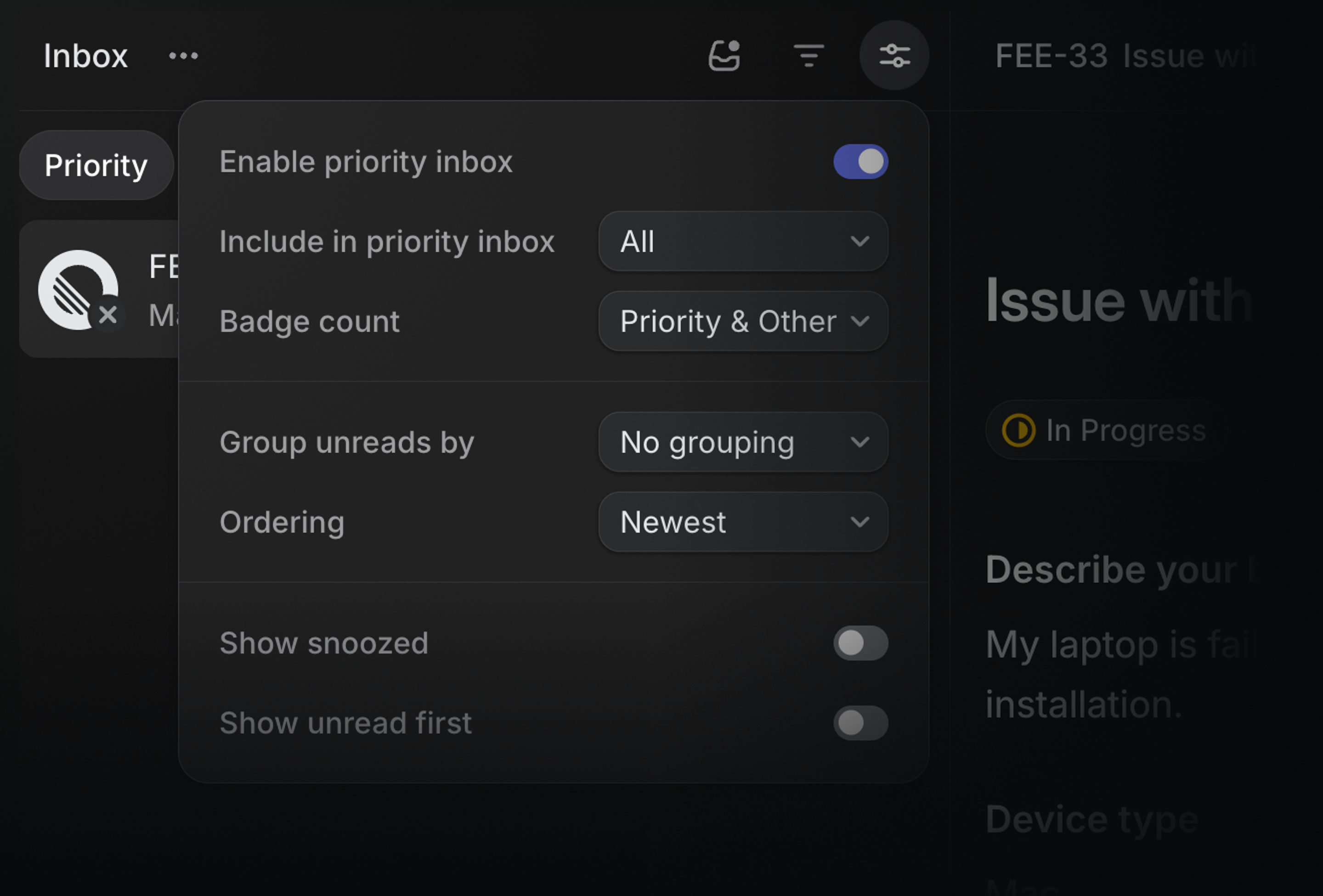
Open display options to update what properties are displayed on your notifications or to enable/disable priority inbox. You can toggle Show snoozed or Show unread first.
Because reminders do not hide an issue, there is no toggle in Display options regarding reminders.
Configure options you want to include in your priority inbox, the badge count or a preferred grouping.
Snooze
Snoozing hides a notification from your Inbox until the selected time. When that time arrives, the notification reappears in Inbox.
You can choose to show or hide snoozed notifications in your inbox display settings.
Issue Reminders
You can also set issue reminders for an issue, document, project or initiative and receive a notification to your Inbox at the selected time.
Your scheduled reminder will show at the top of the issue and can be rescheduled or canceled as needed.
Setting Snooze or Reminders
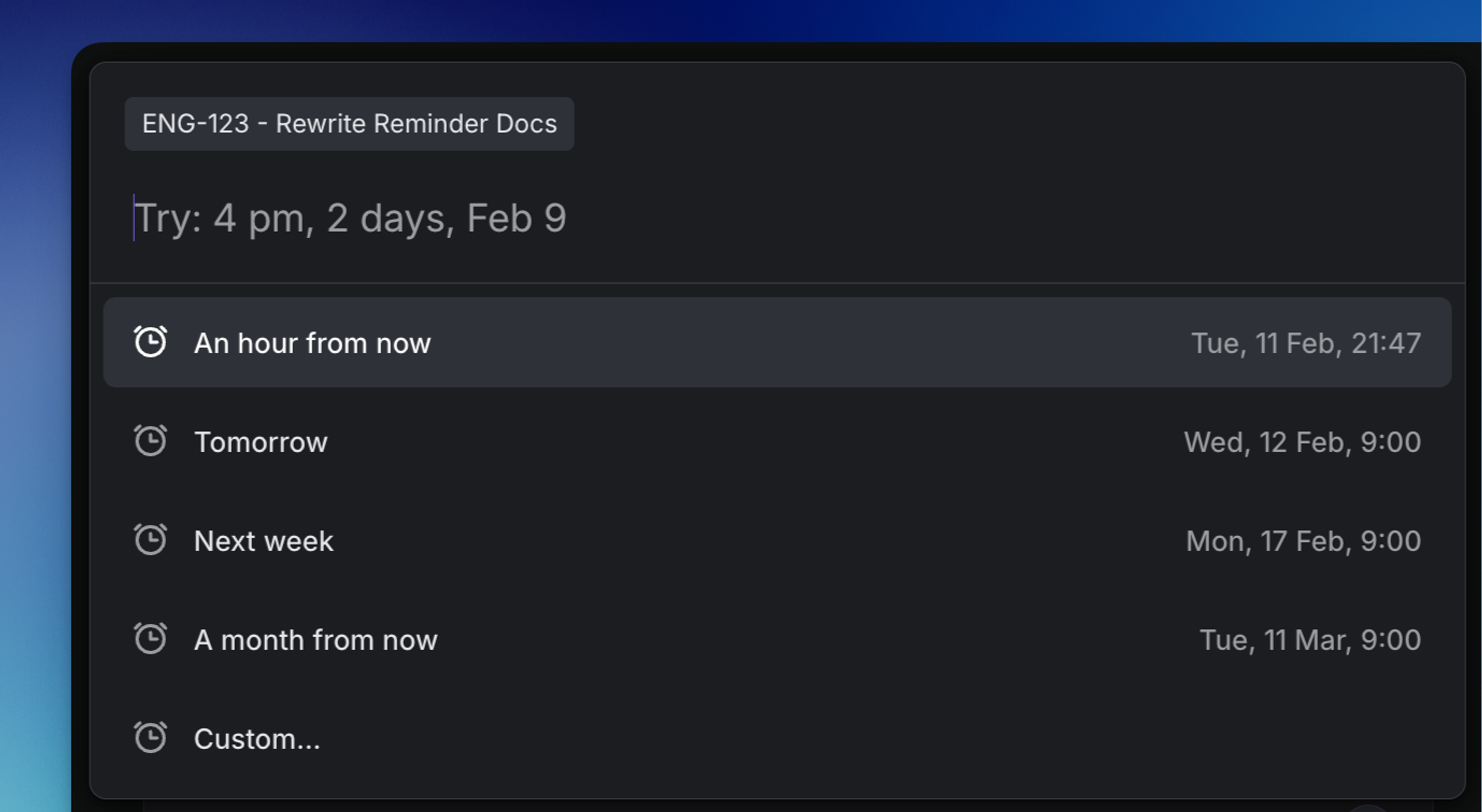
Set a reminder on an issue or document, or snooze existing reminders:
Press H to snooze a notification from the inbox, or to set a reminder on an issue or document
Custom dates
For custom dates and times, you can type in the selection instead of selecting from the calendar. Be sure to type the option in full (e.g. next quarter not next quar) otherwise the option will not appear.
- Month Date Time (e.g. Jan 3 10am)
- Next quarter
- Til or until month / date
- For X months / weeks / days