Reviews
Overview
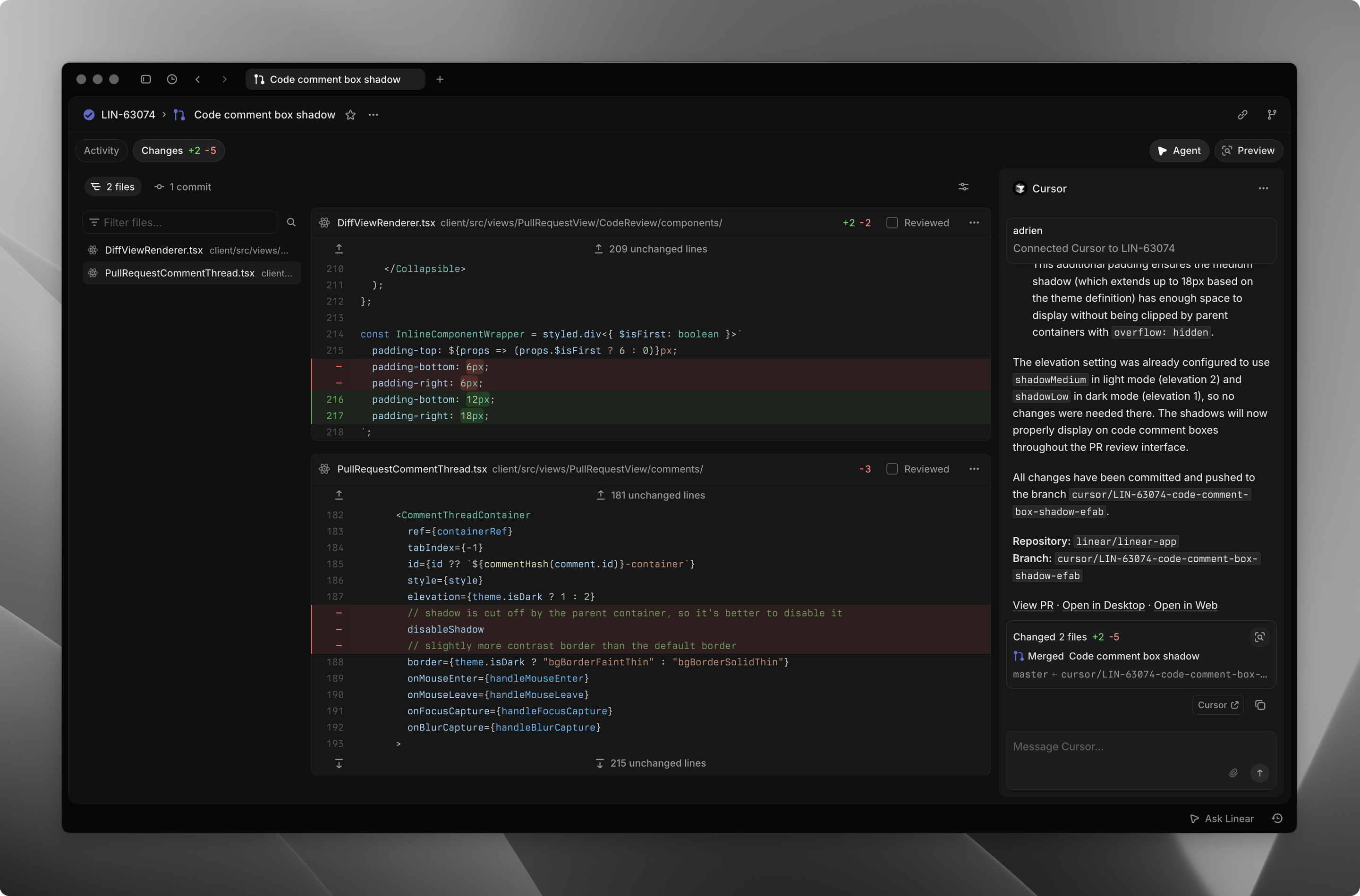
Linear Diffs let you review code changes directly in Linear—so you can read diffs, follow conversations, and complete reviews without leaving your workflow. When enabled, Linear shows pull request details, changed files, checks, and comments, and keeps them in sync with GitHub.
A new Reviews section appears in the sidebar where you can see pull requests that need your attention, track pull requests you authored, and return to reviews you've participated in. Opening a PR in Linear shows its details, activity, CI checks, and associated comments, and updates sync bidirectionally between GitHub and Linear automatically.
Navigate to Linear Code quickly with the shortcut G + R, or open a specific review with O + R.
Setup
Organization setup
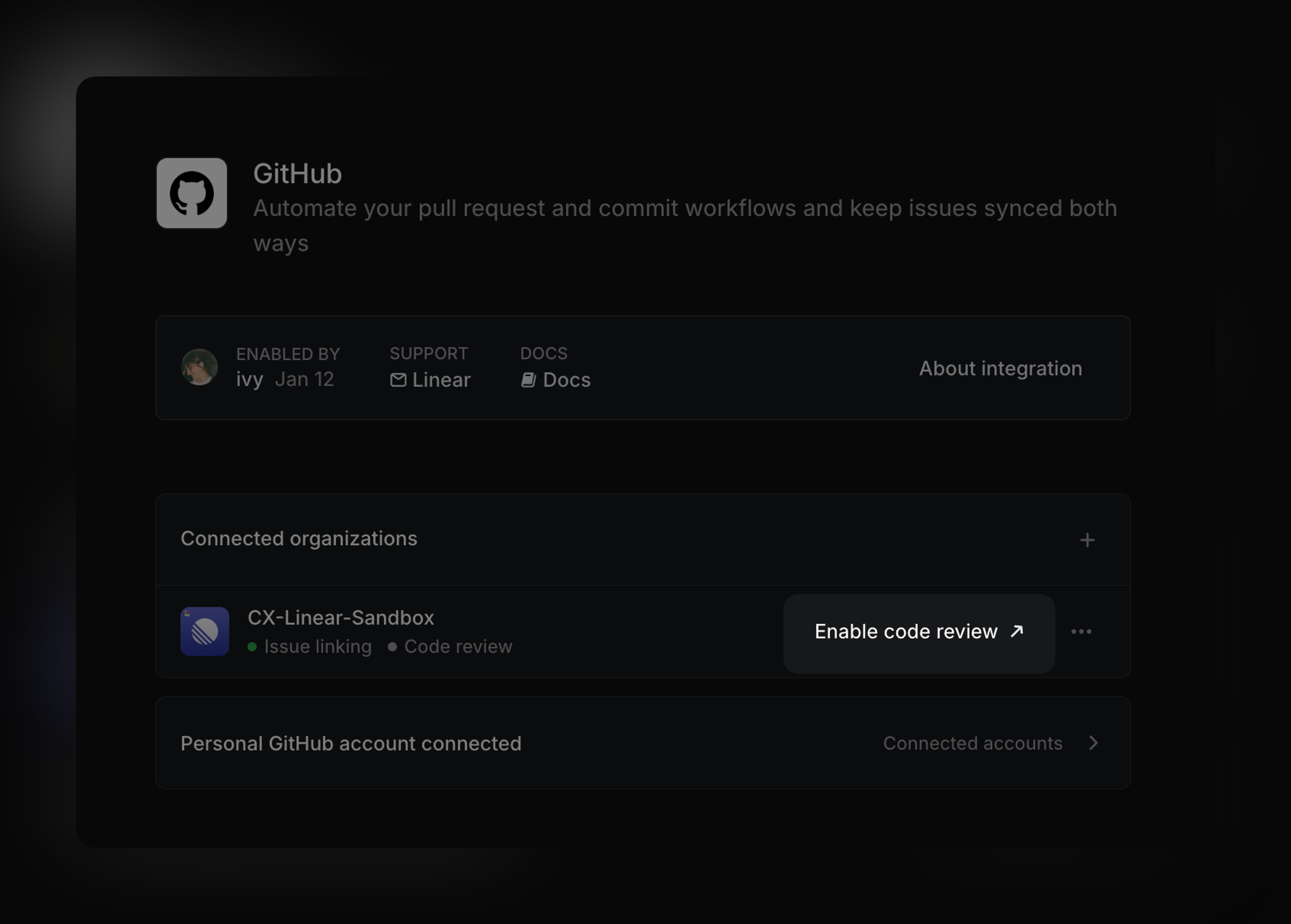
To display pull request diffs and file changes inside Linear, you’ll need to grant Linear access to your repository code through the GitHub integration.
If your workspace hasn’t connected GitHub yet, a Linear owner or admin can configure the GitHub integration to enable code access for the repositories you selected.
If your workspace has already connected GitHub, a GitHub organization owner can enable code access for the selected repositories by updating the integration in your GitHub integration settings.
Your current GitHub integration settings and any existing pull request links and history in Linear are preserved—enabling code access simply adds permissions so Linear can display diffs and file contents for the repositories you select.
Personal account setup
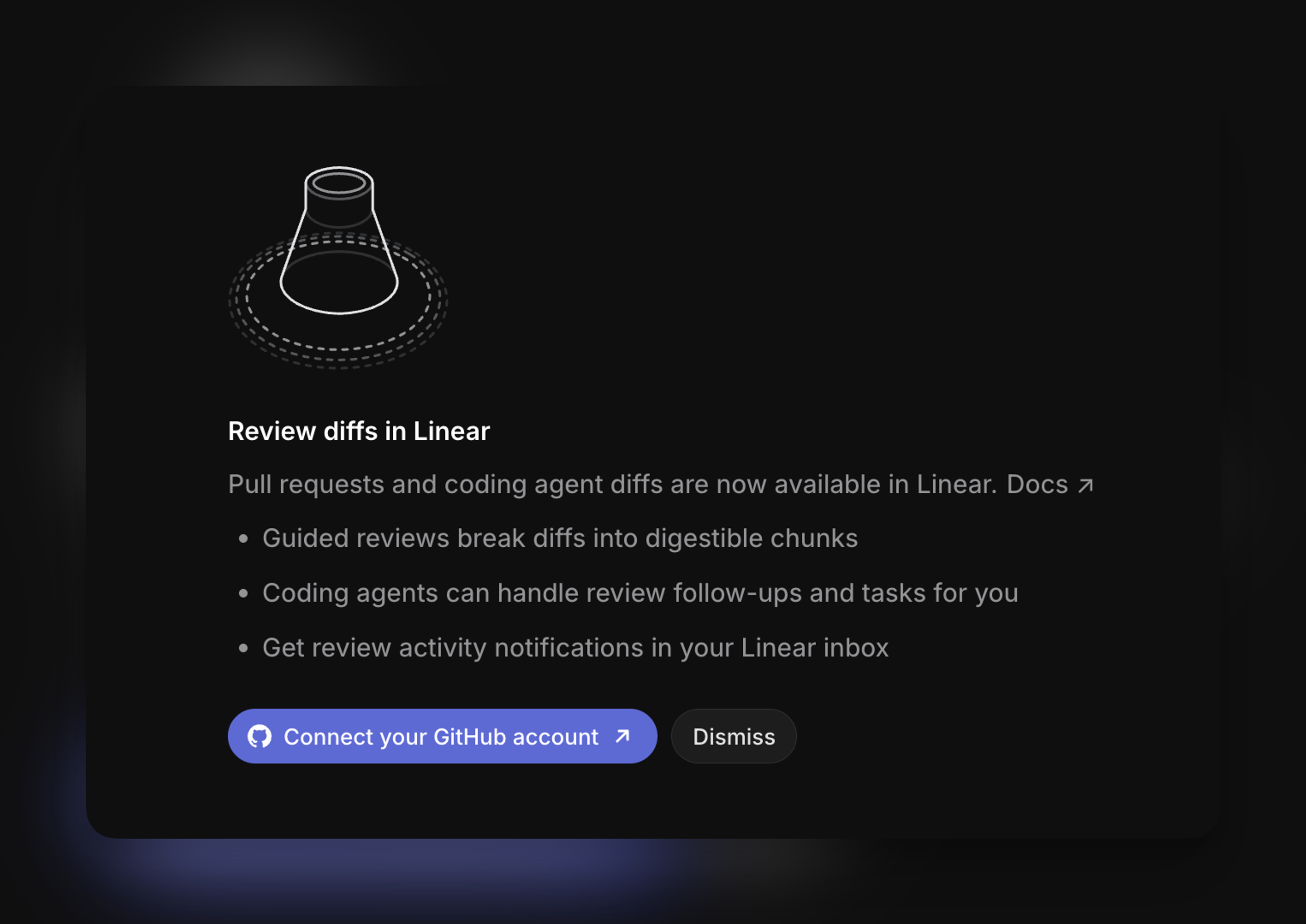
Personal GitHub connections are required for accessing pull requests, repository code, and review information associated with your specific user. If your account isn’t already connected, you can do so here.
Display and grouping
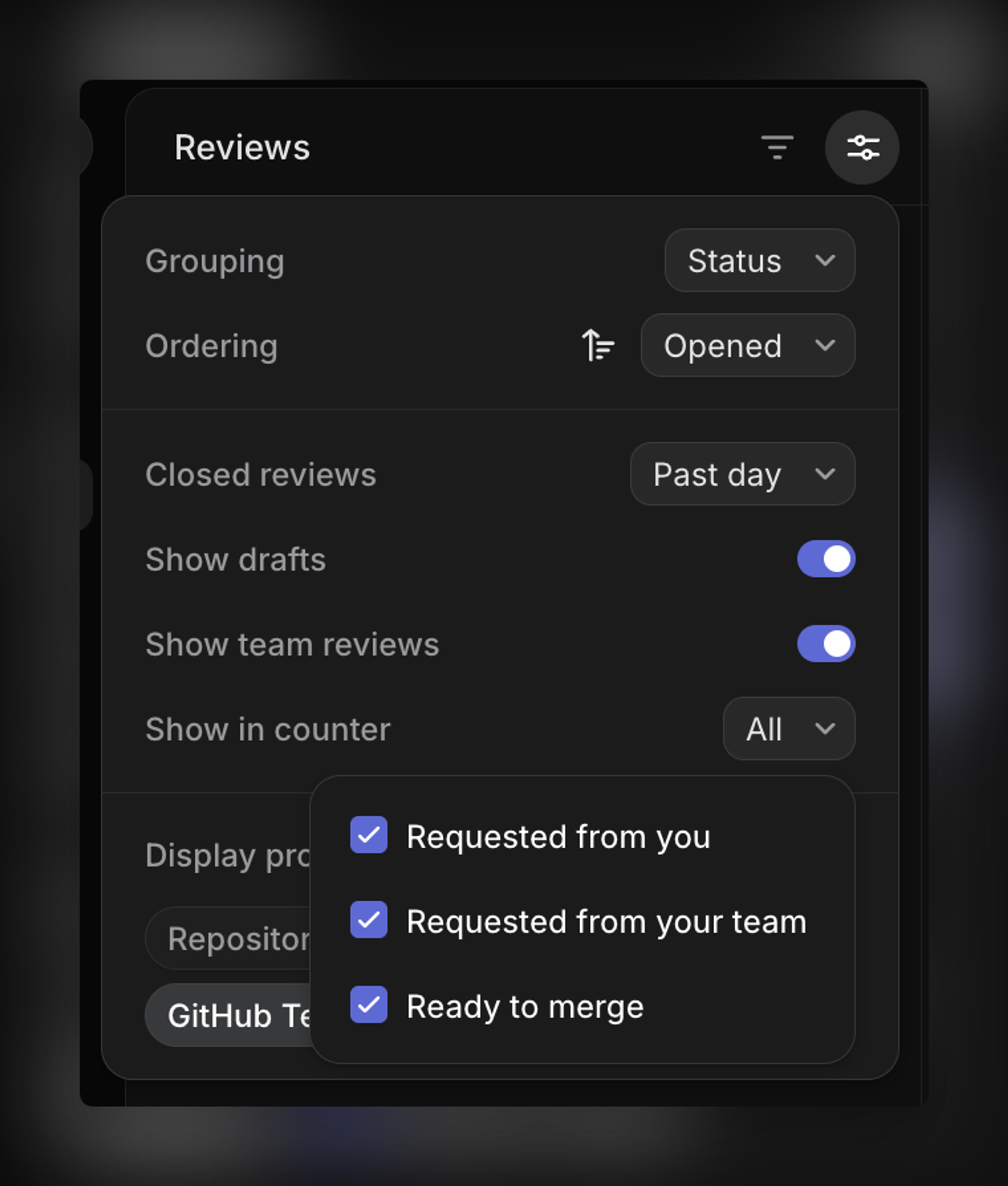
At the top of the Reviews tab, you can switch between two tabs: For me, which shows the pull requests you're involved in or responsible for, and Created, which displays every pull request you've authored. This makes it easy to focus on work that needs your attention while still being able to browse or reference other pull requests when needed.
You can group by status, author, or repository, and sort or filter to hide draft and closed PRs.
You can choose whether to display draft or closed pull requests and whether to show additional fields such as repository, failed checks, or preview links if applicable.
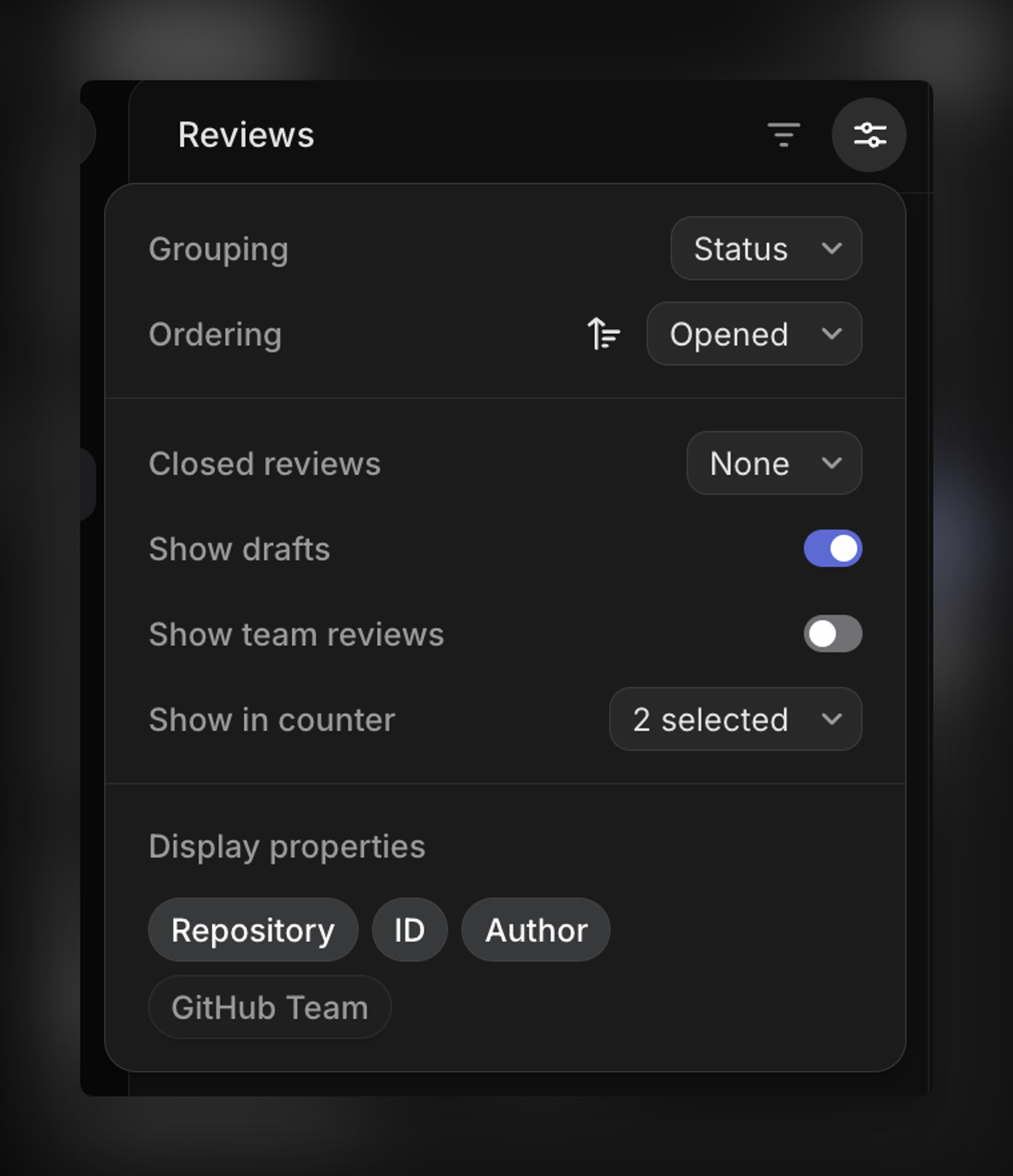
If your workspace uses GitHub team reviewers, display options let you control whether team-level review requests appear in your Reviews list and whether they count toward the Reviews badge, which can help reduce noise when you’re part of larger review groups.
Code review
Review a pull request in Linear
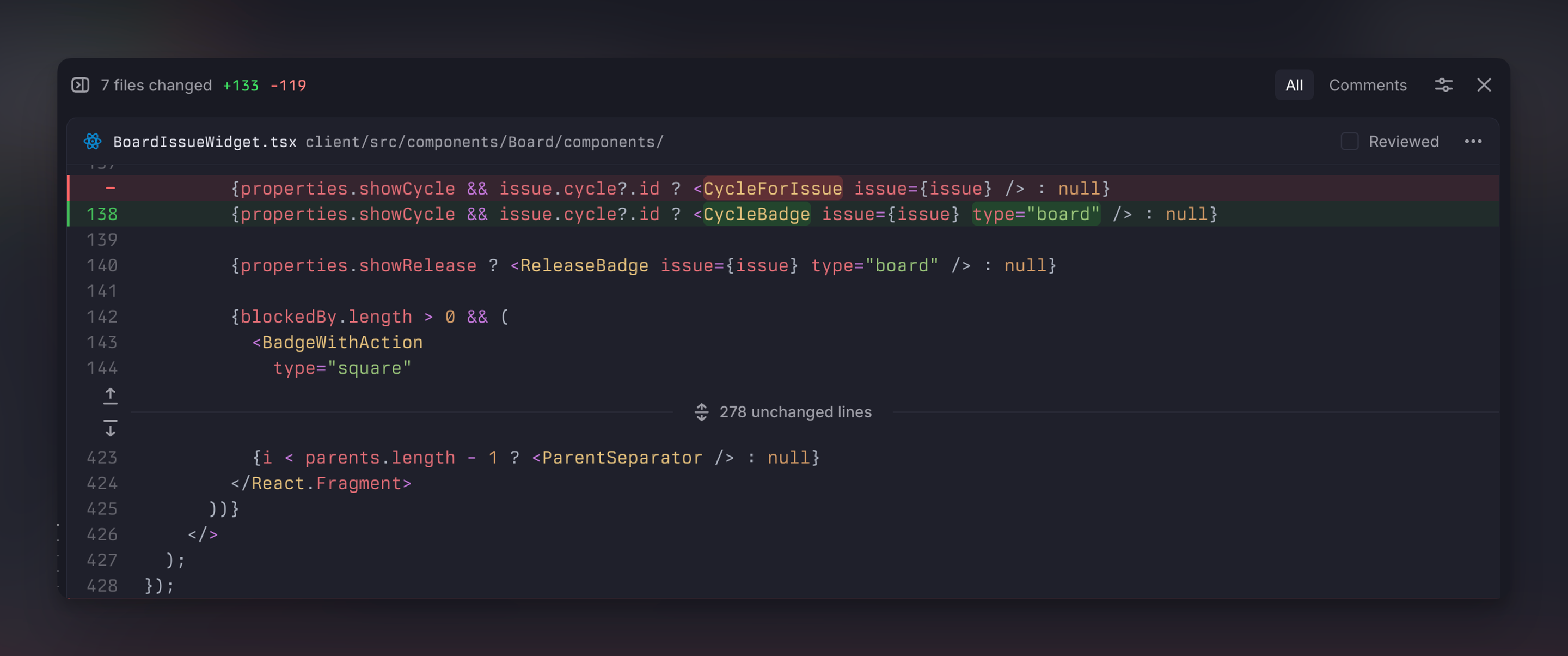
Linear displays all pull request activity in one place, including comments, reviews, and discussions. When you open a pull request, you can view the files changed and read through diffs directly in Linear.
Line counts in pull request diffs show implementation changes by default, excluding things like tests and documentation. When this implementation count differs from the total changed lines, Linear shows a [*] indicator next to the count. Hover over it to see the full total line count.
Comments appear inline alongside the relevant sections of code and you can start new threads, reply to existing ones, or react with emoji.
You can complete your review directly from Linear. Approving a pull request, requesting changes, or submitting a review comment updates the review state and syncs with GitHub.
Once a pull request is ready and you have permission, you can merge it directly from Linear.
Guides
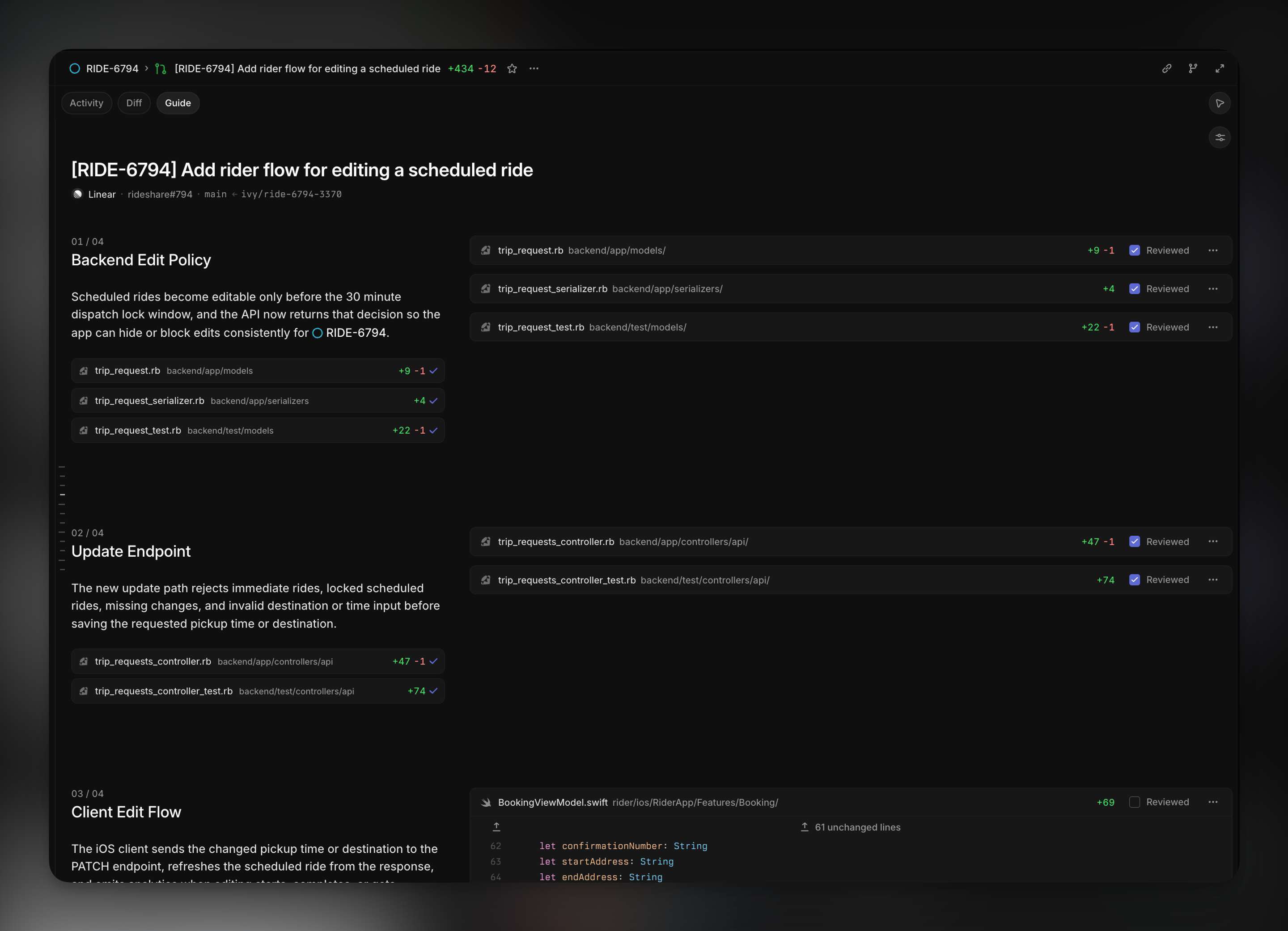
Guided reviews help you understand large pull requests faster by organizing related changes into structured sections with explanations of their purpose and impact.
Instead of working through files one-by-one to piece together what changed, Guides surface the core parts of an implementation first while grouping supporting or lower-signal changes separately. Each section pairs a high-level explanation of why a part of the change exists alongside the relevant diffs, making it easier to understand the intent behind the implementation before diving into the code itself.
Guided reviews appear in a dedicated Guide tab alongside the diff view, with direct links into the relevant parts of the pull request so you can move naturally between the guide and the underlying code.
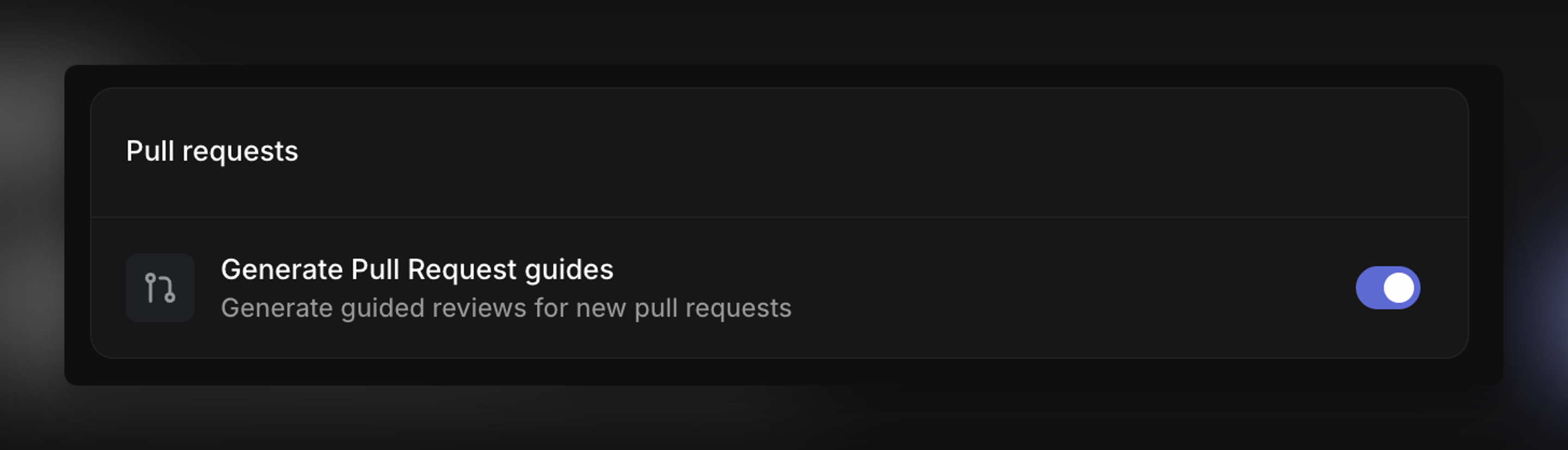
If you’d prefer to disable this feature, you can disable the Generate Pull Request guides toggle within your GitHub integration settings' Pull Requests section.
Diff view options
Unified and split view
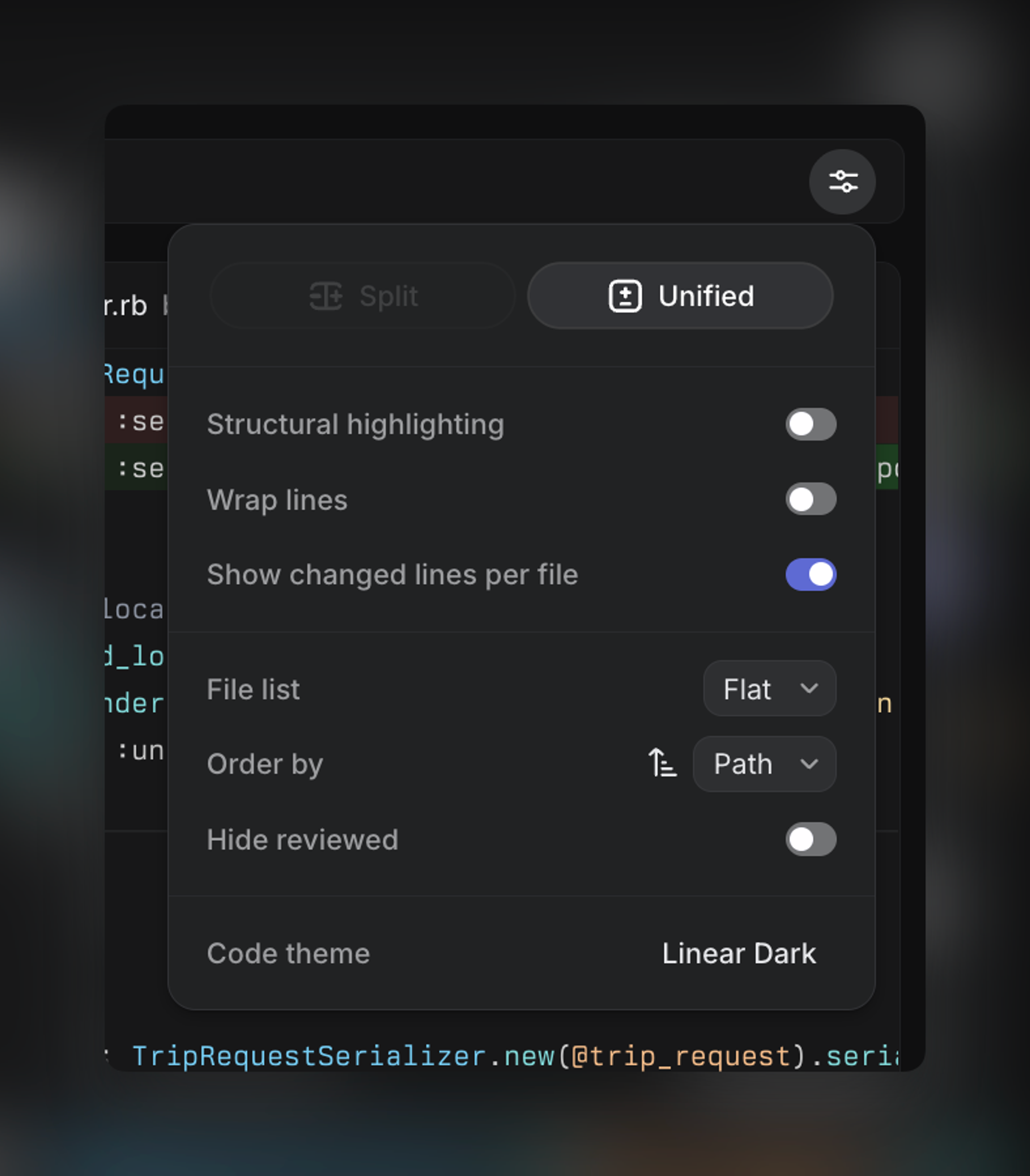
Linear supports both Unified and Split diff views when reviewing a pull request.
Unified shows changes in a single column, while Split shows the before and after side-by-side to make comparisons easier. You can switch between Unified and Split from the pull request display options, and you can also toggle between Split and Unified view with Ctrl or ⌘ + B.
Note that on smaller screens, Split view may be unavailable if there isn't enough horizontal space.
Structural highlighting
When structural highlight is disabled, the diff uses a standard line-based comparison, so added and removed lines are emphasized. When it’s on, Linear uses syntax-aware highlighting to better understand the structure of the code and highlight the specific parts of a line that changed, such as renamed variables, edited expressions, or moved code blocks.
Open GitHub PR URLs in Linear
If you have an existing GitHub pull request URL, you can also open that same pull request in Linear by replacing github.com in your URL with linear.review.
Original Github URL: github.com/owner/repo/pull/123
New Linear URL: linear.review/owner/repo/pull/123
With this pattern, Linear will redirect you to the matching pull request review page in your Linear workspace automatically.
Organize files with .gitattributes
Use .gitattributes to organize files in pull request diffs by review category. This helps reviewers focus on implementation changes while keeping tests, documentation, generated files, and other supporting changes easy to find.
Add rules to your repository’s .gitattributes file:
Use .gitattributes to group pull request files by type. Linear supports review-implementation, review-test, review-documentation, review-generated, review-agent-guidance, review-localization, and review-assets. GitHub-compatible linguist-generated and linguist-documentation work too.
Add a category with attribute or attribute=true; remove one with -attribute or attribute=false. In a pull request, choose File type grouping to browse the resulting categories.
Pull request preview links
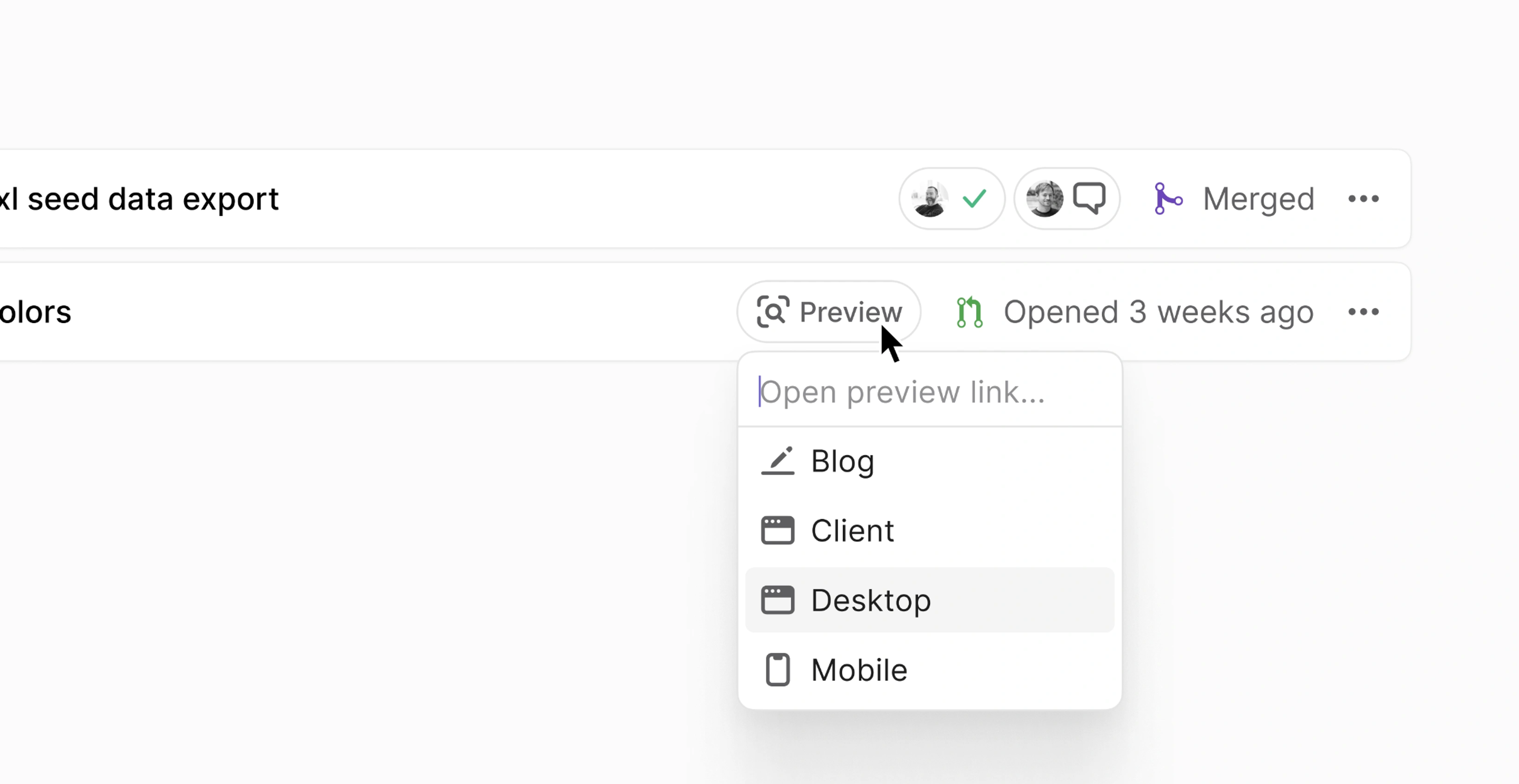
If your PR contains one or more preview links, this will add a preview link shortcut to the Linear issue. More details on this feature here.
Notifications
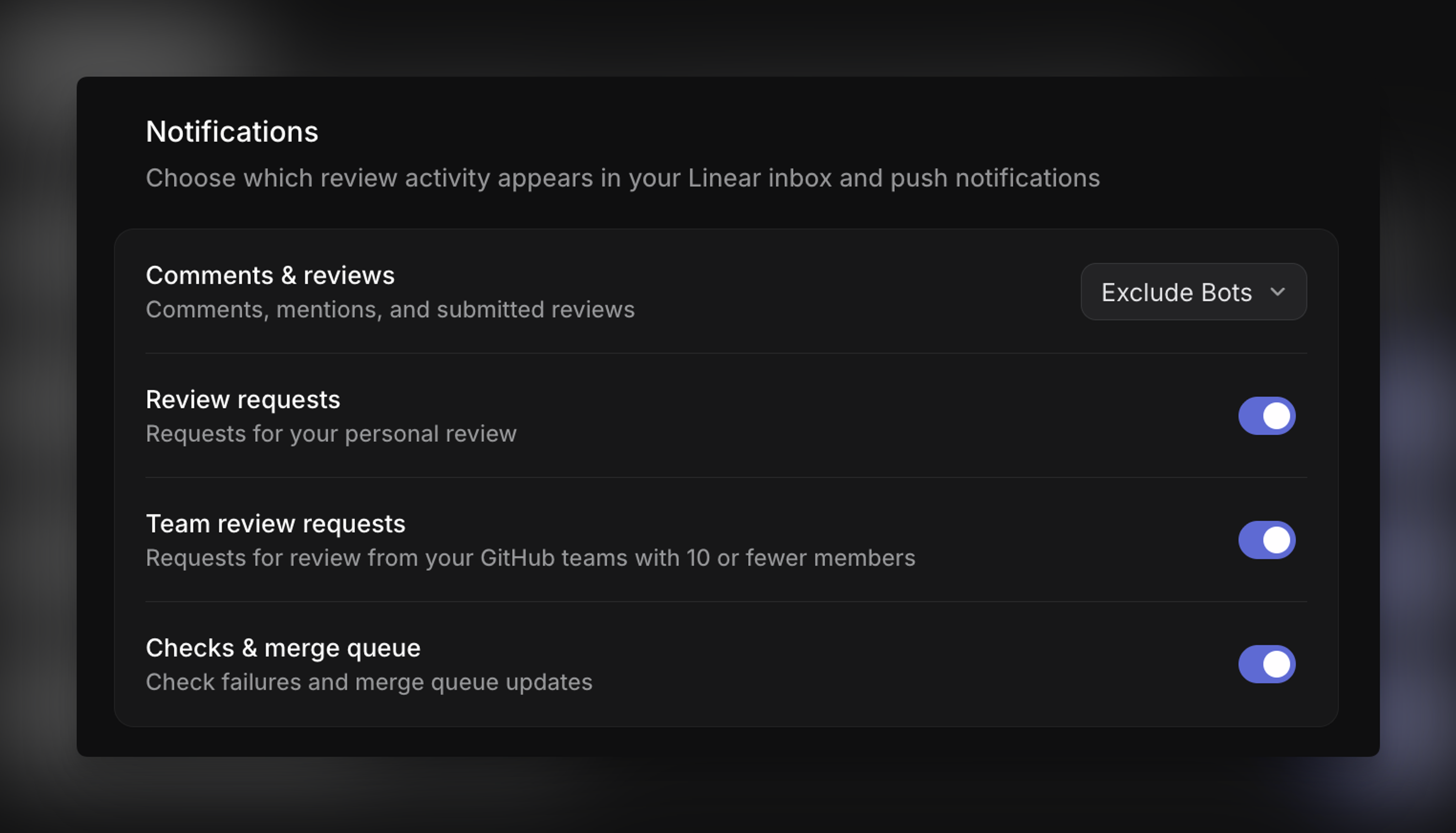
With Diffs enabled, Linear can notify you about pull request activity in your inbox and push notifications.
In Code & reviews settings, you can choose which kinds of review activity reach you.
- Comments & reviews covers comments, mentions, and submitted reviews, and you can choose whether to include all activity or exclude activity from bot actors. Review requests controls requests for your personal review.
- Team review requests controls review requests that come through your GitHub teams, which apply when a pull request is assigned to a GitHub team you belong to rather than directly to you. Note that team review requests are only sent for GitHub teams with 10 or fewer members.
- Checks & merge queue controls notifications about failed checks and merge queue updates.
Additional settings
Navigate into Code & reviews settings for additional preferences to the Reviews experience within Linear. These settings are personal, so they only affect your own workflow.
Auto-convert draft PRs
When enabling the Auto-convert draft PRs toggle, this setting automatically moves a draft pull request into a ready-for-review status once a review is requested or when the pull request is approved.

Code theme
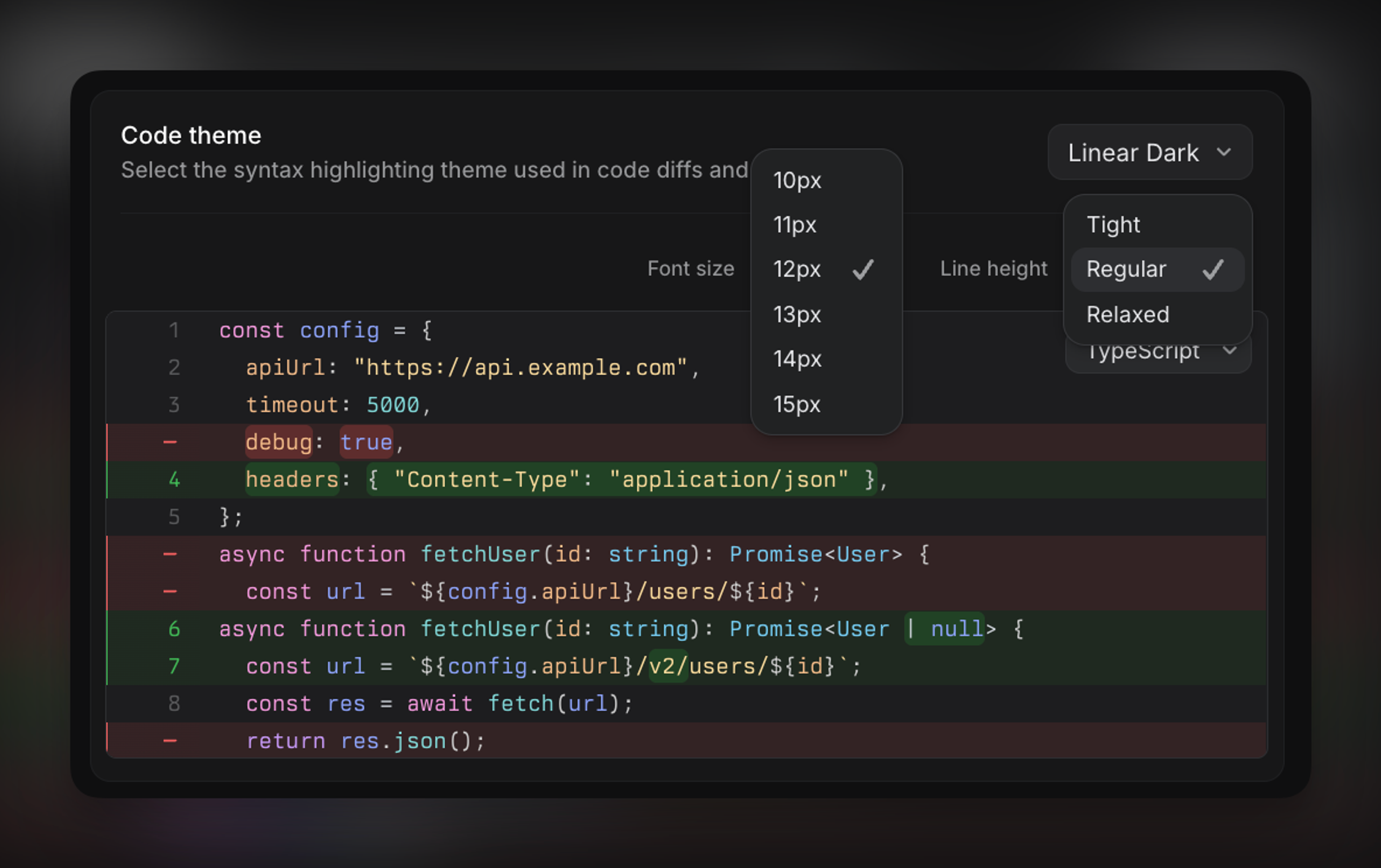
You can control the appearance of code while manually reviewing the diff or following a guided review. This includes separate themes for light and dark mode, along with display settings that provide control over the font size and line height.
Move issues to start
Save yourself a few steps by toggling on the automation that moves a Linear issue into a started status when you copy the git branch name. To set up this automation, refer to the On git branch copy, move issues to a started status toggle in your Code & reviews settings.
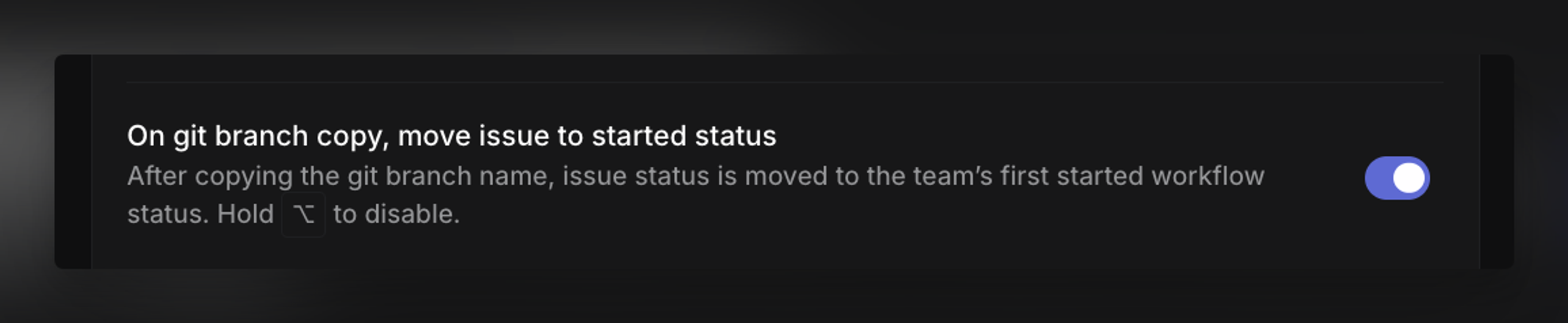
Extend this further by enabling automation within your Preferences that assigns the issues you move to a started status to yourself.
Review Platform
On behalf of attribution
Pull request activity can show when a comment was made by an AI coding agent on behalf of a person. This attribution makes it clear which agent produced the comment and, when available, the model it used.
You’ll see the agent’s name and avatar alongside the comment, helping reviewers understand the source of the feedback or update. Supported agents include Claude Code, Codex, Linear, Pi, and OpenCode.
Risk score
Risk scores help reviewers quickly assess the potential impact of a pull request. When a connected provider supplies a score, Linear displays one of four levels:
Low risk, Typical risk, High risk, Very high risk
The score may also include an explanation, along with who reported it and when it was last updated. Use this context to prioritize review attention, it complements, rather than replaces, your team’s normal review process.
Add data from GitHub
Connected tools can add this metadata in an HTML comment on a GitHub pull request, review, or review comment. Use a linear:extension block with version 1 and one or more plugins:
Risk score
levelis required and must be an integer from1(low risk) to4(very high risk).shais optional and must be a 40-character commit SHA. Omit it to apply the score to the pull request’s current revision.explanationsis optional: up to 8 non-empty strings, each up to 200 characters.
On behalf of
agentis required. Supported values areclaude,codex,linear,pi, andopencode; other values are shown as a generic agent.modelis optional and can be up to 200 characters.
Multiple plugins can be included in the same block. Extension-only comments are hidden from Linear by default. Add "visible":true to preserve the GitHub comment in the activity feed. On-behalf-of blocks are visible by default unless "visible":false is set.