Favorites
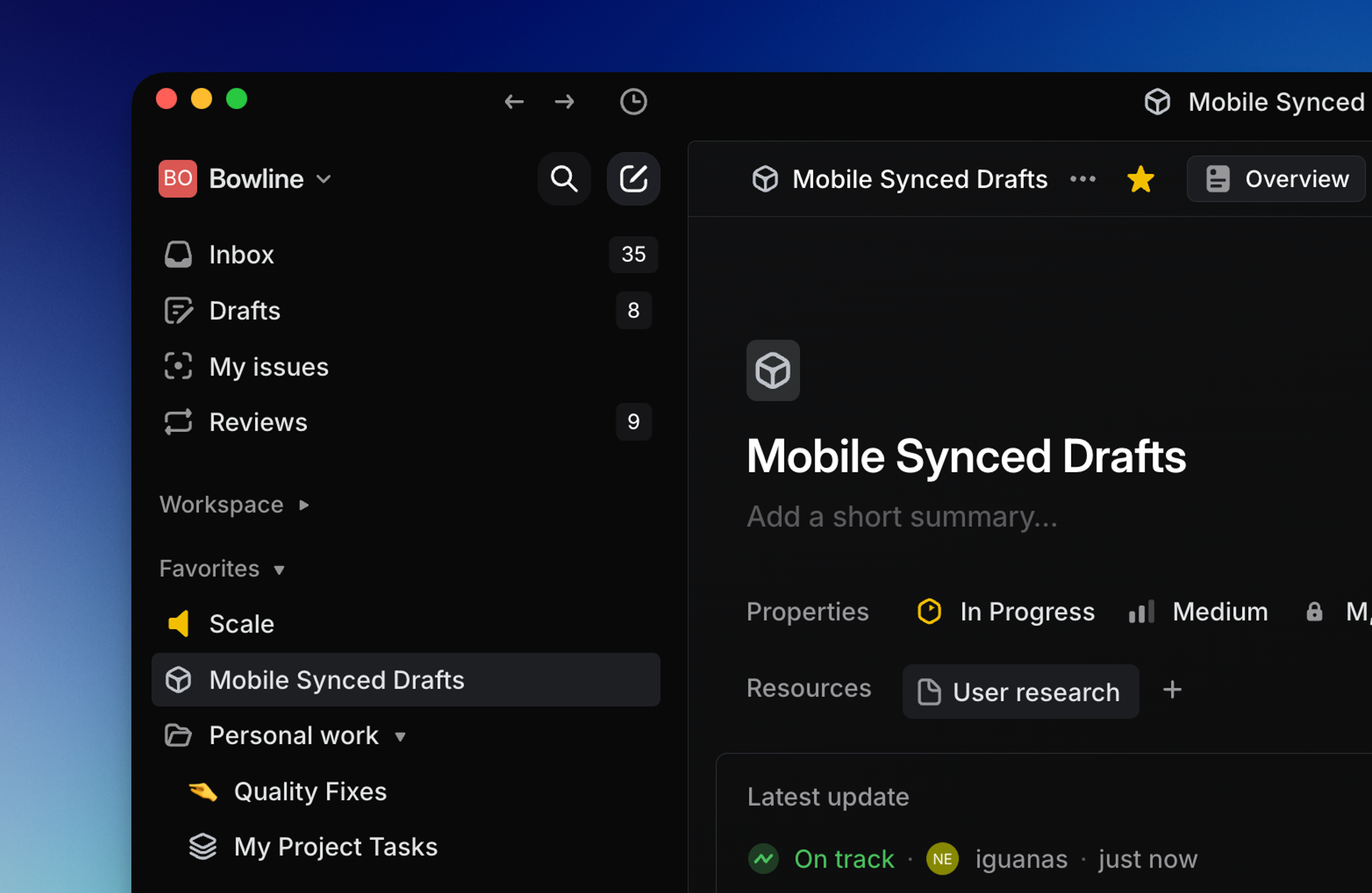
You can favorite many items in Linear — including issues, projects, views, documents, initiatives, cycles, labels, teams, customers, dashboards, pull requests, and releases — to keep them easy to access from the sidebar.
Overview
Favorites are personal shortcuts which appear in your sidebar.
O then F to open favorites
Alt + F to toggle favorite on the focused item
Basics
Applicable views
If a view can be favorited, you'll see the outline of a star in the top bar next to the view name. You can favorite the following views in Linear:
- Issues
- Users
- Projects
- Specific Cycles
- Custom Views
- Label views
- Default views: all issues, active issues, backlog, board, current cycles, upcoming cycles.
Add favorites
Select the star in the page header to add a favorite. You can also open the command menu and search for favorite. Favorite actions may not appear in every contextual menu.
Create folders
To create a folder for favorites, hover over favorites and click the icon to the right to create a new folder, or create from the ⭐ icon menu. You can give it a name of your choosing and easily drag any existing favorites in or out of the folder.
Access favorites
Once you add your first favorite, the Favorites section appears in your sidebar above Your Teams. You can access favorites by clicking on them from the sidebar or searching for them in the command menu. The shortcut O then F will open a menu from which you can open a favorite, too.
Remove favorite
Hover over the favorite in the sidebar and click on the X to remove it. You can add it again later by returning to the item or view and selecting the star.