Sub-teams
Sub-teams
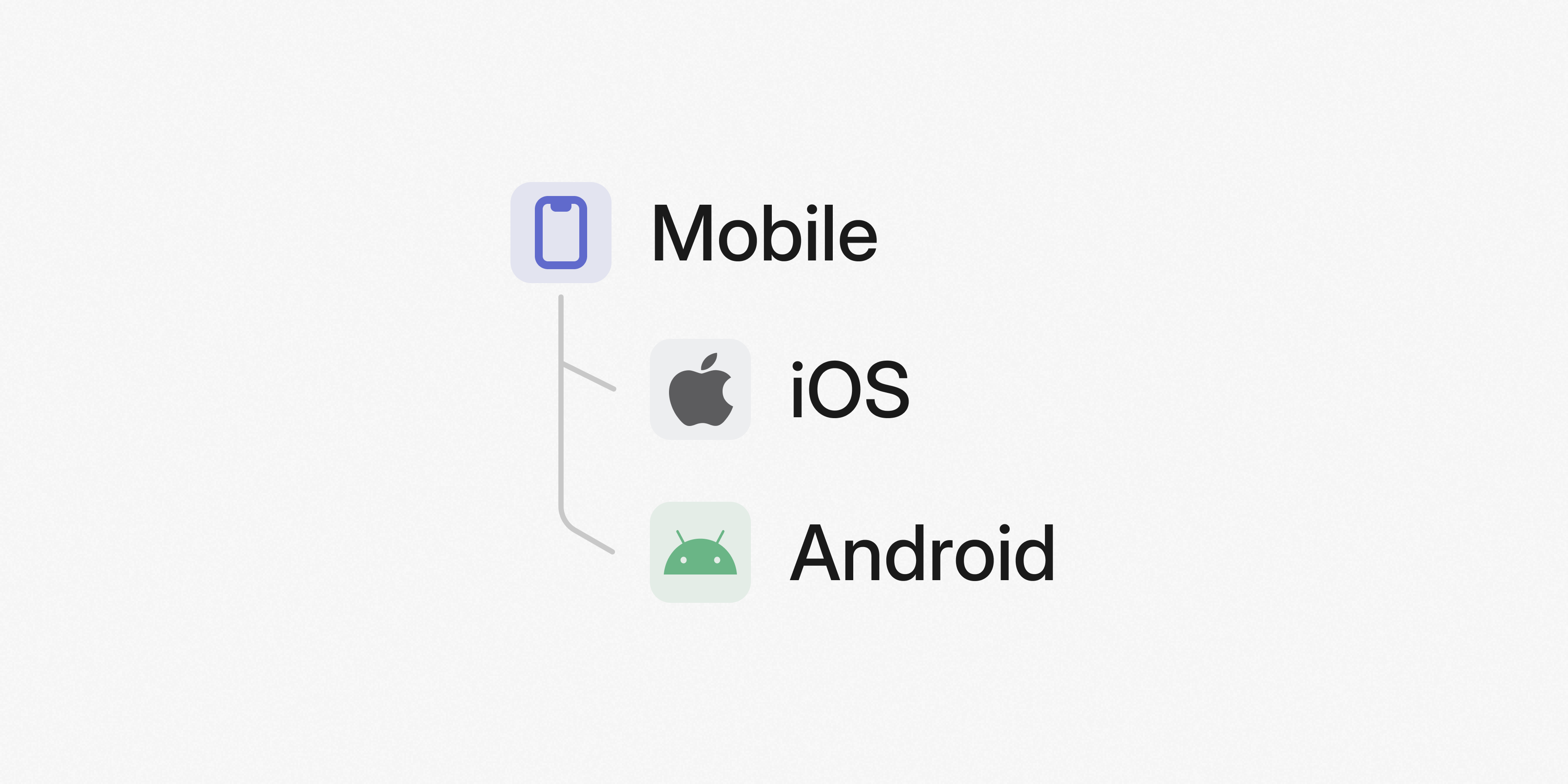
Sub-teams let you build a team hierarchy in Linear that mirrors your organizational structure, making team relationships clear and navigable to workspace members.
Define team hierarchies
Create parent teams and nest sub-teams under them to group teams by function, department, or product area. When a team grows large enough for specialized work to emerge, split it into sub-teams to provide focus without disrupting ongoing work or losing visibility.

Simplify administration
Standardize processes across multiple teams with shared settings. Sub-teams inherit workflows, cycles, and labels from their parent team. These settings are configured in a single place, reducing administrative overhead and enabling you to maintain consistent processes across teams as you grow.
View and manage work across multiple teams
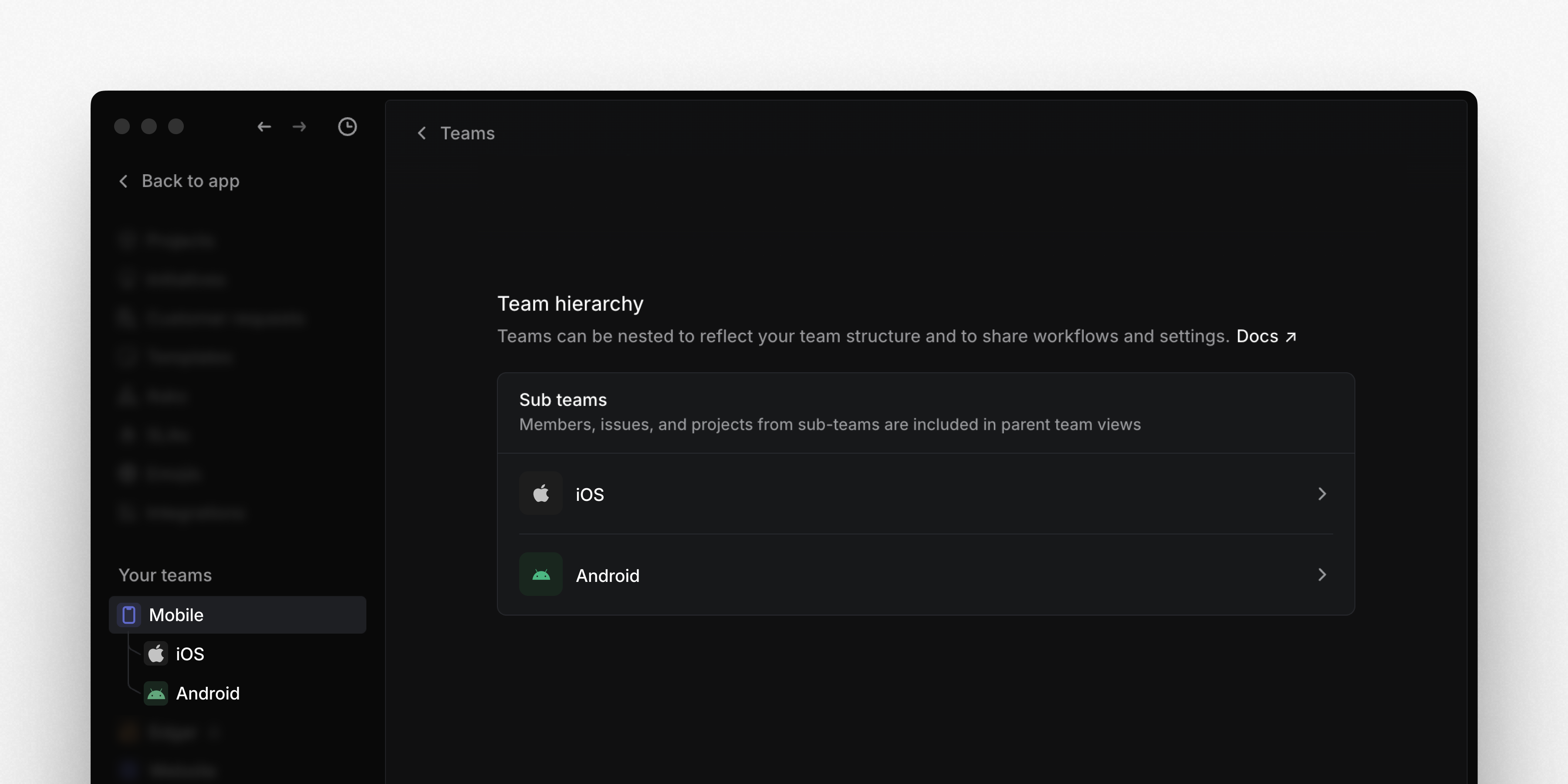
Create views at the parent team level to see projects and issues from every sub-team. Members of any sub-team automatically have access to their parent team, enabling cross-team visibility. With shared workflows, cycles, and labels, teams can collaborate more effectively, understand dependencies, and coordinate timelines—all while maintaining their individual focus areas.
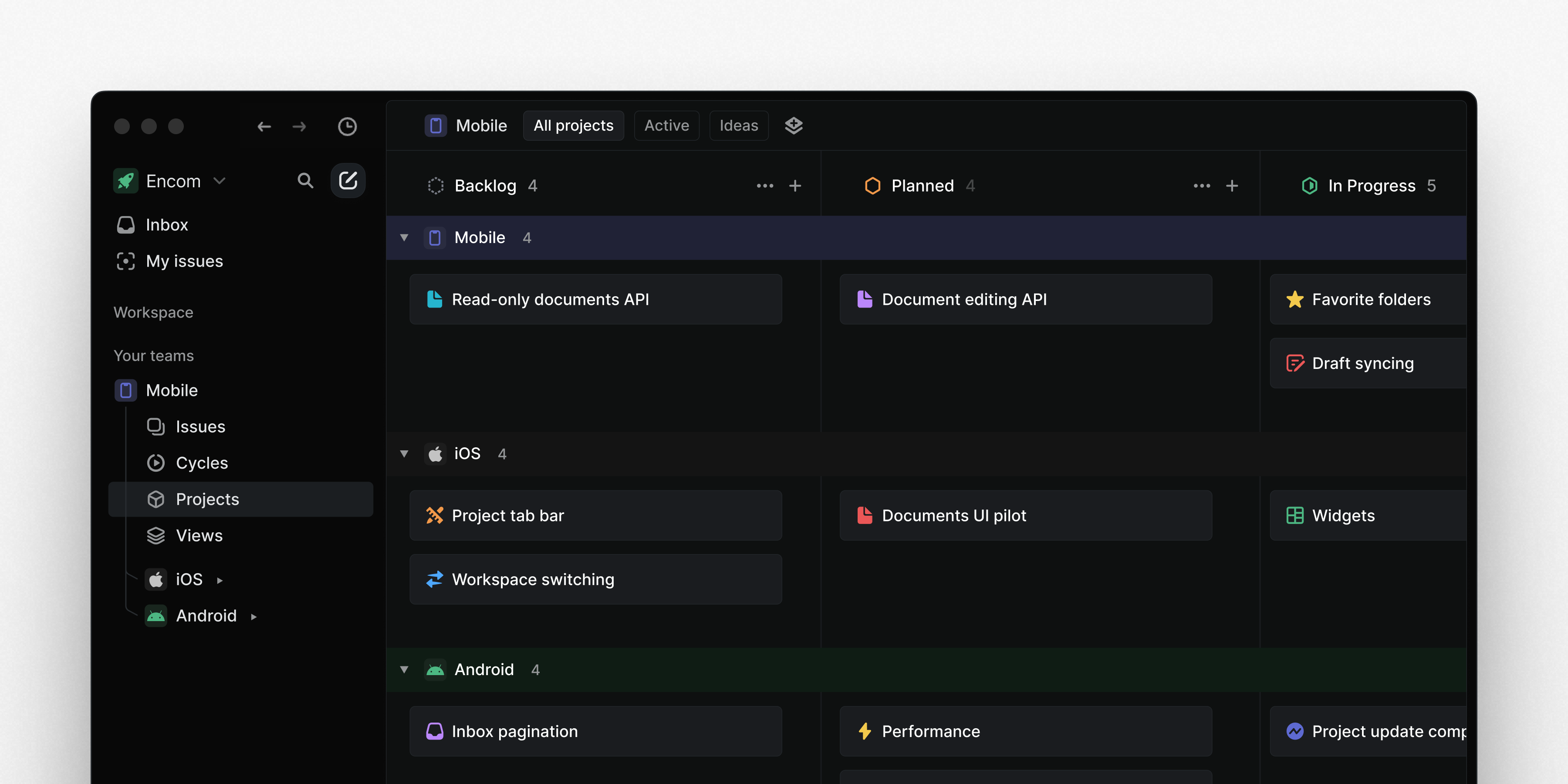
Sub-teams is available on Business and Enterprise plans. Go to Team settings > Team hierarchy to set up parent and sub-team relationships and learn more in the docs.
Reminders on projects, initiatives, and documents
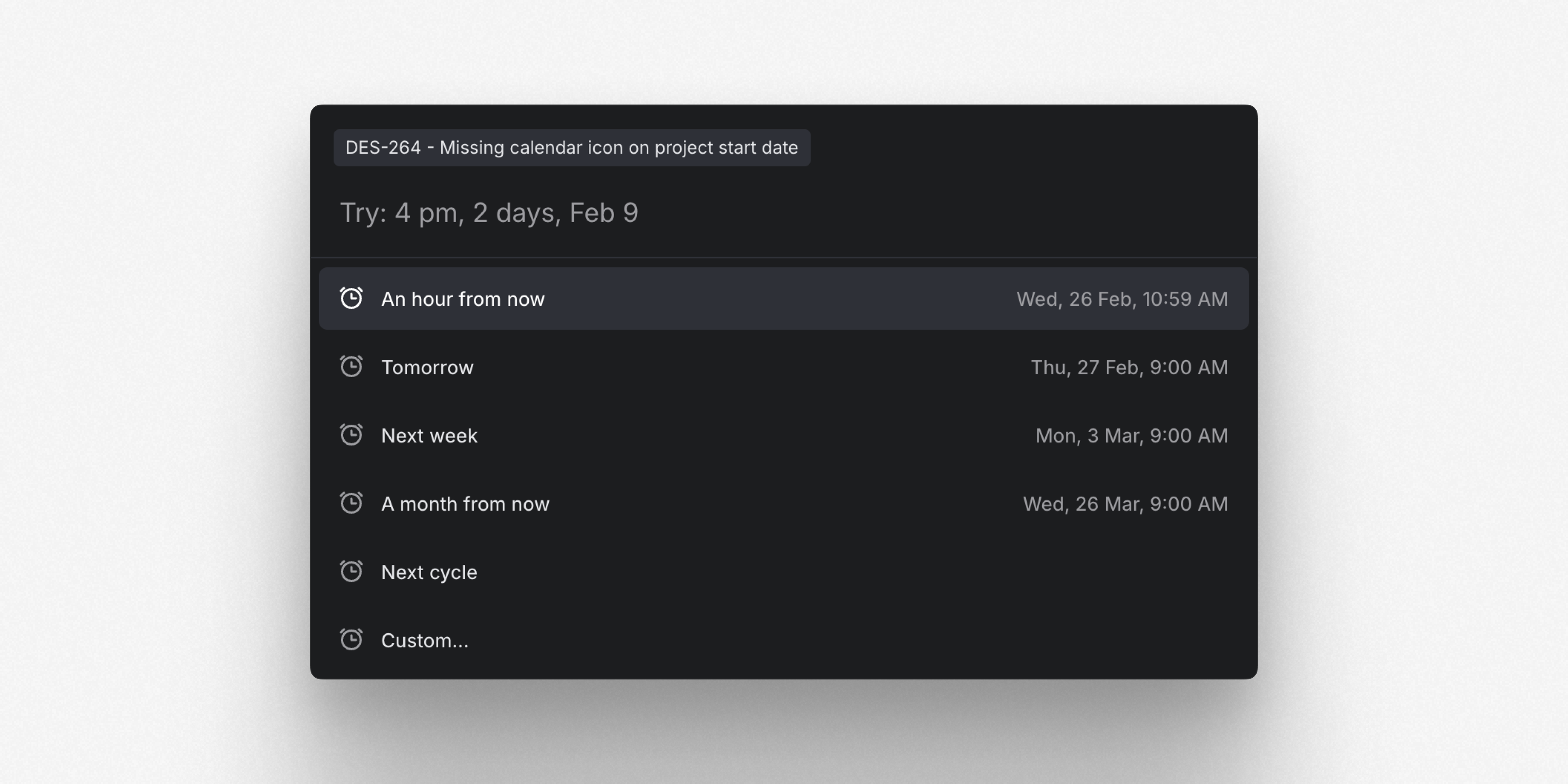
Set reminders on issues, projects, initiatives, or documents so you can revisit them at a later date. Schedule reminders from the contextual menu of each page or use the keyboard shortcut H. You'll receive reminder notifications in your Linear Inbox. Pending reminders are labeled at the top of their respective page, and they can be modified or canceled from there.
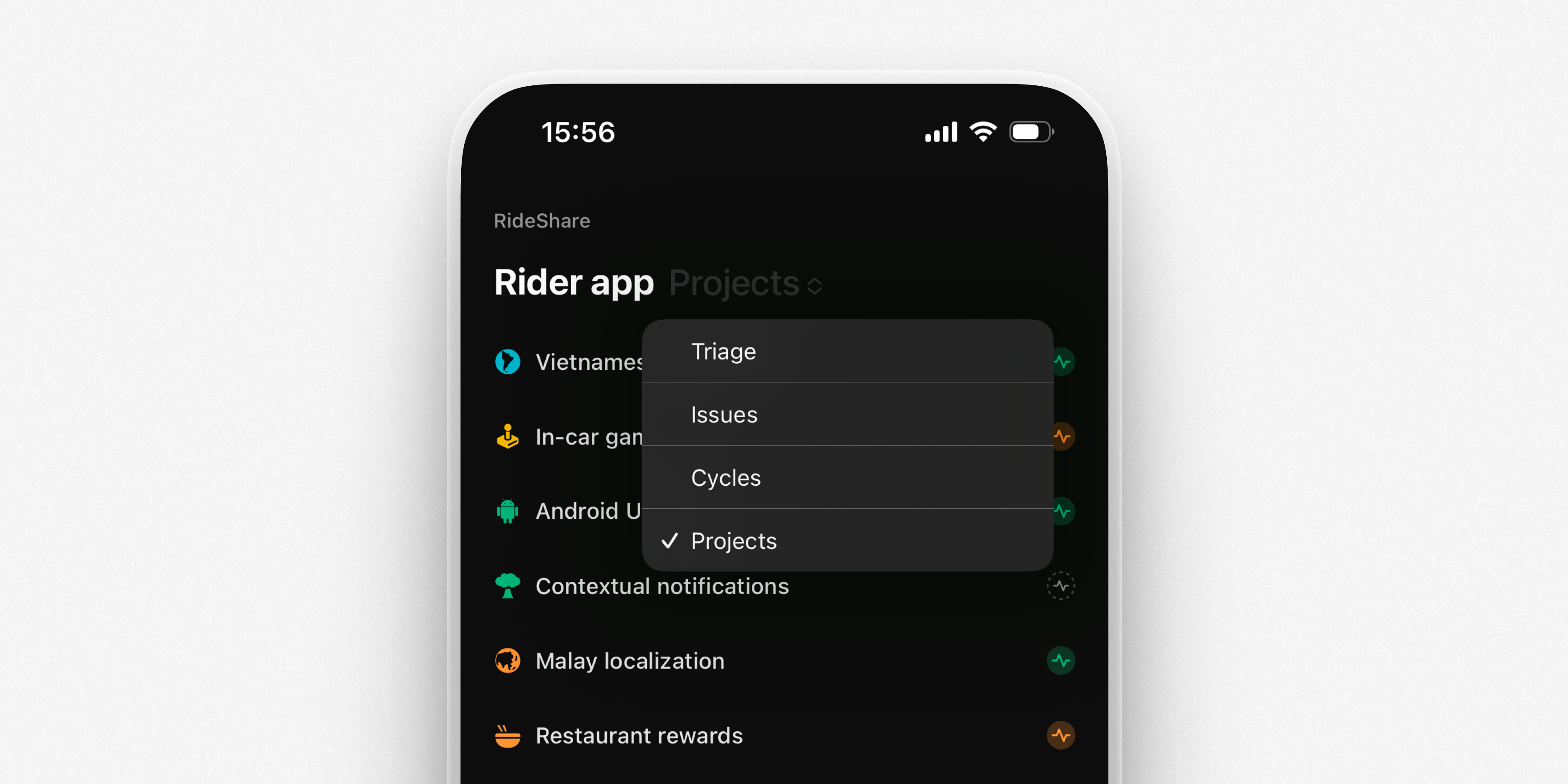
Mobile app: Team projects and navigation
View and update your team's projects from the mobile app. Dive into a project to create issues, view and edit the project overview, or post updates. A new navigation menu lets you quickly switch between views of your team's projects, issues, cycles, and Triage.
Improved Billing Settings
We’ve updated the billing page to give you more visibility into your Linear subscription. See scheduled plan renewals, active discounts and trials (with their expiry dates), and a complete invoice history.