Coding sessions in Linear
Earlier this year, we launched Linear Agent, giving teams a new way to plan and coordinate their issues and projects. Since then, we've added Code Intelligence to extend that understanding to the codebase, and MCP support to bring all of your context together.
Today we're closing the loop: Linear Agent can now write code using Claude Code and Codex. You can triage, plan, review, and ship—all in Linear.
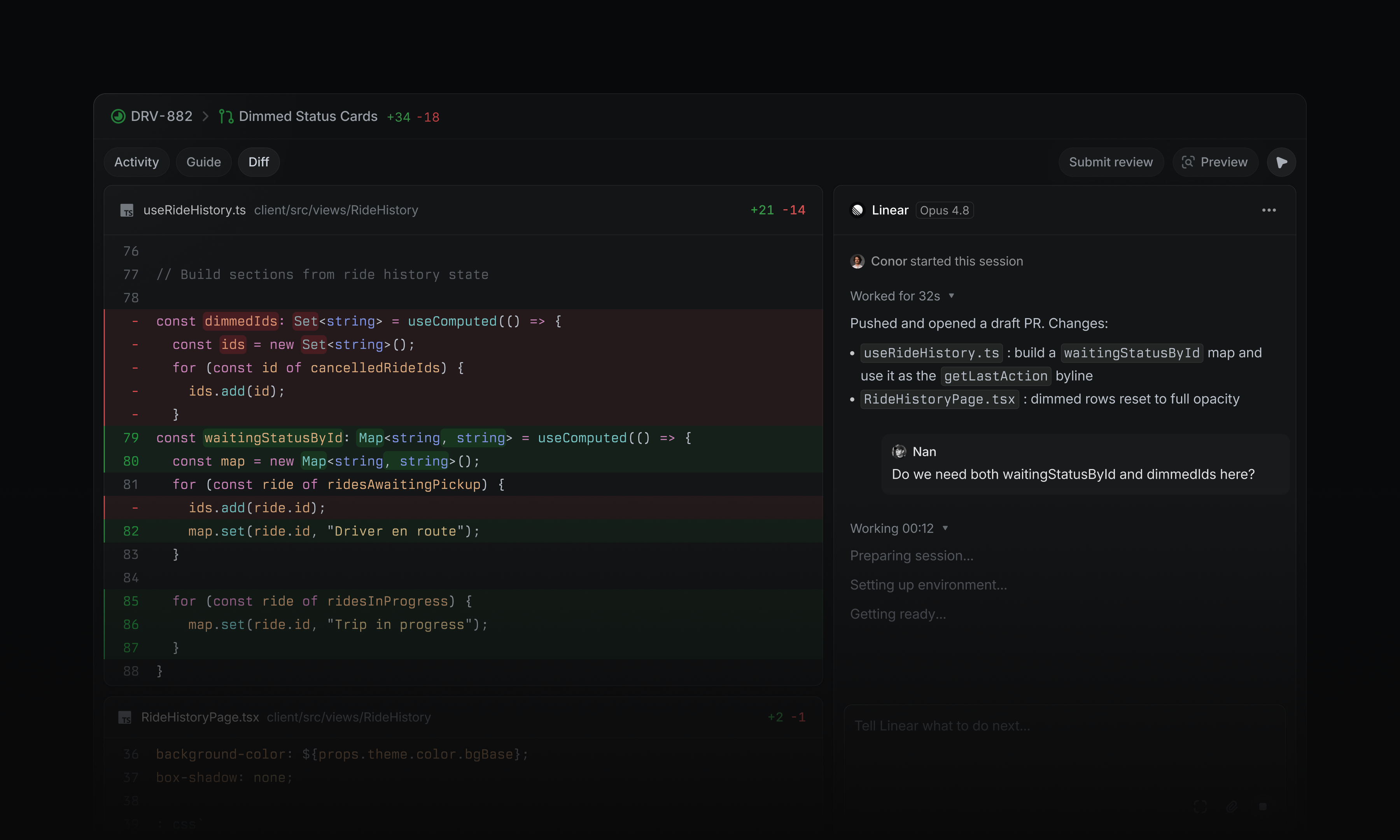
Start a coding session by assigning an issue to Linear, or ask it to make a change in a chat, comment, or Slack thread. Each session is grounded in your workspace context, pulling in issue details, history, customer requests, discussions, and related work.
A coding agent your team will love
Coding sessions run in the cloud, so you can prototype ideas and make changes without setting up a local development environment.
When the change is ready, Linear returns a new diff for review. Share preview links, bring teammates into the discussion, and address feedback with further iterations in the same thread.
Automate the first pass
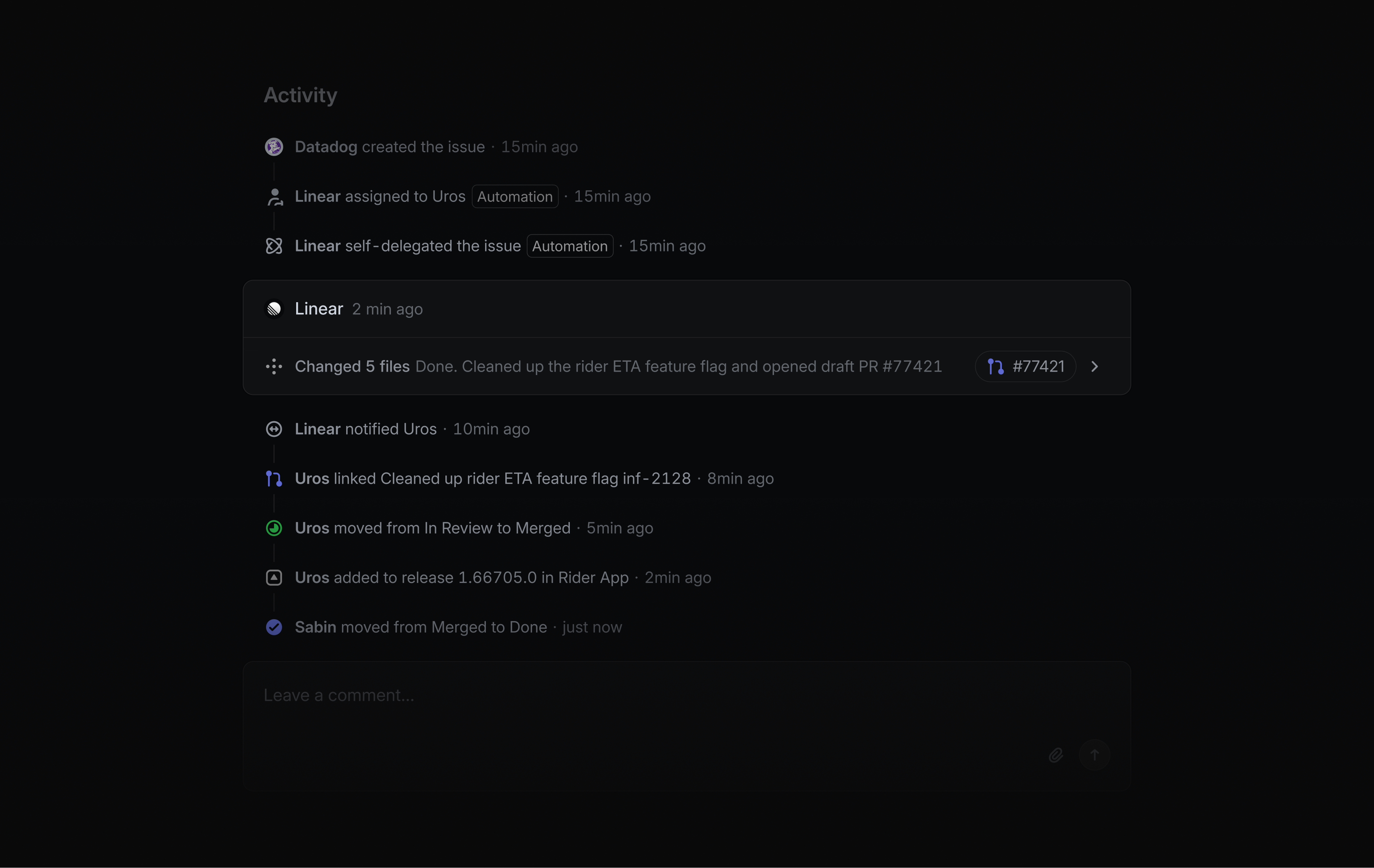
When a new issue is reported, Linear Agent can investigate and attempt a fix before it reaches an engineer, reducing the load on your team.
It follows your team’s guidance, gathers evidence from tools like Sentry or Datadog through MCP, and inspects the codebase to trace the root cause before producing a fix.
Linear uses this workflow internally to resolve roughly 30% of incoming bug reports, mostly on the first pass.
You can set up your own agent automation in your team's Triage settings.
Availability and pricing
Coding sessions are available on Basic, Business, and Enterprise plans. They require a GitHub connection with code access and use AI credits to run. Workspace admins can enable coding sessions in Settings and manage access, usage, and credits from the usage dashboard. Learn more in the docs.
Team documents
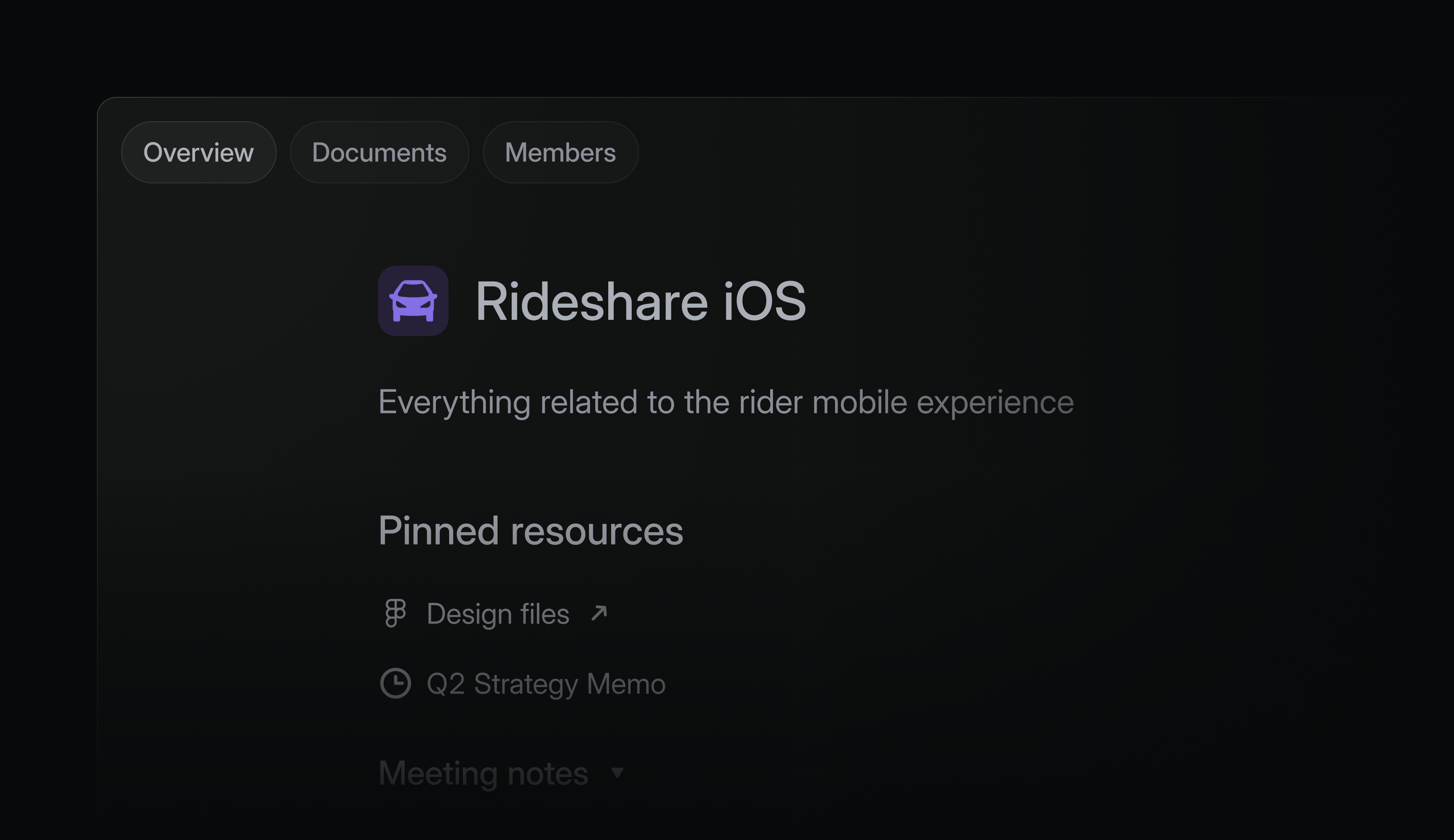
Important team context doesn’t always belong in a specific issue, project, or initiative. Teams also need a dedicated place for the notes, docs, and shared references that support their work over time. Now, every team has a page to keep its context organized and easy to access.
Teams can create documents directly from their home page, add existing documents from projects and issues, and group resources into sections.
Open a team's page by clicking on its name in your sidebar, or search by pressing o, then t. Learn more in our documentation.
Shared skills for Linear Agent
Skills let you save reusable instructions for Linear Agent.
We now support sharing skills with your team so great personal workflows can become shared team process. Sharing a skill helps your team standardize recurring workflows like writing specs, running weekly planning, or drafting updates.
Use skills in any agent conversation by clicking on Skills or using a slash command. You can share an existing skill from settings, or by asking Linear Agent. Learn more in our documentation.
Issue description comments
You can now comment directly on text or images in issue descriptions.
Select any part of a description to leave a comment anchored to that exact spot. Use description comments to share feedback on a specific part of the description, rather than commenting on the issue as a whole.
Linear Diffs
Agents generate large volumes of code, but individuals are still accountable for the changes that merge. This leads to a lot of review work, and the capability and performance of traditional review tools hasn't kept up.
Today, we're releasing Linear Diffs to make reviewing code a fast and fluid experience native to Linear.
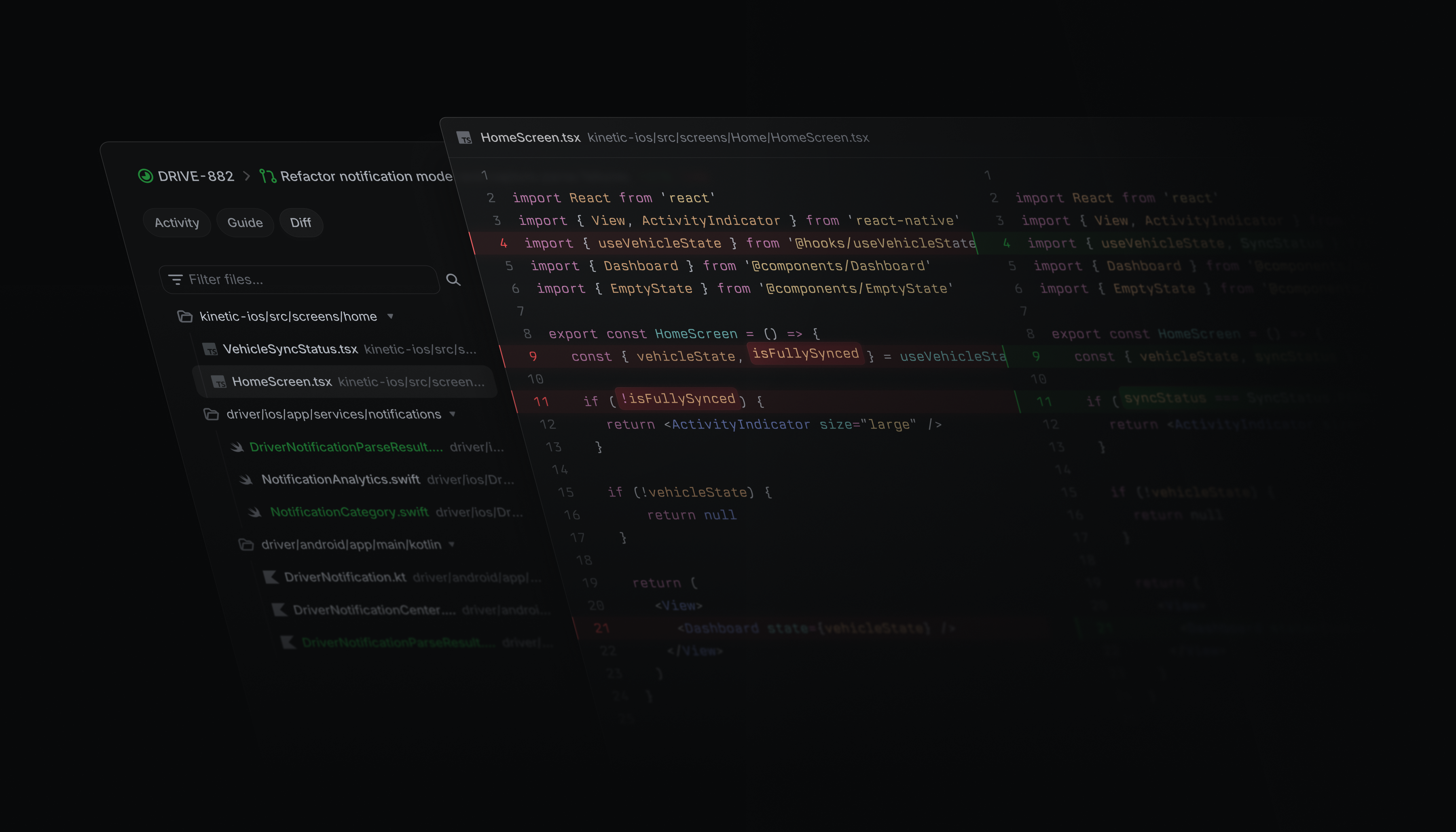
You can now review diffs from any issue with a PR, iterate on further changes with agents, and ship code from Linear. All reviews in Linear sync back to GitHub, so the current state of review work is always clear.
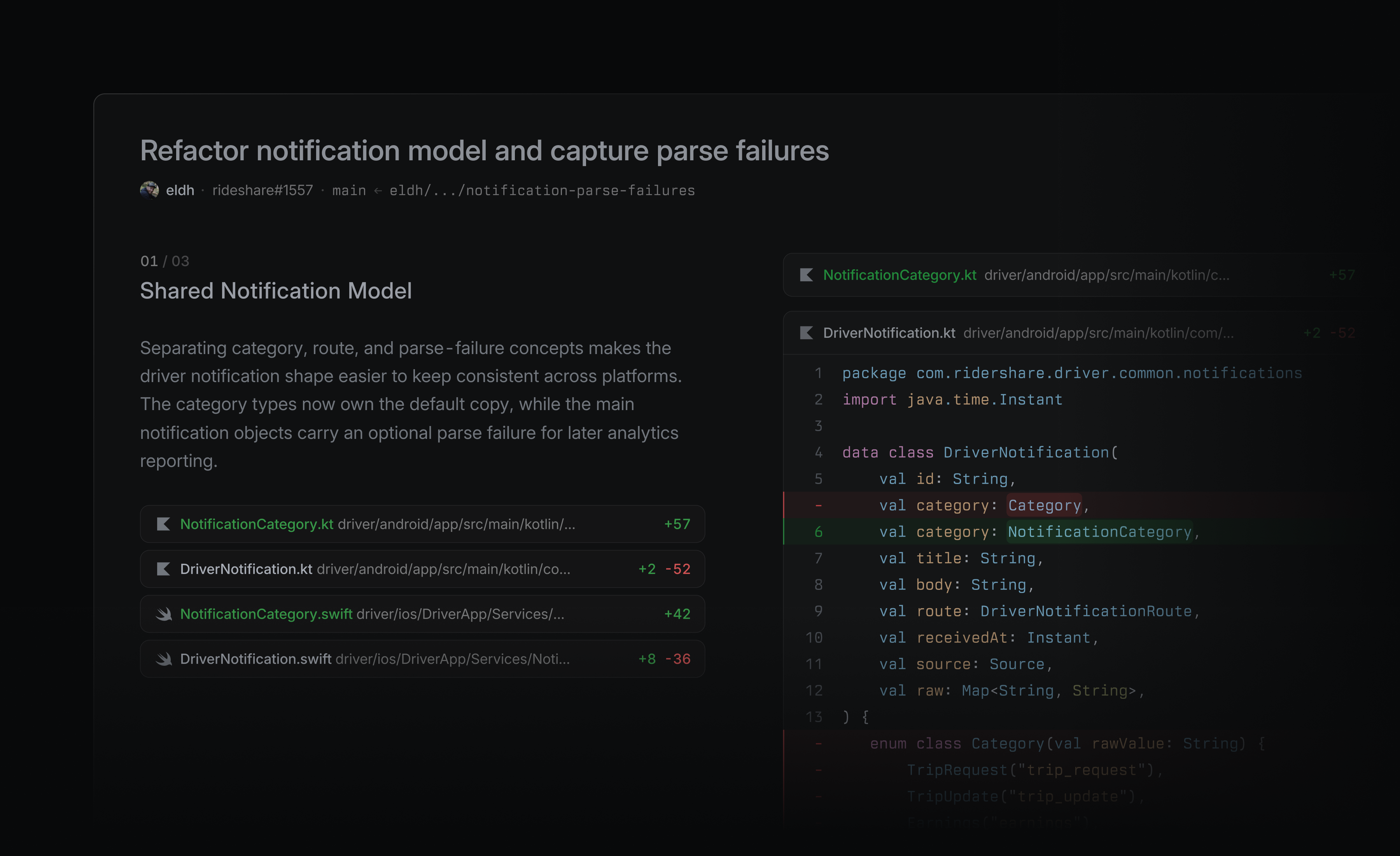
Guided reviews (beta)
Guided reviews help you efficiently review large PRs. When you view a diff in this format, you'll see the core of change first, so you don't have to dig for an entrypoint.
Each section of diffs has an explanation — starting with what the change is, then moving into its consequences. Guided reviews separate out glue code and secondary changes so you can stay focused on what matters. This style of review makes it much easier to move through large changes in a single sitting.
Guided reviews are free during beta and available for Linear customers on Business and Enterprise plans.
Review Inbox
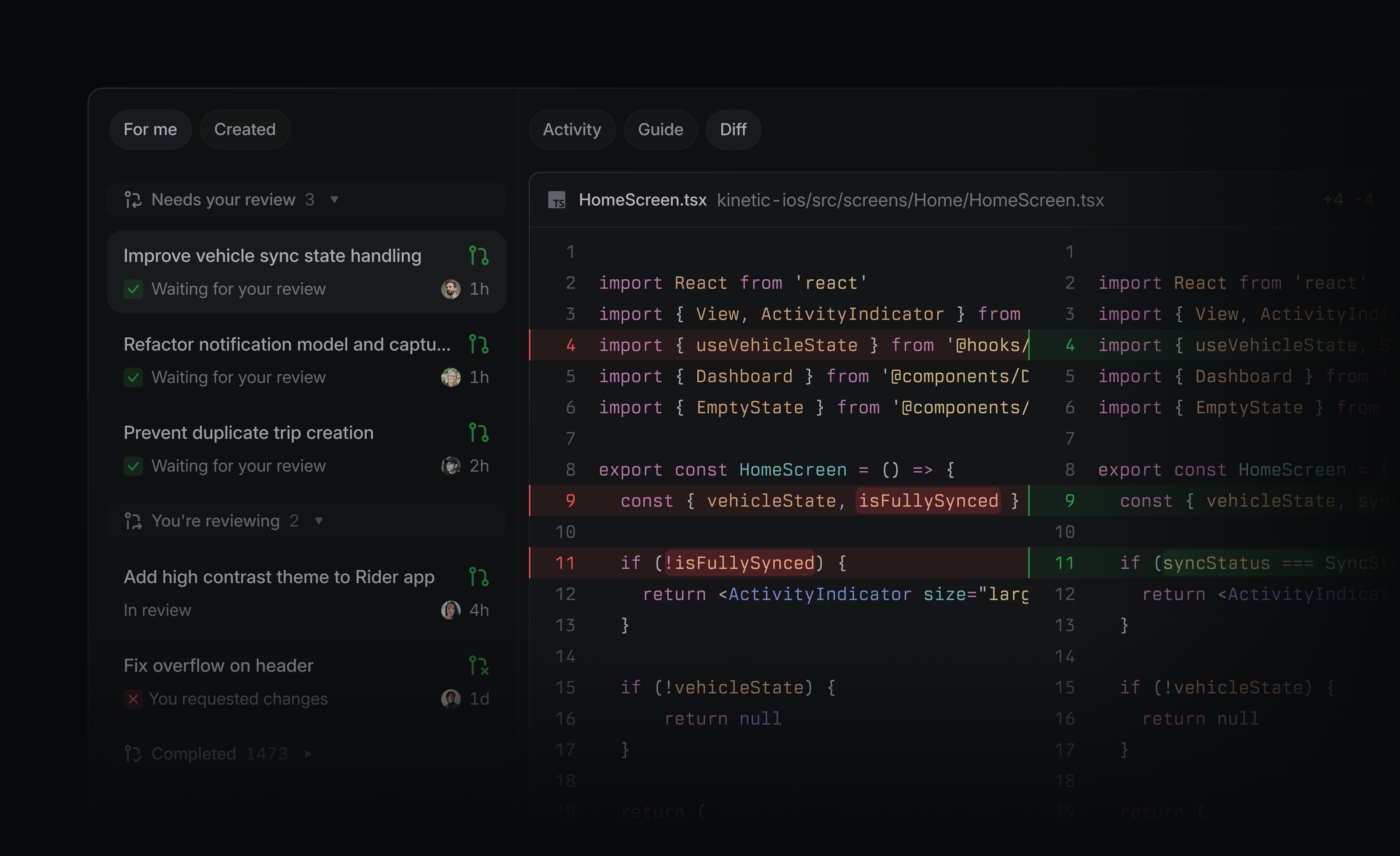
Staying on top of reviews is easier when review notifications live alongside the rest of your work. Linear notifies your Inbox for work like review requests, your approved PRs, and comment mentions. You can set up additional real-time desktop, Slack, email, or mobile notifications.
We've also added a dedicated Reviews tab in your sidebar so you can see all your review work at once. The default focus ordering sorts reviews by what’s closest to shipping, so the work that needs your attention most rises to the top.
Reviewing code
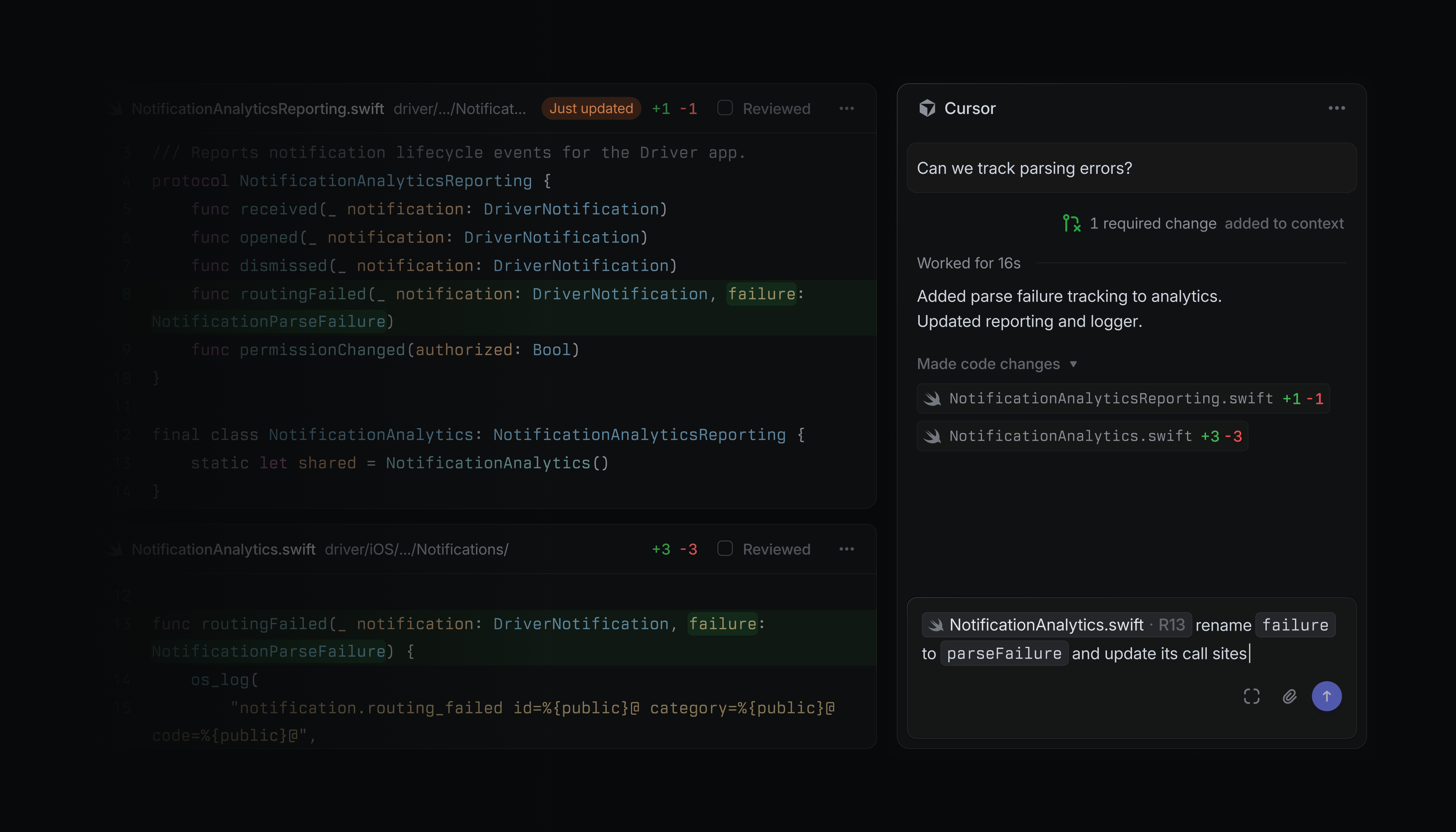
When a review calls for changes, keep iterating from the diff surface with a background coding agent. Agent changes update the diff in real-time, so you don't need to check out the branch locally for every small tweak.
Diffs is responsive when reviewing even very large PRs. You can view unified or split diffs, enable line wrapping and structural highlighting, and choose custom code themes.
Linear Diffs is available now on all plans. Guided reviews are free during beta and available for Linear customers on Business and Enterprise plans.
Workspace admins can enable Diffs by upgrading Linear's GitHub integration for code access. Then, individual users can choose to review diffs in Linear.
To learn more about why we built Diffs, read Code review should be fast. For more on Diffs functionality, check our documentation.
Project Slack channels
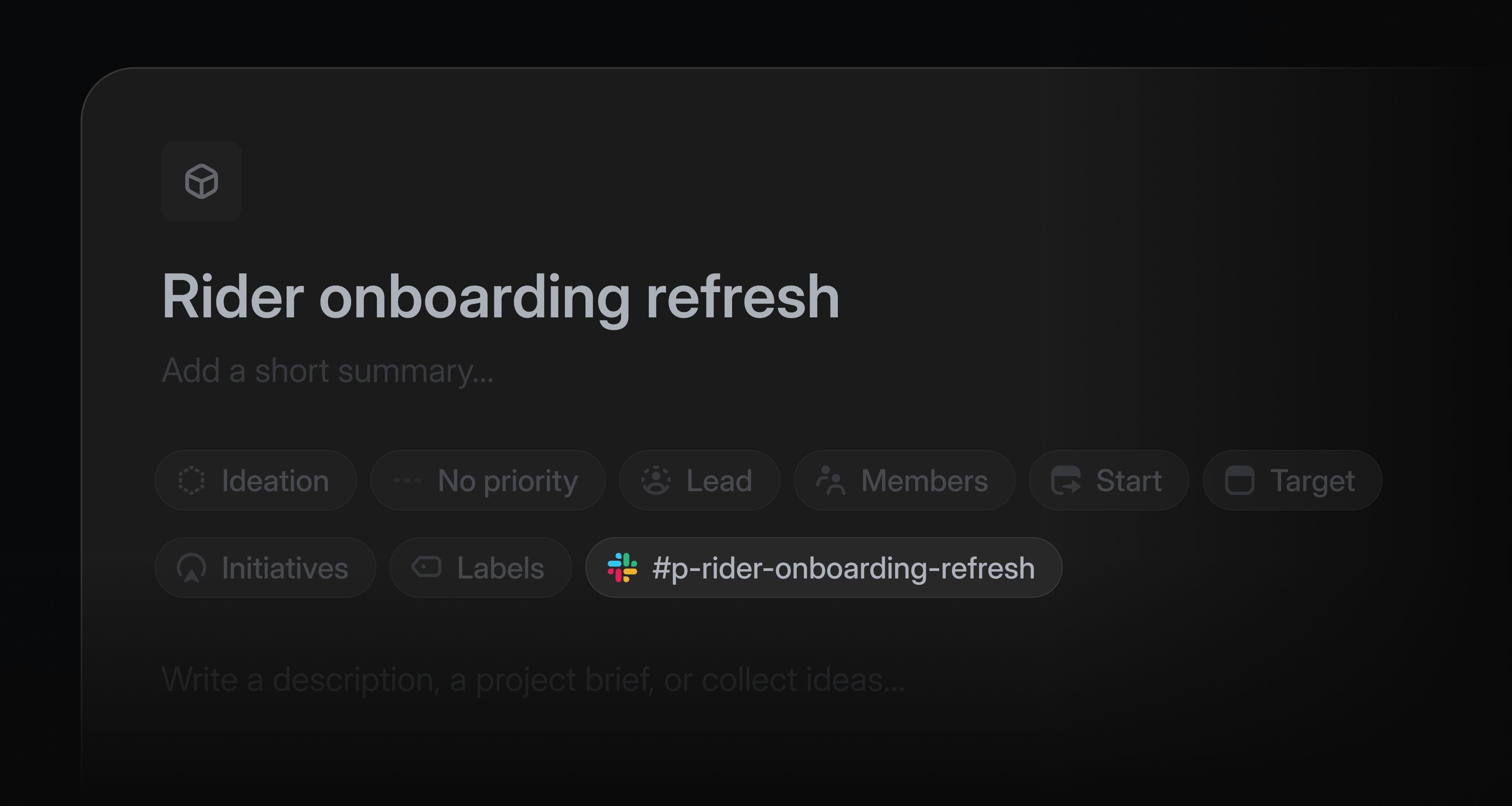
Project teams often use a Slack channel to discuss and share feedback about their project as it takes shape.
Now, Linear can spin up that Slack channel automatically every time a new project is created. All project members are automatically added to the project Slack channel, and project updates post to that channel by default.
When working in a project's Slack channel, you can use Linear Agent to answer questions or take actions in the project. Try sending messages to the channel like “@Linear what’s our target date?” or “@Linear file this bug and assign it to me.”
Admins can enable channel creation from settings. Learn more about project Slack channels in our documentation.
Linear Asks Agent
Linear Asks brings internal requests into Linear, where the appropriate team can work on them.
Now, anyone in your Slack workspace can file a request in Linear by mentioning @Linear Asks. Linear checks the templates enabled for that channel, picks the best match, and creates an issue using the conversation as context.
When a template uses required fields, Linear follows up to collect any missing details before creating the issue.
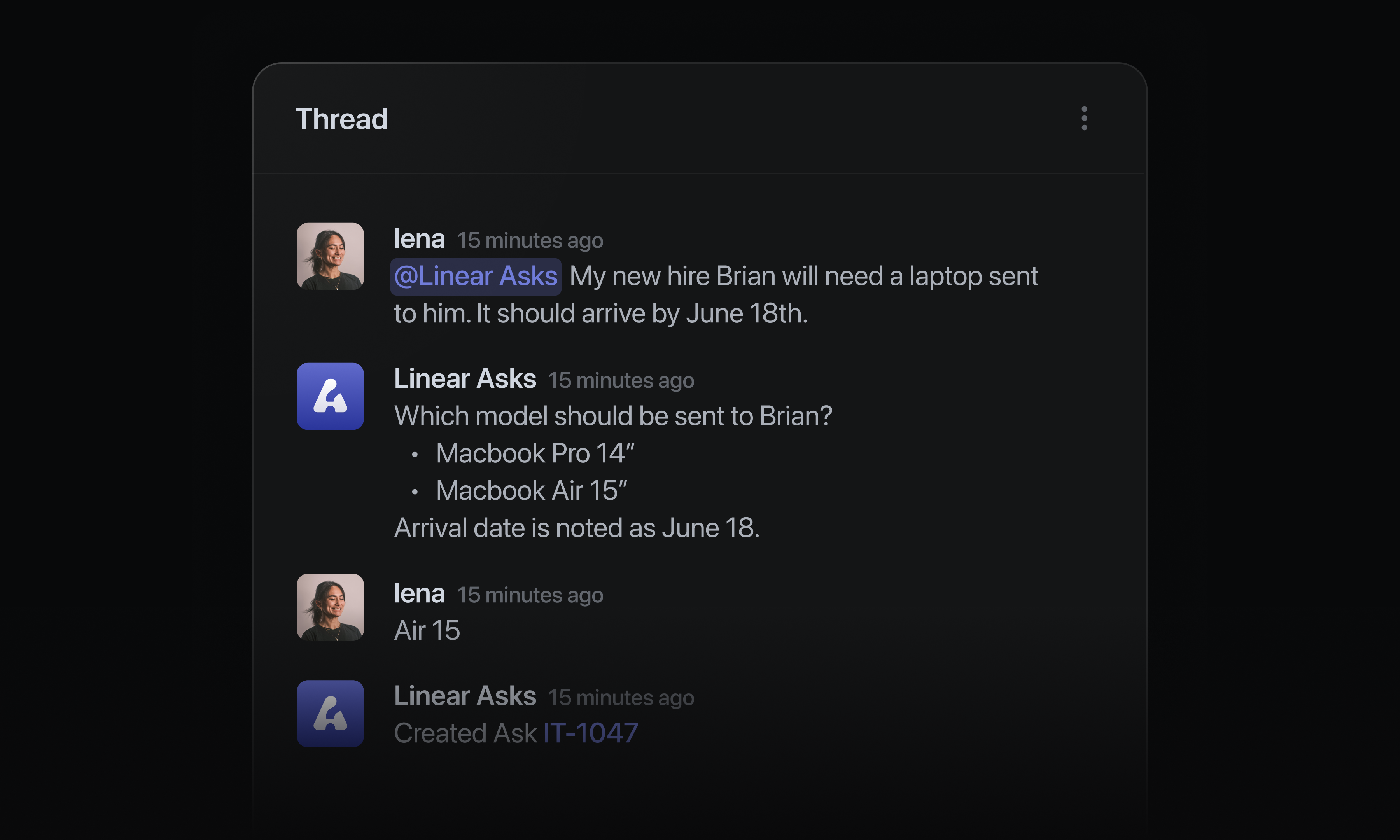
Admins can configure Linear Asks agent in settings for any connected Slack workspace. Asks is available on Business and Enterprise plans. Learn more in our documentation.
Issue duplicates
Duplicate issues now use a dedicated status type in Linear and move context to the original issue.
When an issue is marked as a duplicate, its customer requests, synced Slack threads, and attachments are moved to the original issue. Whether a teammate, agent or Triage Intelligence marks an issue as a duplicate, the issue context moves to the right place.
Because of theses changes, every issue with a duplicate status must now link to the original issue. On duplicate issues, that original issue is shown clearly in the sidebar.
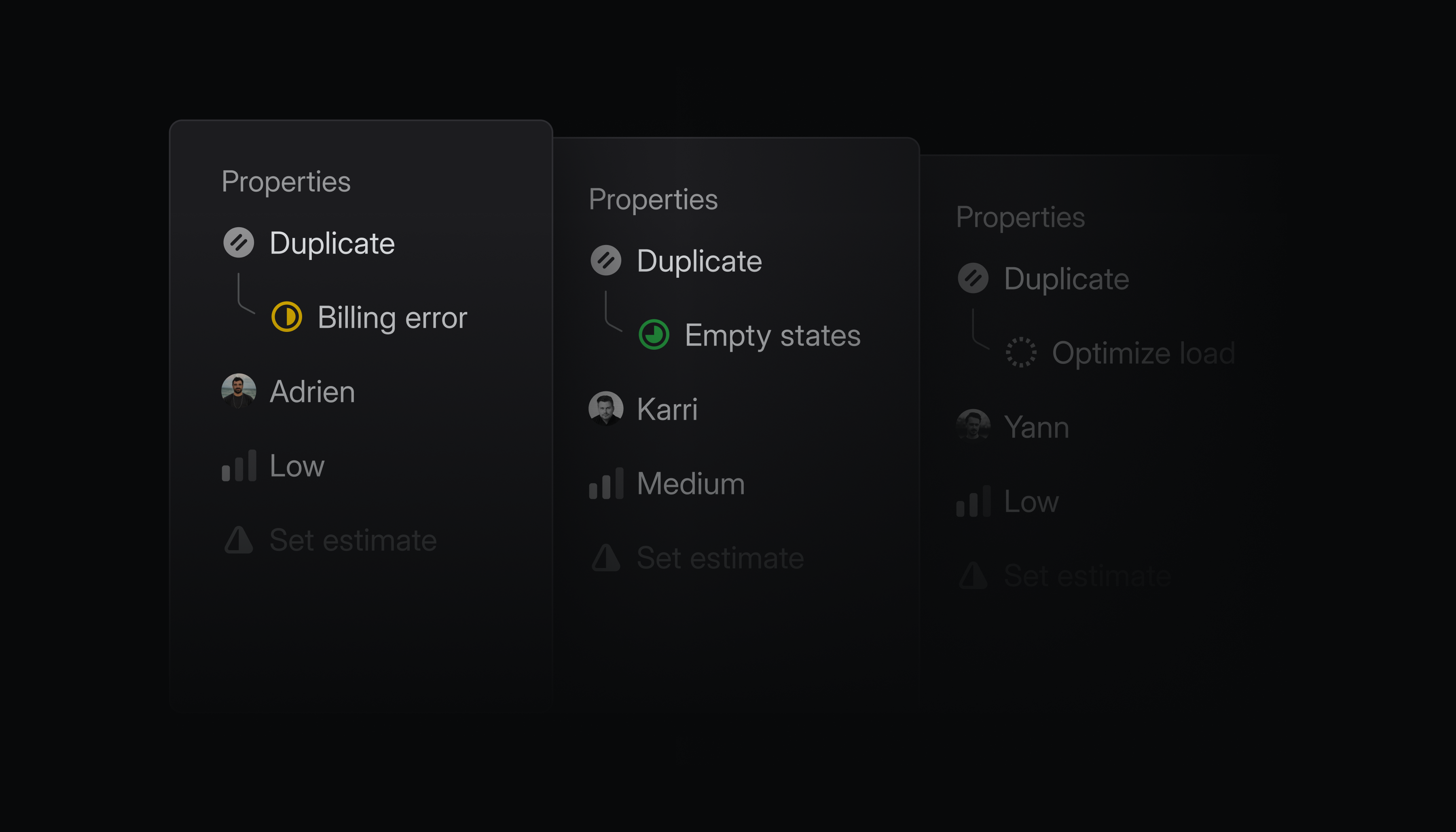
When the original issue is completed, every synced Slack thread is notified. Each linked customer ticket in Zendesk or Intercom also reopens, so you can keep your customers in the loop.
Reorder groups in issue and project views
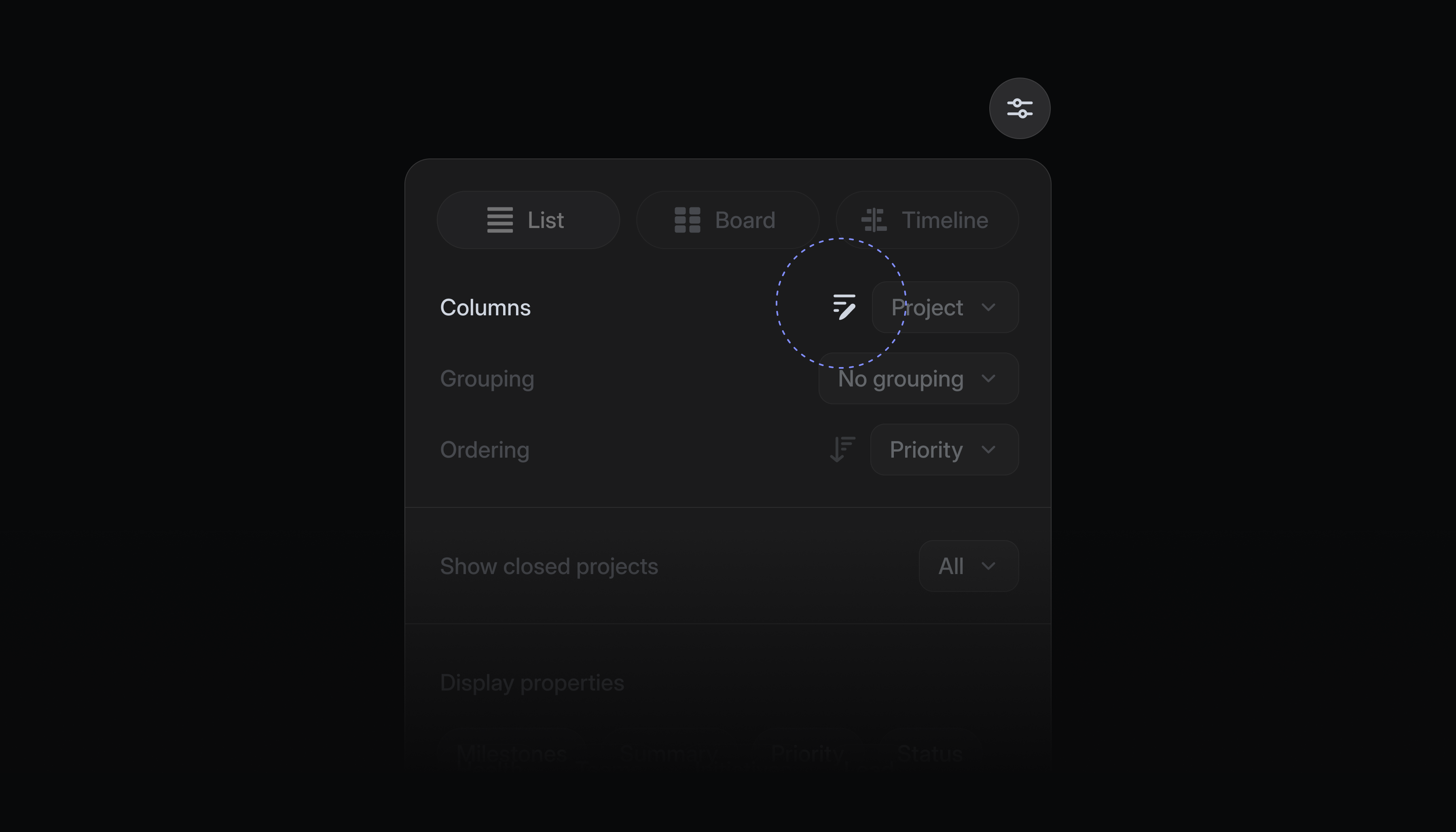
Issues and projects in views are often organized into groups like status, priority, or label. You can now reorder these groups in any list or board view to put the most important sections first.
Click the reorder groups icon in display options, then drag groups into your preferred order. You can reset the view back to the default order at any time.
GitHub Enterprise Cloud integration
Linear now supports GitHub Enterprise Cloud.
Once connected, GitHub Enterprise Cloud users have access to all the benefits of our popular GitHub integration. Linked pull requests update issue statuses automatically, GitHub Issues sync can be enabled for select repos, and you can review PRs natively with Linear Diffs.
This integration is available on Linear's Enterprise plan. Read more in our documentation, and install the GitHub Enterprise Cloud integration to get started.
Code Intelligence
Code Intelligence gives Linear Agent controlled access to your codebase, turning repositories into shared product context your whole team can use.
With Code Intelligence, Linear Agent can reason about how your product actually works, not just what’s captured in issues, projects, and docs. Ask how a feature is implemented, why something behaves a certain way, what a change might affect, or which technical constraints should shape a plan or customer request without digging through the codebase or interrupting an engineer.
PMs can write sharper specs, Support and Sales can answer technical questions with more confidence, and Engineering can investigate bugs, regressions, and unfamiliar parts of the system faster.
To set up Code Intelligence, a workspace admin should:
- Install the GitHub integration and enable code access
- Turn on Code Intelligence in AI Settings
From there, admins can choose which repositories to include and whether access is limited to members with existing GitHub permissions or available to the entire workspace.
Code Intelligence is now available in public beta for Business and Enterprise plans, and free to use during the beta period. See the docs for more details.
Releases
Plan and track your software releases directly from Linear.
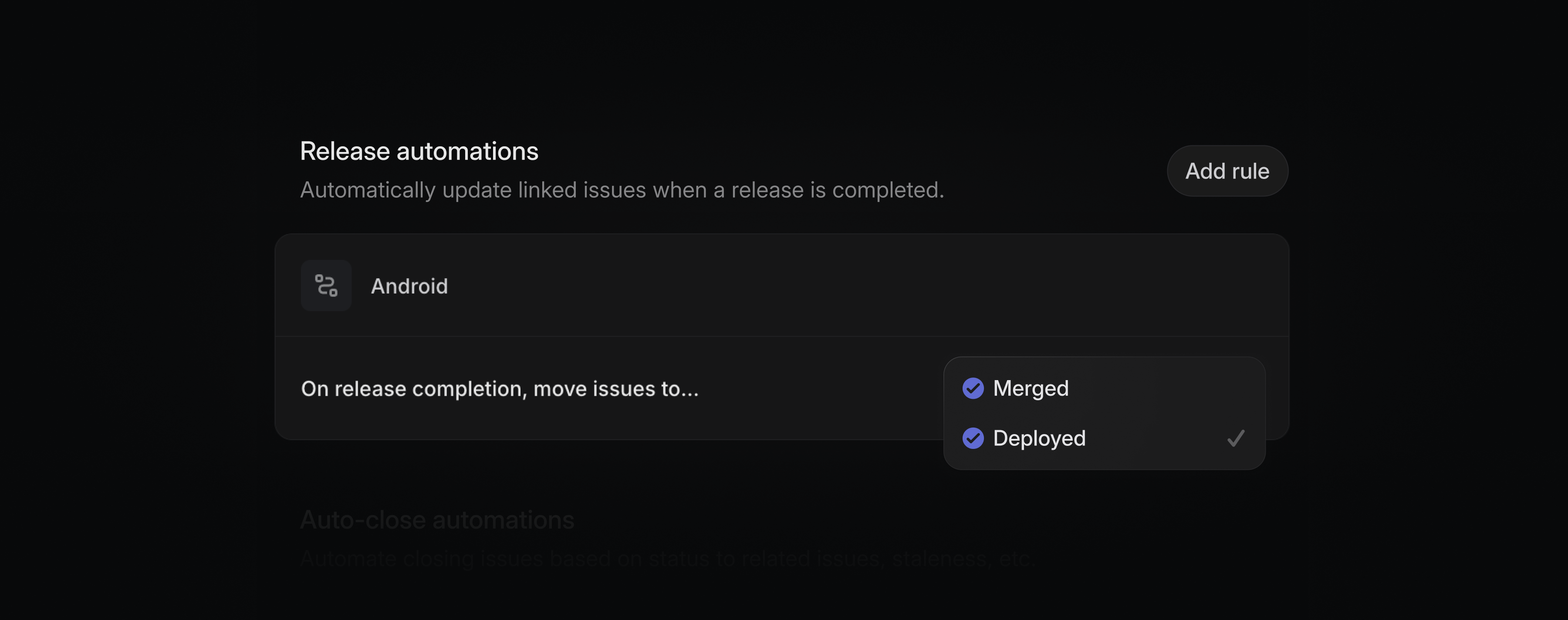
Linear Releases integrates with your CI/CD tools to precisely track the deployment environment, version, and status of every issue, giving team members and agents your full deployment context.
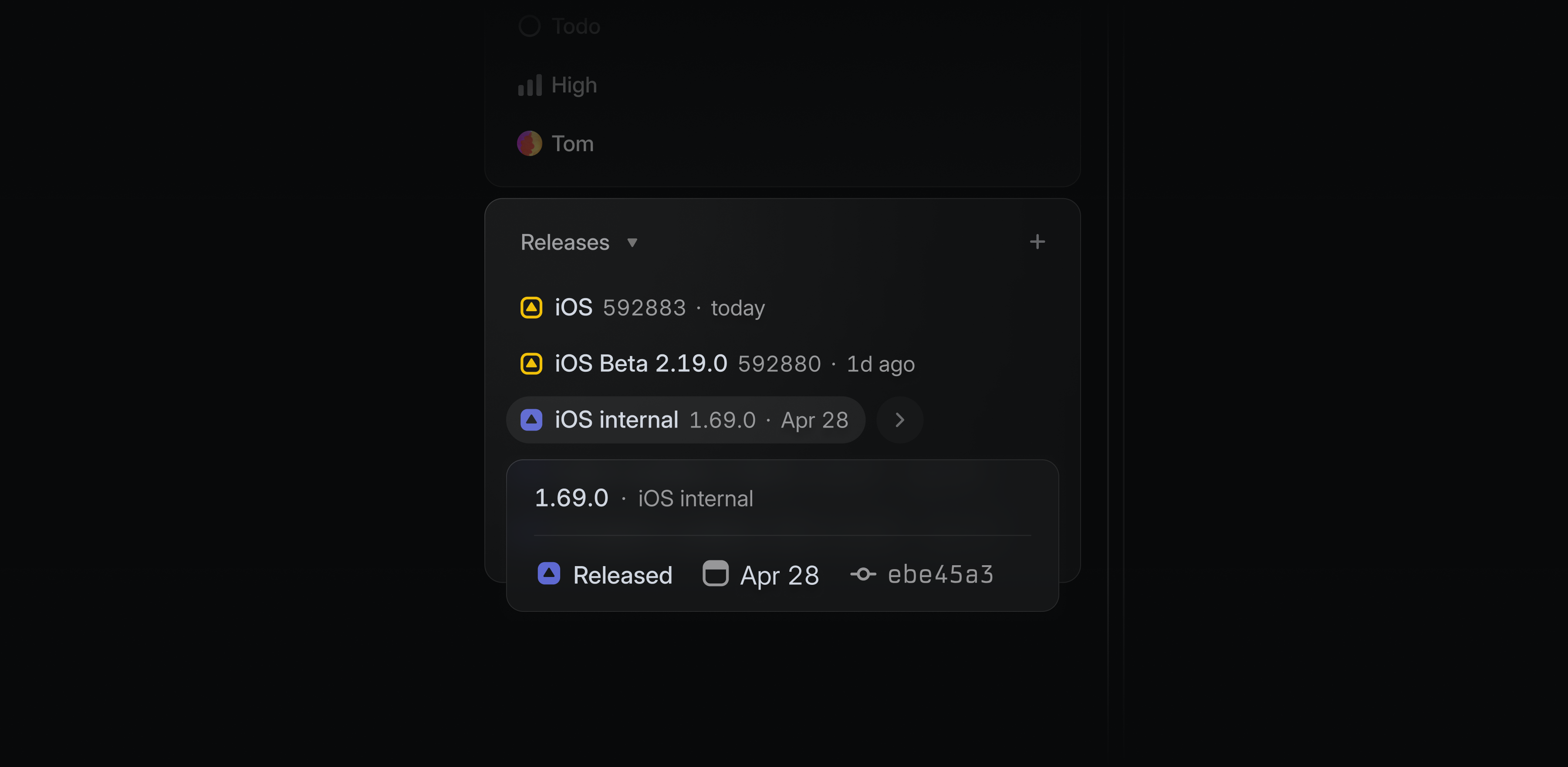
Issue statuses automatically update when their associated code changes land in production. See what's live to customers, not just what's been merged.
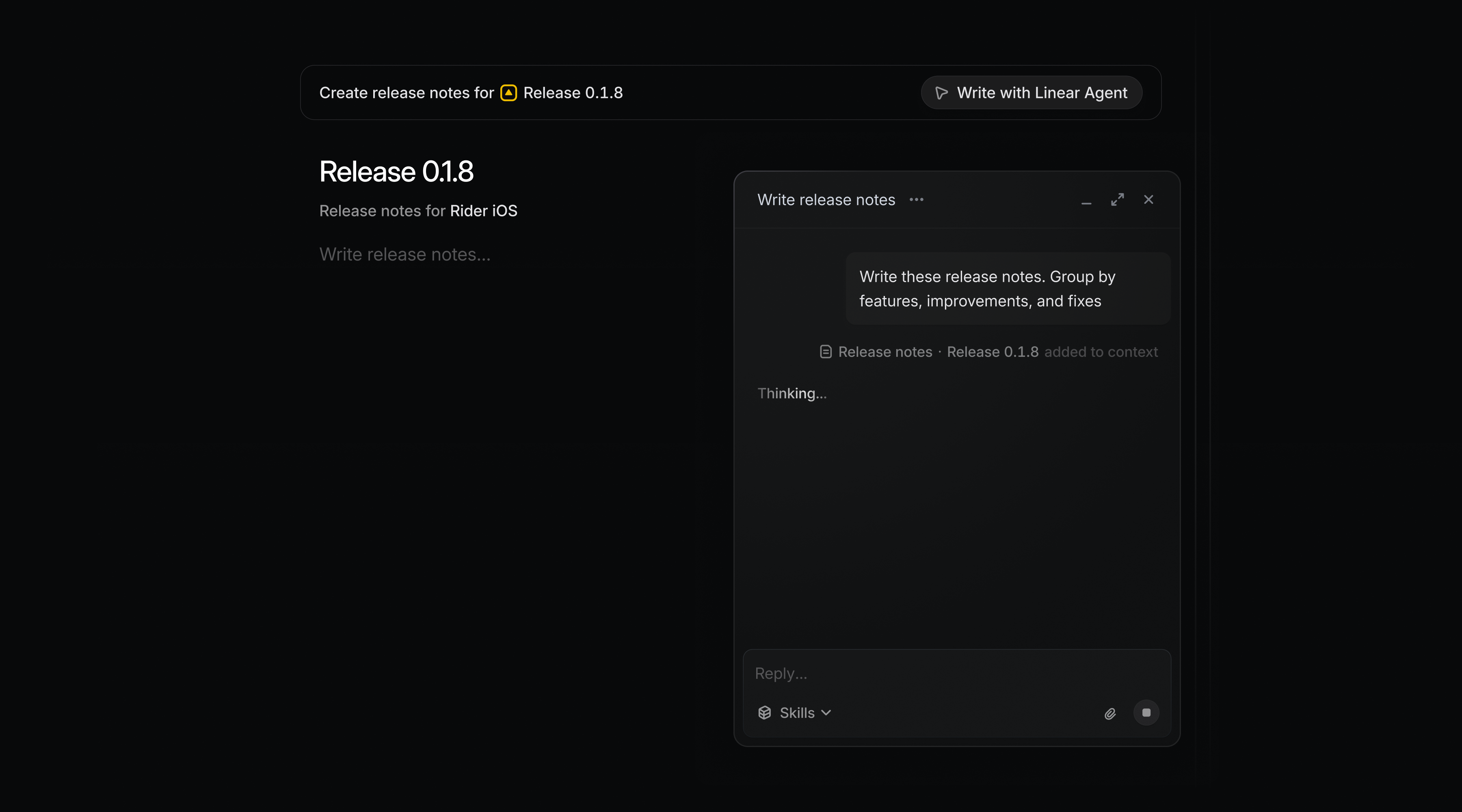
Write release notes for a single release or for a range of releases. Generate release notes with Linear Agent based on included issues.
Releases supports both continuous deployment and scheduled release methodologies. Add up to 15 release pipelines on Business, or unlimited on Enterprise plans. Learn more in our documentation.
Linear Agent MCP support

Linear Agent can now connect to your tools via MCP, giving it access to data and actions beyond your Linear workspace. Bring external context into your workflows to investigate issues, plan projects, write specs, and draft updates grounded in your full context.
For example:
- Pull meeting takeaways from Granola into a project update and create follow-up issues
- Use enterprise context from Glean to draft a more complete project spec
- Turn interview notes from Notion into customer requests
- Use PostHog data to validate a product hypothesis
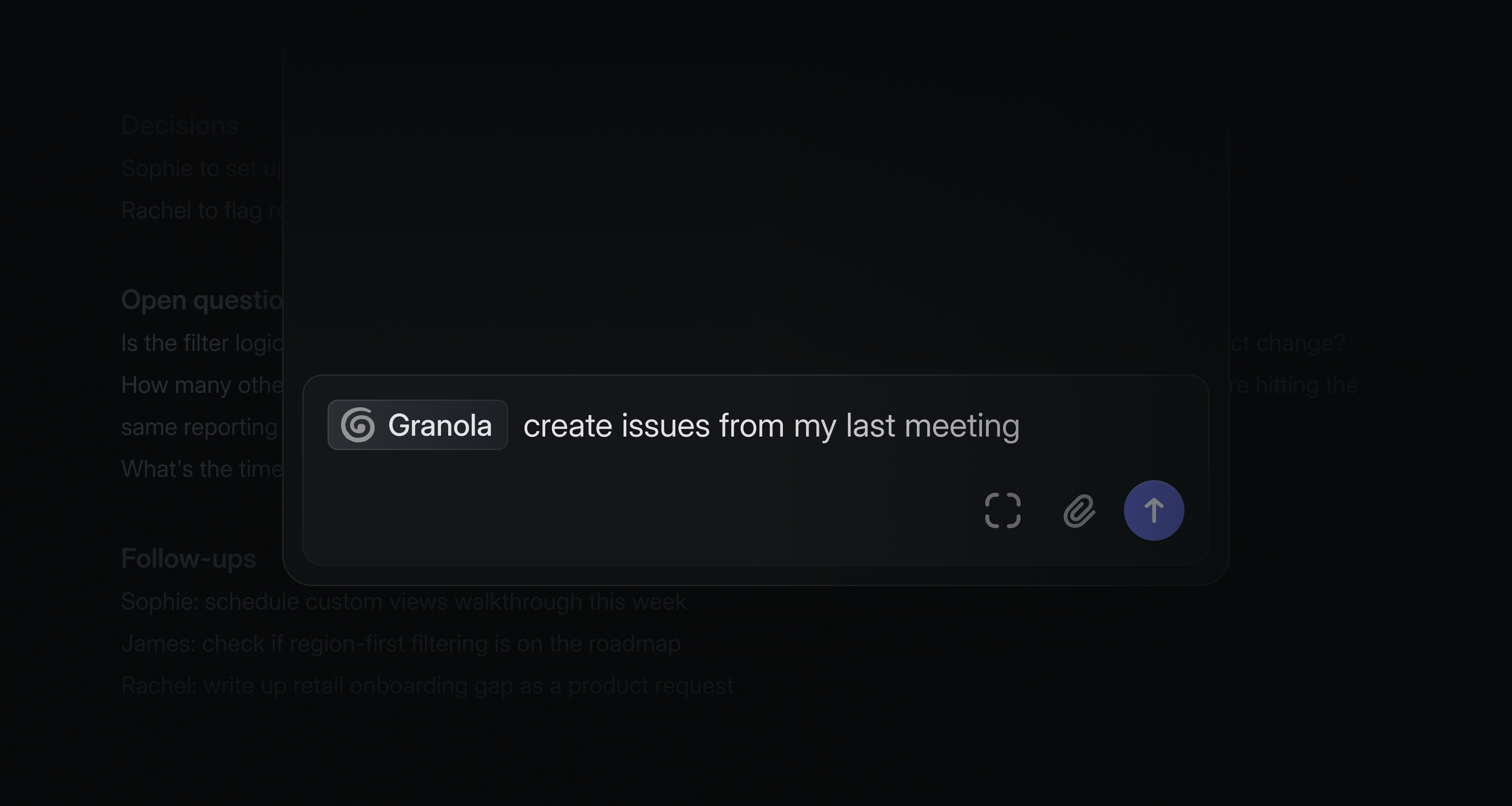
Admins can control access with allowlists and workspace-level MCP permissions. Connect servers in your agent personalization settings or within triage automations. See the docs for supported servers and setup instructions.
Improvements to Linear Agent
We're continuously improving Linear Agent and adding new capabilities and features.
- Select text anywhere in Linear and press ⌘J to send it directly to the agent as context
- Agent chat now opens in a maximized overlay, so it feels like a natural extension of the toolbar chat instead of a separate page
More control over sharing issues
We recently introduced issue-level sharing, which lets teams share individual issues from private teams with guests and members who don’t have team-level access.
This update gives team owners more control over how that access is managed. Team owners can now configure who can share issues with non-members in team settings. Sub-issues also no longer inherit the parent issue’s share state and can be shared independently.
Issue-level sharing is available on Enterprise plans. Learn more in our docs.
Linear for Microsoft Teams
Mention @Linear in any Microsoft Teams channel to turn your conversations into actionable work.
You can ask Linear to make changes directly in Linear, or pull information from Linear into Teams. Try it by sending a message like:
- @Linear file a bug for this and assign it to me
- @Linear what's the latest progress on our billing API project?
- @Linear create issues for each feature request mentioned in this video
Keep everyone up to date on progress
Connect your Linear projects to Teams channels to keep everyone aligned. After connecting, project notifications like updates will automatically post to Teams.
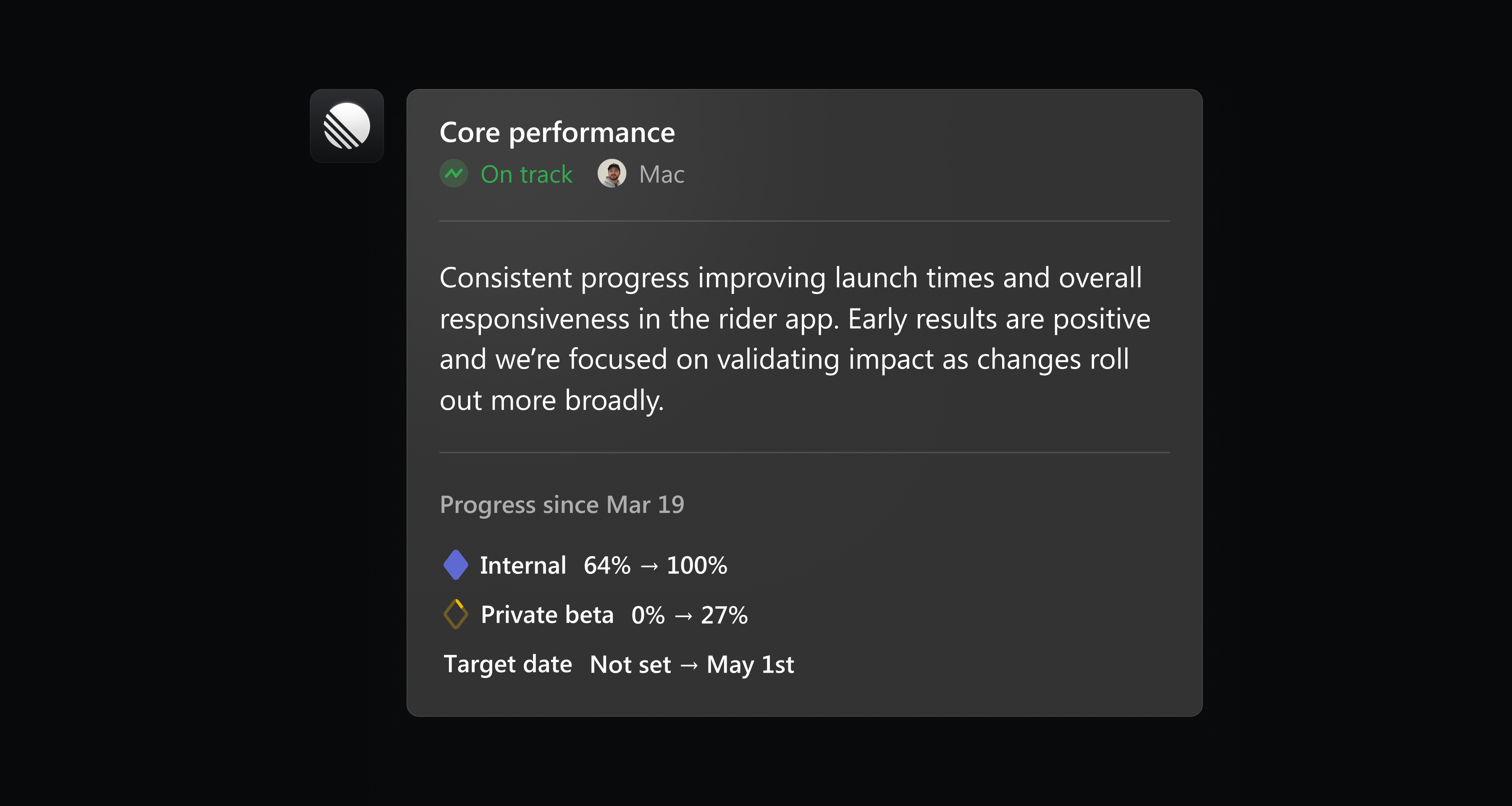
Install Linear for Microsoft Teams in settings, or learn more in our documentation.
Custom coding tool integrations
Linear already supports one-click integrations to open issues in popular tools like Claude Code, Codex and Cursor. To better support custom workflows and new tools, we've added support for custom coding tool integrations.
Custom coding tool integrations let you open issues in tools that aren't supported out of the box. You can configure them in two ways:
- Launch a tool using a URL with query parameters
- Run a local command from the desktop app
Add a new custom coding tool in preferences, or learn more in our documentation.
Sync multiple Slack threads to an issue
When an issue is reported in Slack, either through Asks or the Linear Agent, a synced thread is added to that issue to enable follow-up communication.
Now you can sync an issue to multiple Slack threads when there are multiple reports or requests for the same issue. When the issue is completed, every synced thread receives an update with the outcome.
Connect a new Slack thread to an issue by mentioning @Linear or using the “Link to existing issue” option in the Slack integration.
Multi-level sub-teams
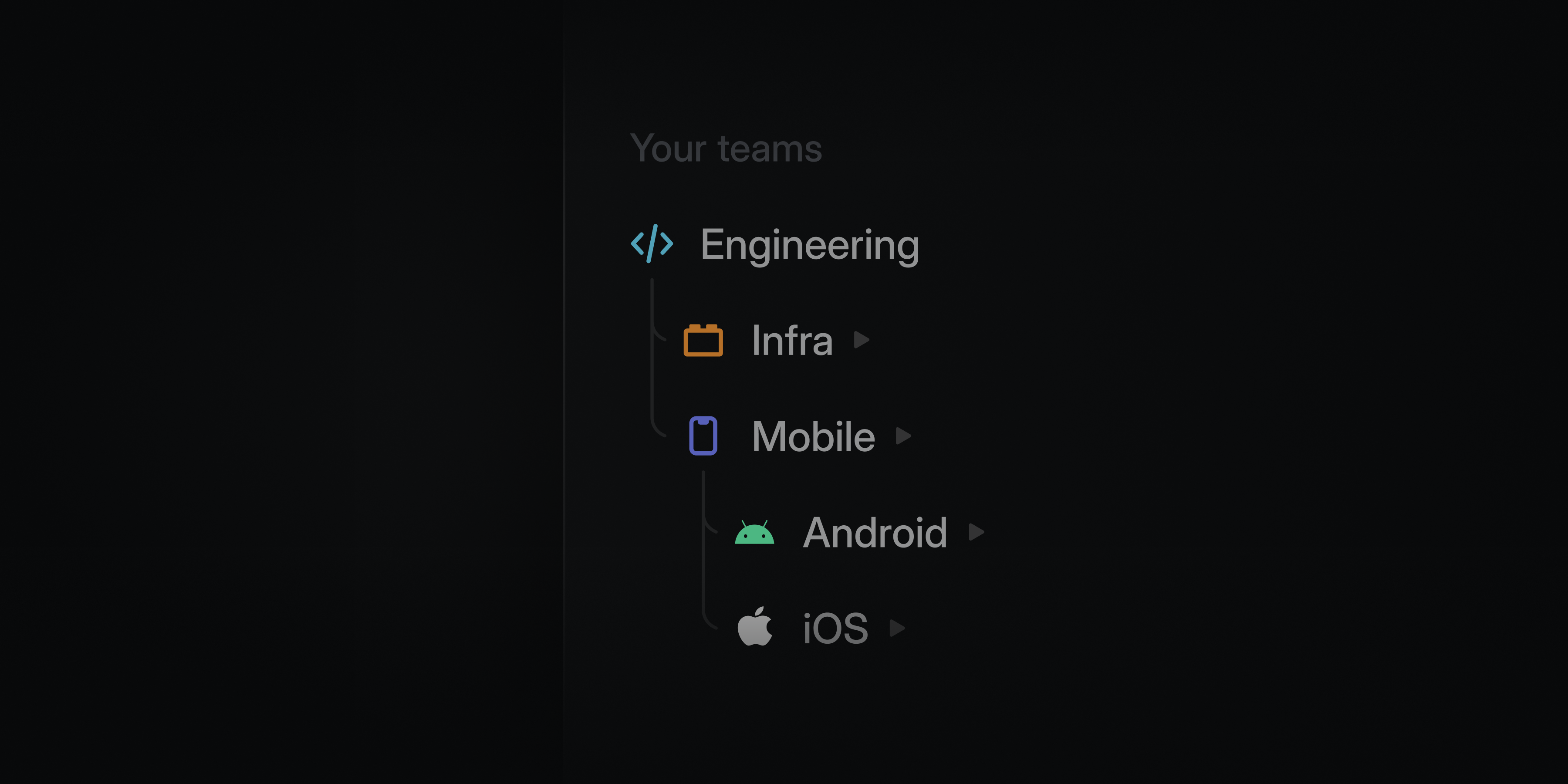
Structure your teams in Linear to match how your organization works.
Teams can nest up to five levels deep, making it possible to represent divisions, departments, groups, squads, and more. Sub-teams inherit workflows and settings from their parents at every level, so you can maintain consistency while giving each unit flexibility in how they work.
Multi-level sub-teams are available on the Enterprise plan. Learn more in our docs.
Project and initiative comments
Projects and initiatives now support comments in their activity feed, giving teams a place for high-level discussion alongside updates. Conversations stay attached to the work itself, making it easier for both people and agents to follow and reference.
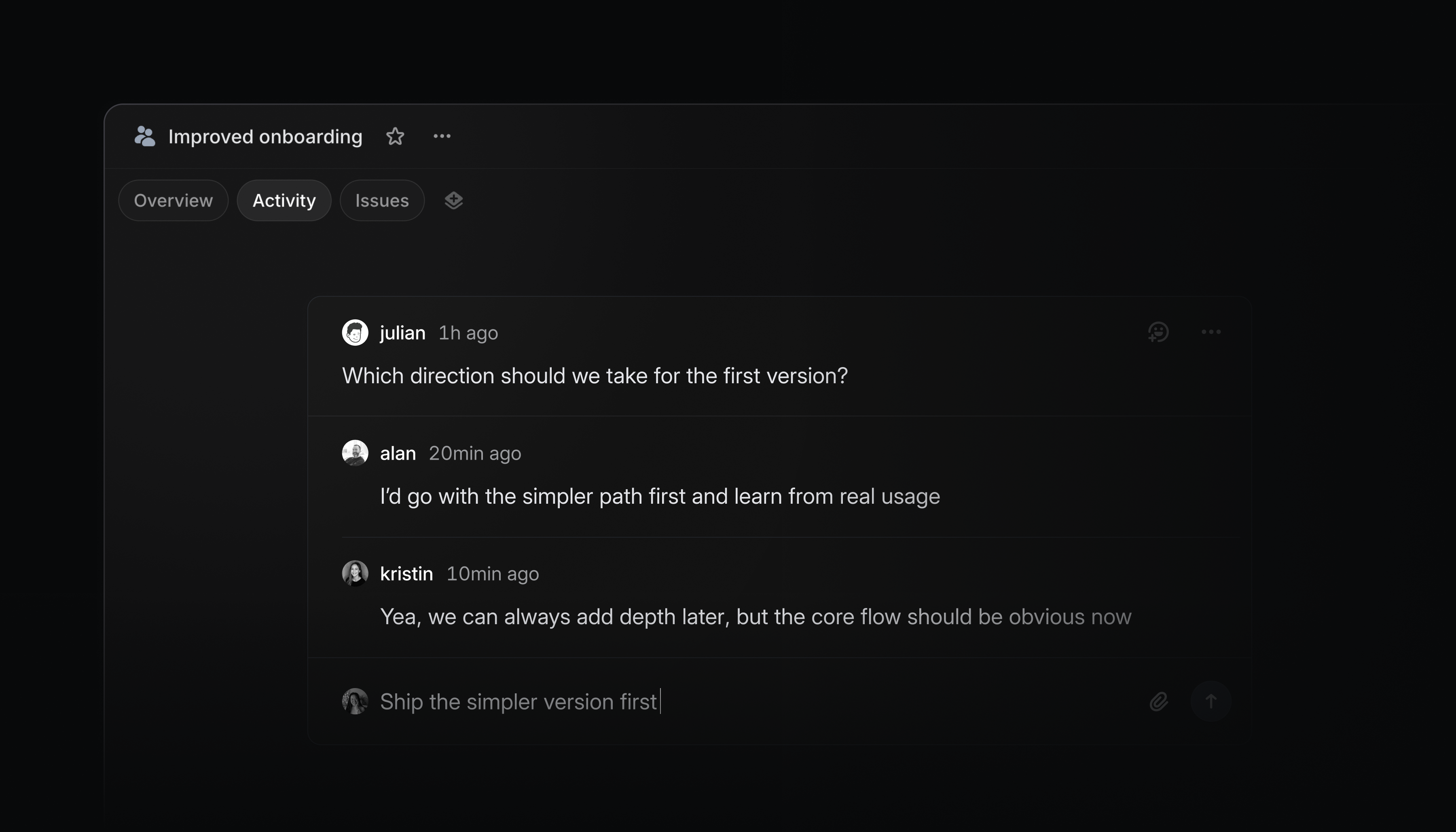
Use comments to:
- provide lightweight feedback that doesn’t belong in an inline comment or formal update
- discuss open questions and resolve threads once decisions are made
- capture meeting takeaways and mention @Linear to update docs, revise descriptions, and create issues
Web forms for Linear Asks
Linear Asks allows you to capture internal requests and bring them into Linear so the appropriate team can work on them. Previously, we've enabled intake through Slack and email.
Now we've added custom web forms as well.
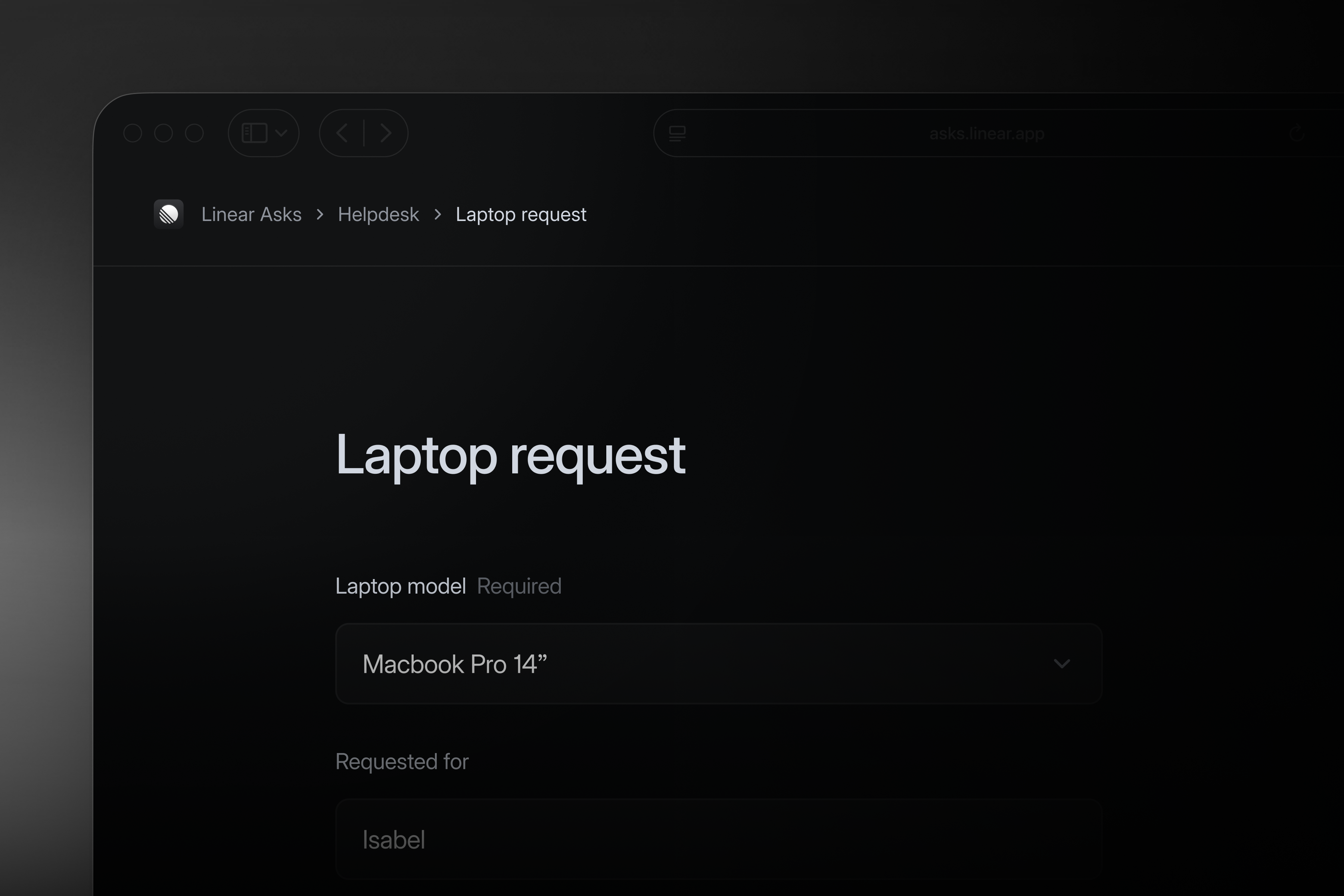
Teams can create a dedicated Asks page with forms for the types of requests they handle, like feature requests, bug reports, data pulls, or HR and IT tasks. Forms are powered by issue templates, so teams control exactly what information gets collected. Every submission becomes an issue in the team’s triage inbox, where it can be fielded by a team member or routed with Triage Intelligence.
Anyone in your company can create an ask, even if they don’t have a Linear account. After submitting an ask, submitters can follow up through a synced email thread on the issue.
Web forms for Linear Asks are available on the Enterprise plan. Learn more in our documentation.
Introducing Linear Agent
We're excited to share the next major step in Linear's evolution. For the vision behind Linear Agent, read the letter from our CEO, Karri.
As execution accelerates, the bottleneck in product development shifts toward judgment: deciding exactly what to build and where your team's time, attention, and tokens are best spent.
Your workspace already contains much of the context needed to drive good product decisions, but getting to it means reading through threads, combing the backlog, reviewing customer requests, and piecing together what's relevant.
Linear Agent brings all of that context within reach.
Built directly into Linear, and accessible everywhere, Linear Agent understands your roadmap, issues, and code. It can help you synthesize context, make recommendations, and take action.
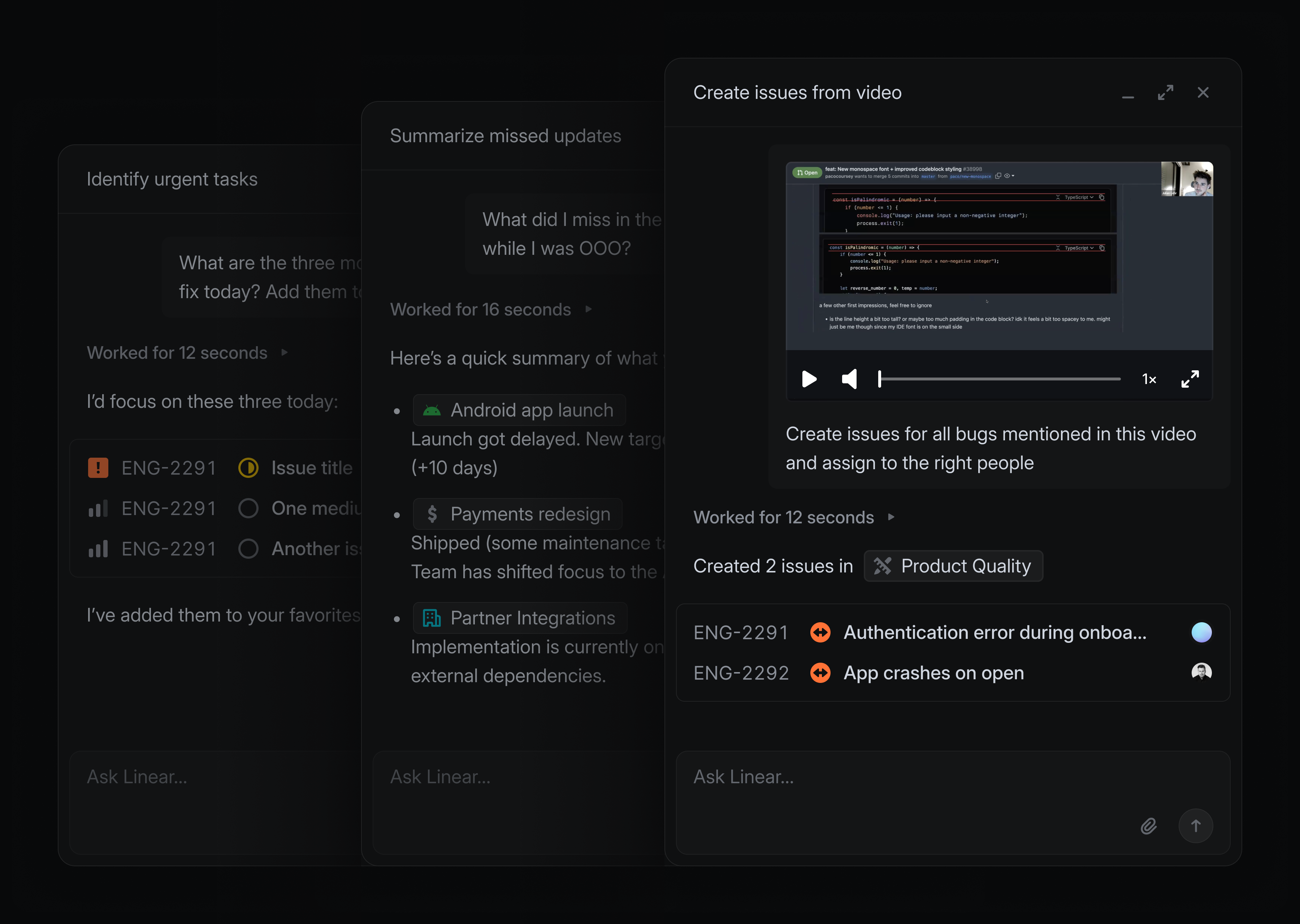
For example, when starting a new project, instead of manually researching past feature requests, you can ask Linear to find related issues, group them by relevance, and pull the right ones in. From there, ask it to extract common requirements across customer requests and scope out a starting point for your spec — all in a few minutes.
Linear Agent is powered by frontier language models and fully grounded in the context of your workspace. Use it to supercharge your everyday workflows:
- In Slack, send: "@Linear Make issues based on the discussion here and assign them to me"
- When writing a project update, tell it: "I’m writing an update for this project. What’s changed recently, and what should I include?”
- When planning your next cycle: “Read this backlog and pull out repeated themes that we can prioritize"
- When you come back from time off and need to know what's going on: “Is anything at risk or falling behind that I should be aware of?”
Linear Agent works with you wherever you are. Open a chat from the bottom-right of the desktop app (shortcut Cmd/Ctrl + J) or the mobile app, or mention @Linear in any comment or reply. It's also available in Slack and Microsoft Teams.
Skills and Automations
As you use Linear Agent, you’ll find workflows worth repeating. When a conversation gets you to a good result, you can ask Linear to save it as a reusable skill. This is especially useful for recurring workflows, like catching up on projects or drafting issues from meeting notes. Run a skill from the skills menu in any chat or with a slash command. Linear will also automatically use skills when it thinks they are applicable.
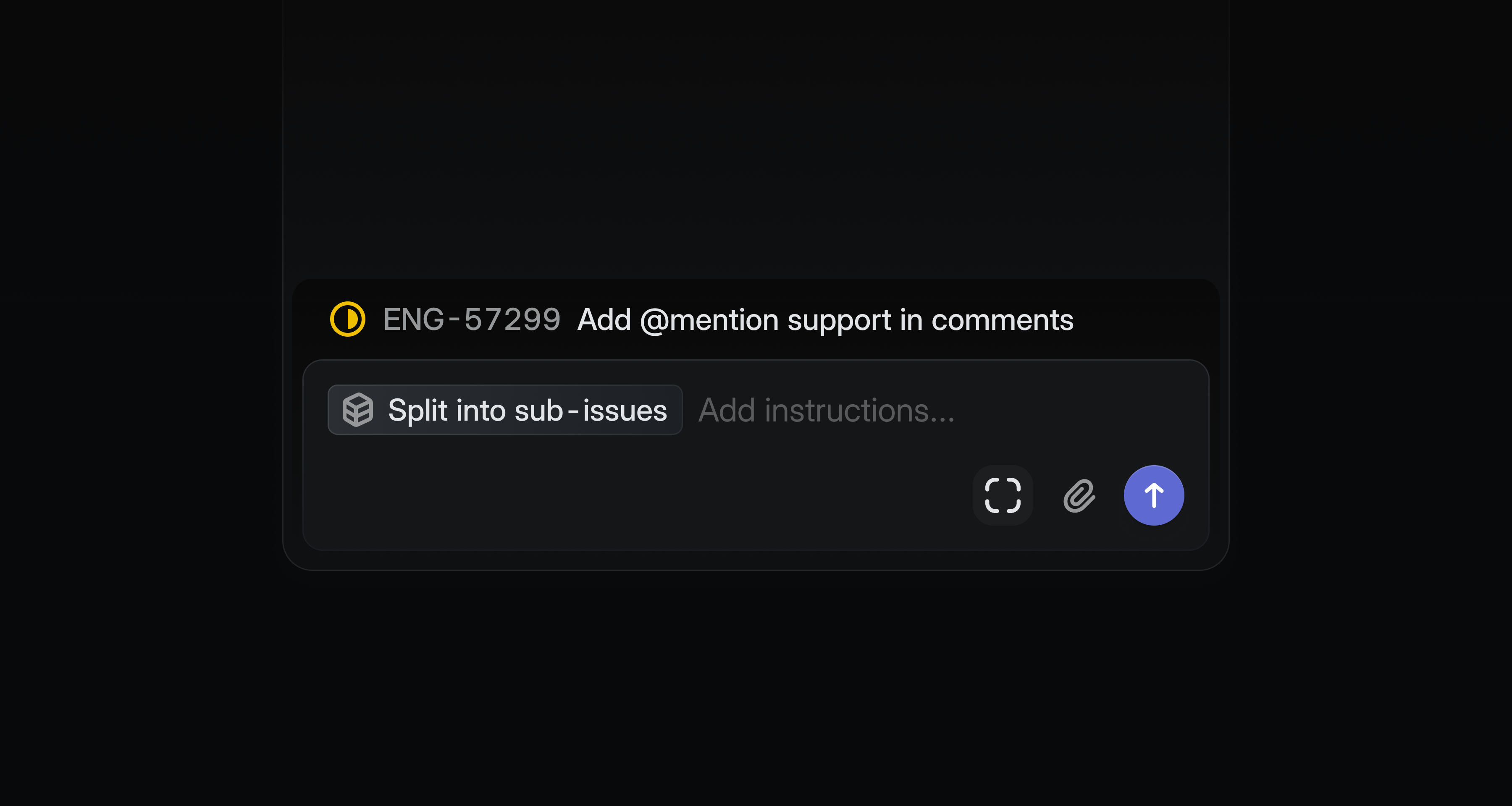
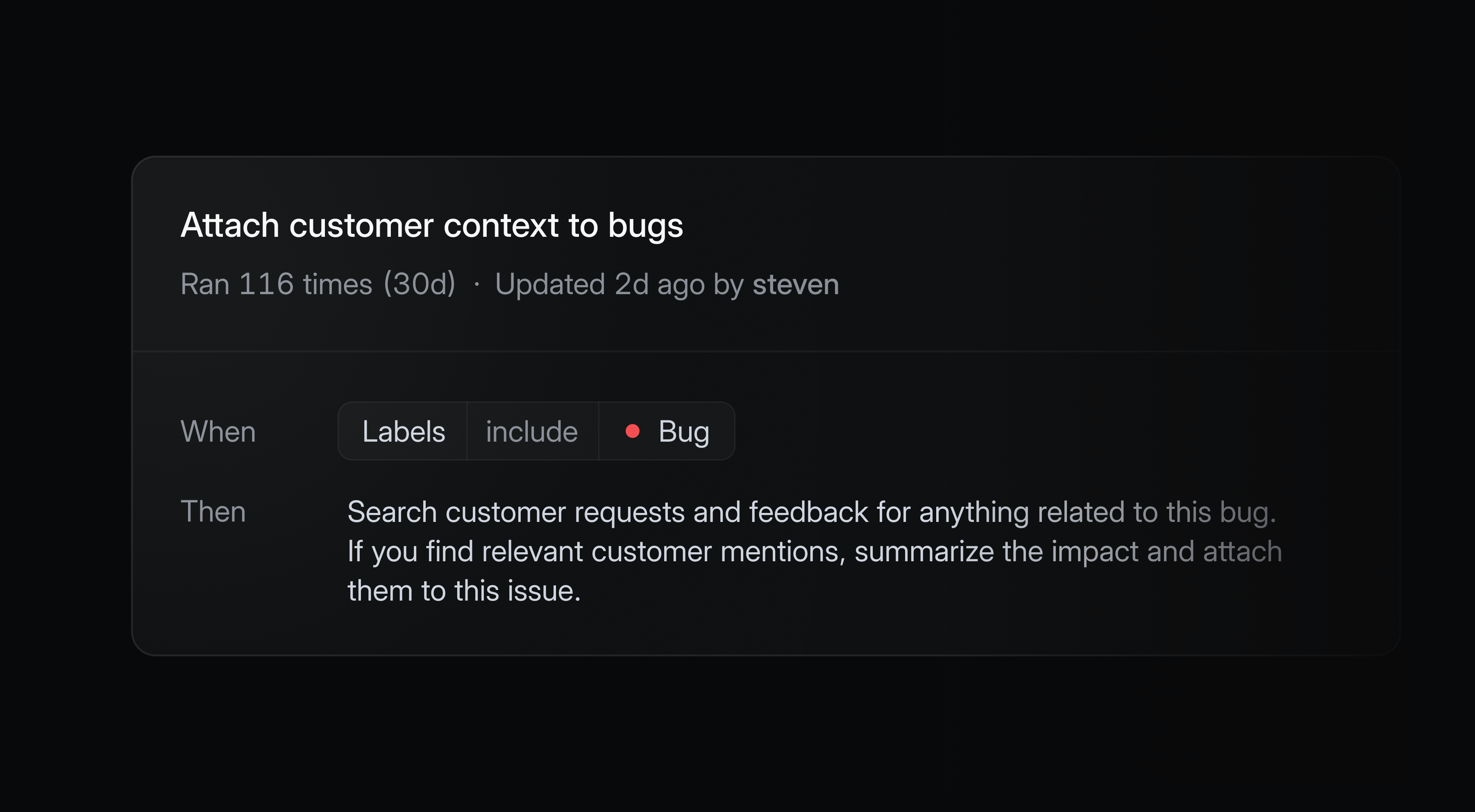
You can also trigger agent workflows automatically when issues enter triage. Every new issue adds context to your workspace, and Linear can intelligently help you refine, synthesize, or act on it.
Automations are available on Business and Enterprise plans.
Code Intelligence (coming soon)
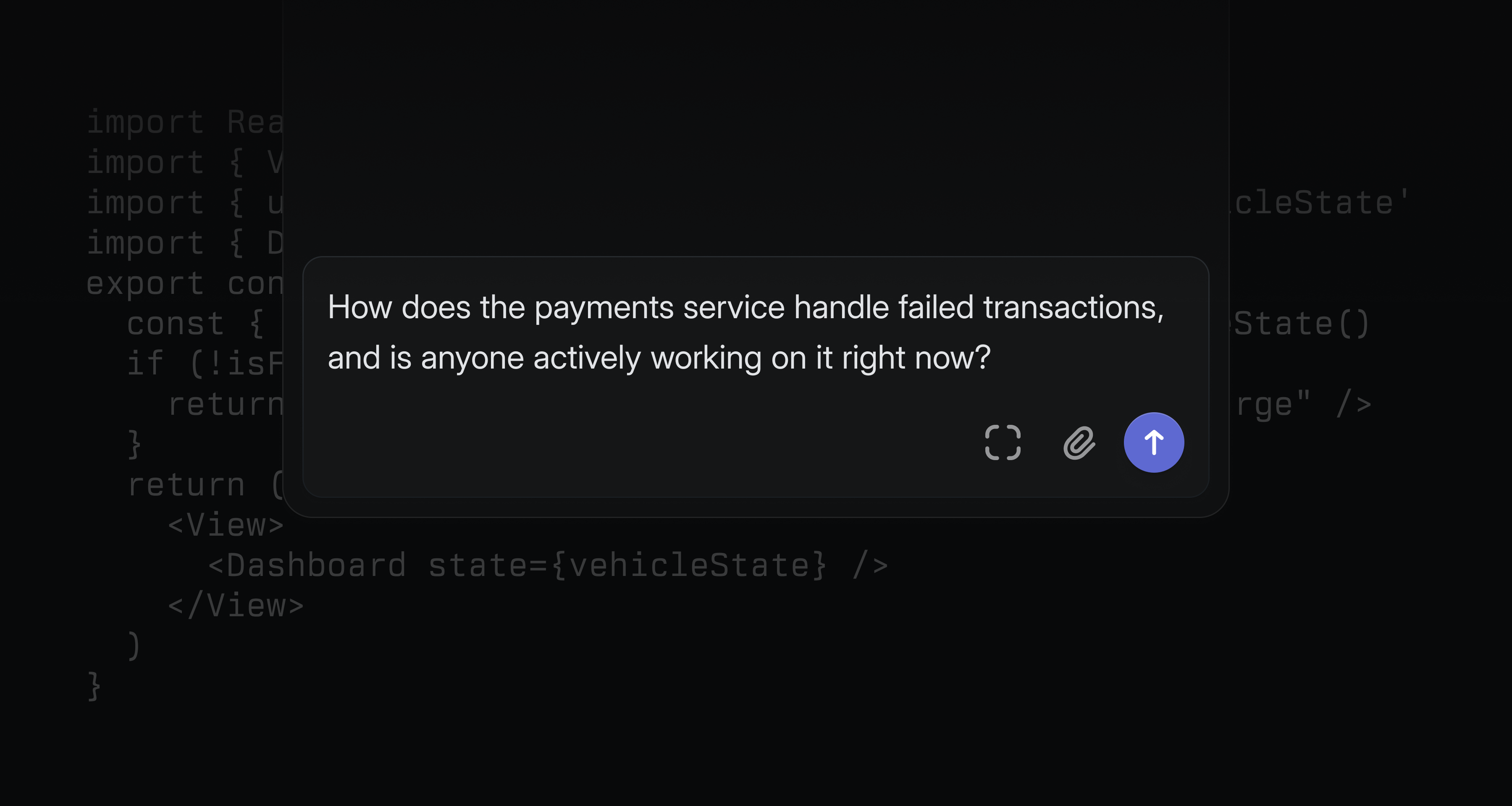
We're also announcing Code Intelligence, a capability that extends Linear Agent's understanding to your codebase. Once enabled, it supports code-aware tasks like diagnosing app functionality and designing technical specifications.
Non-technical teammates can ask questions they'd normally have to track down an engineer to answer — how a feature works, who owns a system, what recently changed — and get a reliable response.
Code Intelligence is coming soon to Business and Enterprise plans.
Availability and pricing
Linear Agent is now available in public beta for all teams. Agent and Skills are included on all Linear plans. Automations and Code Intelligence are available on Business and Enterprise.
During the beta period, all features are available at no additional cost as we refine and expand the product.
At general availability, we expect chat functionality — in-app, in comments, Slack, and Microsoft Teams — to remain included in the base seat price. High-volume compute capabilities like Automations and Code Intelligence may move to usage-based pricing beyond a certain threshold.
We'll provide clear advance notice before any pricing changes take effect. Reach out if you have any questions.