UI refresh

Introducing a calmer, more consistent interface.
We've visually refreshed Linear's interface design to make it easier to scan information, navigate between workflows, and stay focused.
A few highlights:
- Headers, navigation, and view controls are now consistent across projects, issues, reviews, and documents, making it simpler to orient yourself and move between workflows
- Icons across the app have been redrawn and resized
- Navigation sidebars are slightly dimmer, allowing the main content area to stand out
Learn more about our design process on our blog.
Additional launchers for AI coding tools
We recently gave you the ability to open issues directly in your AI coding tools with all of the context they need to take a first pass.
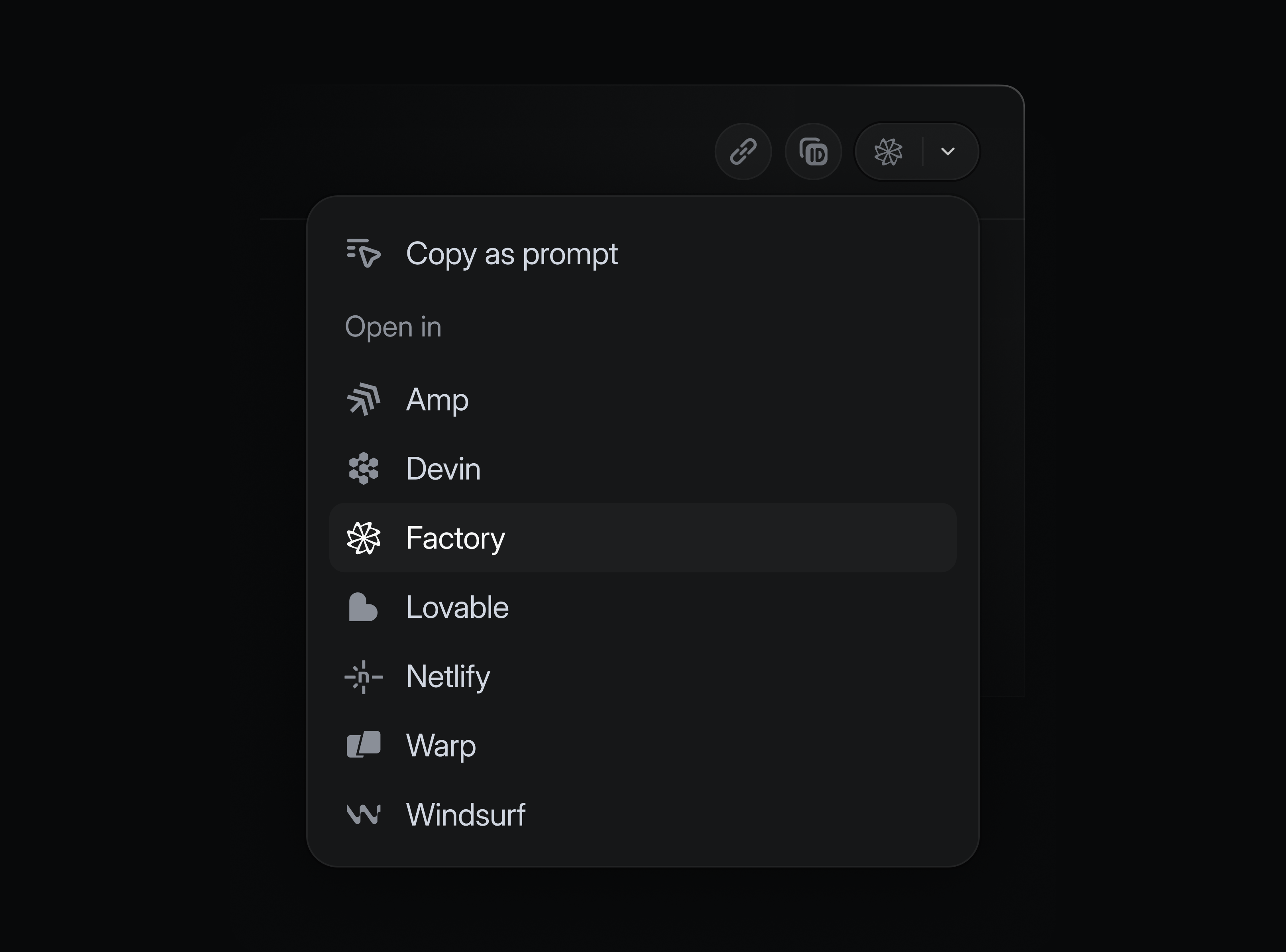
We've now expanded the list of supported tools. In addition to popular options like Claude Code, Cursor, and Codex desktop, you can also now open issues in:
- Amp
- Codex CLI
- Devin
- Factory
- Lovable
- Netlify Agent Runners
- Warp
- Windsurf
Enable your tools in preferences, and launch them from any issue using the dedicated shortcut or with ⌘ Opt . (Mac) or Ctrl Alt . (Windows/Linux).
Mobile agent sessions
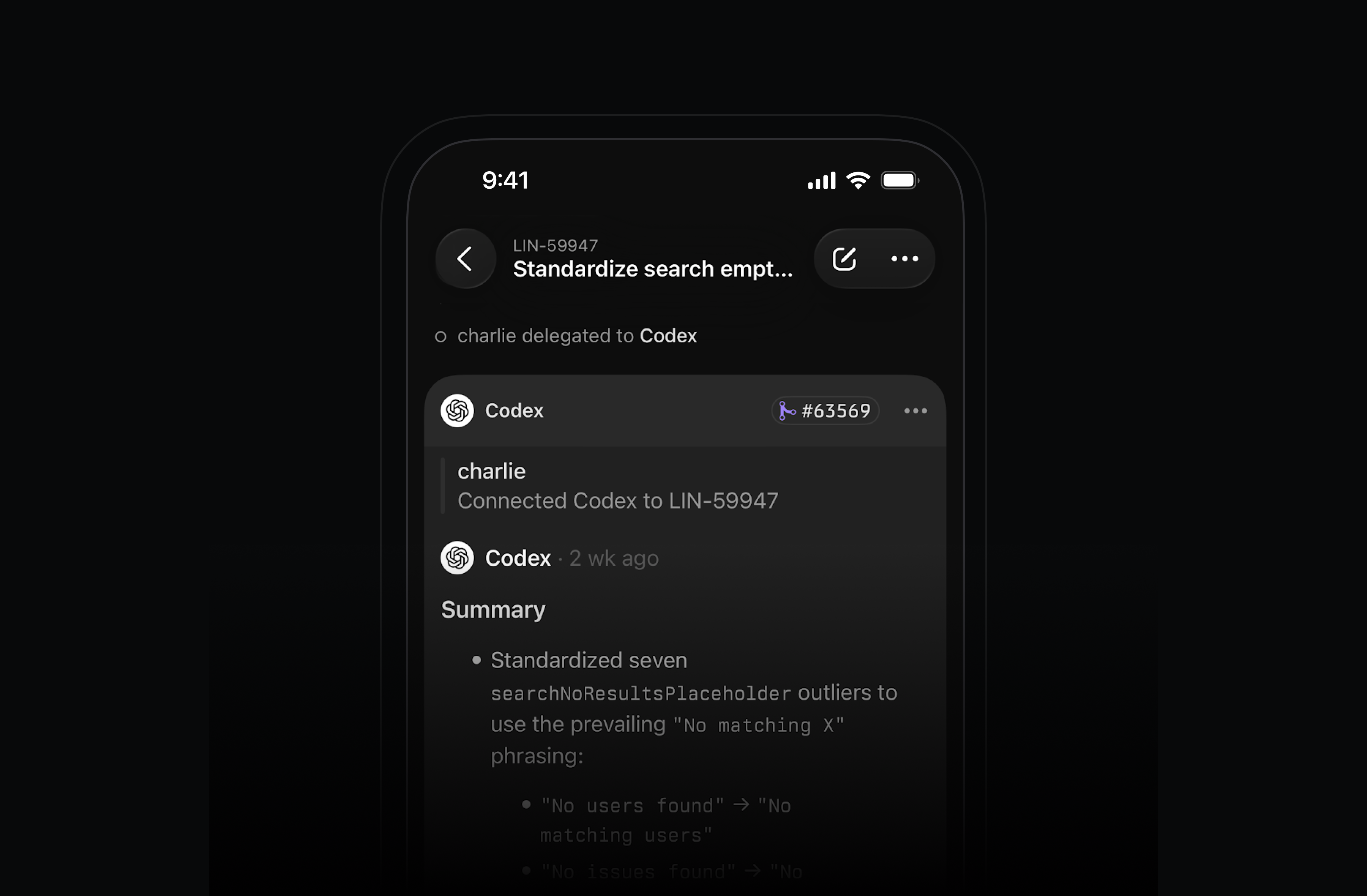
Work with your coding agents on the go. After delegating an issue to an agent, open its session in the Linear mobile app to see realtime reasoning or review past sessions. For agents that support it, you can also send additional messages in the session to help steer the work.
Multiple parents for sub-initiatives
Sometimes a sub-initiative contributes to multiple high-level goals. This is common in goal setting frameworks like OKRs.
Sub-initiatives can now belong to multiple parent initiatives in Linear, allowing you to express how work rolls up in different ways across your org.
Available on Enterprise plans.
Send comment on Enter preference
As part of our design refresh, we've made commenting across Linear more lightweight. You can now select between sending comments with just the Enter key or with ⌘/Ctrl Enter in preferences.
Deeplink to AI coding tools
Starting an issue used to mean manually creating a feature branch. Now it means assembling the right context so your coding agent can take a first pass. We've made this much easier to do in Linear.
You can now launch your preferred coding tool directly from a Linear issue, with a prefilled prompt that includes the issue ID and all relevant context: description, comments, updates, linked references, and images. No copying or reformatting required.
Open in a coding tool by pressing Cmd Option . (Mac) or Ctrl Alt .(Windows/Linux) to launch your most recently used tool, W then O to choose from your enabled tools, or by clicking the button next to the issue identifier.
Supported tools:
- Claude Code
- Codex
- Conductor
- Cursor
- GitHub Copilot
- OpenCode
- Replit
- v0
- Zed
Prompt templates can also be customized to add standing instructions for how your agent should approach issues. For example, you may always want your agent to give you a detailed plan before writing any code.
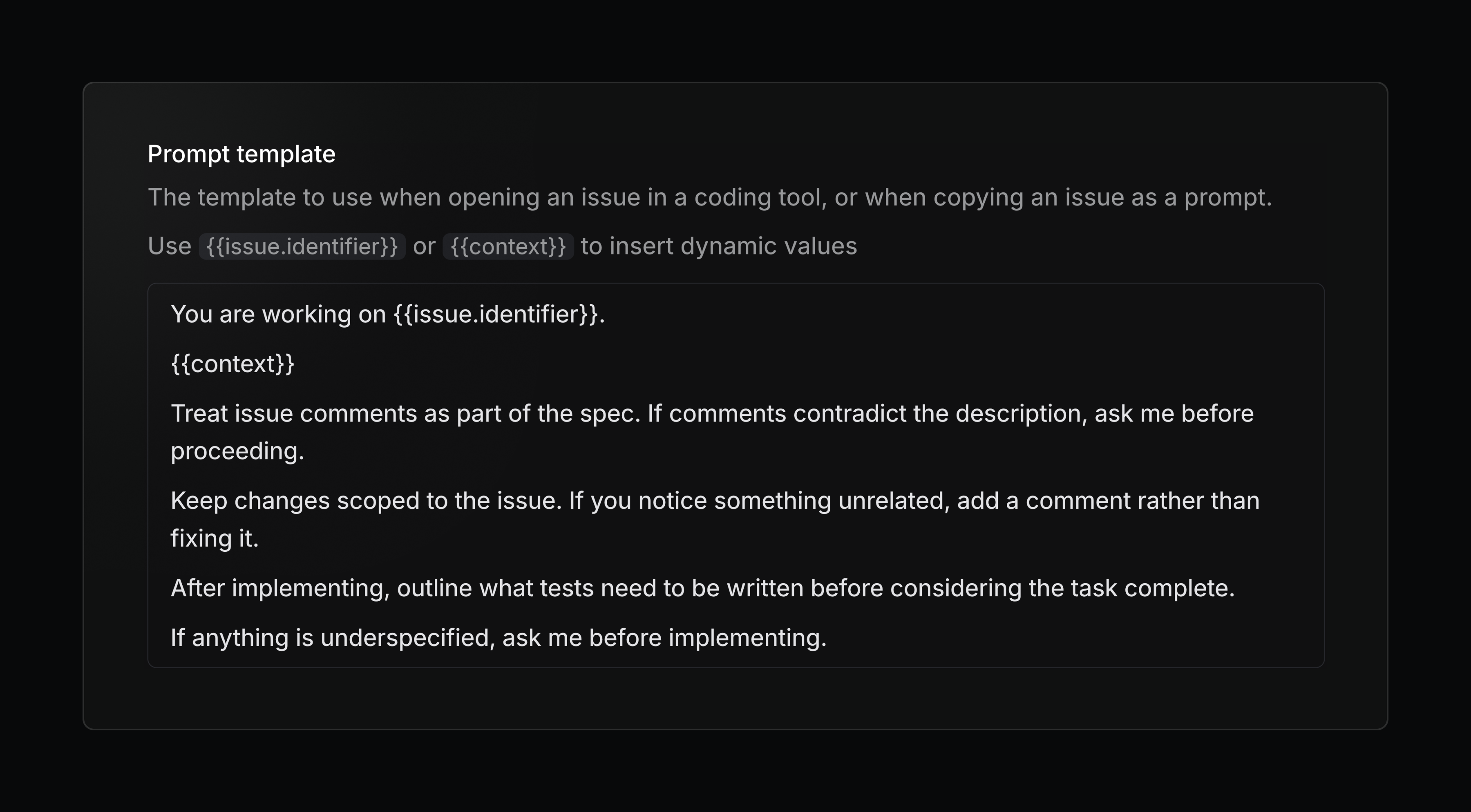
Configure your personal coding tools, prompt template, and more in preferences.
Linear in Notion's Custom Agents
Create and update Linear issues and projects using Notion's new Custom Agents. Flexibly and seamlessly connect your workflows across both tools.
Advanced filters and share issues in private teams

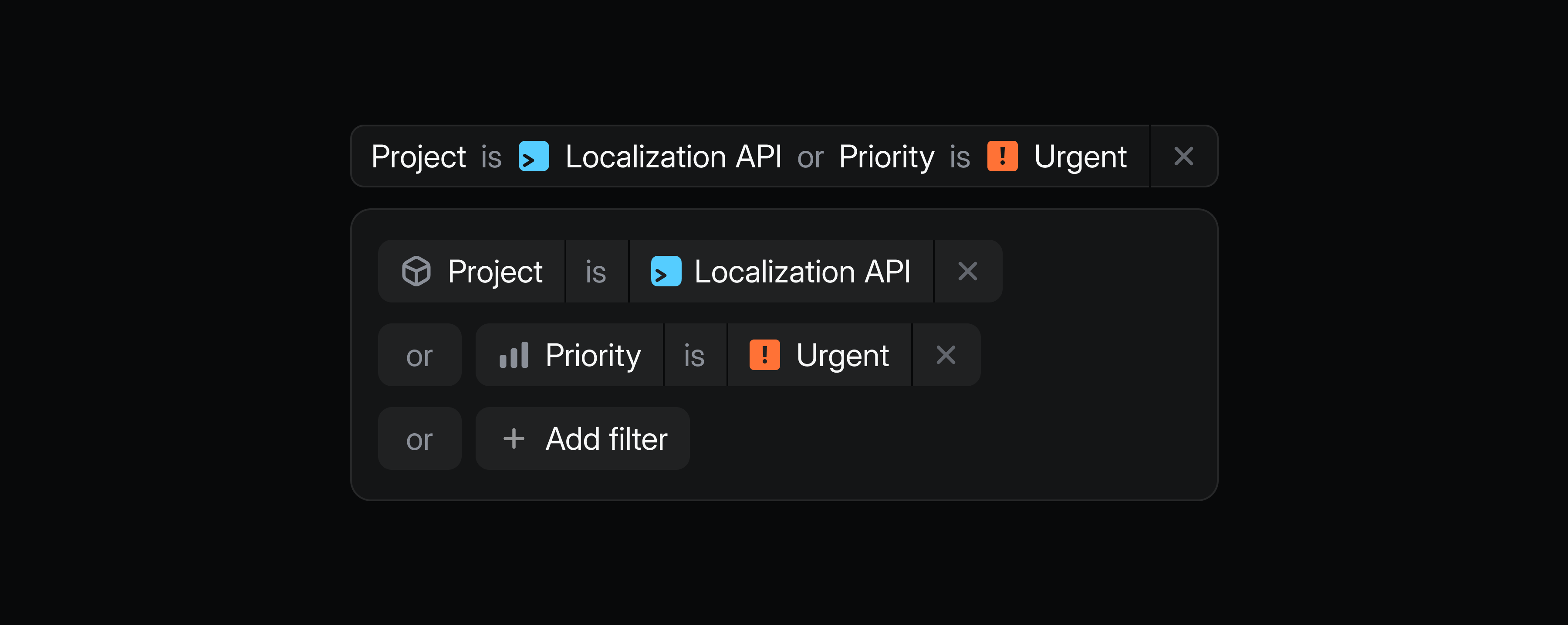
Refine your searches, views, and dashboards with advanced filters. Combine multiple AND/OR conditions to define exactly what you want to see.
For example, track high-priority bugs for prospective customers in a single view by combining Priority, Label, and Customer status filters.
Subscribe to a view to get notified when issues match your conditions, or use advanced filters to power targeted dashboards.
Get started by choosing advanced filter from the filter menu, or use AI filter to describe what you're looking for in natural language.
Share issues from private teams
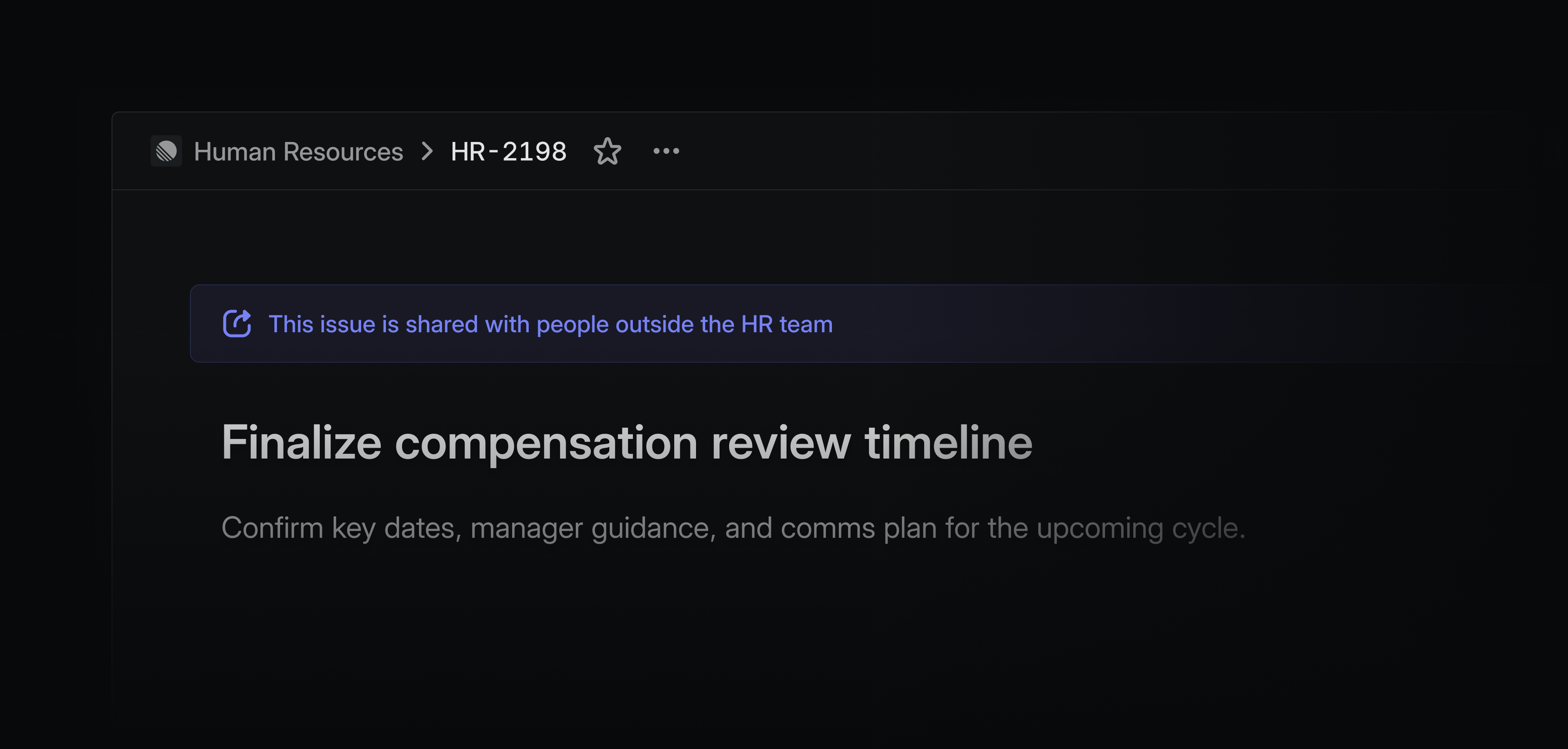
You can now share individual issues from private teams with specific users outside of the team. This is especially useful when bringing collaborators on to solve individual problems for highly sensitive teams, like security or HR. You can assign them a specific issue from your team without giving them access to the rest of the team's data.
Shared issues will have a banner prominently displayed to indicate who that issue is visible to.
Private issue sharing is available on Enterprise plans. Learn more in our docs.
Create projects and initiatives on Android and iOS
Capture ideas on the go by creating new projects and initiatives on Linear's mobile apps. Write project summaries and properties to express your intent, then build out full descriptions and milestones later.
Gemini Enterprise connector
Gemini Enterprise users can now create issues from Gemini, and access data from their existing issues and projects. Learn more in our docs.
Linear MCP for product management
We've expanded Linear's MCP server with support for initiatives, project milestones, and updates. These allow product managers to keep plans up to date and communicate progress from other tools like Cursor and Claude.
Newly added MCP tools:
- Create and edit initiatives
- Create and edit initiative updates
- Create and edit project milestones
- Create and edit project updates
- Manage project labels
- Support for loading images
We also improved performance and reduced token usage through better tool documentation, and added broad support for loading Linear resources through URLs.
Deprecation of /sse MCP endpoint
SSE as a transport was deprecated starting with protocol version 2024-11-05. As all modern clients now support the more reliable HTTP streams, Linear MCP is fully removing SSE support. To switch, update your endpoint from https://mcp.linear.app/sse to https://mcp.linear.app/mcp.
Deprecation errors for SSE will be rolled out gradually over the next two months.
Read more in Linear MCP documentation.
Nested sub-issues
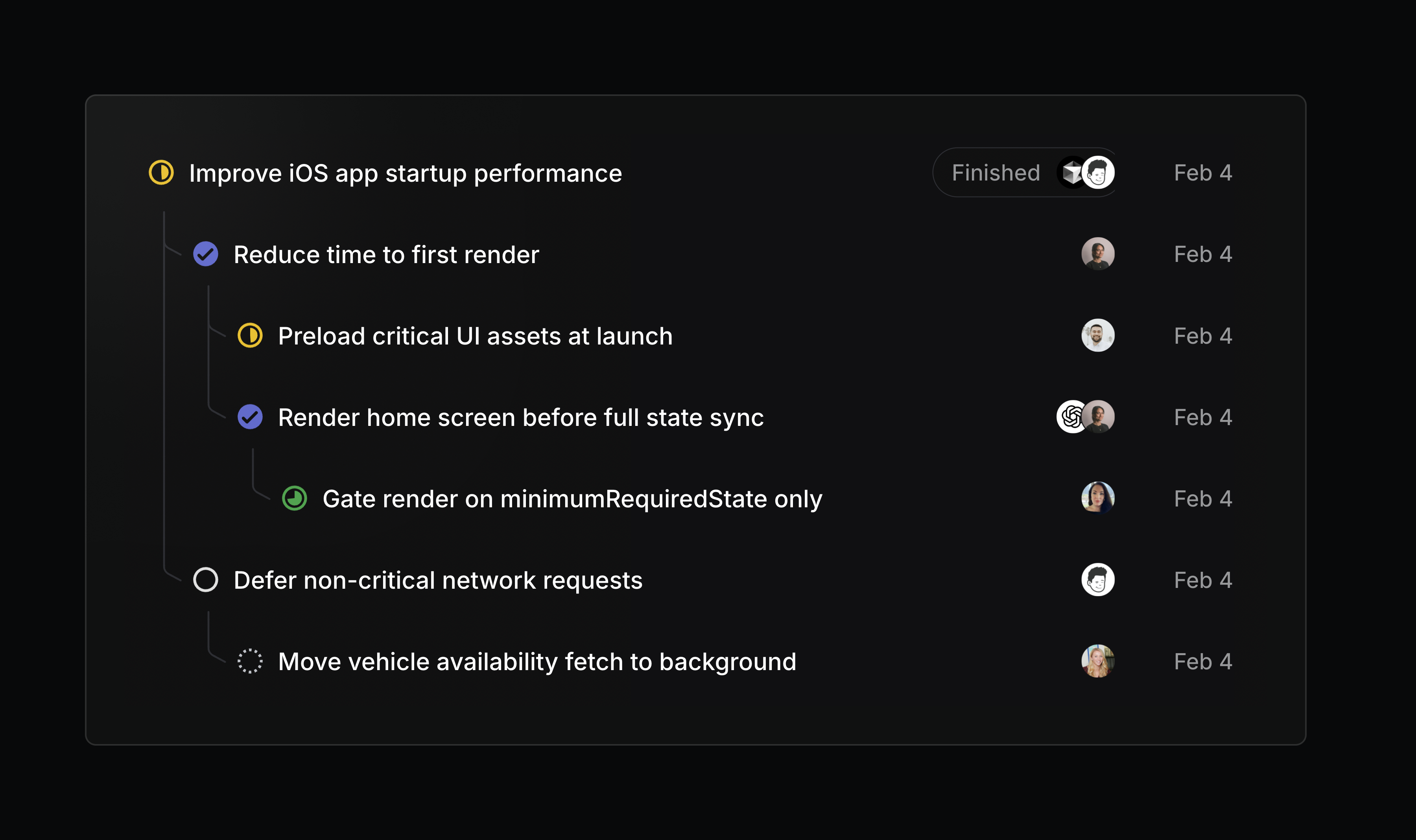
Issue lists can now show sub-issues as a nested hierarchy. Turn on this display option from any issue list view.
Retired teams
Teams form and disband as organizations evolve. When a team is no longer active, its issues and projects still hold useful context, but shouldn't clutter your workspace.
We're introducing the ability to retire teams, giving you a clean way to wind a team down while preserving its project and issue history.
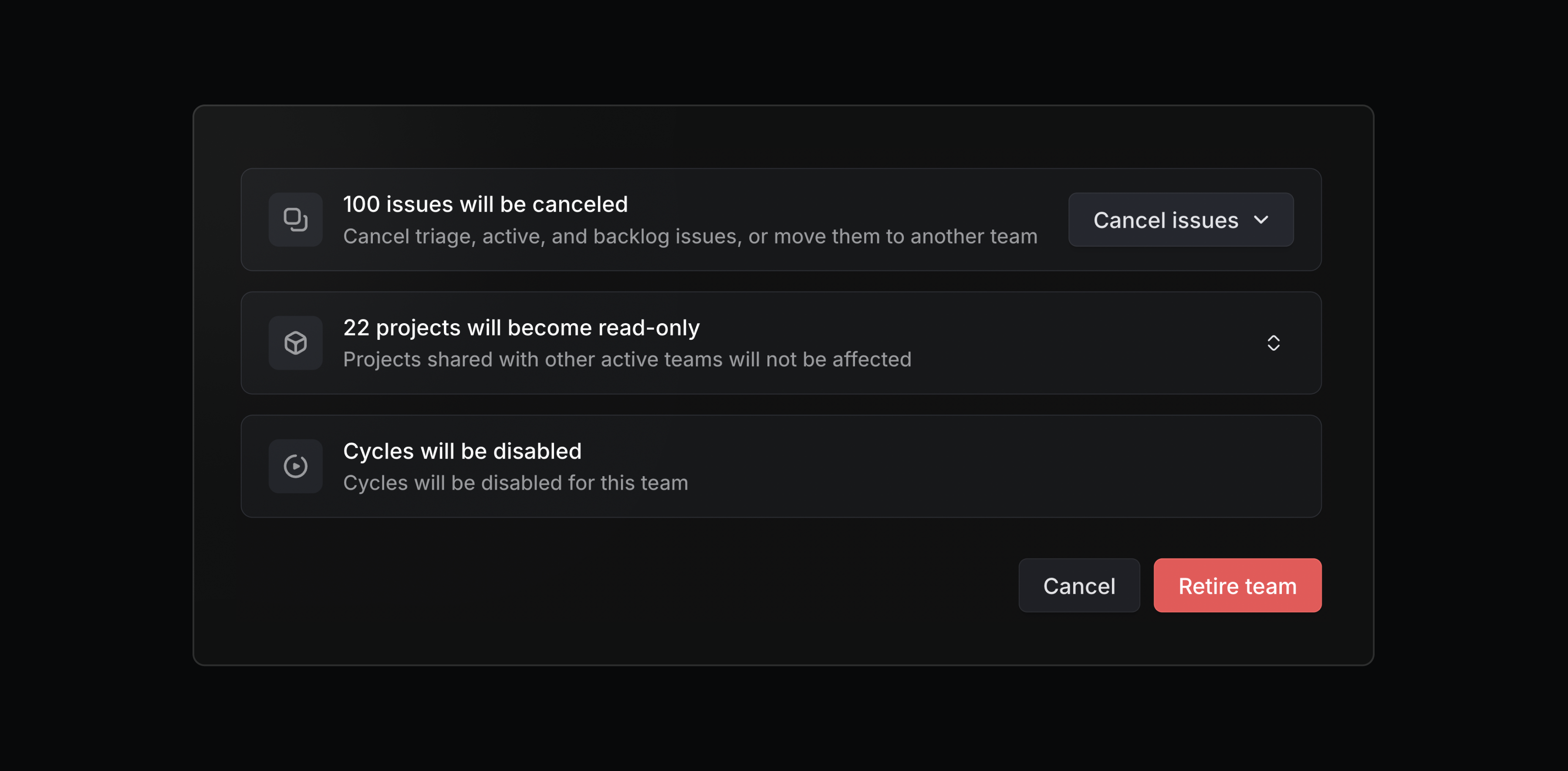
Retired teams are read-only and hidden from the sidebar, but their issues, projects, and documents are still accessible. When retiring a team, you can choose to cancel any remaining open issues or move them to another team. Retired teams can be restored at any time.
Admins, workspace owners, and team owners can retire a team from its settings page.
Time in status
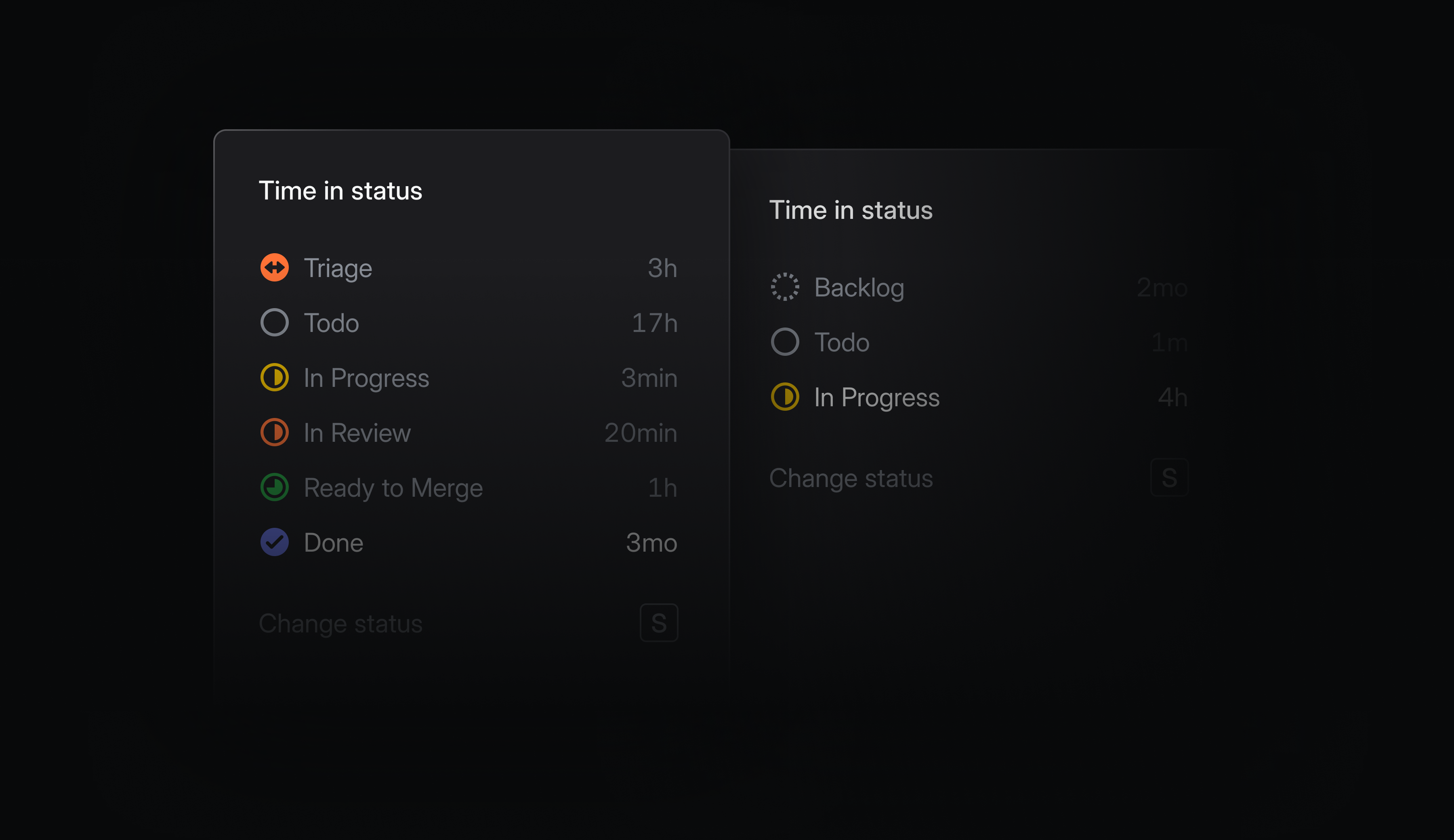
Time spent in individual statuses is now tracked and available throughout Linear. Hover over any issue's status indicator to see the cumulative time it's spent in each status. You can use this to spot where things are getting stuck, identify bottlenecks, and optimize your development process.
On lists and boards, you can see how long items have been in their current status. Order by time in status to surface blocked work, or filter by conditions like In Review > 7 days to catch issues that have fallen through the cracks.
In Insights and Dashboards, analyze the time spent in any status and slice by time period or other attributes to see how performance changes and differs across your workspace. Use this to quickly uncover systemic bottlenecks and outliers.
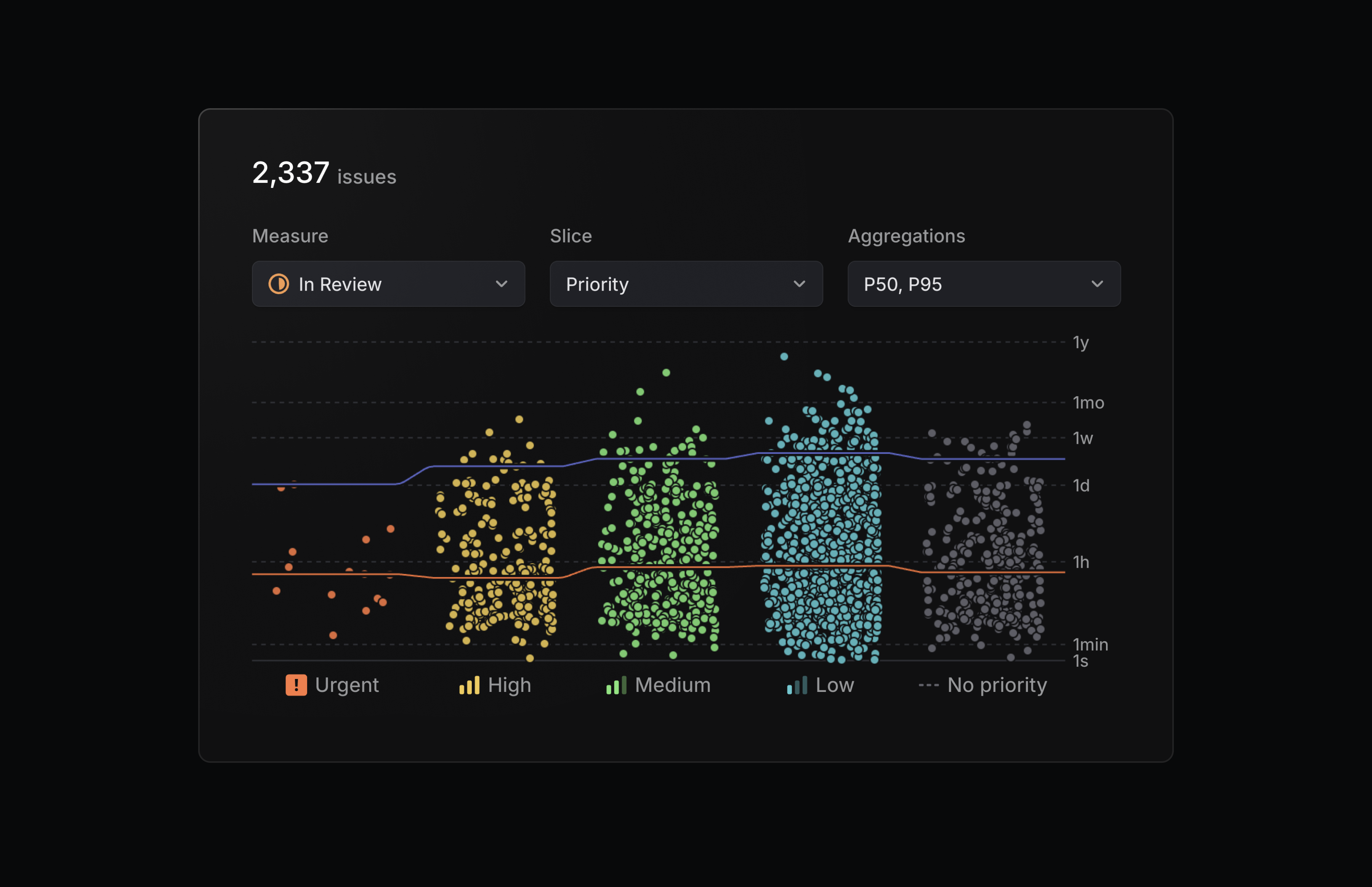
Time in status is available as a display option in views, and as a new measure in Insights.
Jira Epic sync
We’ve upgraded our Jira integration to support bi-directional syncing between Jira Epics and Linear projects. Changes to properties like status, target date, and description automatically reflect in both applications, so you don't have to update them manually.
Configure the Jira integration from your Linear workspace's integration settings.
Customize your navigation in Linear Mobile

Now you can customize Linear Mobile to fit your daily workflow.
Personalize the bottom toolbar to prioritize the features you use the most. Rearrange the main navigation items, or pin specific projects, initiatives, and documents for quick access. For example, you can choose Pulse to stay up to date with work across your teams, or My issues to manage your assigned tasks.
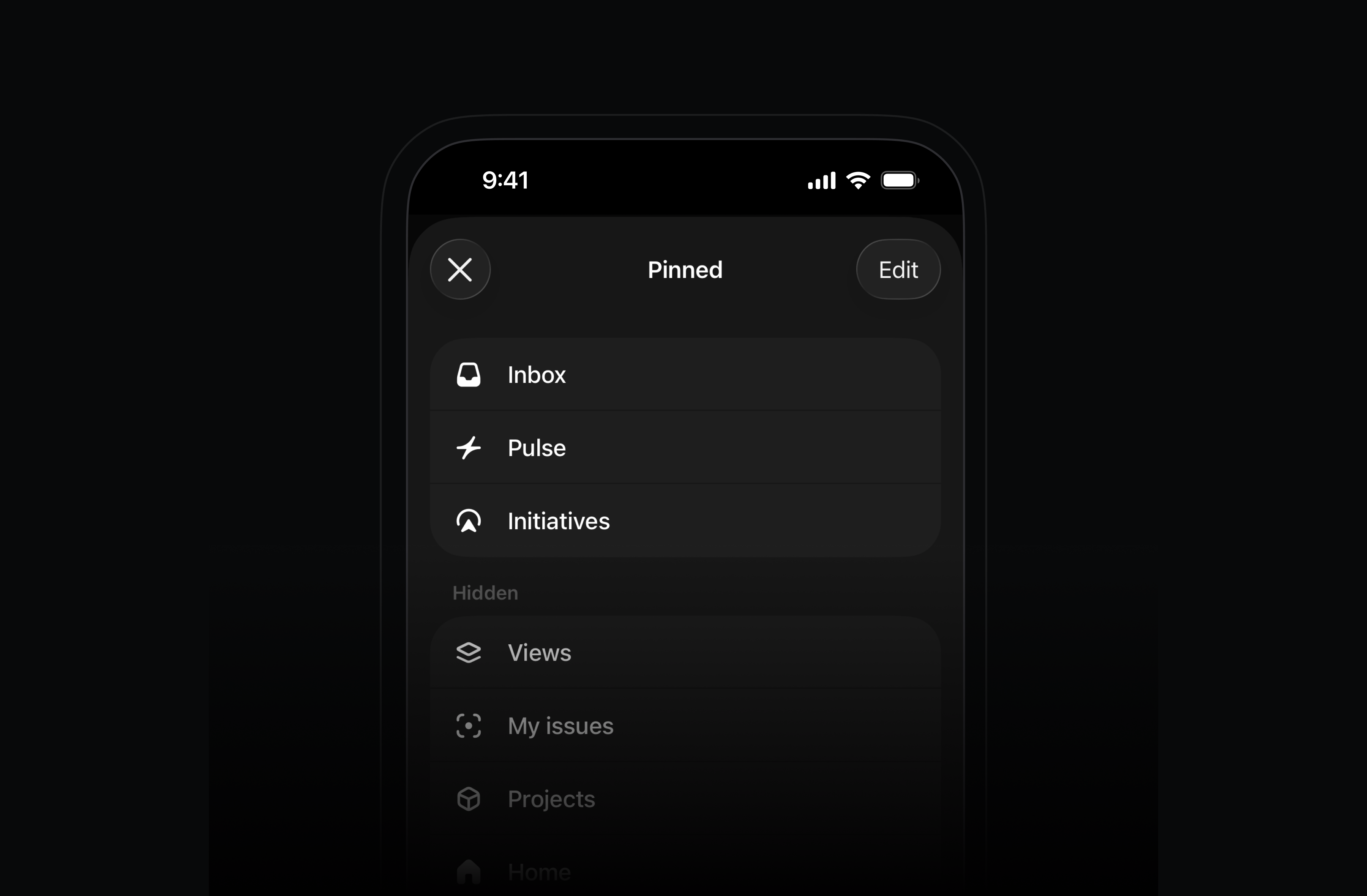
To pin specific projects, initiatives, or documents, open the item and use the ••• menu in the top-right.
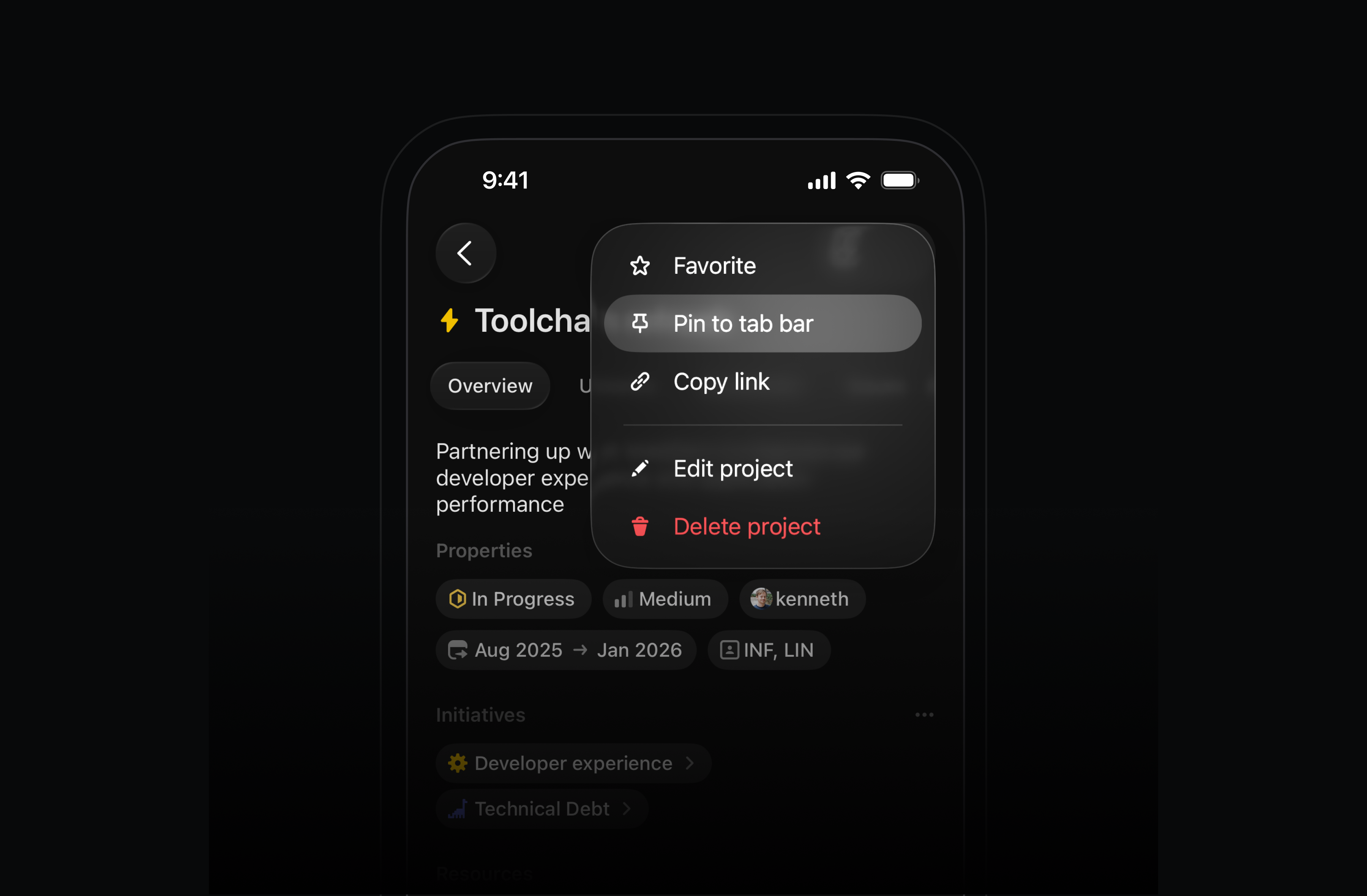
Available today in the App Store and Play Store.
Redesigned timing charts in Insights and Dashboards
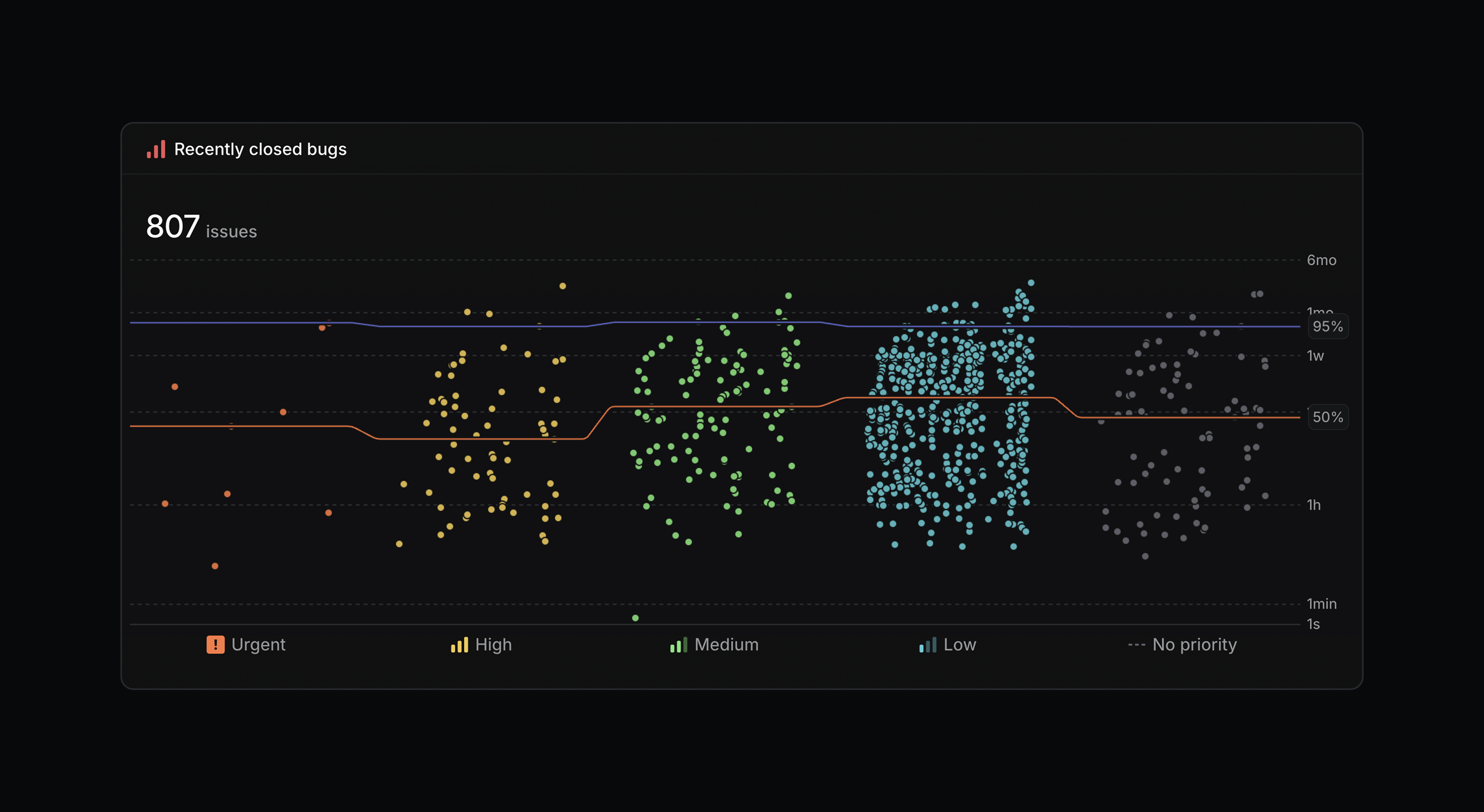
Timing charts in Insights and Dashboards have been redesigned to make it easier to spot workflow trends and bottlenecks.
Timing charts now use a logarithmic scale by default so outliers don't visually flatten the rest of your data. Percentile metrics also display by slice, allowing you to compare across different dimensions or track changes over time. We’ve also removed issue limits to support analysis across much larger datasets.
Linear Agent for Slack on all plans
We've made Linear Agent for Slack available on every plan, including Basic and Free. Update your Slack integration, then create issues or ask questions by mentioning @Linear in Slack.
Linear Code Reviews (Private Beta)
Linear Code Reviews is now available in private beta. We've brought code reviews directly into Linear, with support for both traditional PR workflows and agents output.
Join the waitlist to request early access.
Team owners

We are introducing a new team owner role to give teams more control over their team settings. Alongside this new role, we’re adding team permissions so you can choose who can manage team settings, labels, templates, and membership — either any team member or only team owners. This empowers teams to define their own policies, while ensuring workspace owners and admins retain control over workspace-wide settings.
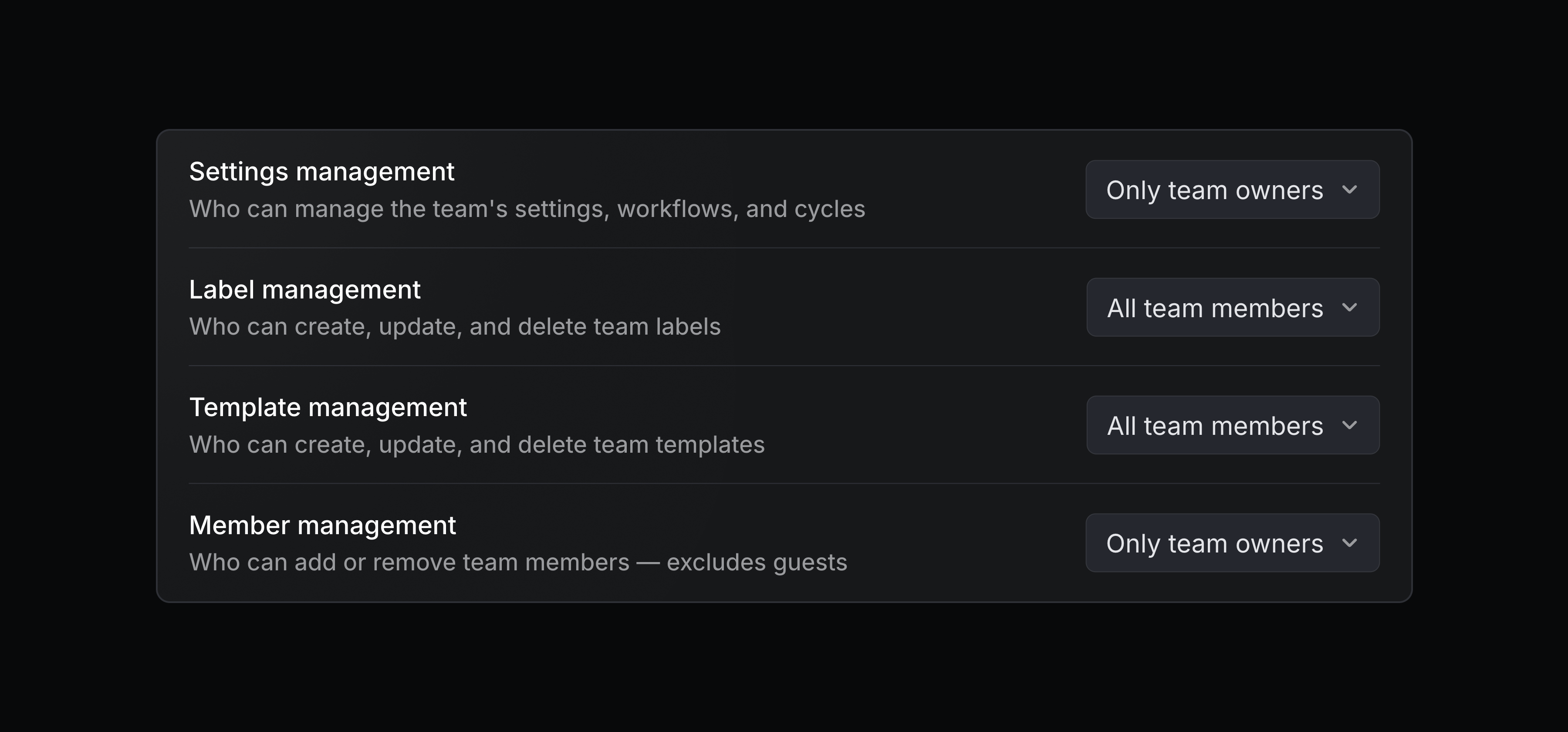
You can also control access and require an invite to join a team. Issues and projects of any team will still remain visible to everyone, and workspace owners and admins can always manage the settings for any team.
Configure these permissions on your team's Access and permissions page. Team owners and permissions are available on Business and Enterprise plans. Learn more in the docs.
v0 by Vercel MCP connector
Access your Linear data from v0 to generate prototypes, dashboards, and internal tools. After connecting Linear's MCP server, you can pull context from Linear issues, projects, and discussions when building in v0. Learn more.
Linear agent for Intercom, Zendesk, Gong

The Linear agent can now handle the tedious work of turning customer conversations into actionable issues. Available through our Intercom, Zendesk, and Gong integrations, the agent parses conversations and automatically files issues with the relevant details. This ensures your product team gets the right customer context while your customer-facing teams spend less time manually filing issues.
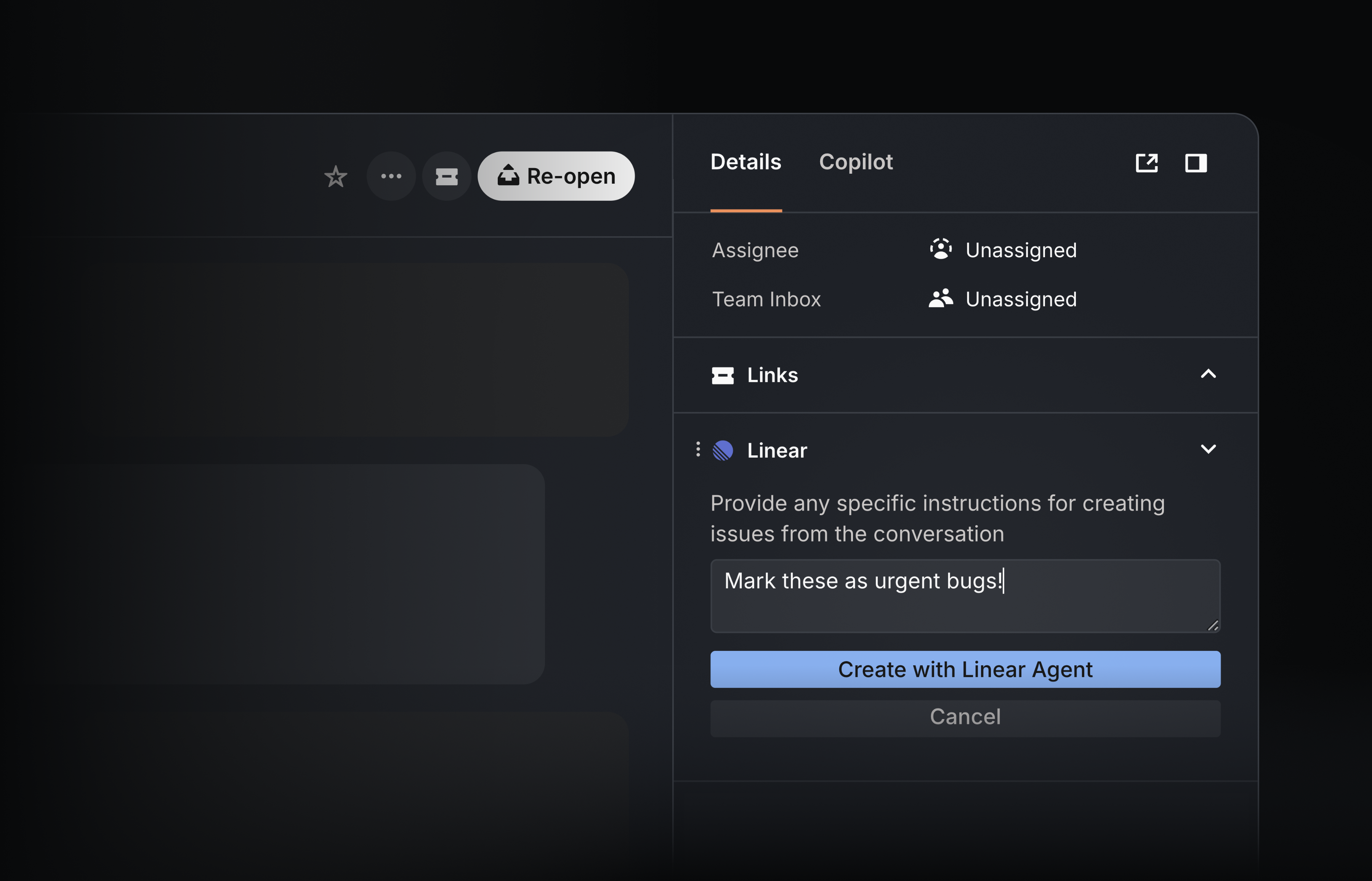
From Intercom and Zendesk, use the Linear agent to turn support tickets into issues with a single button click. The agent analyzes the full conversation and files any relevant bugs or feature requests — even from long, multi-topic threads. Issues are created with concise summaries, key details, and include relevant screenshots. When a conversation contains several distinct requests, the agent can automatically create multiple issues at once.
The new Gong integration brings a fully self-driving issue creation workflow to customer calls. The Linear agent reviews each transcript to capture product feedback and feature requests and automatically routes them to Linear. No prompts or clicks required.
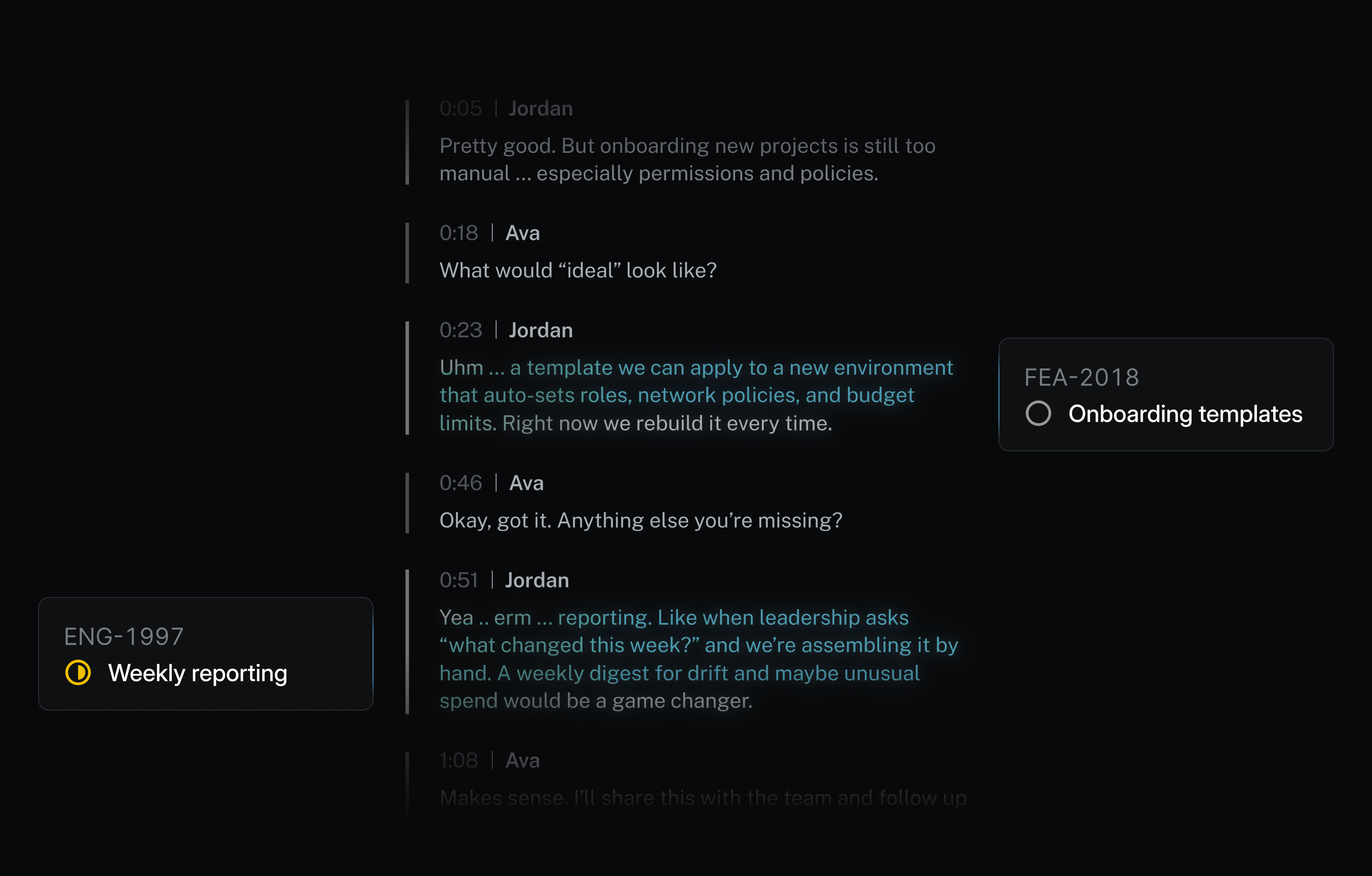
Every issue filed by the Linear agent is routed to the relevant team’s triage queue and attributed to the right customer. With Triage intelligence, duplicate requests are automatically merged into existing issues, keeping your backlog clean without losing important customer context.
The Linear agent is included with the Intercom and Zendesk integrations on Business and Enterprise plans, and with the Gong integration on the Enterprise plan.
Linear agent in Slack workflows
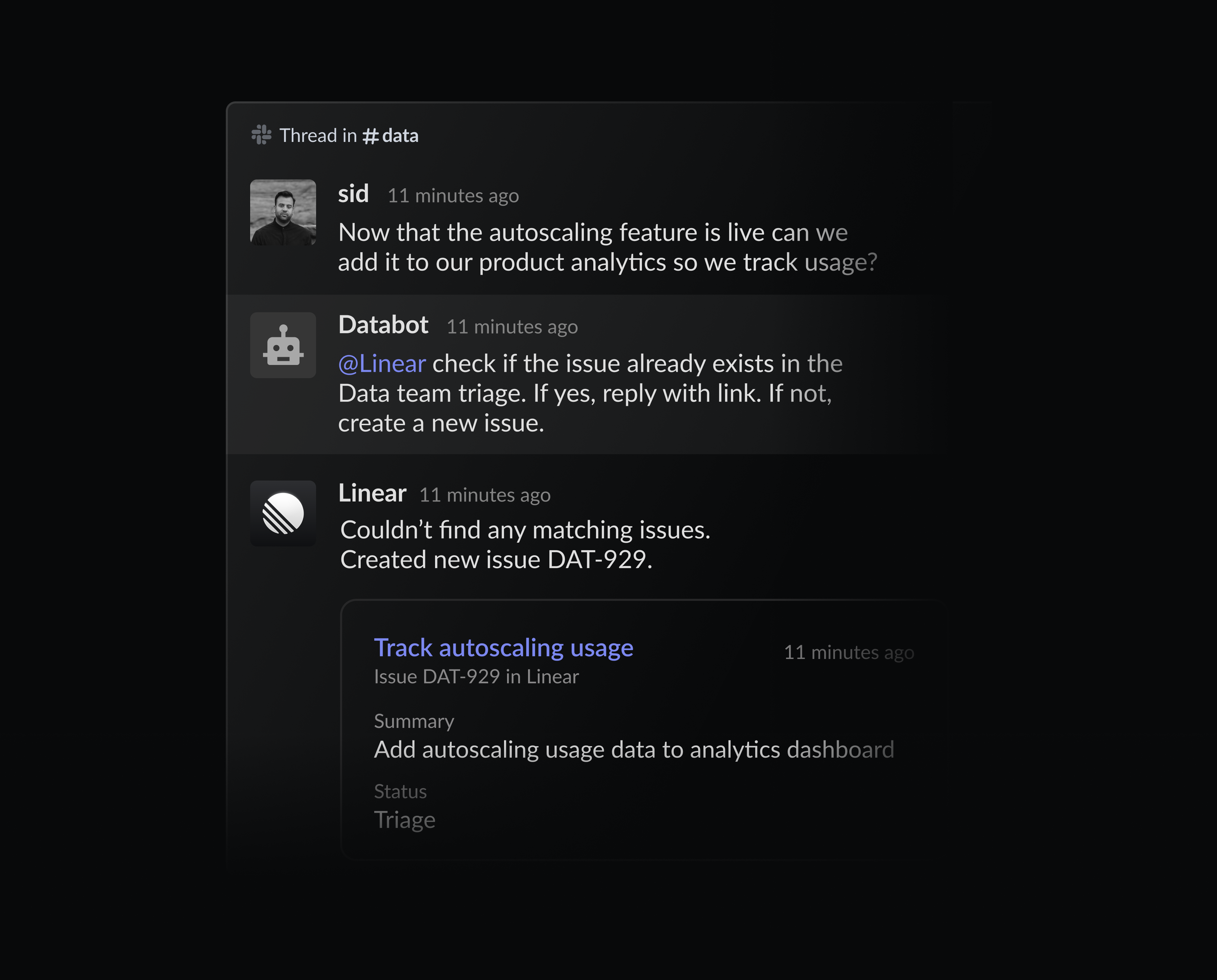
The Linear agent for Slack now works inside Slack workflows. You can already mention @Linear in any Slack thread to turn conversations into issues using natural-language prompts. With this update, the Linear agent can also be invoked by automated steps in Workflow Builder, allowing bots to request @Linear to create issues and take actions.
Warp agent
Users of Warp can now delegate issues to the Warp agent directly from Linear. Assign an issue to Warp and the agent will create a plan and start working on implementing it.
You can follow how the agent is progressing against its plan, steer it further, or review the PR once the agent finishes. You can always open the remote session in Warp to take over directly. Warp cloud agents are available to paid Warp users. Learn more and install the agent.
OpenAI Codex agent
OpenAI Codex users can now delegate issues directly to the Codex agent without leaving Linear.
Codex can answer questions about your codebase, fix bugs, or take a first pass at issues in your Triage queue. Assign issues to the Codex agent, and it will use the full issue context, automatically choose the right repo, and start working on a solution.
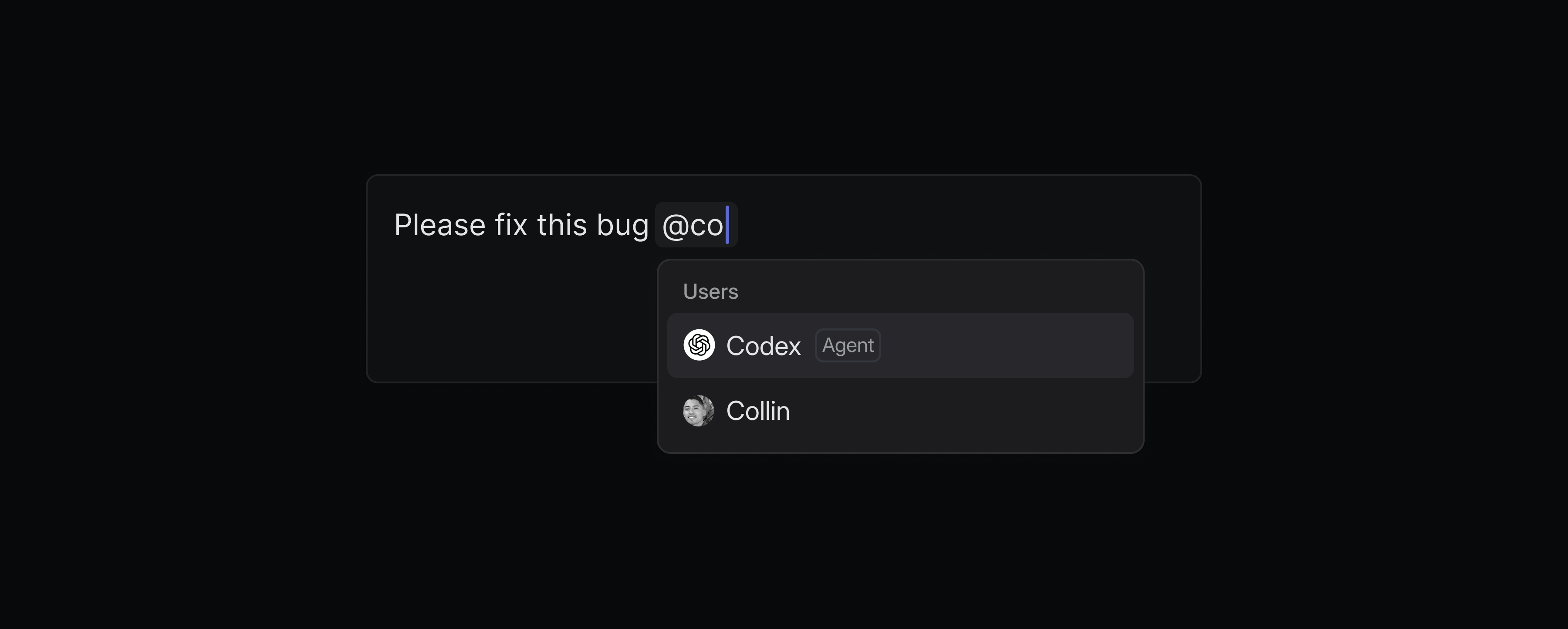
Engineers can fully delegate well-defined issues to Codex, so they can stay focused on more complex projects. Follow Codex's reasoning as it works on the issue or just review the summary when the task finishes. When you’re ready, open the Codex task on web to review the code changes and turn them into a PR.
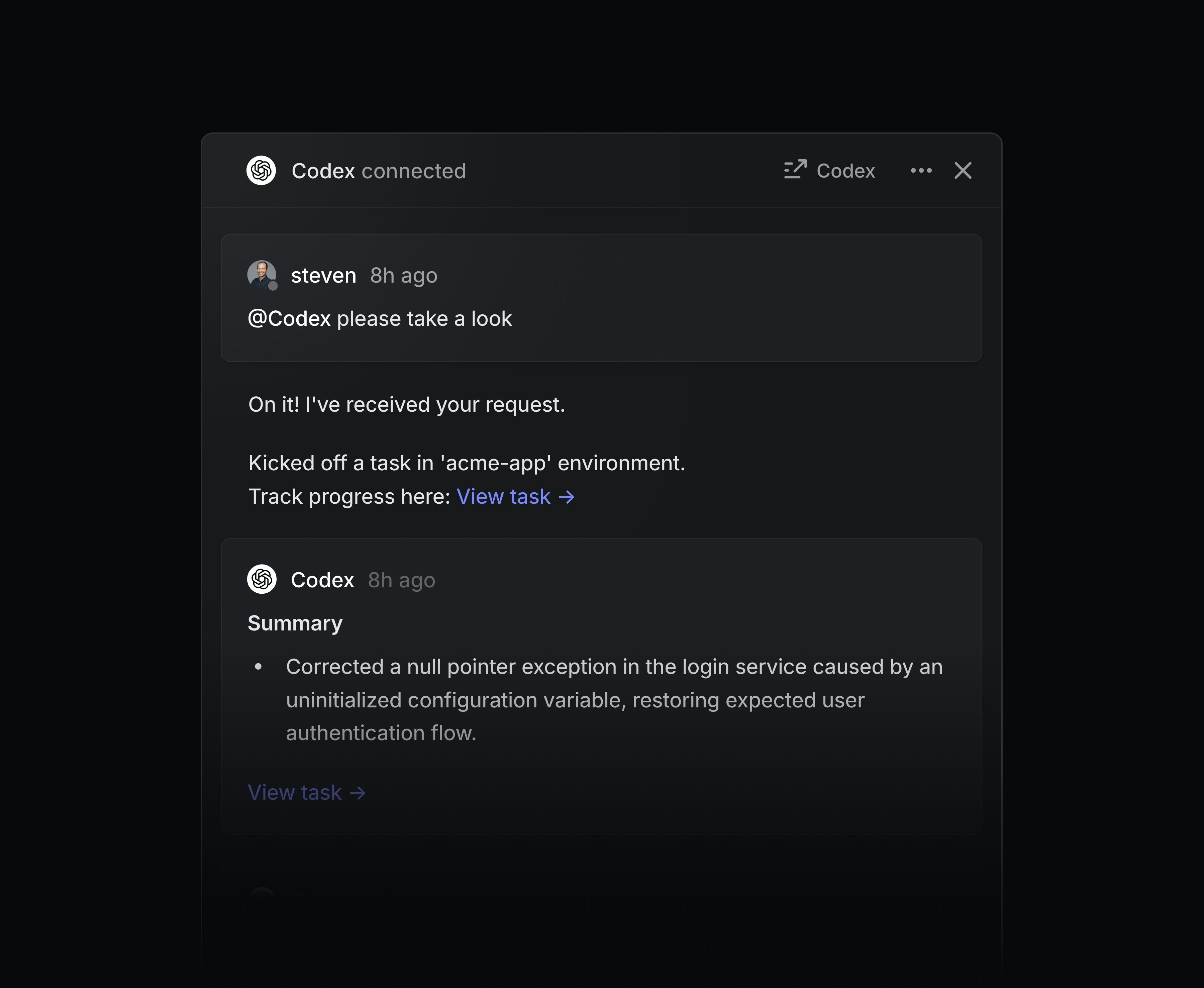
Codex gives every team engineering-level help — without consuming actual engineering time. Support teams can ask Codex to explain how the code works when triaging bug reports. PMs and designers can use Codex to prototype new ideas, or even handle small coding tasks like updating copy or fixing UI issues.
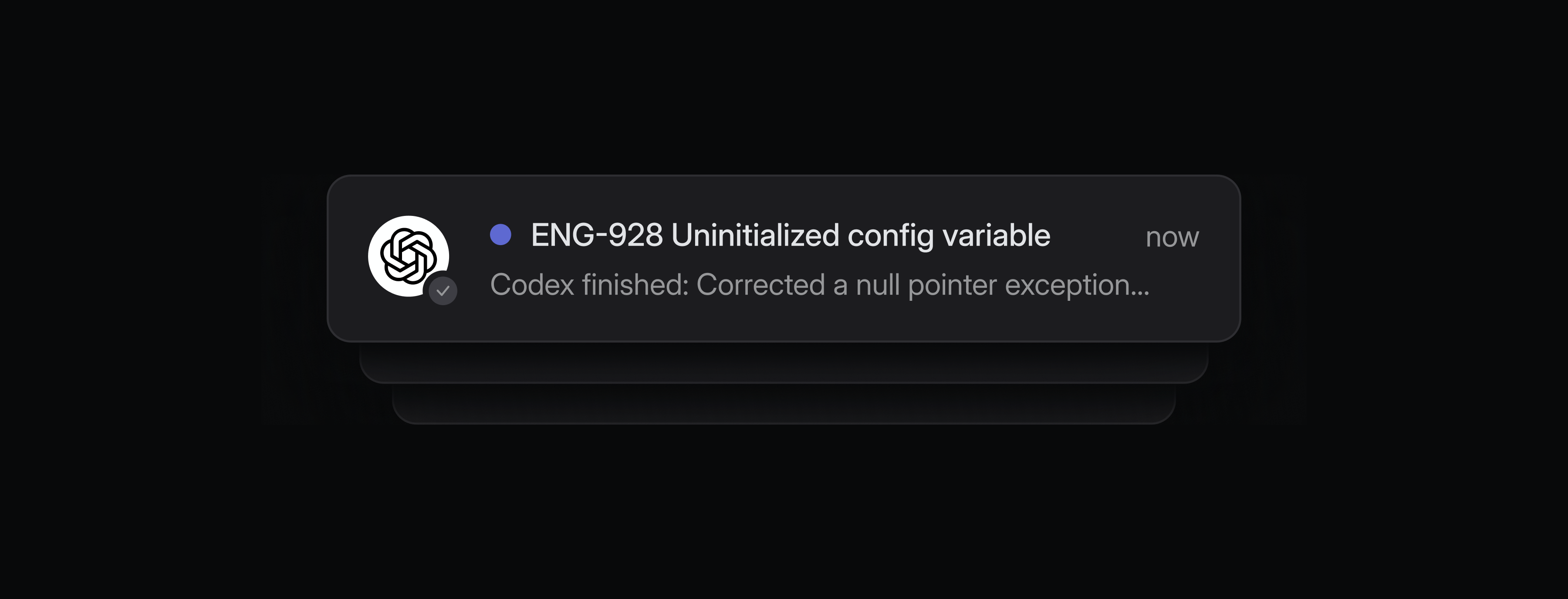
You can assign multiple issues to Codex and it will work on them in parallel. You'll receive inbox notifications when Codex needs your input or when work is ready for review.
To get started, add the Codex agent to your Linear workspace. You'll be asked to connect your ChatGPT account when you delegate an issue to Codex for the first time. You must be on a ChatGPT paid plan and connect your Github account to use Codex. Learn more in our docs.
Workspace owners
Enterprise plans now have a new Workspace owner role, the highest permission level in Linear. Workspace owners have exclusive control over billing, security settings, OAuth app management, audit logs, and workspace exports. This change enables admins to continue to handle everyday management needs while limiting who has access to the most sensitive settings in your Linear workspace. Learn more in the docs.
Initiatives in Google Sheets
Linear's Google Sheets integration can now sync initiatives in addition to projects and issues. Initiatives sync to their own dedicated Google Sheet with properties including owner, teams, description, health, and target dates.
Use this sheet to power external analysis and workflows for high-level planning. To get started, enable the Linear Google Sheets integration from your Linear workspace settings and toggle on Sync initiatives.
Form templates
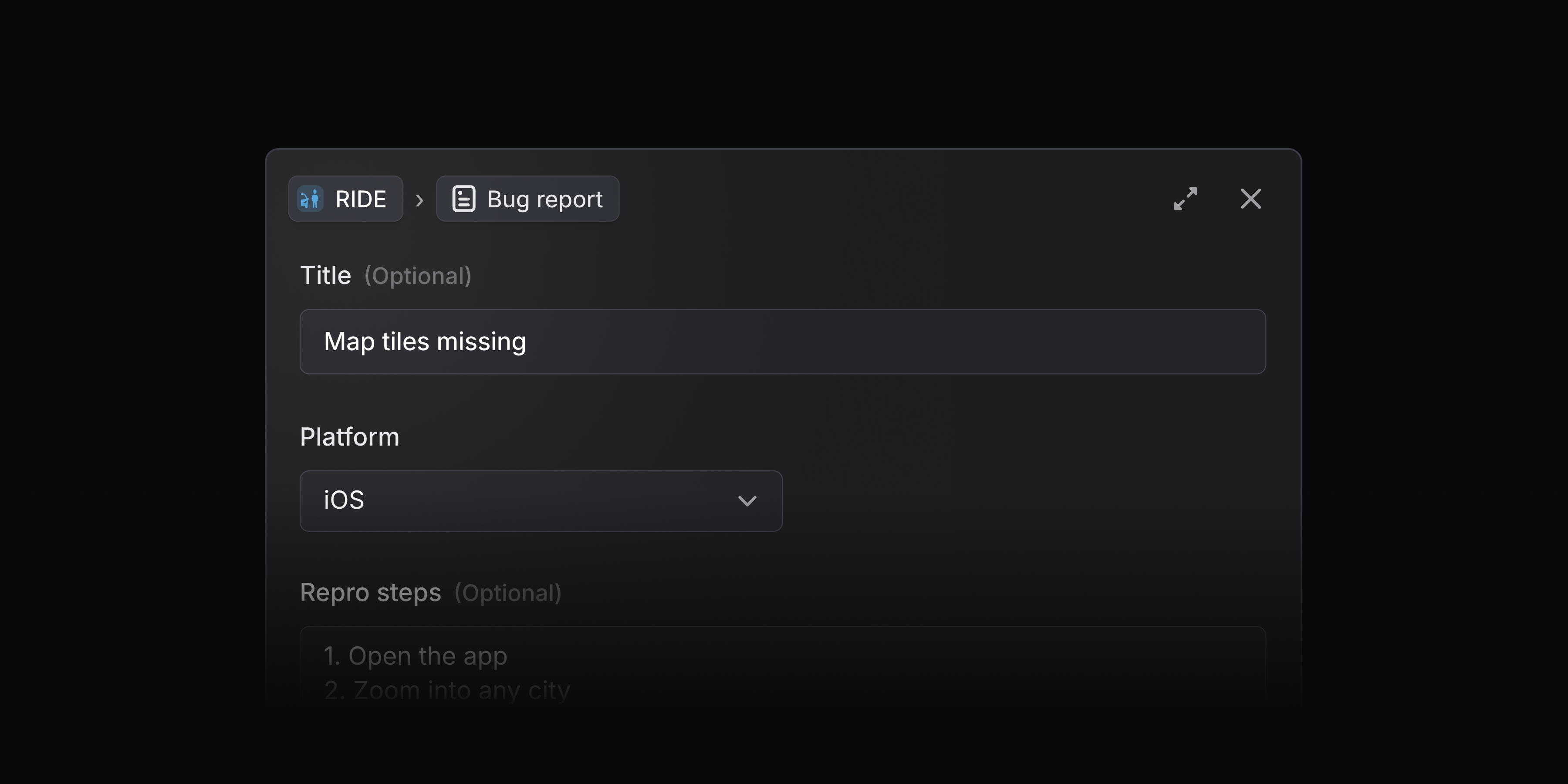
Form templates are a new type of issue template that support form fields. Use these templates to collect specific issue details upfront so work is actionable from the start.
Form templates are useful for teams that require specific details in every request, like bug reports that need repro steps and environment details, security incidents that should capture severity and when the incident occurred, and IT or HR requests for new equipment or onboarding details.
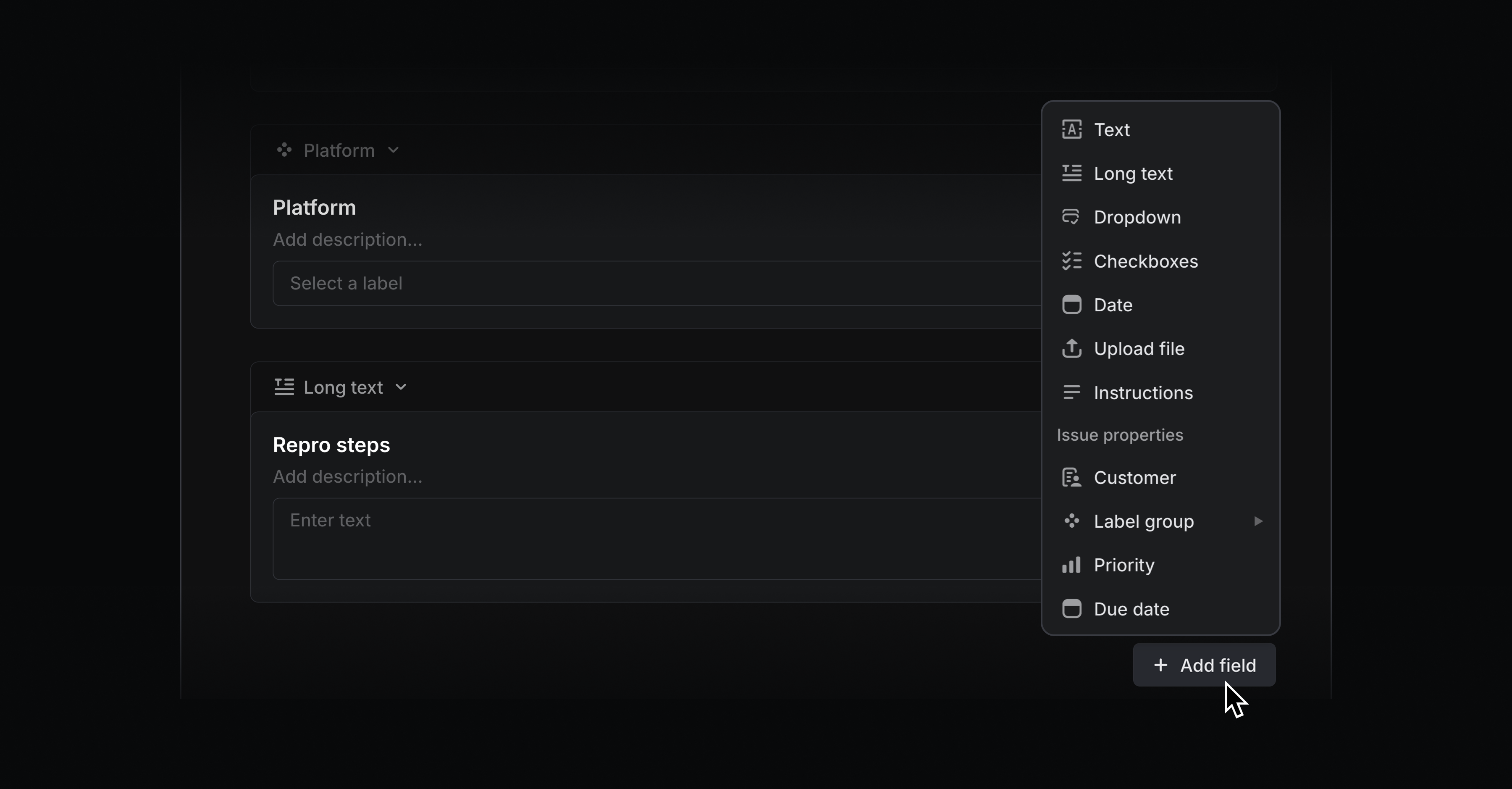
You can specify generic fields like text input, dropdowns, and checkboxes, as well as issue property fields like priority, customer, and label groups. Name each field, add descriptions to give submitters clear instructions, and mark any field as required.
When creating an issue, form templates appear to users as fillable forms. Any user in your Linear workspace can create templated issues in Linear or through the Slack integration.
With Asks, you can add form templates to Slack channels and let everyone in your Slack workspace turn their requests into Linear issues — even if they don’t have a Linear account.

Form templates are available on all plans, and can be used in Asks for teams on Business and Enterprise plans. To create a form template, add a new issue template and choose Form. Any issue templates previously used with Asks have been converted to form templates. Learn more in our docs.
Mermaid diagrams
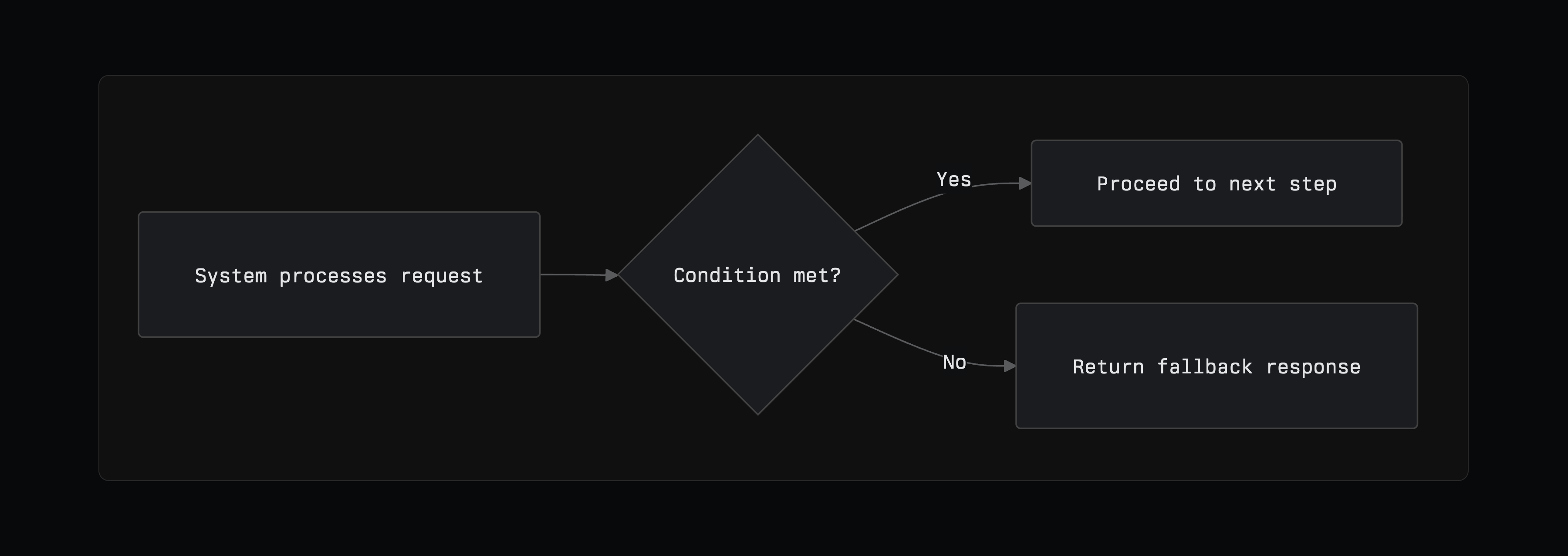
Build modifiable diagrams like flowcharts and sequence diagrams natively in Linear. Create a new diagram by typing /diagram in a text field or searching for mermaid as the language in a code block. See the official Mermaid docs for more on the syntax.
Figma Make connector
Access Linear issues, projects, and documents from Figma Make to design prototypes with full context. You can also create and manage Linear issues and projects without leaving Figma — turning your prototypes into tracked work. All tools supported by Linear's MCP server are accessible in the connector. Learn more in our docs.
Pulse on mobile
Pulse is now available in Linear's iOS and Android apps. Stay up-to-date on the progress of your projects and initiatives, no matter where you are.

Pulse brings relevant updates from across your Linear workspace into a single unified feed, so you can quickly see what's happening. For me shows you a personalized feed of project and initiative updates most relevant to you. Popular and Recent surface updates from across your entire company, helping you stay informed beyond your immediate focus. Leave a comment on any update, or react with an emoji.
Updated Progress Graphs
Initiative, project, and cycle graphs have been refreshed to make progress and activity trends clear at a glance.
Progress graphs for projects and cycles now include a bar chart to highlight completed issues, providing a clear view of momentum over time.

Initiative graphs have been redesigned to highlight the most active projects at any given time. Each curve represents the rate of completed issues within a single project, rising during periods of high activity and leveling off during quieter periods or after project completion. Hover over the x-axis to see your most active projects in a given week.

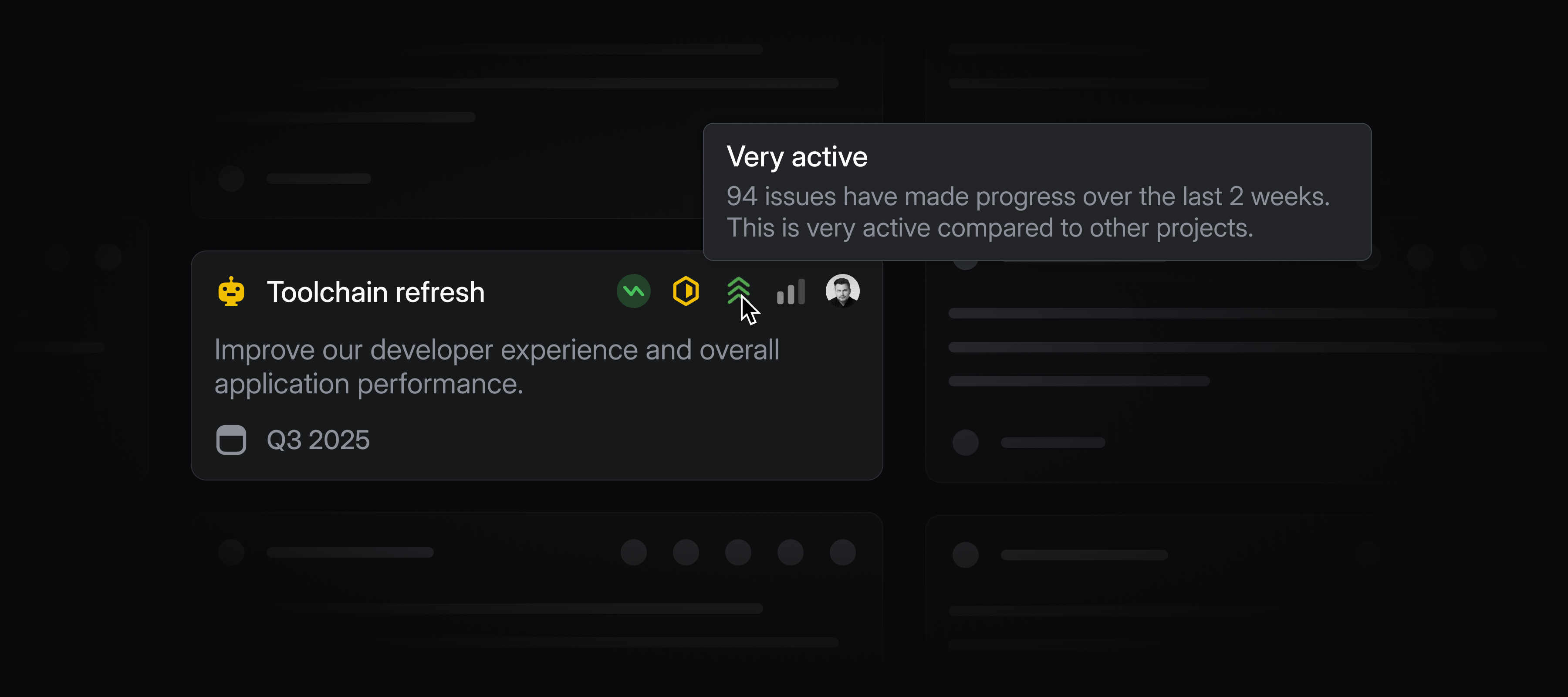
Initiative and project views now include an activity indicator. It highlights which efforts are most active across your workspace, so it's clear where your team is spending time.
Datadog integration
Datadog users can now automatically create Linear issues from Datadog monitor notifications. This ensures that any critical alerts from Datadog are translated directly into tracked and actionable work in Linear. Learn more in our docs.