Form templates
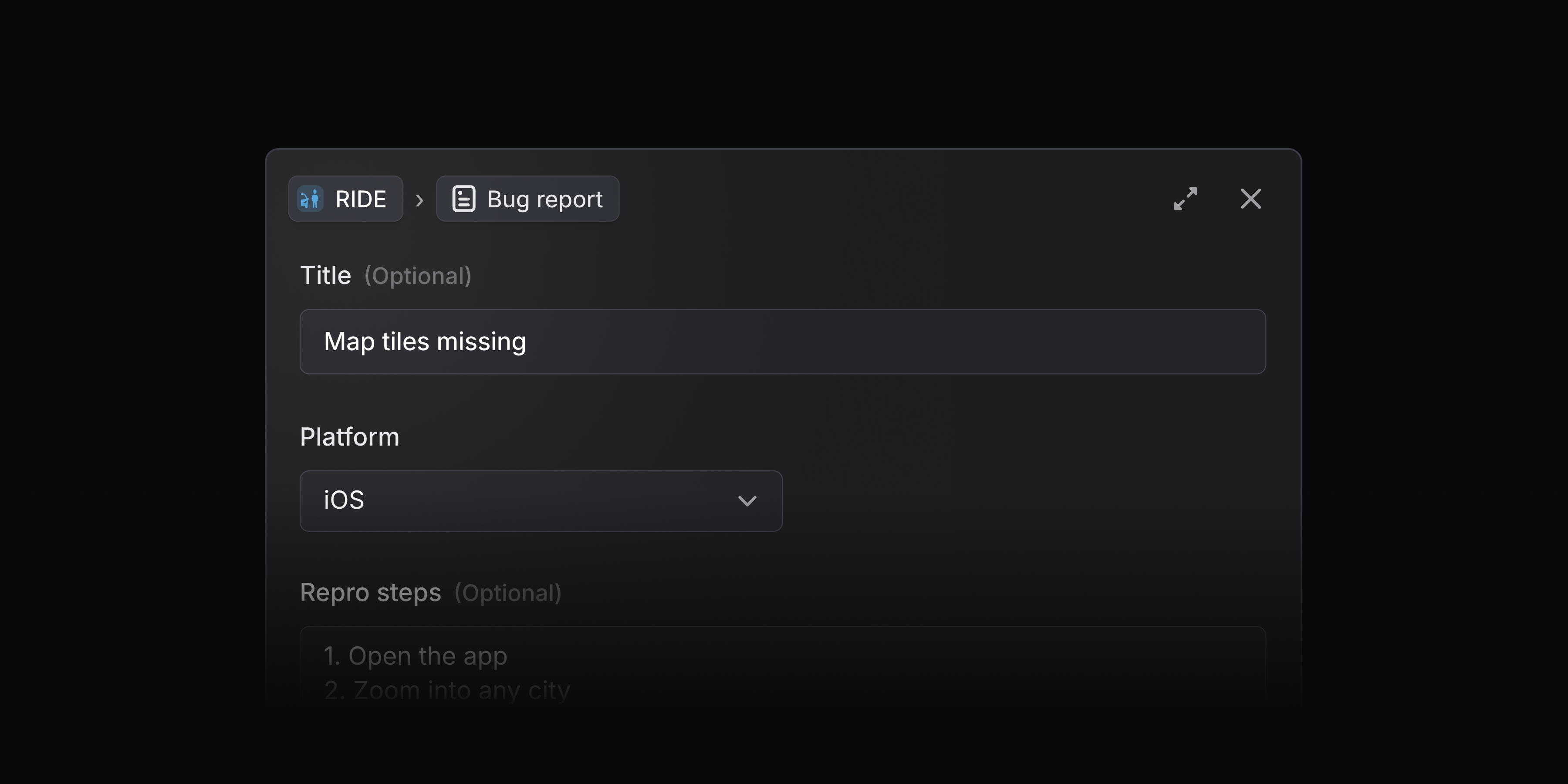
Form templates are a new type of issue template that support form fields. Use these templates to collect specific issue details upfront so work is actionable from the start.
Form templates are useful for teams that require specific details in every request, like bug reports that need repro steps and environment details, security incidents that should capture severity and when the incident occurred, and IT or HR requests for new equipment or onboarding details.
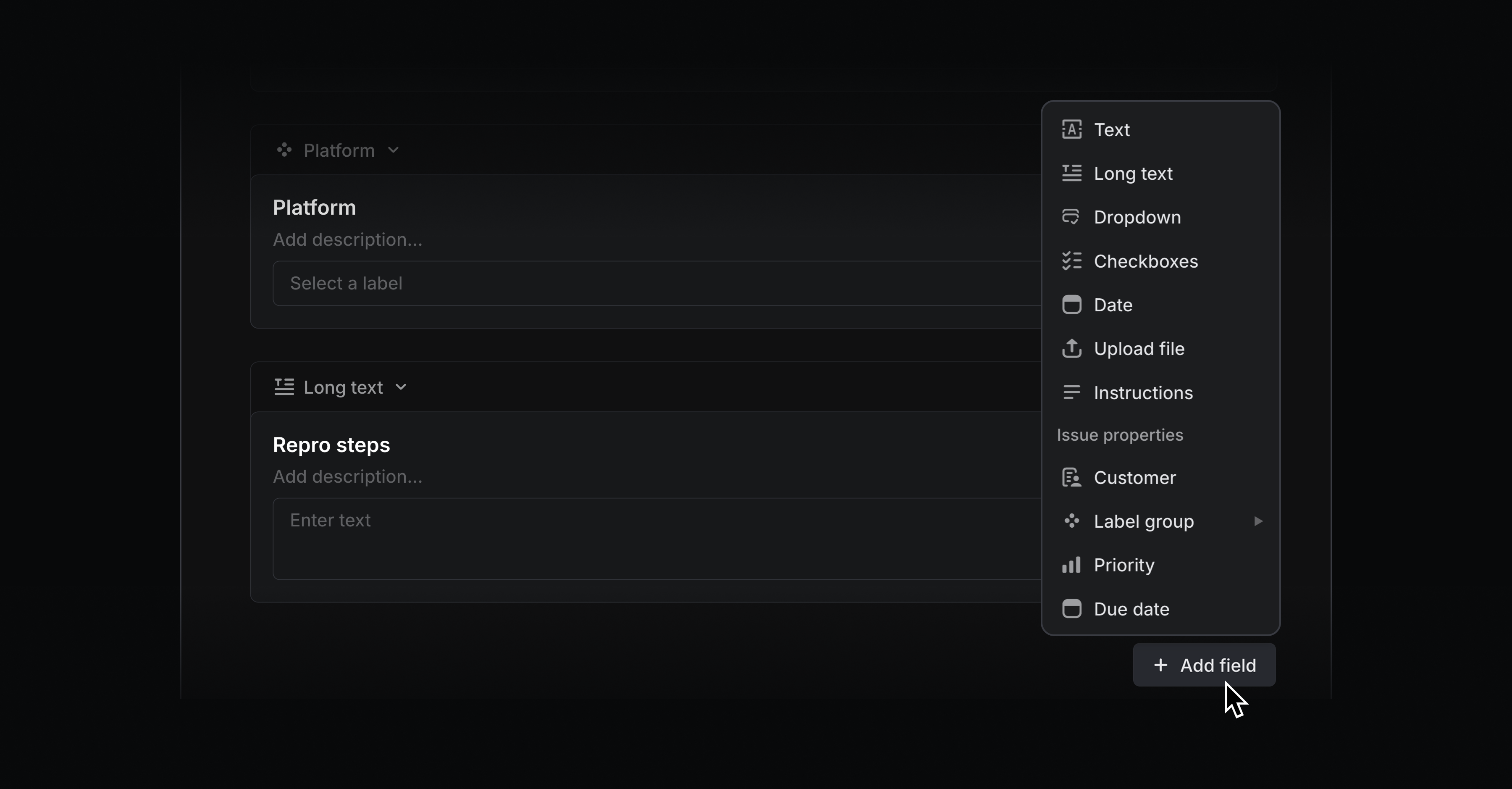
You can specify generic fields like text input, dropdowns, and checkboxes, as well as issue property fields like priority, customer, and label groups. Name each field, add descriptions to give submitters clear instructions, and mark any field as required.
When creating an issue, form templates appear to users as fillable forms. Any user in your Linear workspace can create templated issues in Linear or through the Slack integration.
With Asks, you can add form templates to Slack channels and let everyone in your Slack workspace turn their requests into Linear issues — even if they don’t have a Linear account.

Form templates are available on all plans, and can be used in Asks for teams on Business and Enterprise plans. To create a form template, add a new issue template and choose Form. Any issue templates previously used with Asks have been converted to form templates. Learn more in our docs.
Mermaid diagrams
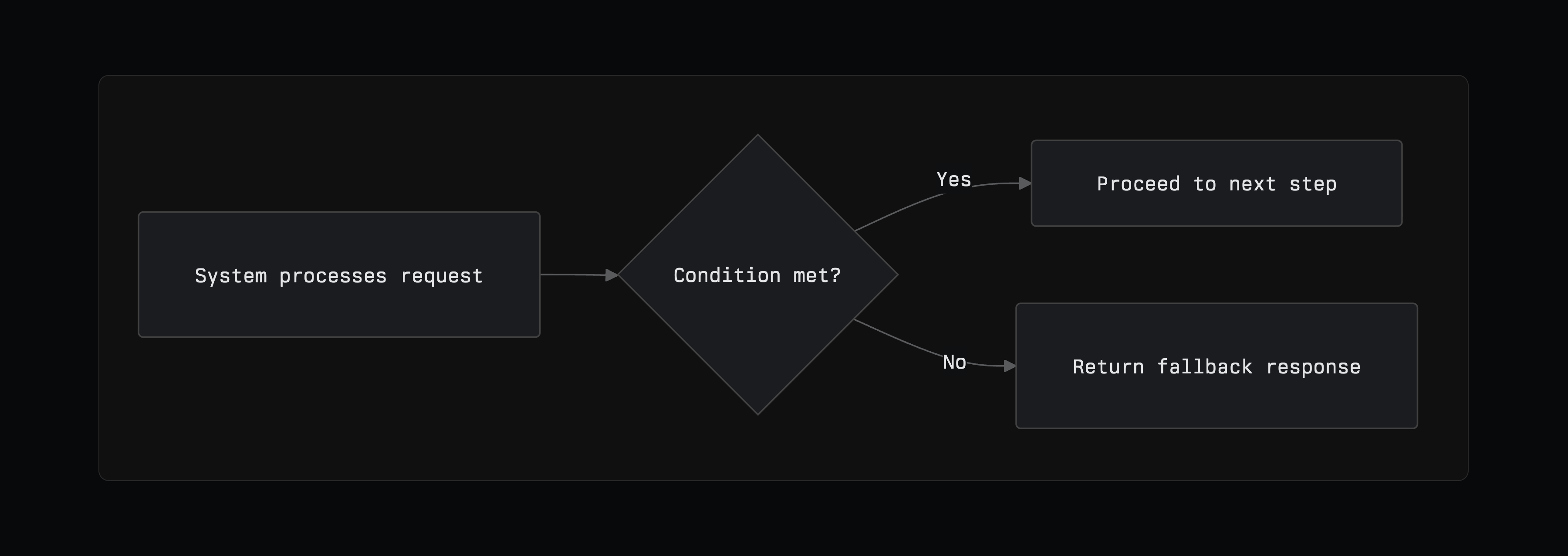
Build modifiable diagrams like flowcharts and sequence diagrams natively in Linear. Create a new diagram by typing /diagram in a text field or searching for mermaid as the language in a code block. See the official Mermaid docs for more on the syntax.
Figma Make connector
Access Linear issues, projects, and documents from Figma Make to design prototypes with full context. You can also create and manage Linear issues and projects without leaving Figma — turning your prototypes into tracked work. All tools supported by Linear's MCP server are accessible in the connector. Learn more in our docs.
Pulse on mobile
Pulse is now available in Linear's iOS and Android apps. Stay up-to-date on the progress of your projects and initiatives, no matter where you are.

Pulse brings relevant updates from across your Linear workspace into a single unified feed, so you can quickly see what's happening. For me shows you a personalized feed of project and initiative updates most relevant to you. Popular and Recent surface updates from across your entire company, helping you stay informed beyond your immediate focus. Leave a comment on any update, or react with an emoji.
Updated Progress Graphs
Initiative, project, and cycle graphs have been refreshed to make progress and activity trends clear at a glance.
Progress graphs for projects and cycles now include a bar chart to highlight completed issues, providing a clear view of momentum over time.

Initiative graphs have been redesigned to highlight the most active projects at any given time. Each curve represents the rate of completed issues within a single project, rising during periods of high activity and leveling off during quieter periods or after project completion. Hover over the x-axis to see your most active projects in a given week.

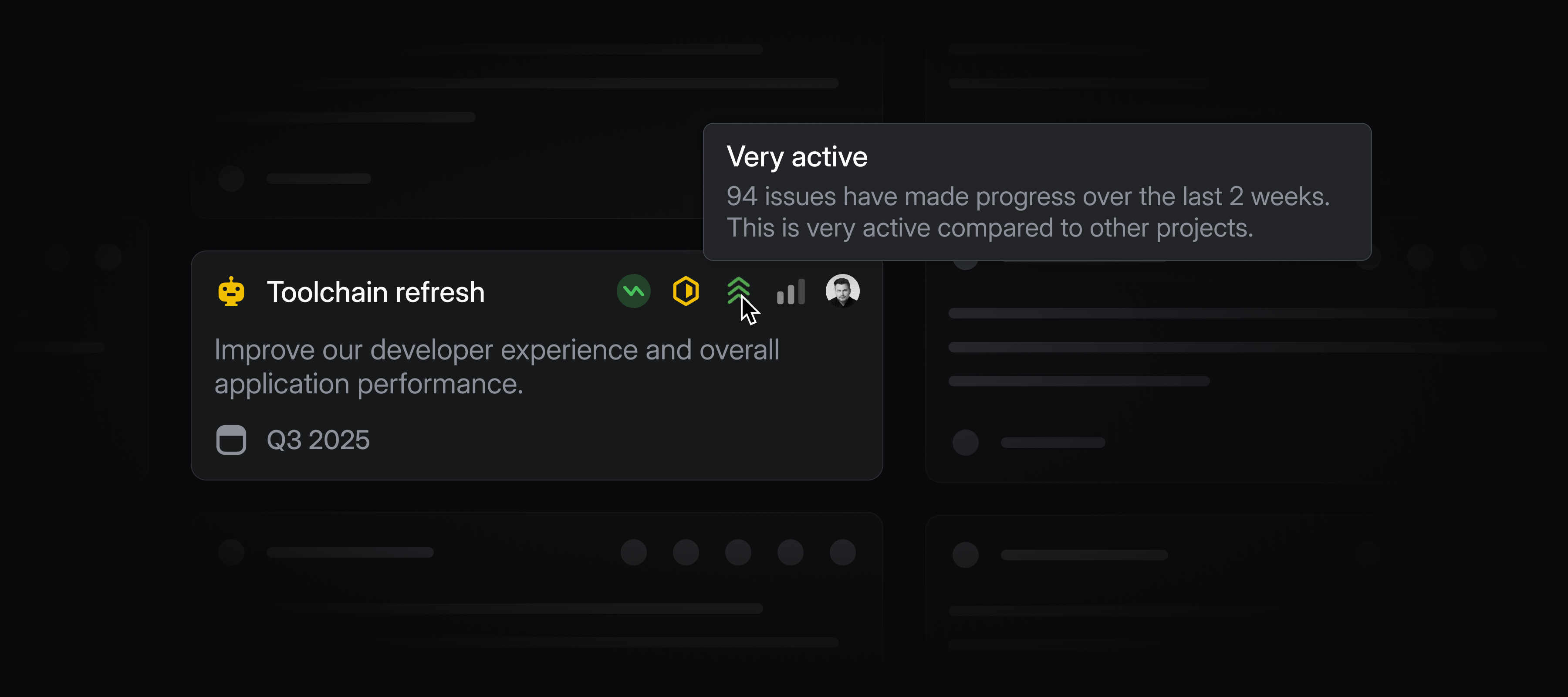
Initiative and project views now include an activity indicator. It highlights which efforts are most active across your workspace, so it's clear where your team is spending time.
Datadog integration
Datadog users can now automatically create Linear issues from Datadog monitor notifications. This ensures that any critical alerts from Datadog are translated directly into tracked and actionable work in Linear. Learn more in our docs.
GitHub Copilot agent
GitHub Copilot users can now work with the GitHub Copilot agent directly within Linear.
Delegate any issue directly or mention GitHub Copilot in a comment, and the agent will use the full issue context to start an implementation in a draft PR.

You can follow Copilot's progress on the Linear issue or on the PR in GitHub. You'll get notified if the agent needs your input or when the work is ready for review. Prompt Copilot to make further changes by adding comments to the PR.
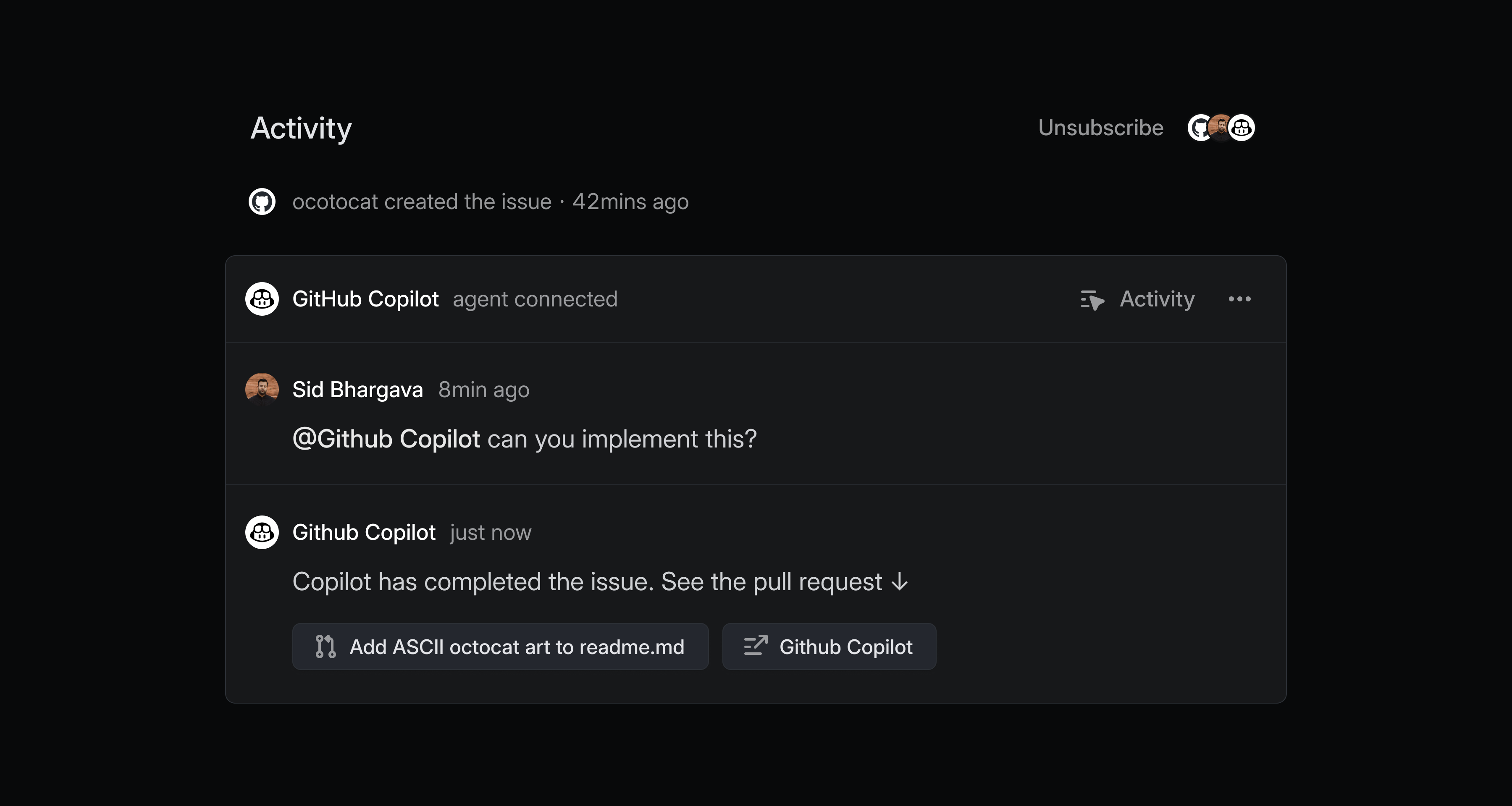
GitHub Copilot agent can handle lightweight tasks in your backlog like quick bug fixes, small refactors, or UI polish so your team can stay focused on complex projects. Track all issue delegated to GitHub Copilot and other agents from My Issues or create a custom view.
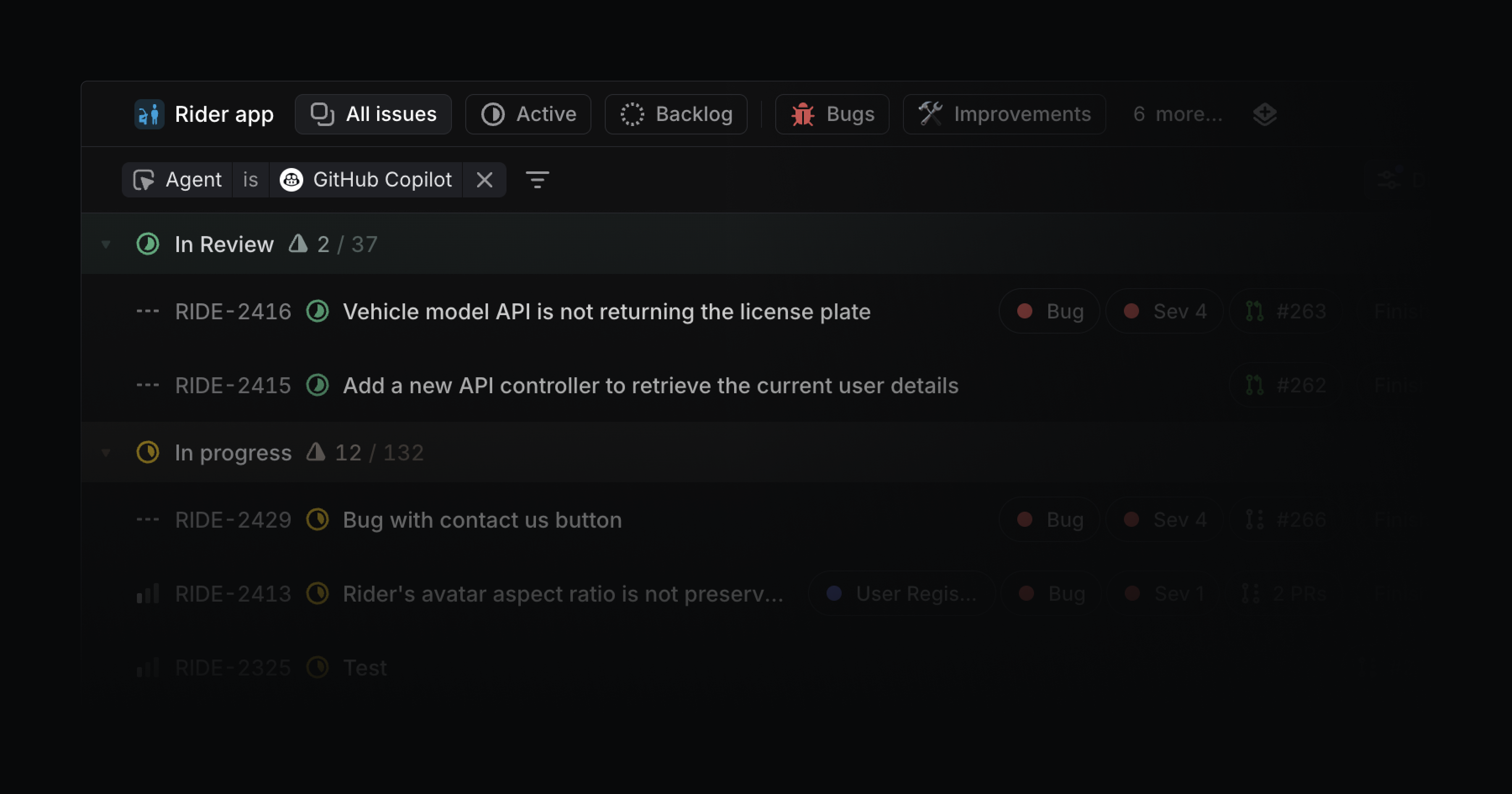
To get started, add the GitHub Copilot agent to your Linear workspace. You'll be prompted to link your individual GitHub account when you delegate an issue to GitHub Copilot for the first time. Check out the GitHub documentation to learn more.
Linear agent for Slack
Creating issues has never been easier. Mention @Linear in discussions on Slack, and the Linear agent will create issues informed by your conversation's context. Use natural language to specify issue details or simply let the agent infer what's needed.
Linear agent for Slack is available now on all plans. Update your Slack integration, then create issues by mentioning @Linear in Slack.
Learn more in our docs.
Mobile app redesign
We’ve refreshed our iOS and Android apps with a new visual design system. Both now use a custom frosted glass material that adds depth and contrast to the UI.

Navigation has been rebuilt with a new bottom toolbar for quick access to core workflows. You’ll also now find a "Create Issue" button at the top of every screen.
Update now in the App Store and Play Store.
Factory agent
Users of Factory AI coding agents can now access them directly within Linear. Delegate an issue to Factory to spin up a remote workspace and launch a coding agent.
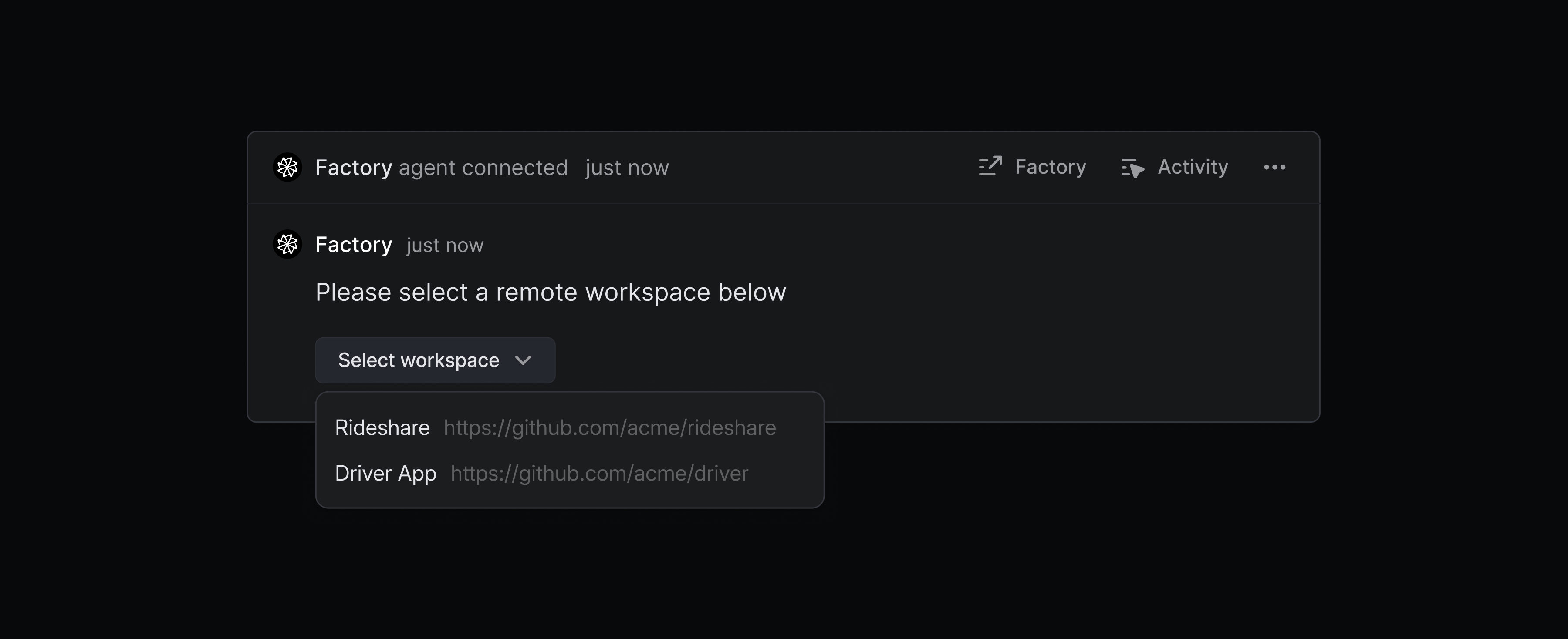
Factory’s remote workspaces allow you to create custom development environments for coding agents, so you can delegate several Linear issues simultaneously to run in consistent, isolated environments. Learn more about Factory in our Integration Directory.
Issue SLAs now available on Business plans
Workspaces on the Business plan can now use SLAs to set clear expectations on when time-sensitive work should be completed.
SLAs apply automatically to issues based on configurable rules. When an SLA is at risk or becomes breached, issue subscribers receive immediate notifications. Learn more about SLAs in our docs.
Label descriptions and archiving
Label descriptions and archiving
Labels let you organize issues and projects in ways specific to your team or workspace. They can be used to define custom views and dashboards, or in Triage and SLA rules. We've made significant improvements to label functionality and management.
Label descriptions
Add descriptions to labels to clarify their purpose and when they should be applied. Hover over a label from anywhere in the app to read its description. Label descriptions also help inform Product Intelligence on when to suggest a particular label.
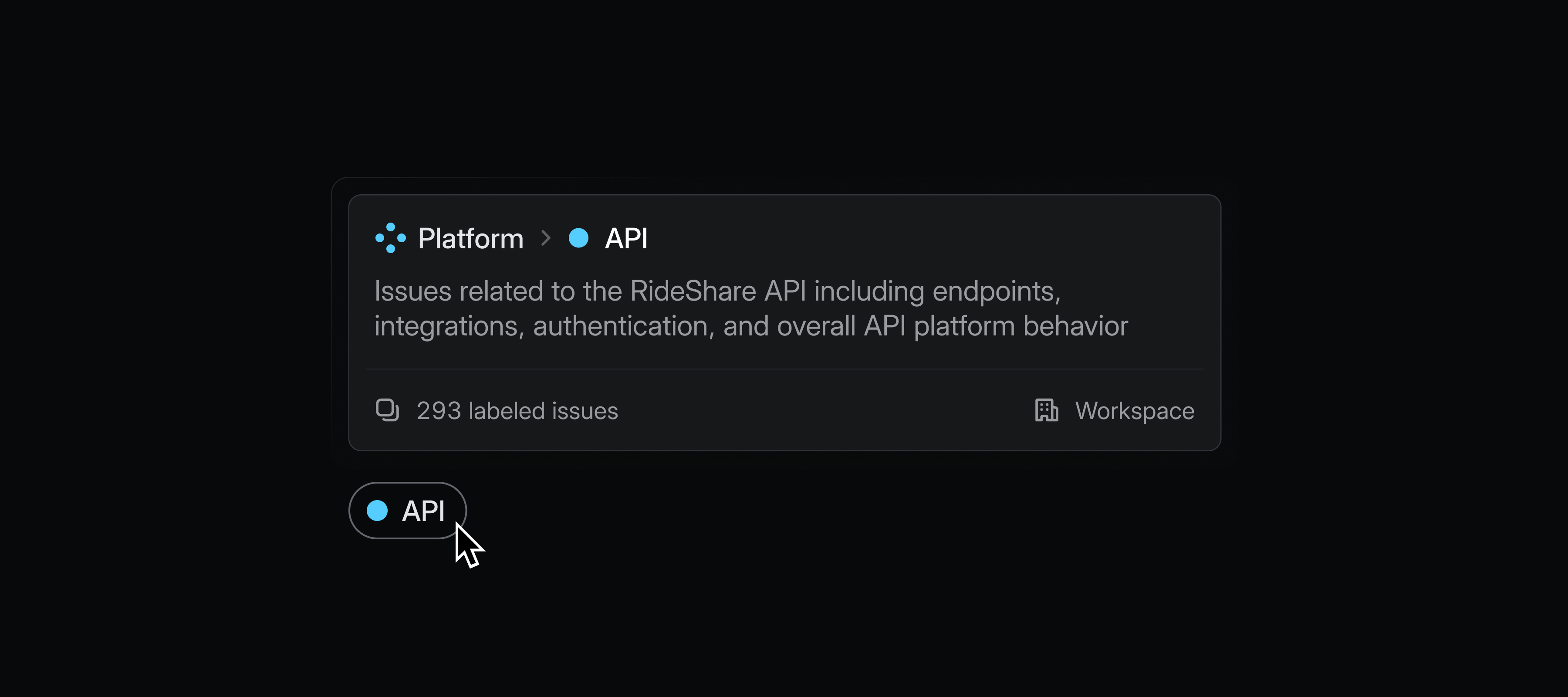
Archiving labels
Archive labels when they are no longer needed, but you wish to preserve historical data. Archived labels remain visible on issues and projects where they were previously applied and will continue to work in filters, insights, and views.
Label management
We've shipped a series of quality of life improvements for managing labels. You can now easily update labels in bulk, merge multiple labels together, and see triage and SLA rules that they affect.

Issue discussion summaries

Discussion summaries now appear on issues with substantial activity. Read these summaries to understand what's happened in an issue without reading every comment.
Summaries capture decisions, blockers, debates and their resolutions, and key people involved. When new comments are posted, summaries automatically regenerate to reflect changes.
Citations point back to specific comments that support the summary's claims. Hover over a citation to view the source material and click through to read the original comment. Issue discussion summaries are available on Business and Enterprise plans. Learn more in the docs.
Updates tab on projects and initiatives
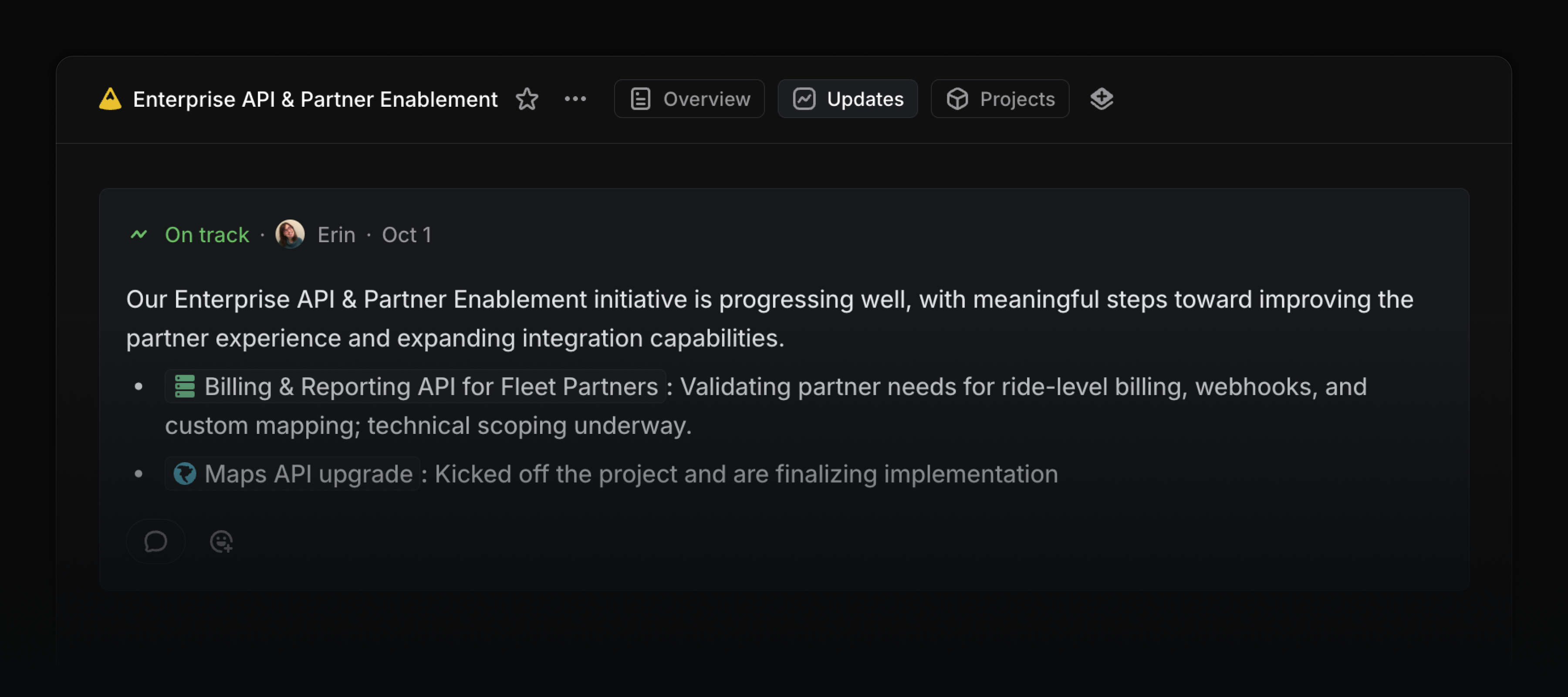
Visit the updates tab to see the history of all updates and changes to a project or initiative. Write new updates from this page and share the link with anyone in your workspace so they can track progress.
Updates appear in chronological order along with any changes to properties such as the target date, members, and milestones. On initiatives, display updates from sub-initiatives and projects, so you can see all relevant information in one place.
Sentry Agent
Use the Sentry Agent to run a root cause analysis on any Linear issue linked to Sentry. Once assigned to an issue, the Sentry agent will analyze the related stack trace, logs, events, and other metadata and share its findings. You can use this analysis as additional context when fixing the problem, either manually or using a coding agent.

Date mentions
Add date mentions in project descriptions, issues, and documents by typing @ followed by a date expression like @tomorrow, @October 12th, or @next Wednesday. Date mentions always resolve to the correct calendar date.

New to Product Intelligence: Auto-apply triage suggestions
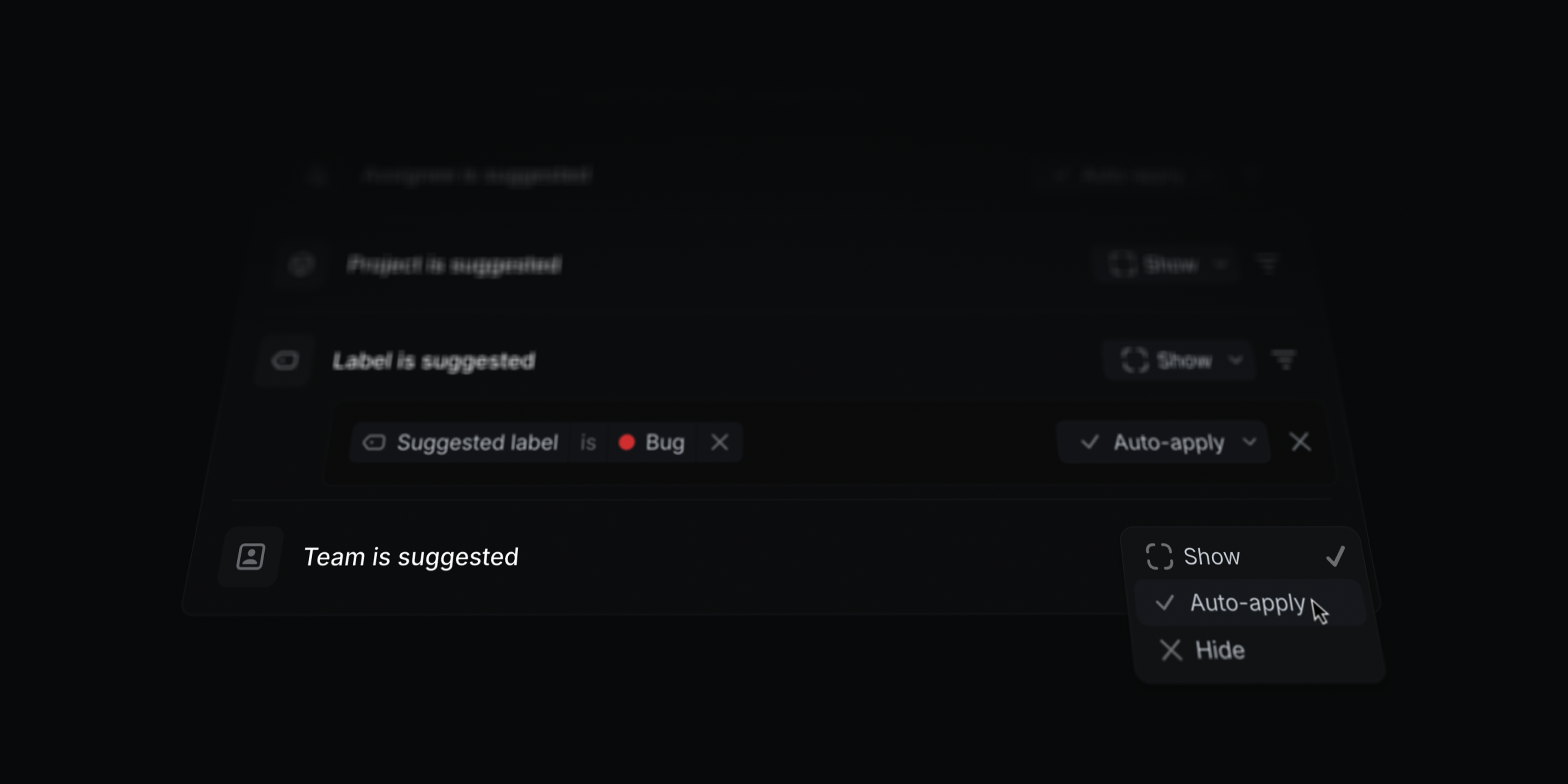
Let Product Intelligence take the first pass at triage and automatically apply suggestions to issues.
Set up rules to automatically accept suggestions for individual issue properties, or only for specific values. For example, you can configure triage suggestions to always apply the suggested team and assignee but only automatically apply specific labels like bug.
Properties that have been automatically applied are clearly marked in the suggestions header. Hover over them to review the reasoning or to make changes.
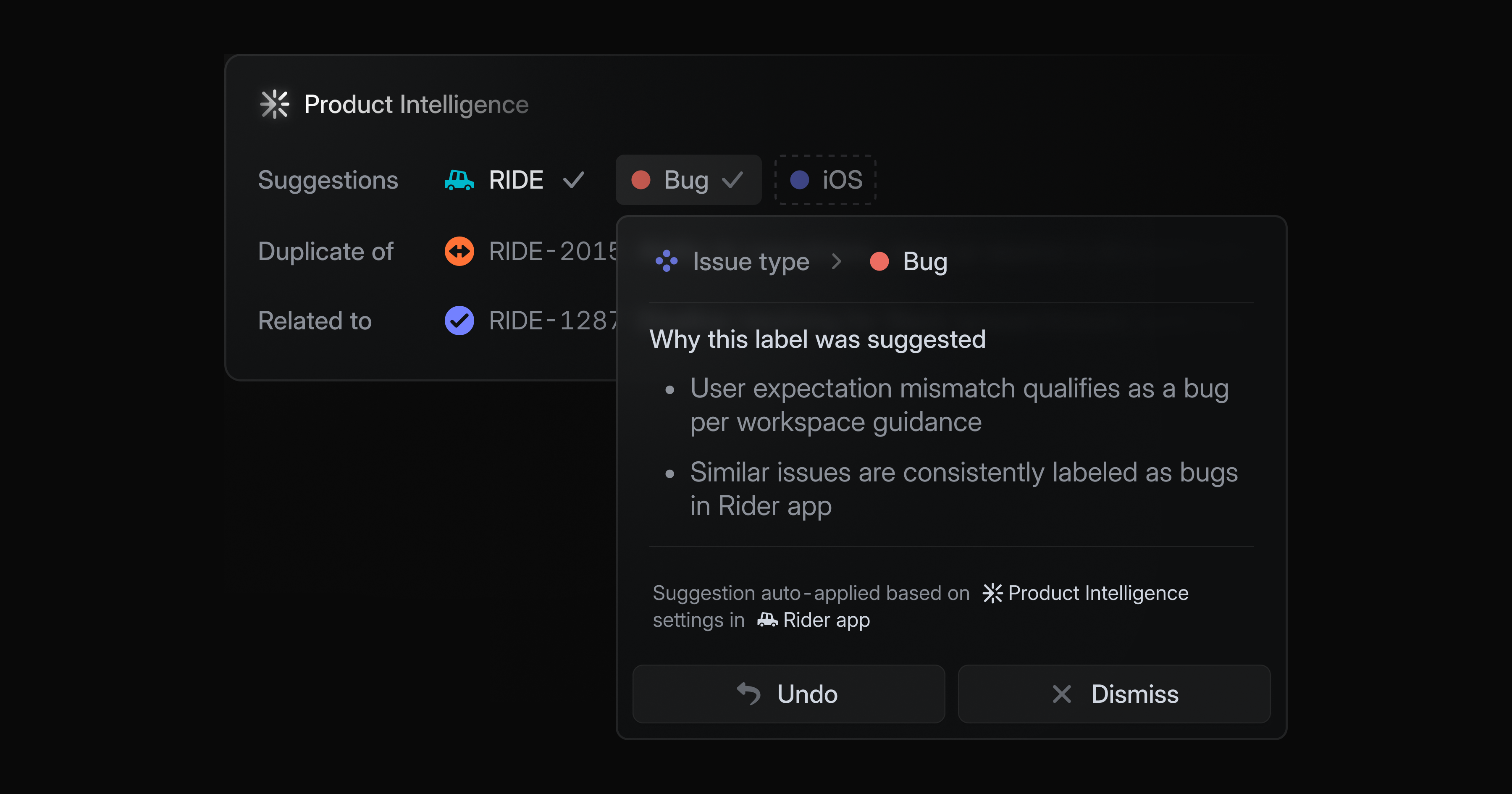
By letting Product Intelligence take the first pass, you can dramatically reduce the time it takes to triage issues. Your team can focus its attention fully on solving problems, rather than being continuously interrupted.
You can configure Triage suggestions at the workspace or team level. It is part of Product Intelligence, which is available in Technology Preview to anyone on the Business and Enterprise plans.
To get started, ask your workspace admin to enable Product Intelligence or learn more in the docs.
OAuth improvements
We're moving OAuth apps to use short-lived access tokens for user-initiated OAuth. These new tokens will be valid for 24 hours and paired with refresh tokens.
Starting October 1st, 2025, all newly created OAuth apps will issue refresh tokens by default. Existing apps will have until April 1st, 2026 to migrate to the new refresh token system.
We also added support for the client_credentials grant type for apps that use OAuth tokens for direct server-to-server communication and cannot support a user-initiated OAuth flow involving refresh tokens.
View the updated OAuth developer documentation to learn more.
Salesforce integration
Linear's Salesforce integration connects customer cases and account data from your CRM with product work in Linear.
Escalate customer cases to the product team by creating Linear issues or linking existing ones — directly from Salesforce. Customer-facing teams can submit feature requests, share product feedback, and report bugs affecting existing customers or impacting new opportunities.

Linear issue details are surfaced directly in Salesforce and updated in realtime. This lets you keep track of development progress, close the loop with customers when issues are completed, and engage prospects as soon as their feature requests ship.
Salesforce account data also syncs with Linear. Product teams can view customer requests alongside details like revenue, tier, and company size, helping them prioritize the most impactful product work.
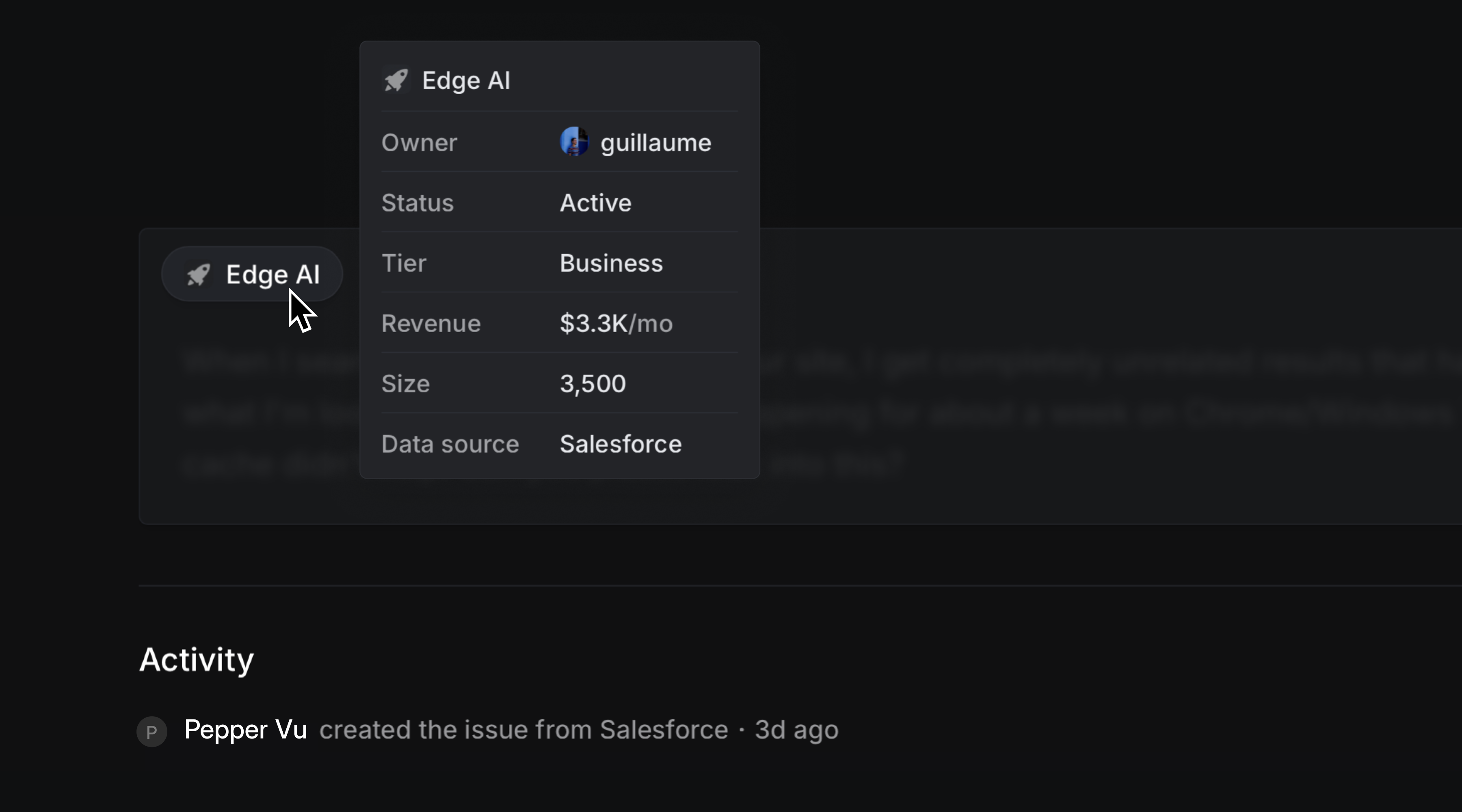
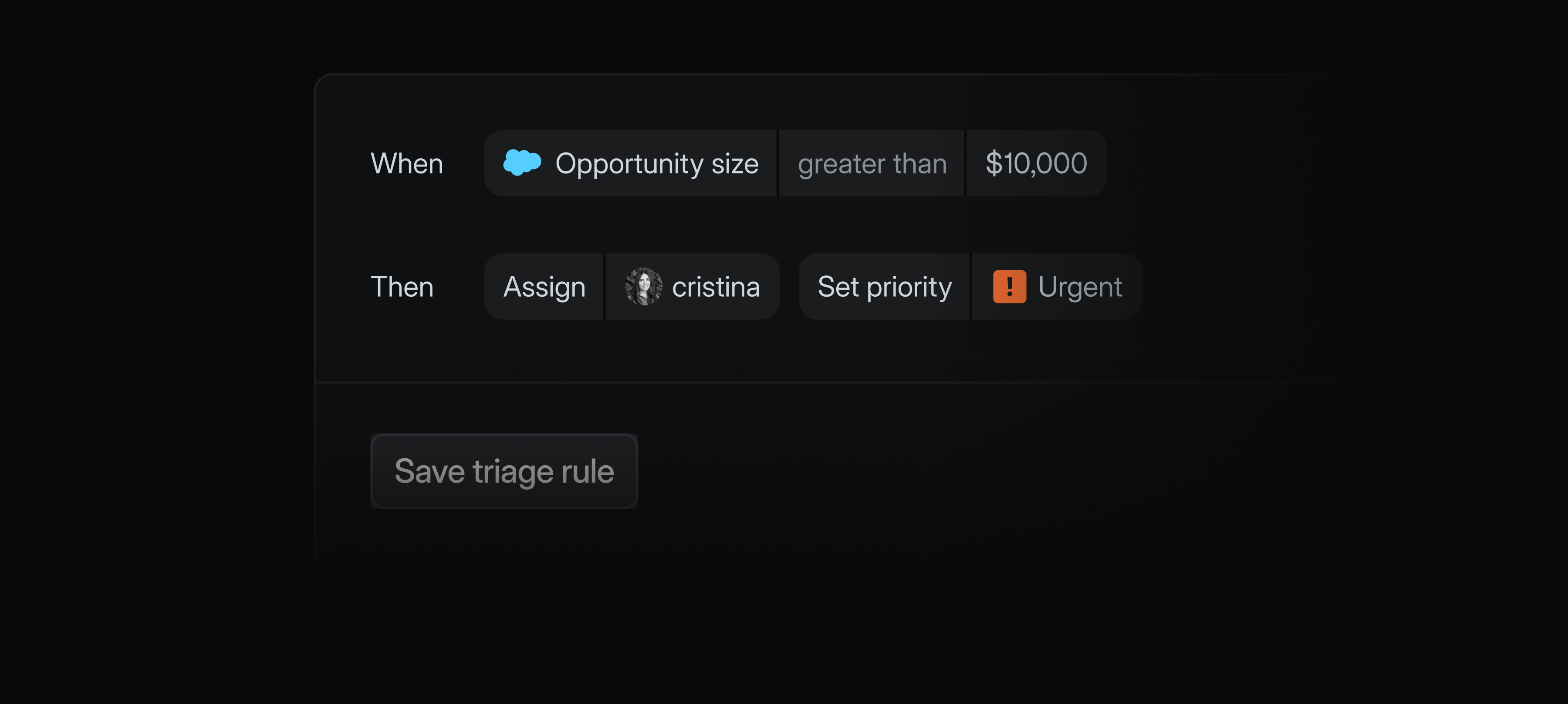
Any Salesforce case field can now be used to filter issues in Linear. Create custom views and stay updated with view notifications, or create Triage rules based on Salesforce case fields to automatically prioritize and route issues.
The Salesforce integration is available as a paid add-on to the Enterprise plan. Contact sales to learn more and request a trial.
Sync customer data
Customer attributes can now be synced from external data sources like Zendesk, Intercom, Front, or Salesforce.

Map attributes in Linear — like revenue, tier, status, customer owner, and company size — to corresponding attributes in your external system of record. Linear automatically syncs updates from your external data source, ensuring data in Linear always stay up to date.
To get started, head to customer requests settings and select a source. Customer data syncing is available on Business and Enterprise plans for Zendesk, Intercom, Front. You must have the Salesforce integration (add-on to the Enteprise plan) in order to sync customer data from Salesforce.
Cursor background agents
Assign issues to Cursor and launch background agents from within Linear.
You can now add Cursor as an agent in your workspace. The Cursor agent can work alongside your team to make code changes or answer questions. When an issue is delegated to Cursor, it will use the full issue context to create a plan and start working on an implementation.
Engineers can fully delegate well-defined issues to Cursor without leaving Linear. Describe the task in plain language and Cursor will automatically create a branch, draft a PR, and notify you when the work is ready for review. If the code changes need further refinement, you can continue prompting by commenting on the issue or take over the work directly in the Cursor app with a seamless handoff.
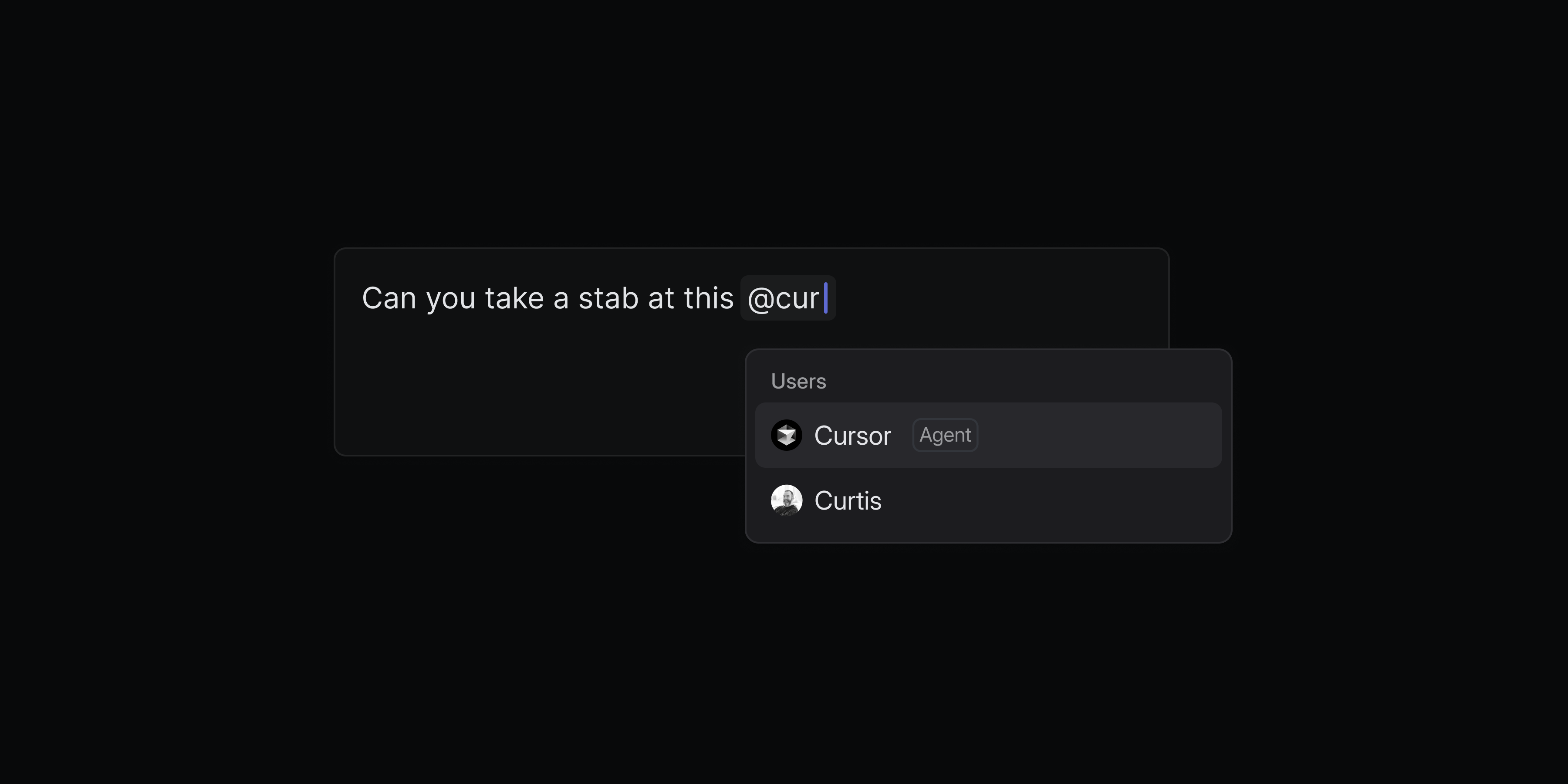
Cursor background agents can be used by your whole team—not just engineers. Team members can directly ask Cursor how the code functions to investigate customer issues, rather than escalate all of those questions to engineering. Designers and PMs can specify quick prototypes to validate new ideas, or even ask the agent to handle small UI fixes, copy updates, or other polishing tasks.
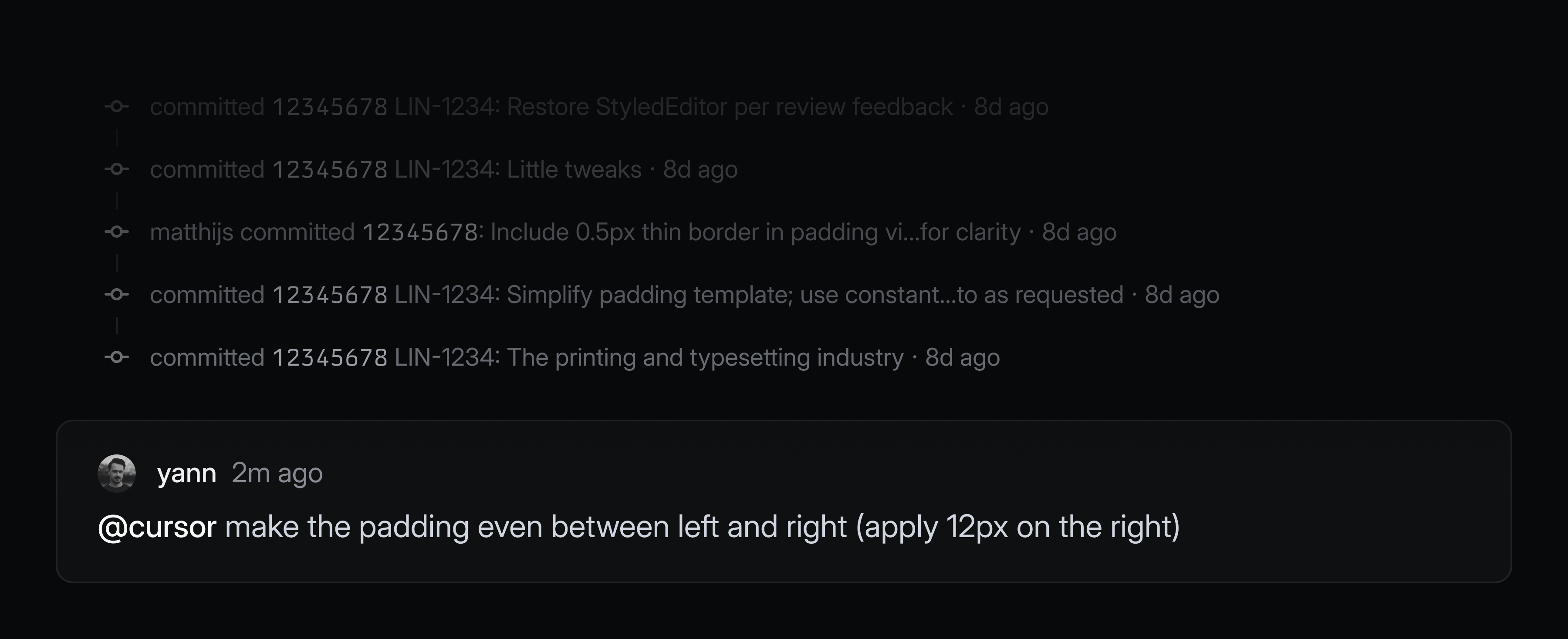
You can monitor all issues delegated to Cursor and other agents from the My Issues view and you'll be notified when an agent needs your input or when their work is complete.
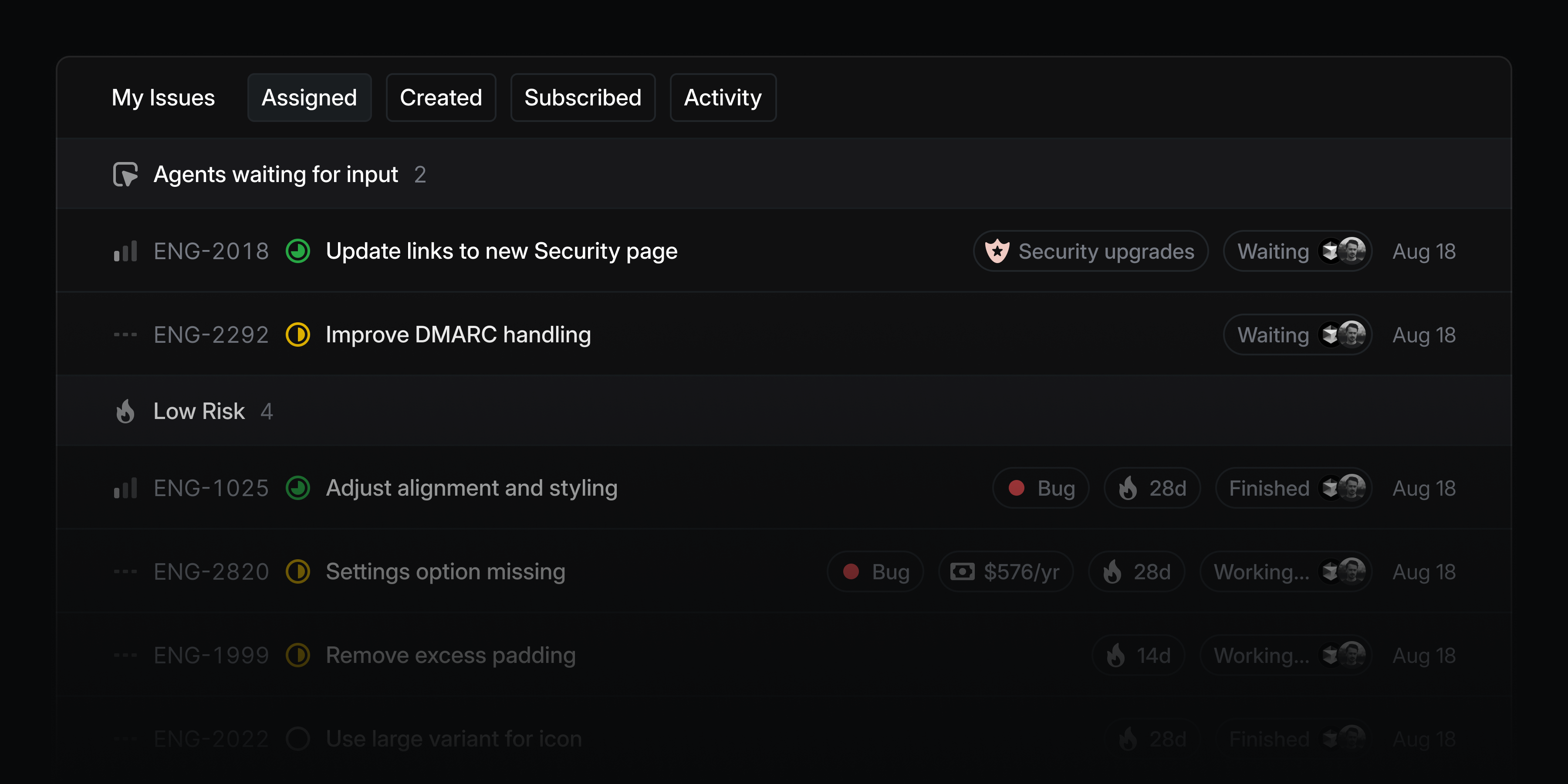
To add Cursor to your Linear workspace, enable the integration. You'll be asked to link your individual Cursor account when you delegate an issue to Cursor for the first time. Check out the Cursor documentation to learn more.
Initiative views
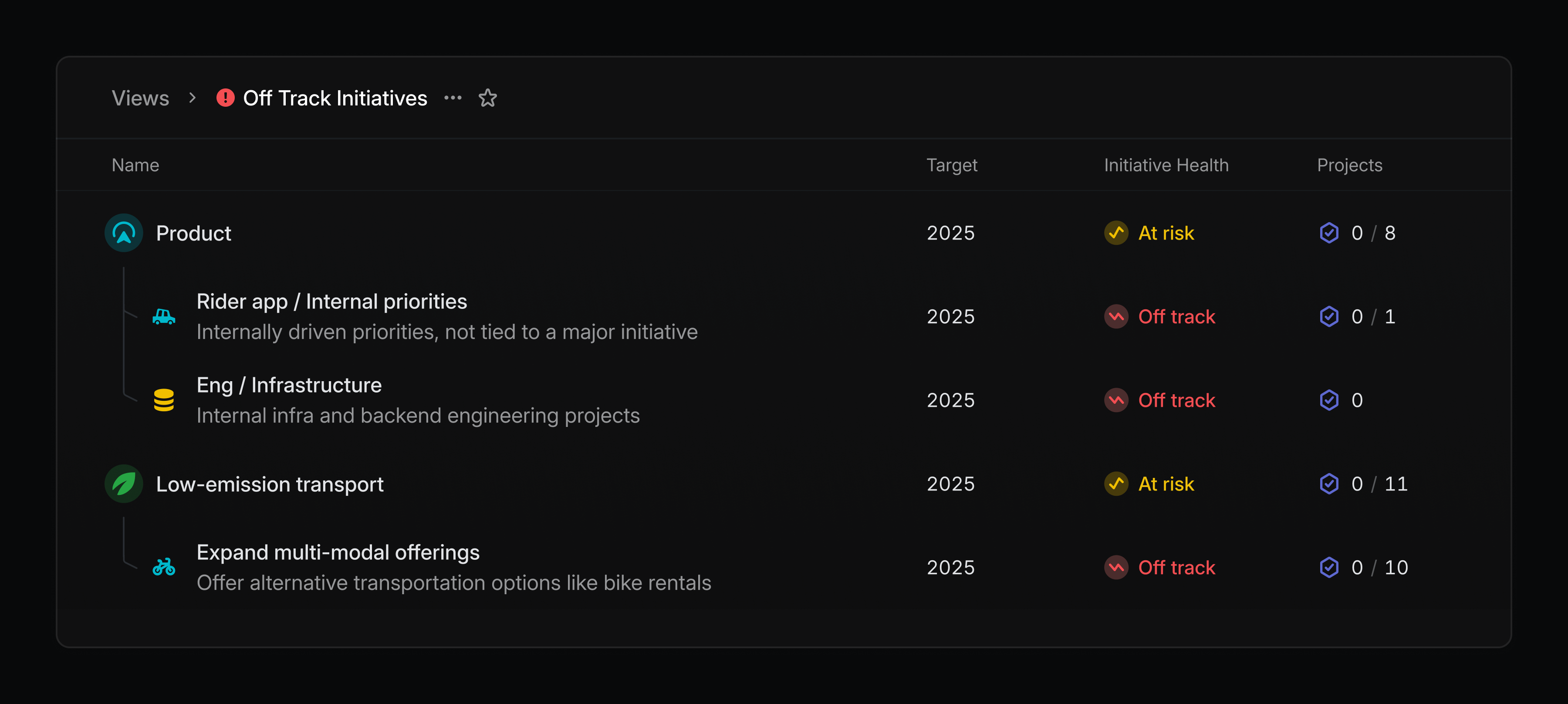
Build curated lists of initiatives that can be shared with the rest of your team. Views can be created by filtering on properties—like owner and teams—or by specifying specific initiatives that you want to include.
Create an initiative view by going to your workspace's views page or by filtering your initiatives list and saving it as a new view. Initiative views are available on enterprise plans.
Product Intelligence (Technology Preview)
Product Intelligence streamlines your product operations with AI assistance for routine, manual tasks. Today we are previewing the first of its capabilities: automating the overhead of triage intake.
When activated, Product Intelligence examines all issues sent to Triage and does the tedious parts of the intake process for you. It will research past and existing issues for context, making informed suggestions on which team, projects, and assignee to route the new issue to. It also identifies related issues and likely duplicates.
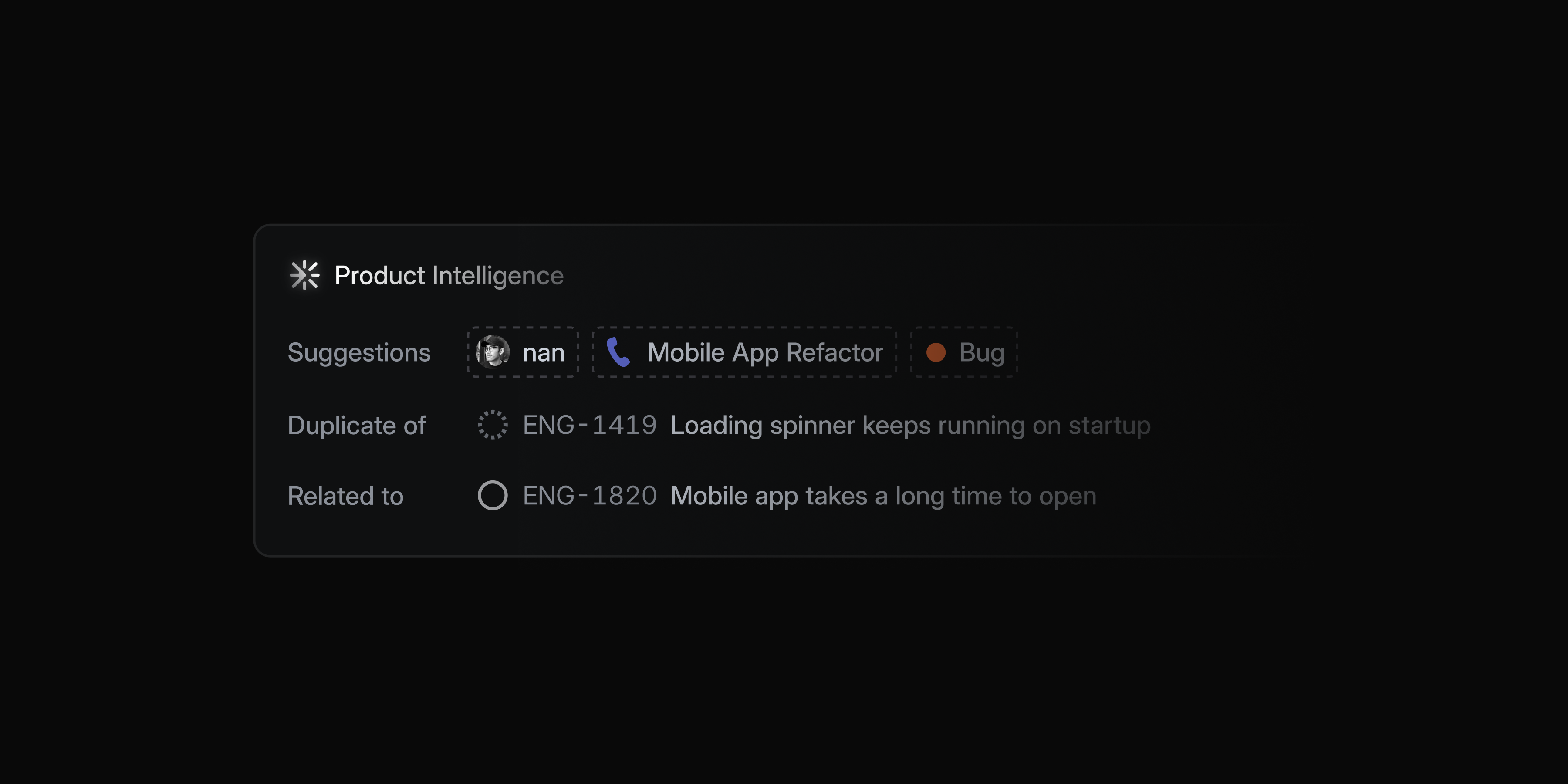
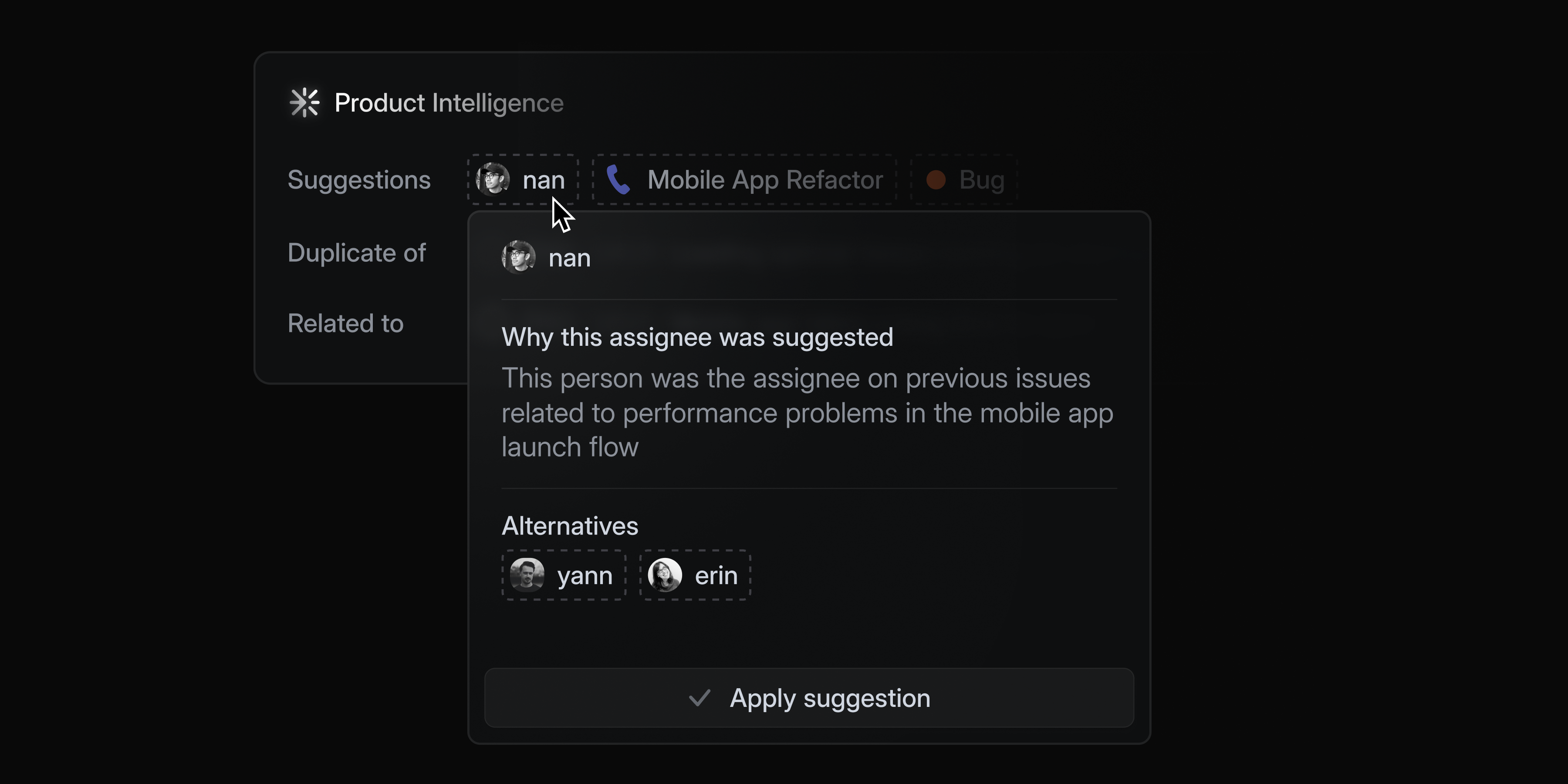
You can accept or dismiss the suggestions, or hover over them to see the reasoning behind the match.
If you want to give Product Intelligence more context to steer its behavior, you can add additional guidance at the workspace, team, or sub-team levels.

Product Intelligence transforms intake from an inconsistent, research-heavy process into an automated approval flow. Because suggestions are based on your issue data, they will improve over time as you accept and dismiss them. The more you enrich your data, the more precise future suggestions become.
Product Intelligence is available in Technology Preview to anyone on the Business and Enterprise plans. To get started, ask your workspace admin to enable it in Product Intelligence settings and learn more in the docs.
Mobile: New search experience
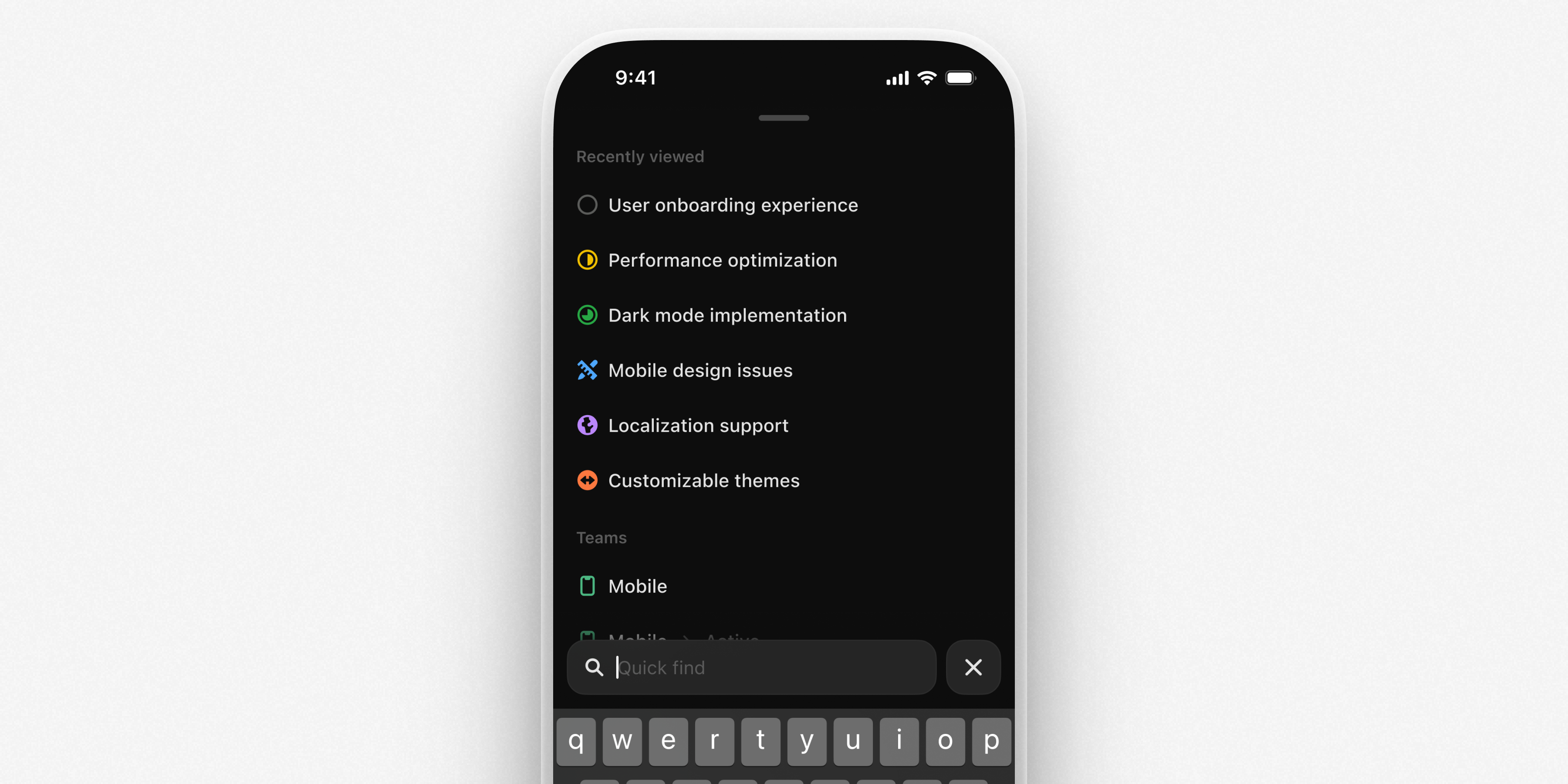
Mobile search now uses our hybrid semantic search engine to find comprehensive results beyond just keyword matching. When you open search, you'll see recently viewed issues, projects, and documents, along with navigation shortcuts. Start typing to filter the recently viewed list or press Enter to search across all of your issues, projects, and documents.
Customize Asks email auto-replies
Linear Asks helps internal teams manage workplace requests from Slack and email. For Asks over email, choose when an automated reply is sent, and customize the exact message. Go to Asks settings and select an intake email to configure your custom replies.
Attio integration
Share user feedback and sync customer details from Attio and into Linear with their integration. Create customer requests from any company, person, deal, or call from within Attio and add them to Linear projects and issues.