Product Intelligence (Technology Preview)
Product Intelligence streamlines your product operations with AI assistance for routine, manual tasks. Today we are previewing the first of its capabilities: automating the overhead of triage intake.
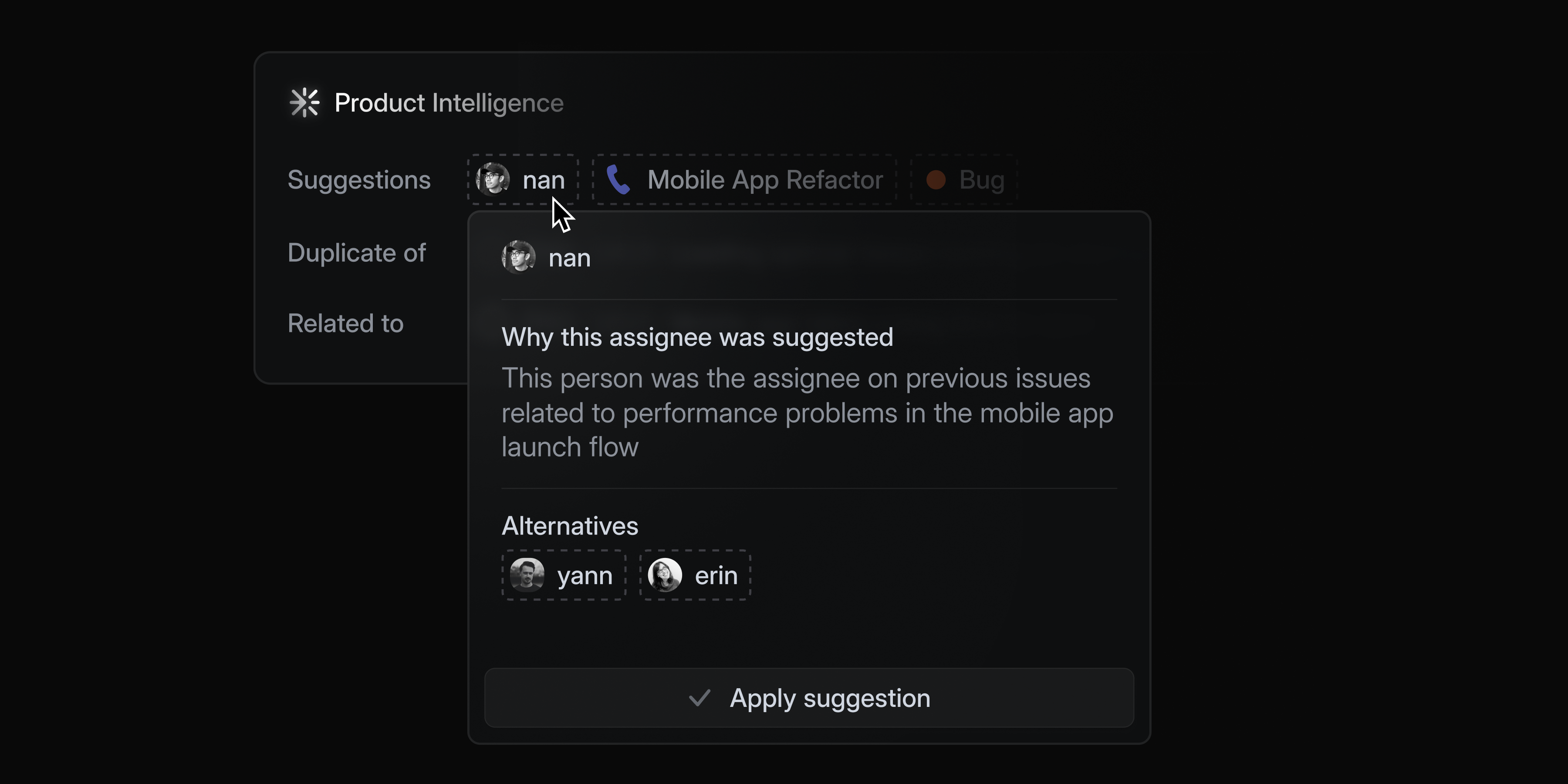
When activated, Product Intelligence examines all issues sent to Triage and does the tedious parts of the intake process for you. It will research past and existing issues for context, making informed suggestions on which team, projects, and assignee to route the new issue to. It also identifies related issues and likely duplicates.
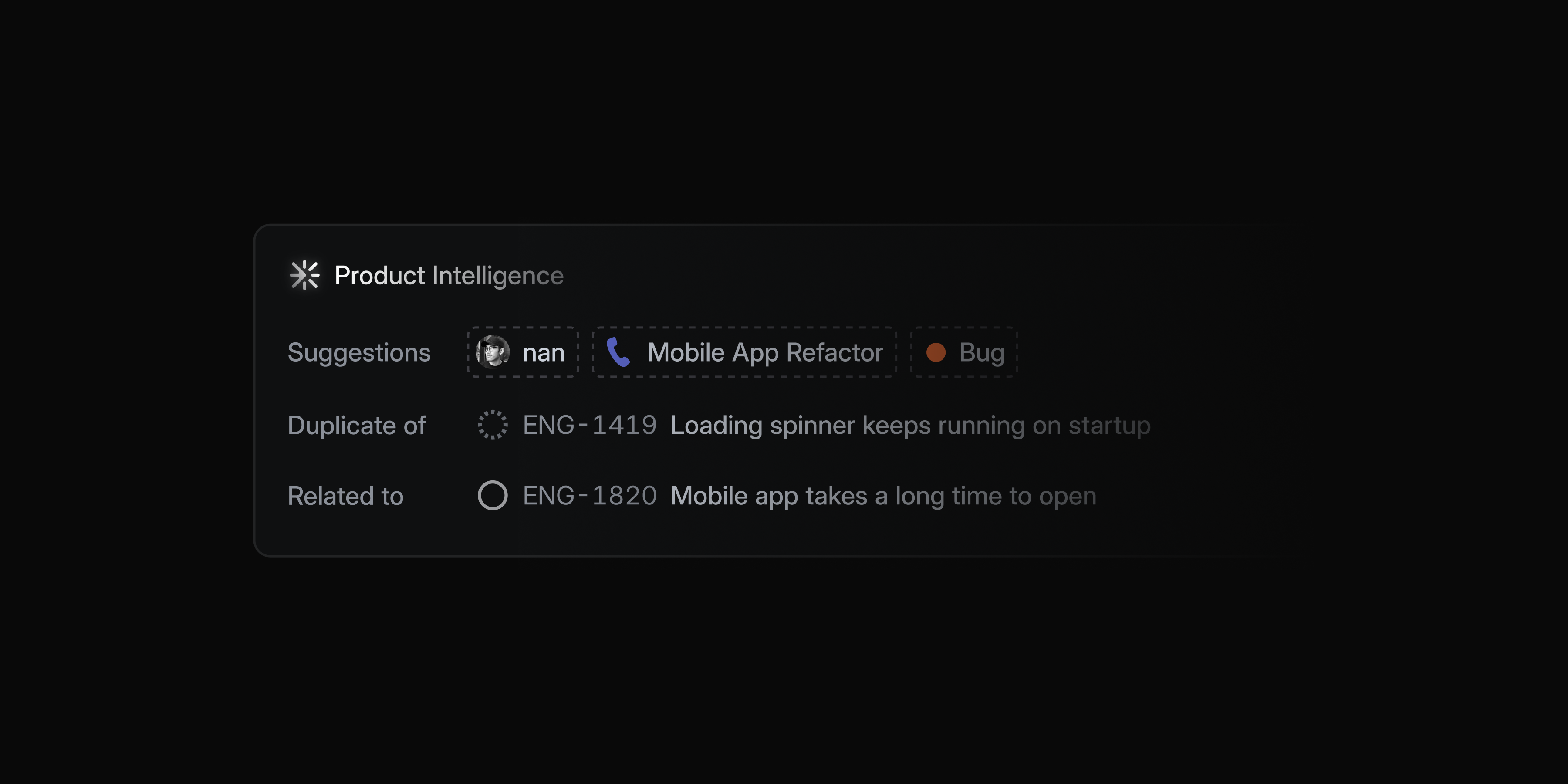
You can accept or dismiss the suggestions, or hover over them to see the reasoning behind the match.
If you want to give Product Intelligence more context to steer its behavior, you can add additional guidance at the workspace, team, or sub-team levels.

Product Intelligence transforms intake from an inconsistent, research-heavy process into an automated approval flow. Because suggestions are based on your issue data, they will improve over time as you accept and dismiss them. The more you enrich your data, the more precise future suggestions become.
Product Intelligence is available in Technology Preview to anyone on the Business and Enterprise plans. To get started, ask your workspace admin to enable it in Product Intelligence settings and learn more in the docs.
Mobile: New search experience
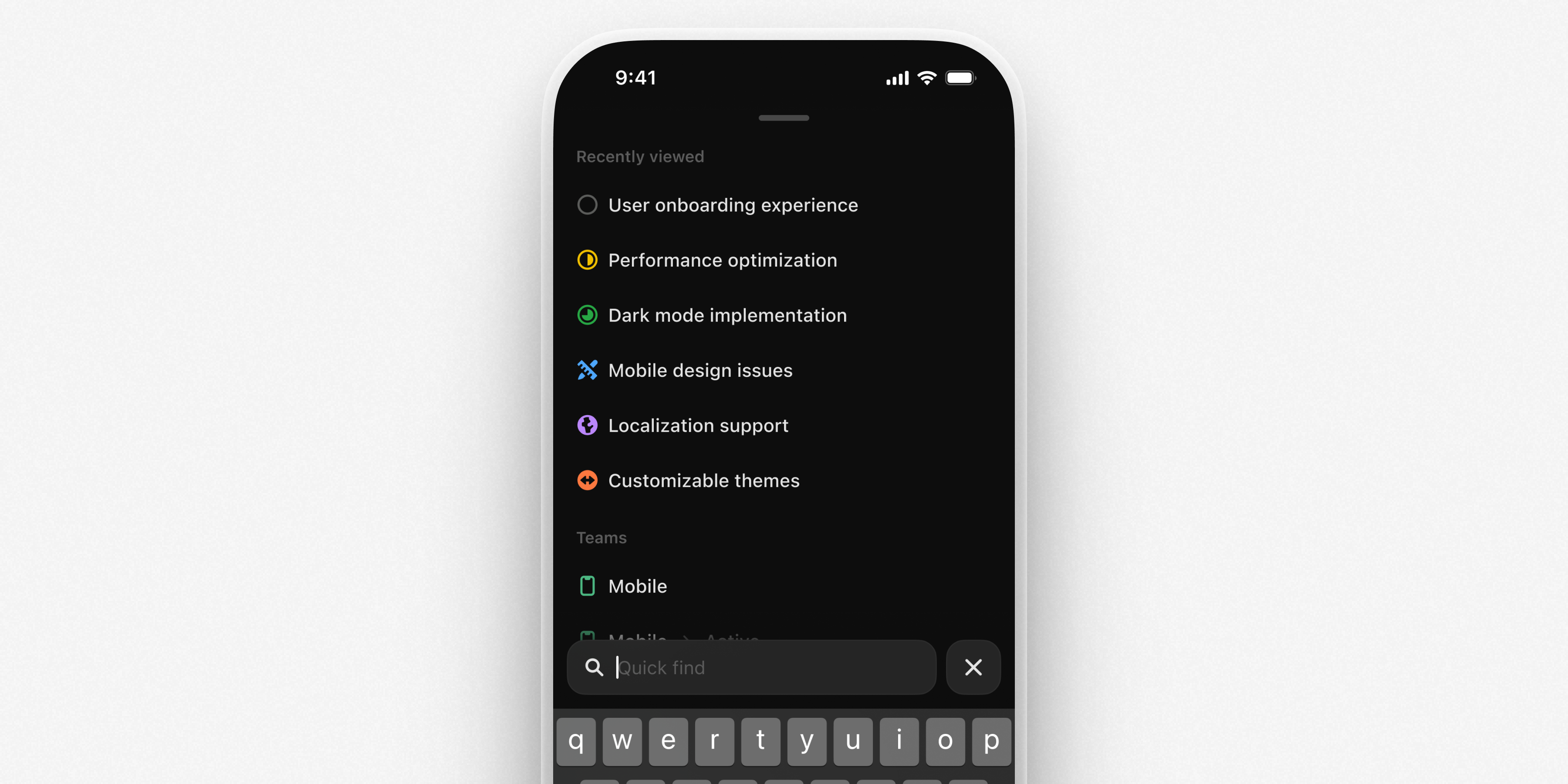
Mobile search now uses our hybrid semantic search engine to find comprehensive results beyond just keyword matching. When you open search, you'll see recently viewed issues, projects, and documents, along with navigation shortcuts. Start typing to filter the recently viewed list or press Enter to search across all of your issues, projects, and documents.
Customize Asks email auto-replies
Linear Asks helps internal teams manage workplace requests from Slack and email. For Asks over email, choose when an automated reply is sent, and customize the exact message. Go to Asks settings and select an intake email to configure your custom replies.
Attio integration
Share user feedback and sync customer details from Attio and into Linear with their integration. Create customer requests from any company, person, deal, or call from within Attio and add them to Linear projects and issues.
Agent Interaction Guidelines and SDK

Since the launch of Linear for Agents, teams have started using agents to accomplish real work inside of Linear. We've seen developers build agents that can write requirements, scope issues and projects, perform QA, fix bugs, and build features. From those early explorations, we’ve learned a lot about what makes agent collaboration work well — and where there’s still room to improve.
Agent Interaction Guidelines
We've distilled the learnings from our agent partners into a new framework called the Agent Interaction Guidelines (AIG). These principles and practices help developers design agents that integrate more naturally into human workflows.
If you're building agents and thinking through similar challenges, we encourage you to use AIG as a reference. AIG is a living document, and we expect to continually add to it as we learn more in practice.
Agent Interaction SDK (Developer preview)
To put the AIG principles into practice, we are also releasing a developer preview of our new Agent Interaction SDK. The Agent Interaction SDK gives developers a structured way to define how agents communicate status and progress. Now, developers can define how agents should communicate with the users using our SDK, and Linear renders the appropriate UI automatically.
Here's what's new in the Agent Interaction SDK:
Agent Delegation
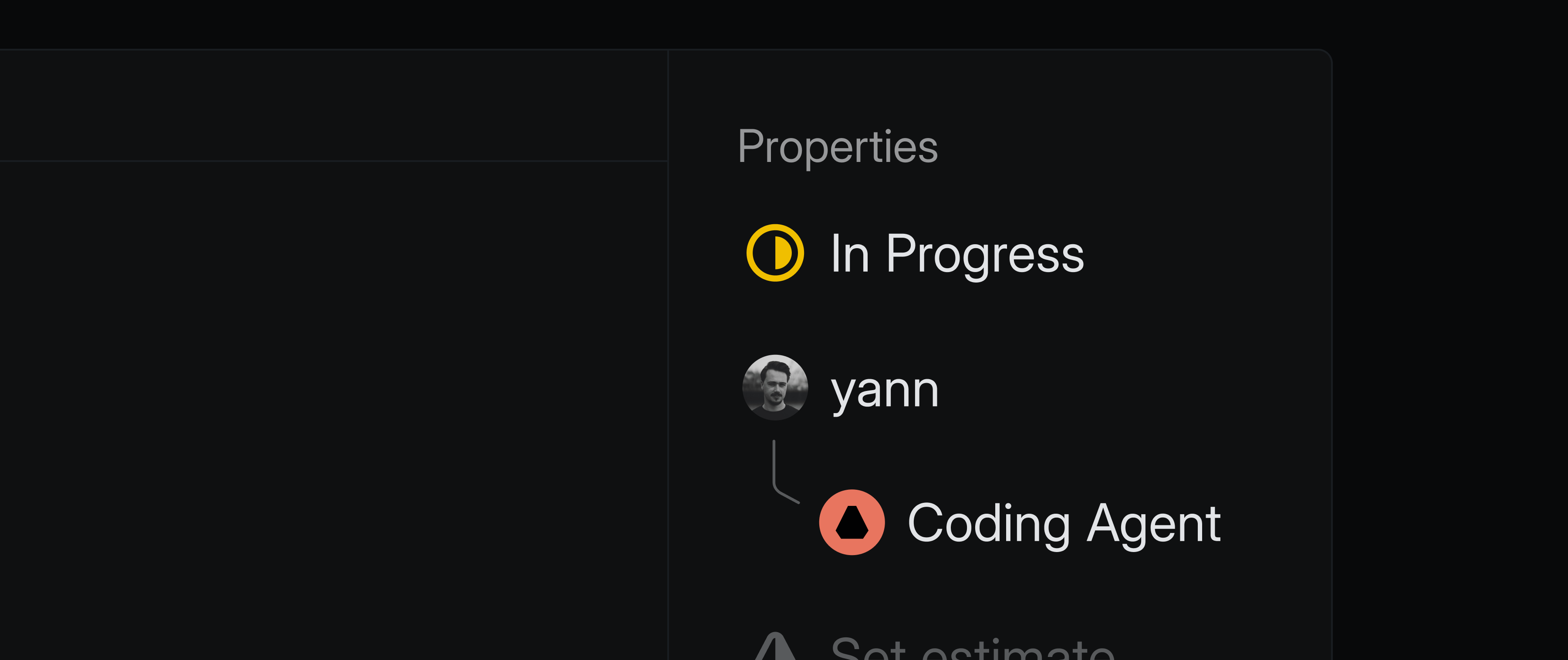
Assignment now reflects accountability. When a user delegates an issue to an agent, the user remains the primary assignee, while the agent is added as a contributor working on the user's behalf.
Agent Session
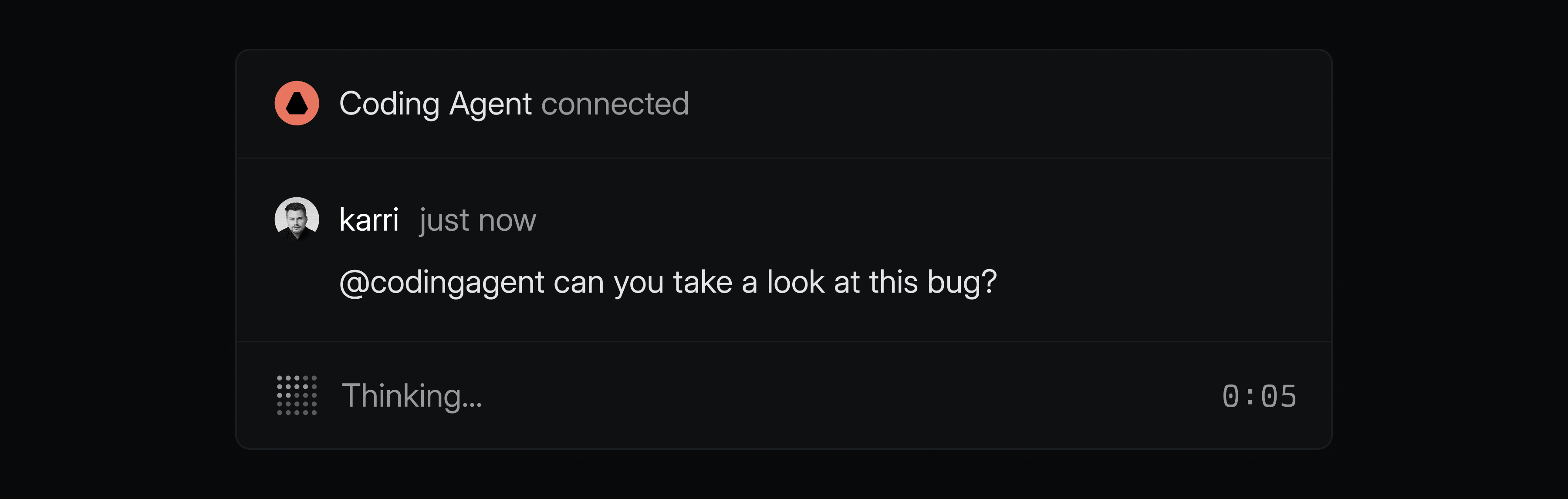
Agents can share a rich status indicating whether they’re actively working, waiting for input, have encountered an error, or completed their work.
Agent Activity
Agents can expose detailed activity like their reasoning steps, tool usage, prompts for clarification, and final responses.
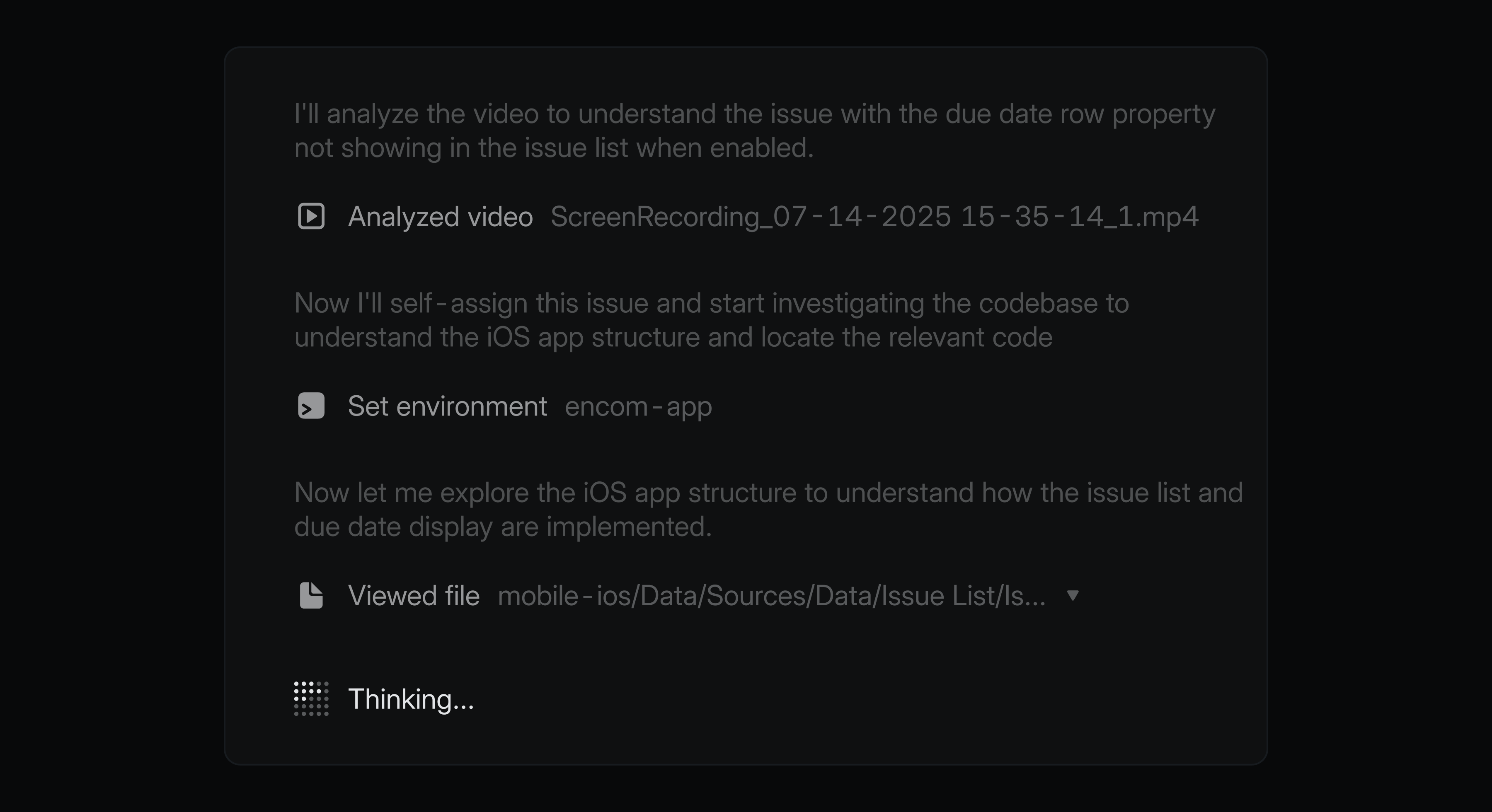
These updates give agent developers a structured, semantic way to communicate agent behavior, while giving users realtime visibility into what agents are doing — all within Linear where teams already manage their work.
The Agent Interaction SDK is available as a developer preview, and developers can start implementing the new capabilities today. To build your own agent, check out the Developing agents doc and join the #api-agents channel in our Community Slack for support.
Dashboards
Create dashboards to track key metrics for your team or workspace.
Dashboards let you combine data from different insights into a single page view. Use them to monitor operational health across teams and workflows or build reporting dashboards to show how resources are spent across initiatives and projects.
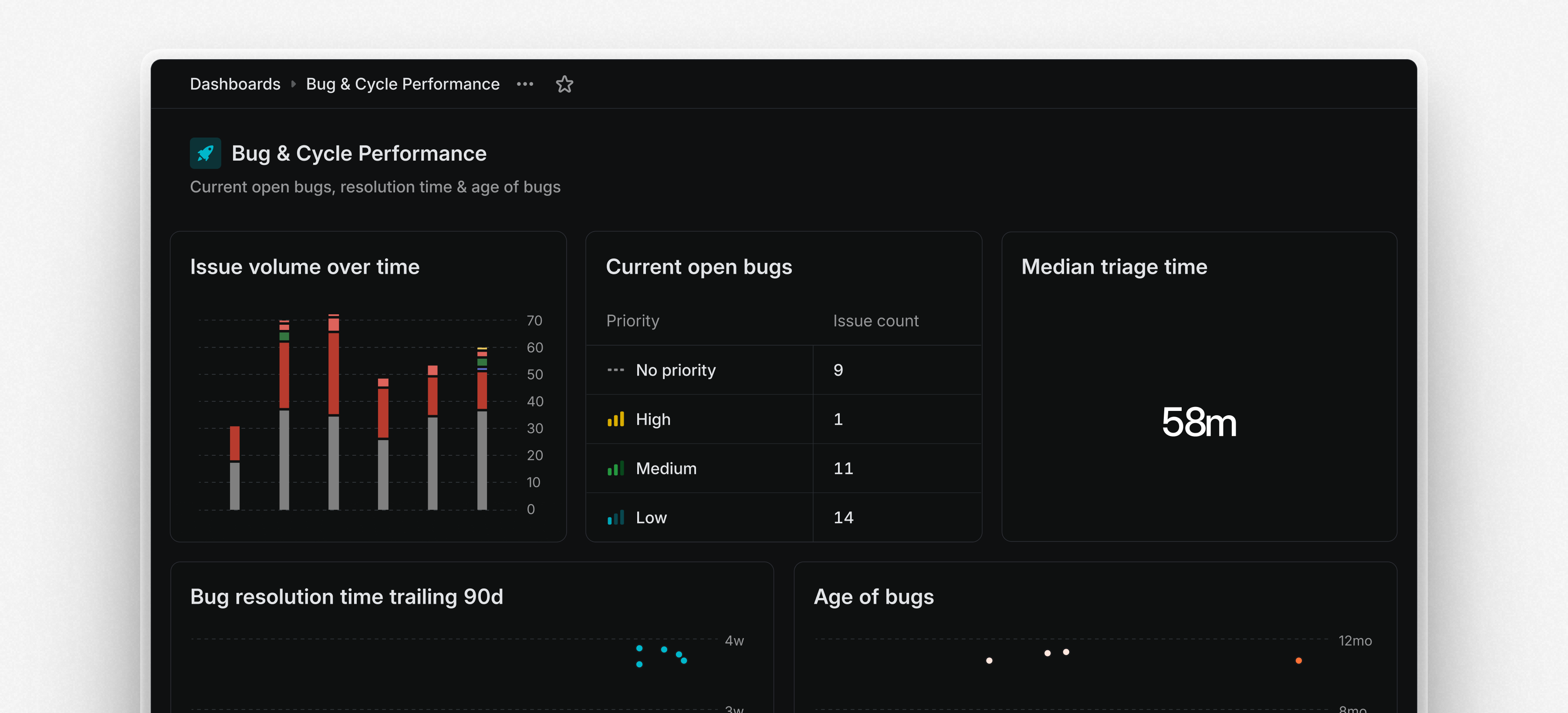
Dashboards are modular and customizable. You can display insights as charts, tables, or single-number metrics, depending on your needs. Dashboards can be filtered to target a specific team or scope. Drill into specific insights and segments to view the underlying issues and examine patterns or outliers. From there, take action—assign work, update statuses, or triage directly from the issue list.
You can share dashboards with your workspace, to a specific team, or kept private as personal dashboards. To create your first dashboard, go to the Dashboards tab under Views or start from an existing insight and choose Add to dashboard.
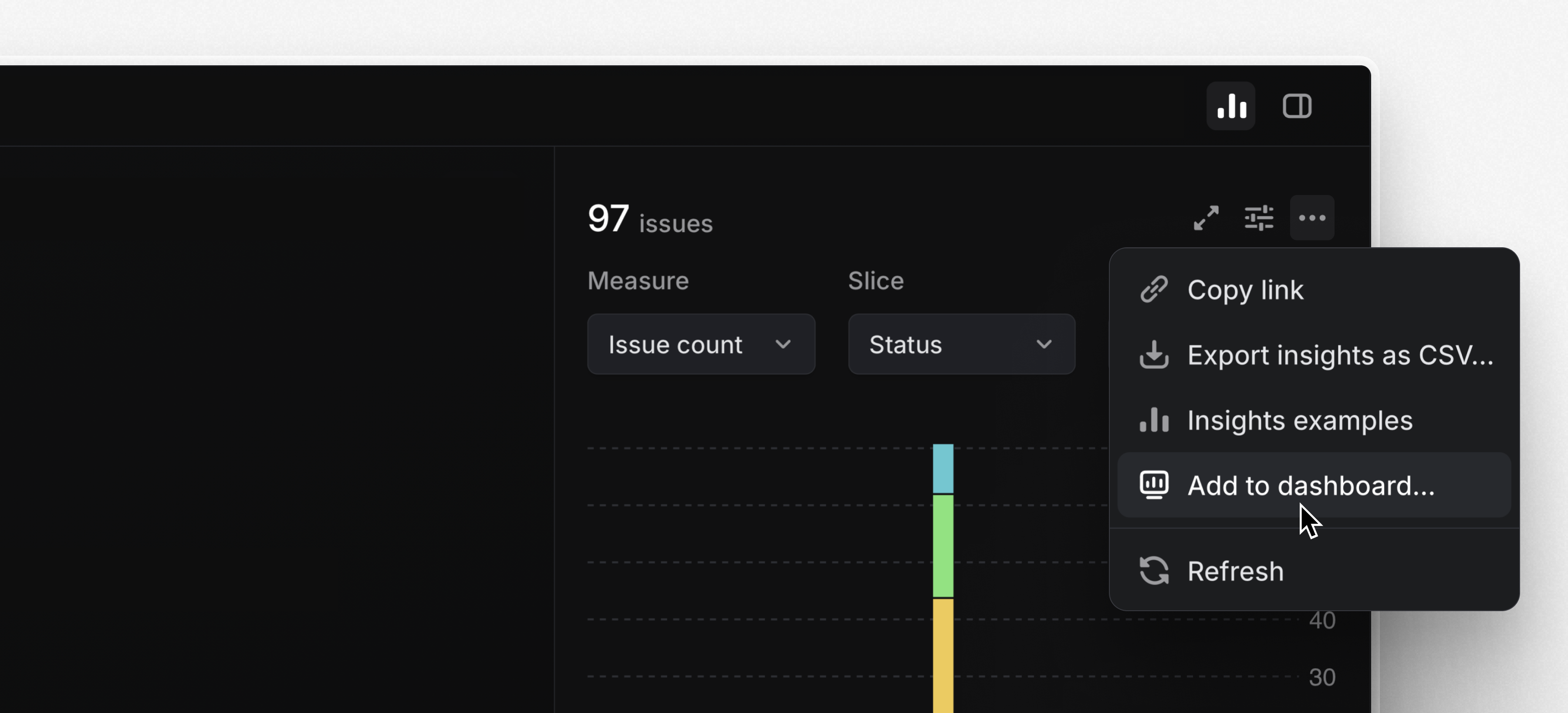
Dashboards are available on the Enterprise plan or with an enterprise trial starting today. Learn more in the docs and watch the demo video below.
Quick navigation in Settings
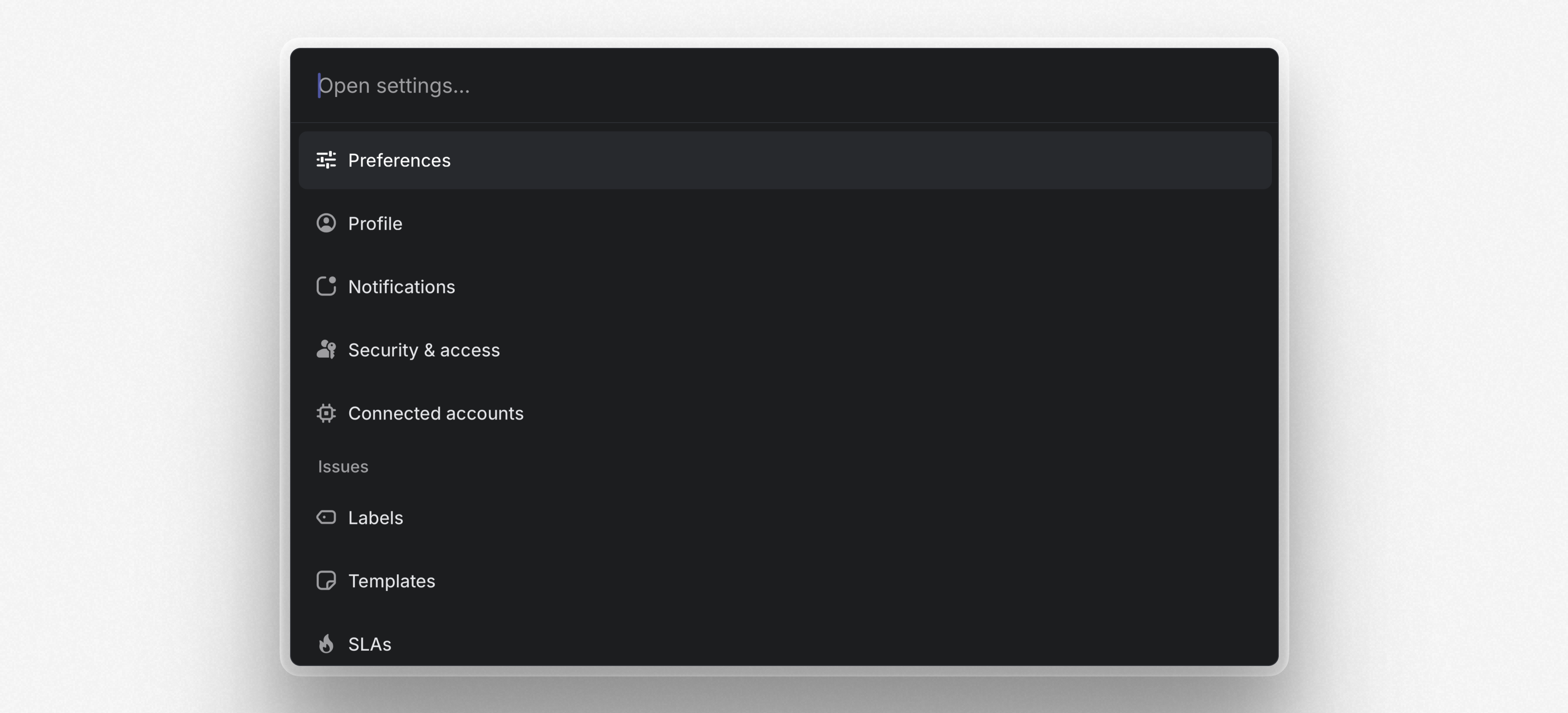
Navigate between pages in Settings using the command menu (Cmd/Ctrl K). From anywhere else in the app, use O then S to find and open a specific Settings page.
Notion AI Connector
Search across Linear projects and issues directly from Notion AI. Once you've set up the integration, Notion AI will have access to all project and issue details including the title, description, assignee, creator, and issue comments.
Email intake for Linear Asks
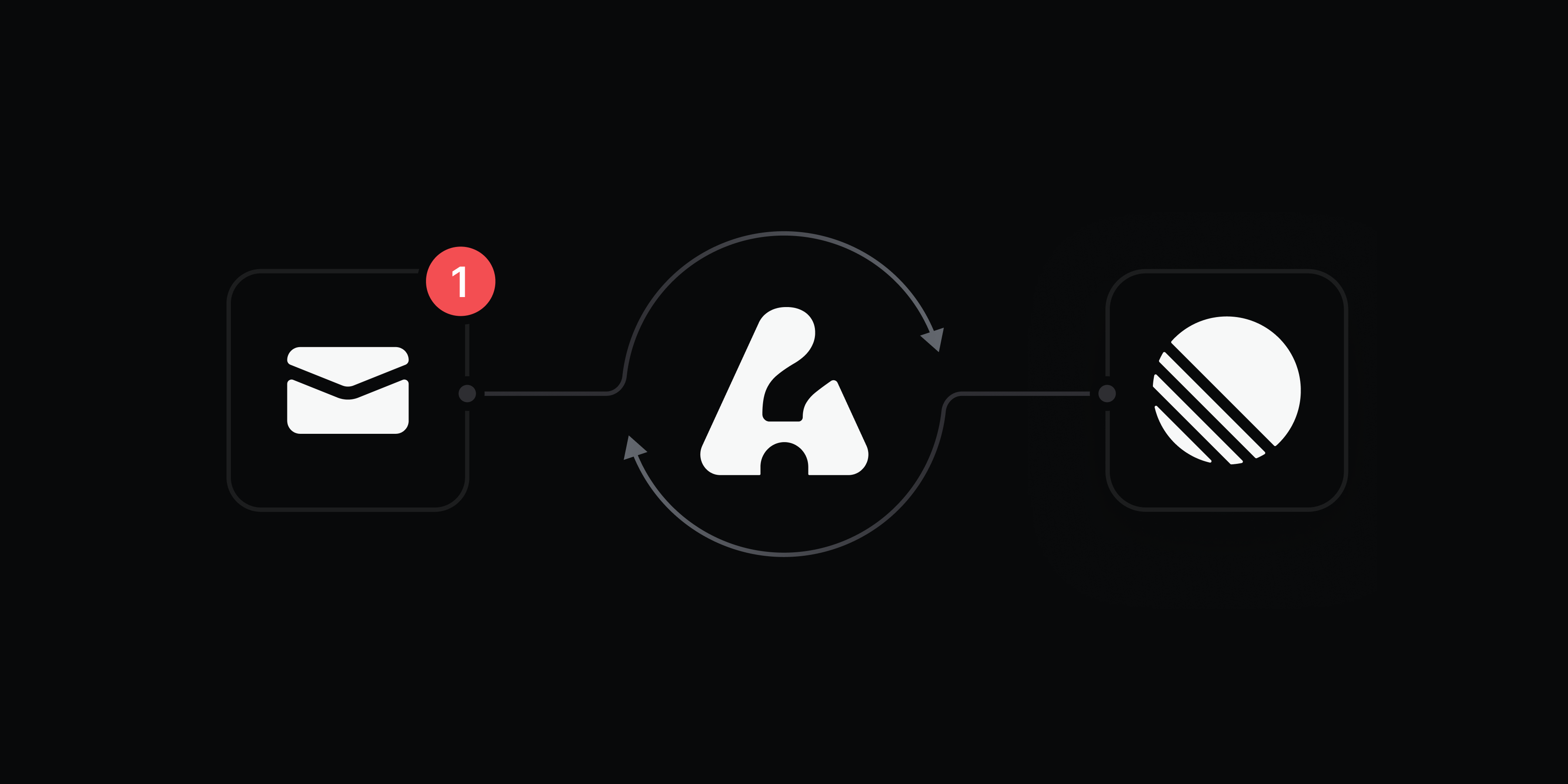
Turn any email thread into a trackable issue with Linear Asks.
Asks helps internal teams manage workplace requests from Slack and email. Create designated email addresses – such as helpdesk@, legal@, or ops@ – and any messages sent, forwarded, or cc’d to those addresses will create an issue in the selected team’s triage queue.
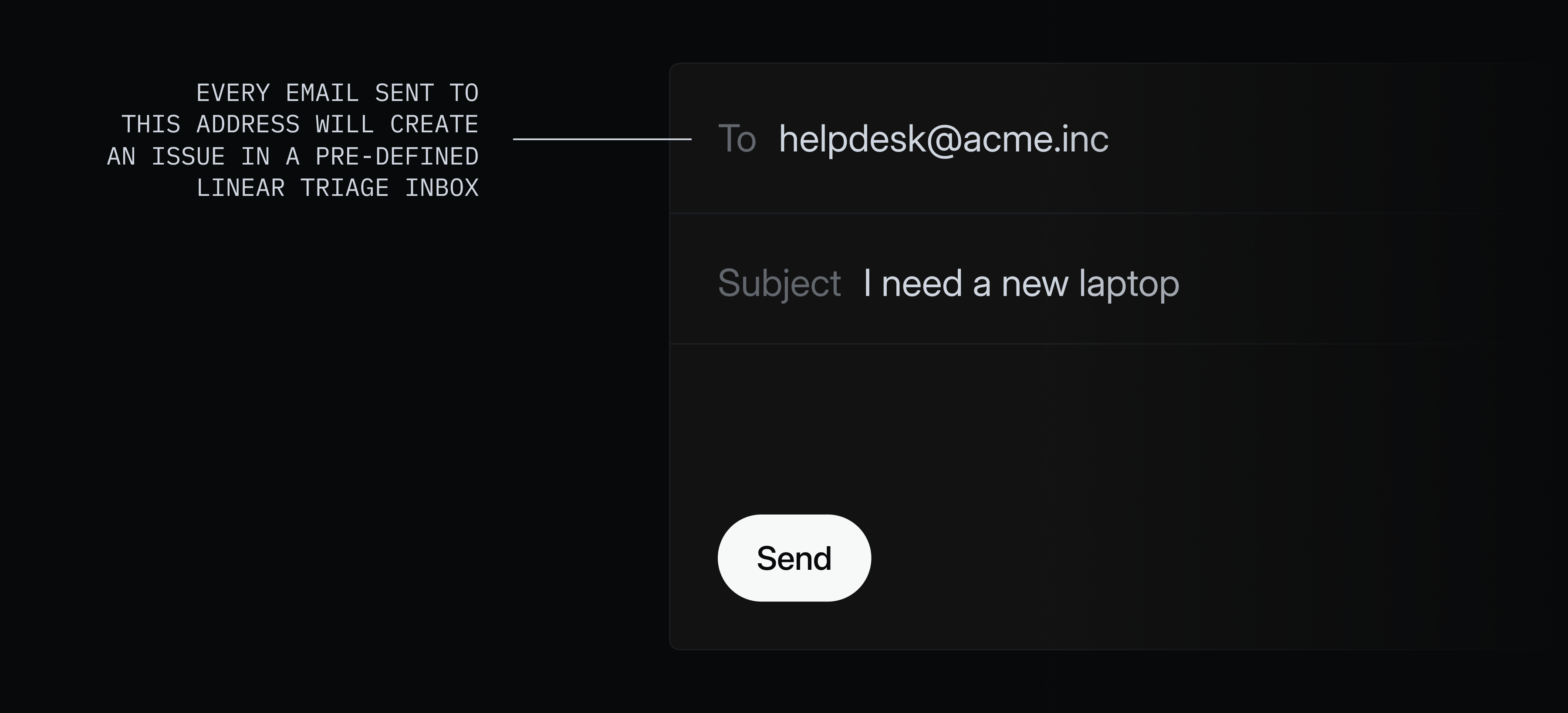
Comments sync both ways with the original email thread, so you can respond to the sender without leaving Linear and email replies will appear as new comments.
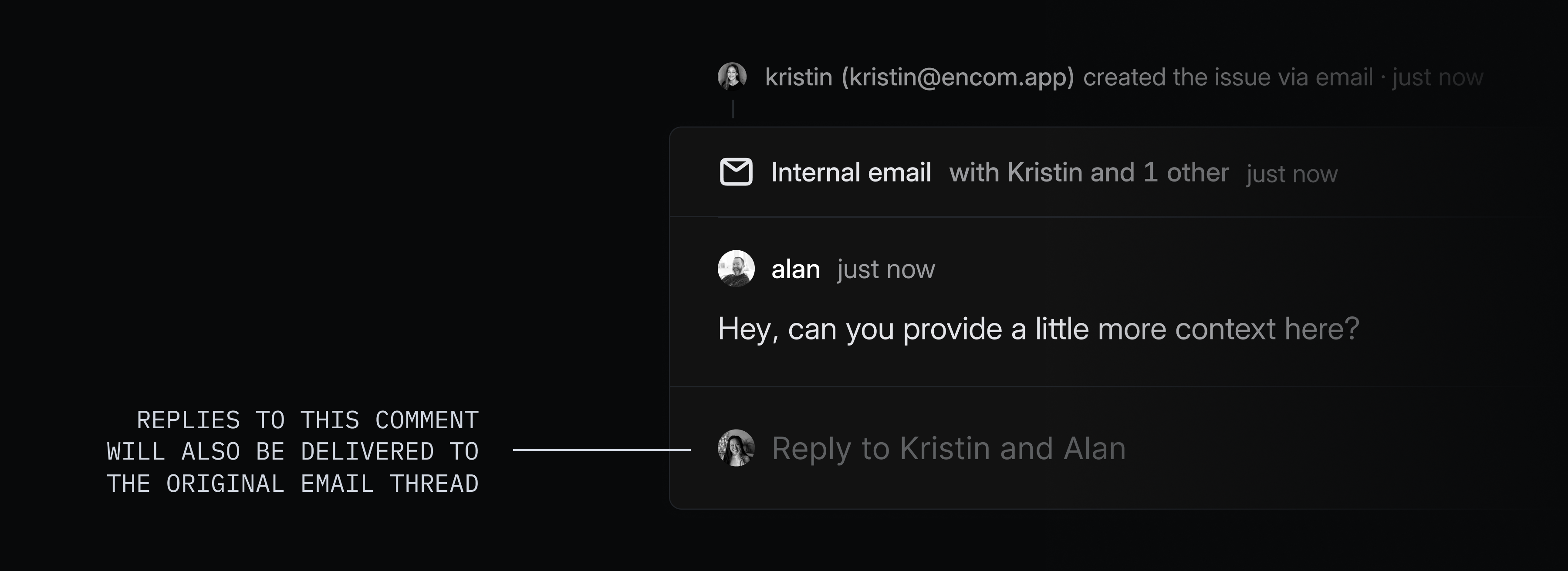
Asks is available on Business and Enterprise plans. To get started, go to Asks settings and create your first intake email.
Sub-initiatives
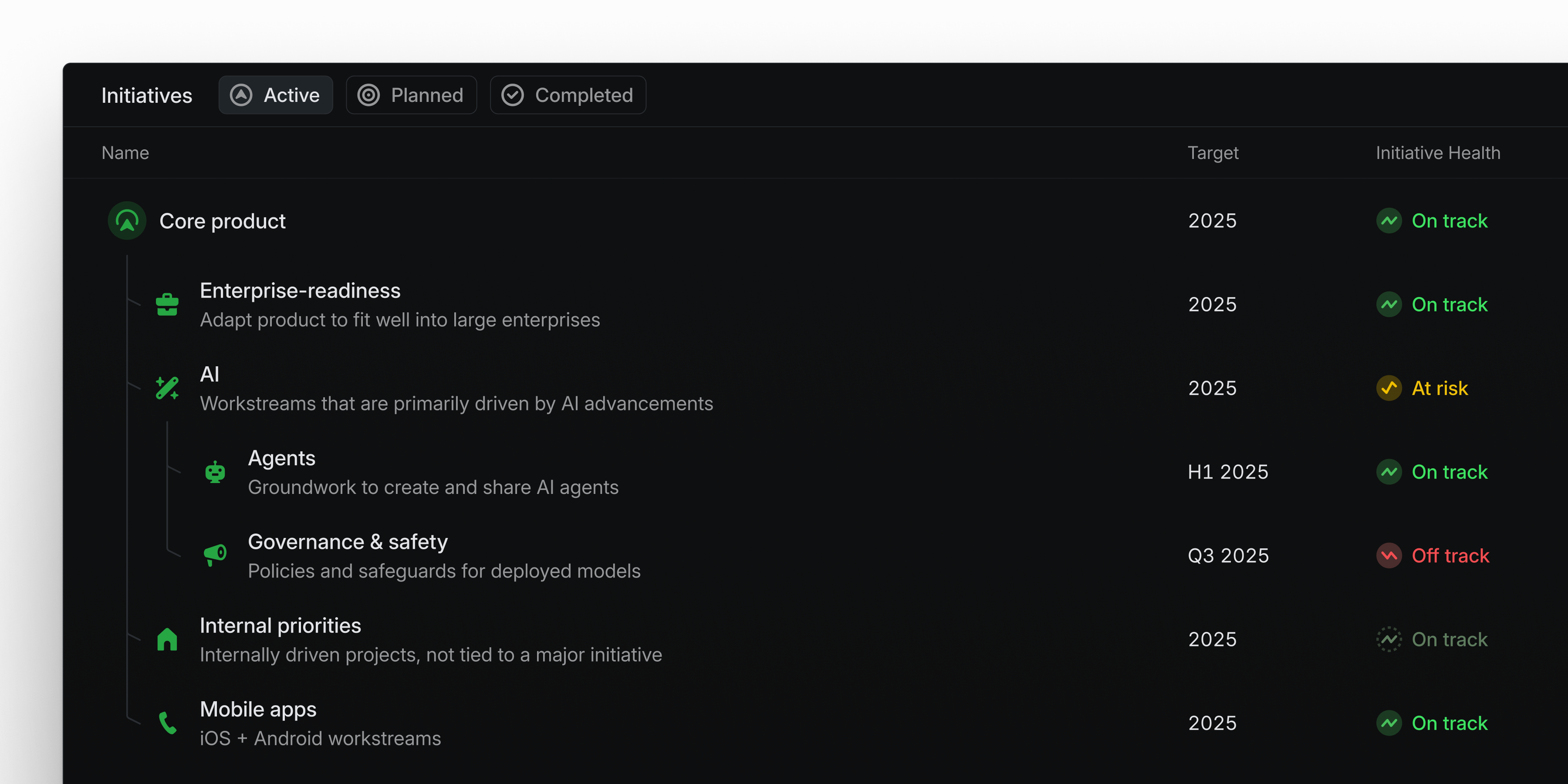
Large enterprise companies can now organize strategic initiatives into a hierarchical structure that reflects how they plan and manage work.
Initiatives can now be nested up to five levels deep, making it possible to represent cascading goals, workstreams, and OKRs. Each initiative has a dedicated page that displays its projects and sub-initiatives together, giving initiative owners a central place to track progress, post updates, and share context.
Sub-initiatives are available on the Enterprise plan. Learn more in the docs.
Copy Developer Docs as Markdown for LLMs
Any Docs page can now be copied as Markdown, so you can feed the full content into an LLM. This is particularly helpful for developer documentation—for example, when you’re building an integration or working with the Linear API. Use the ⌘⌥C shortcut or the Copy page button in the top-right corner to copy the page content. You can also fetch the raw Markdown by appending .md to the URL (e.g. https://linear.app/developers/agents.md).
Project labels
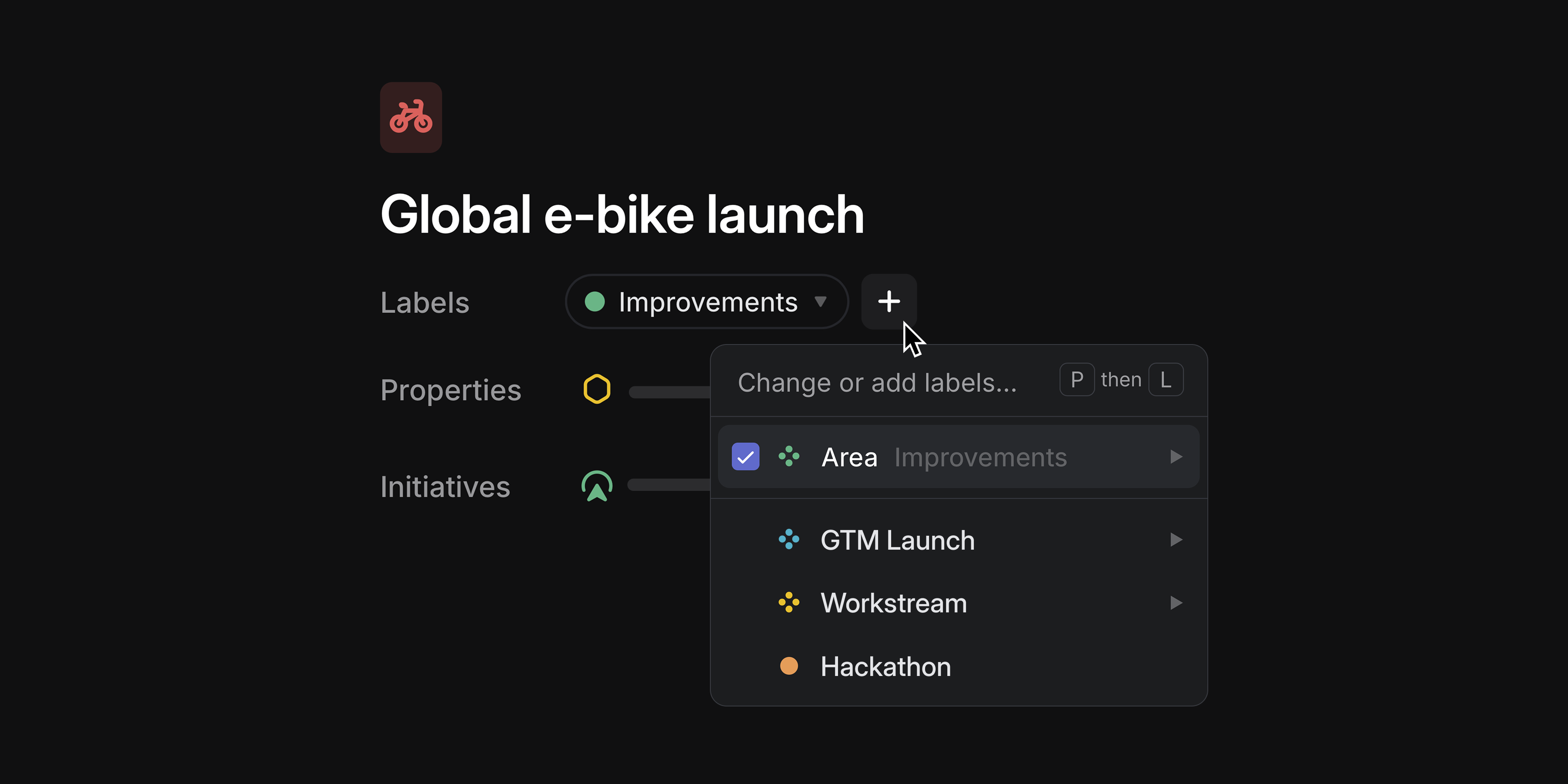
Organize projects across your workspace with project labels. Apply labels to categorize projects with custom attributes, so you can group, filter, and view them in ways that are unique to your organization. Project labels work with custom views and are available within Insights as slice and segmentation options.
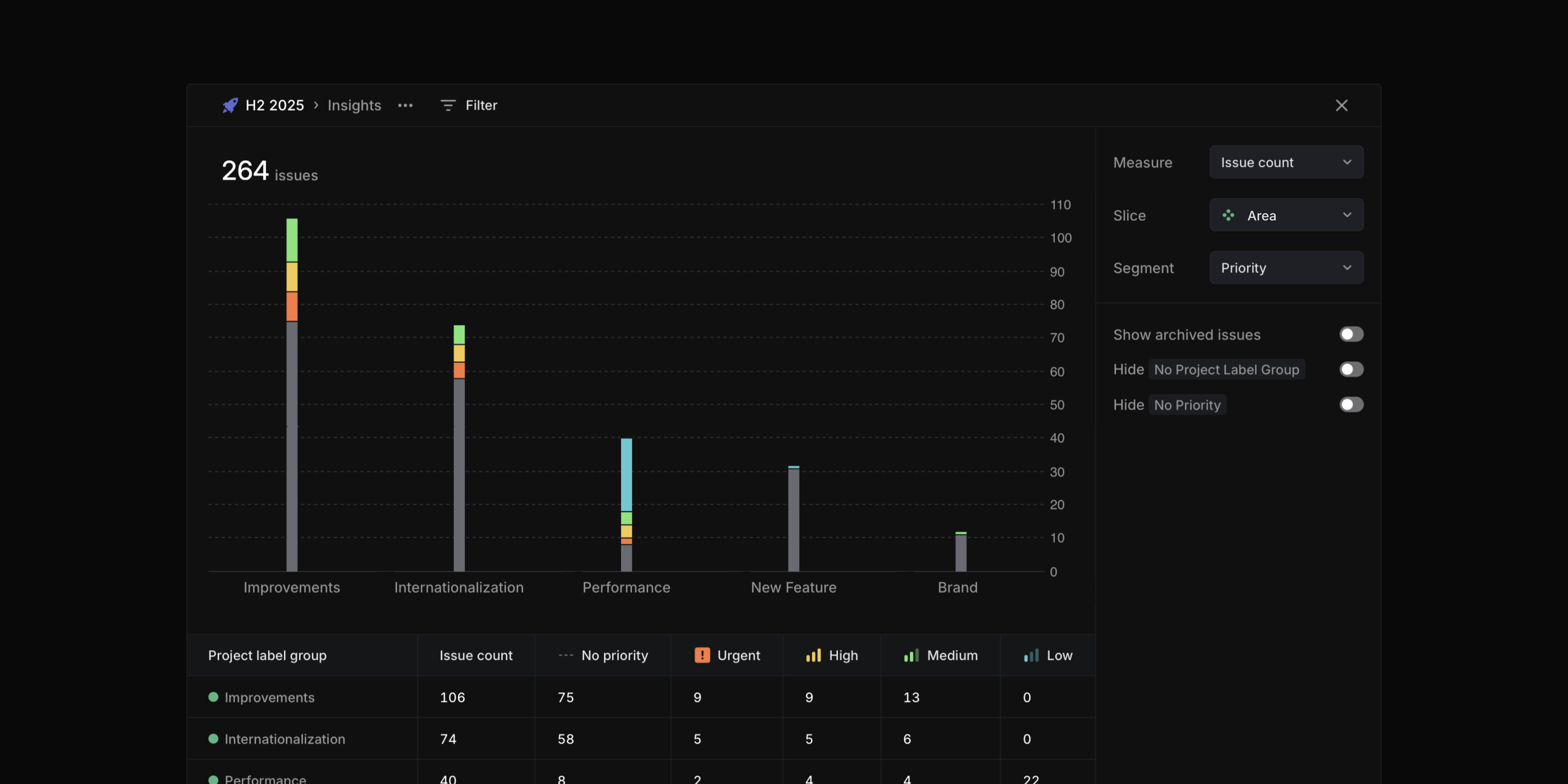
Project list views now support label groups as an explicit display property, giving each group its own dedicated column.
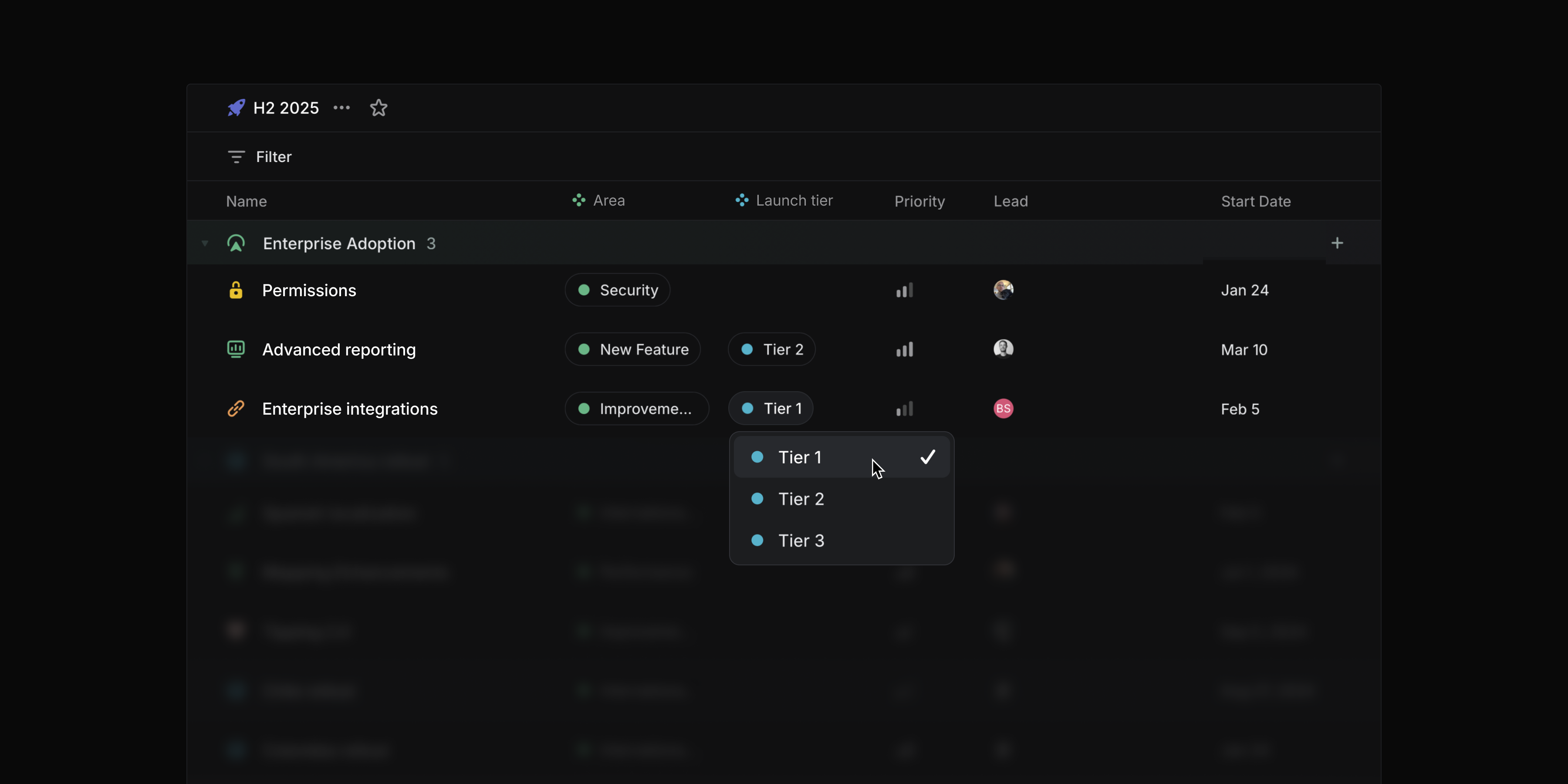
Create and manage project labels in your workspace settings.
Collapsible grouping headers
You can now collapse grouping headers in issue and project views. Use the toggle button, double-click, or press T while hovering over a group to collapse and expand groups. Hold Opt/Alt to toggle all headers at once.
Editing performance
We've improved editing speed for large collaborative documents by as much as 50x. Table editing is now also significantly faster.
Series C fundraise
We’re happy to announce that we've raised an $82M Series C at a $1.25B valuation led by Accel. We remain focused on making product development and coordination across teams and tools effortless. Read more on the blog.
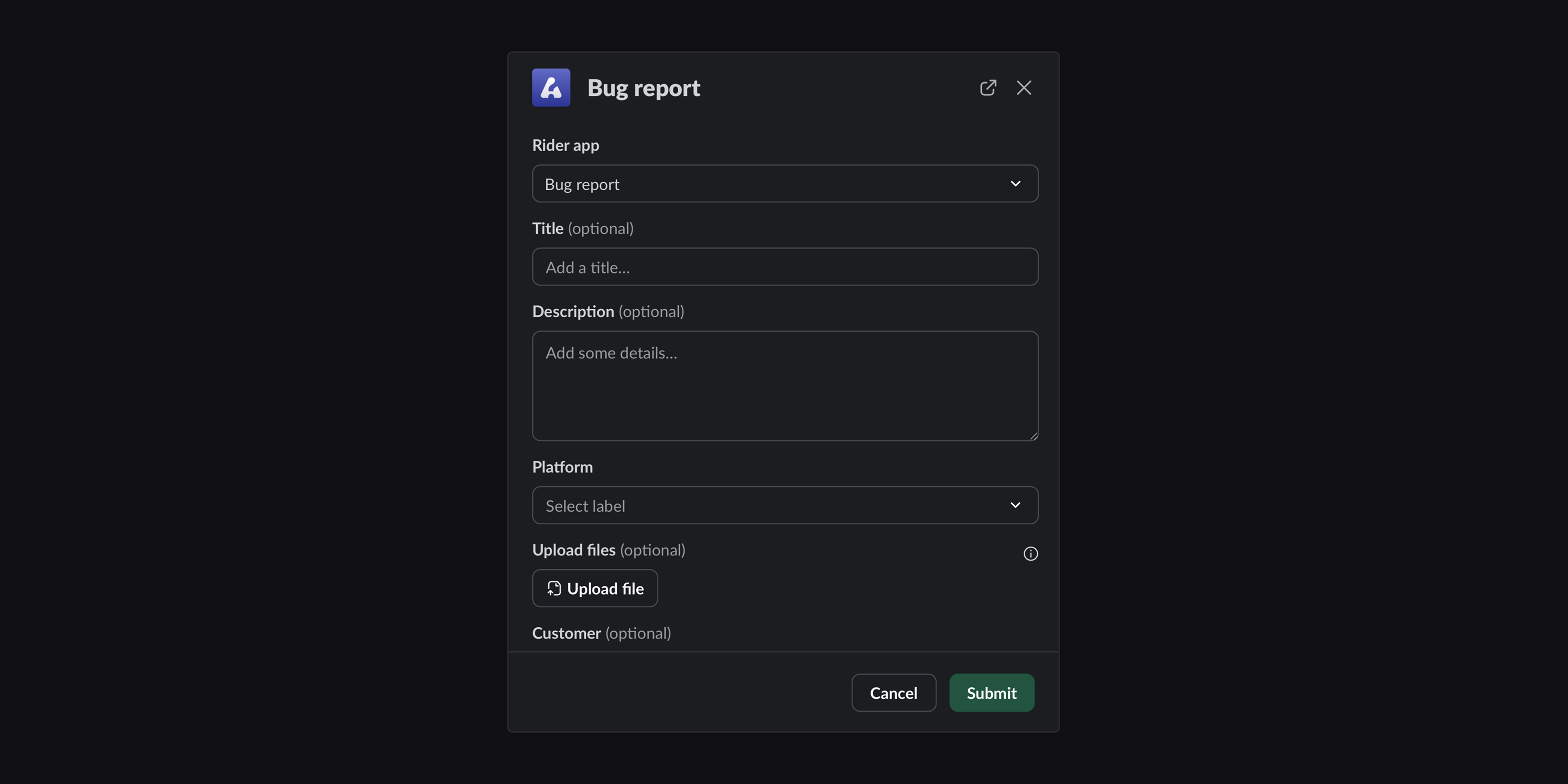
Asks fields and Triage routing
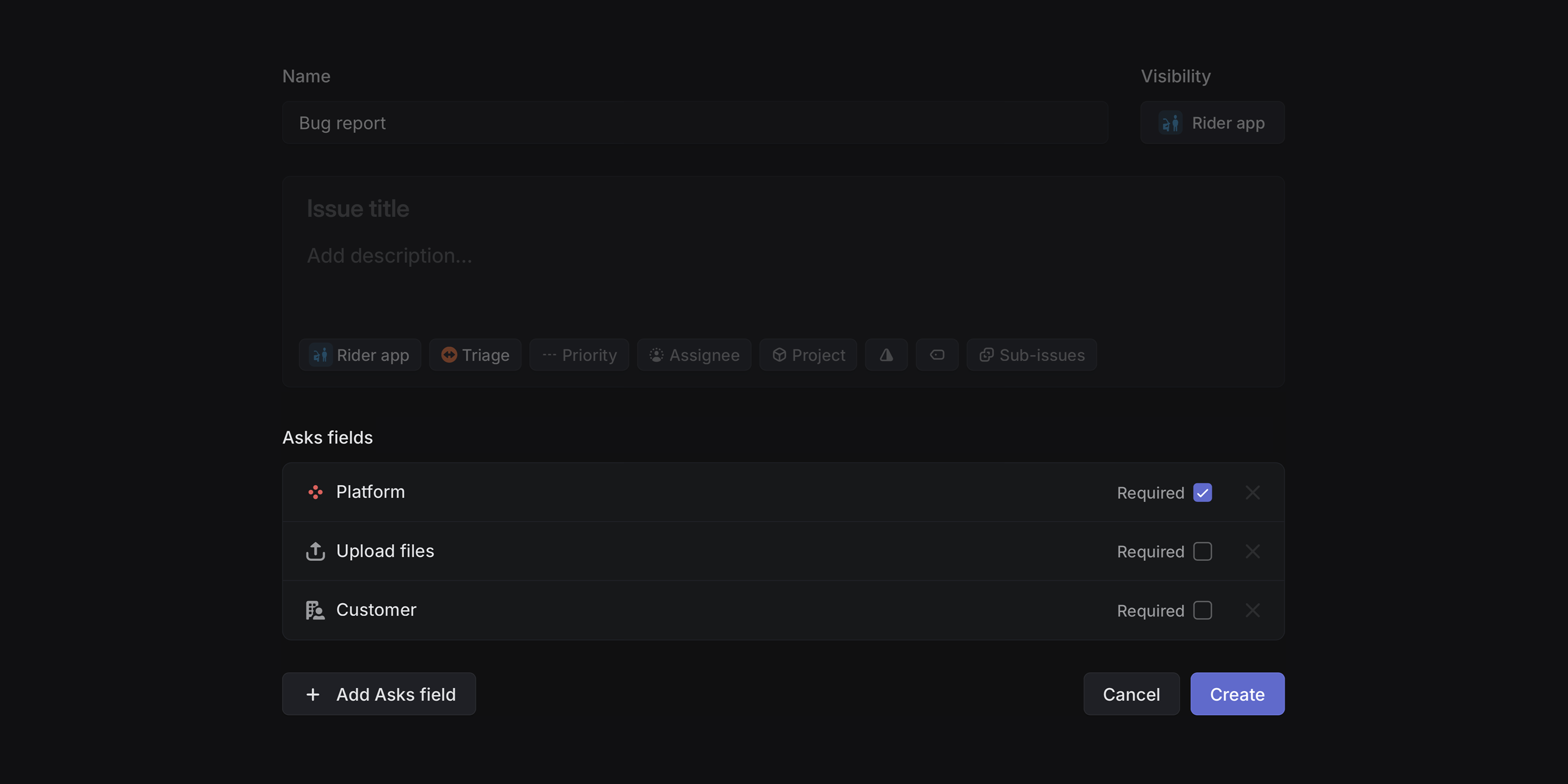
Asks fields
Customize your intake forms for Asks. Let users set priority, customer, or due date and allow them to upload files when submitting new Asks. Additionally, you can expose any label group as a dropdown field to help with up-front categorization.
Asks fields can be added to any existing issue template.
Triage routing
Automatically route Triage issues to the right team or assignee based on predefined rules. You can create triggers from nearly any combination of parameters including the priority, creator, template, project, due date or SLA status, then choose how the issue should be processed. Use rules to:
- Assign issues to specific members or agents
- Mark specific issues as high-priority
- Move issues to their appropriate teams
Configure Triage rules from Team settings > Triage.
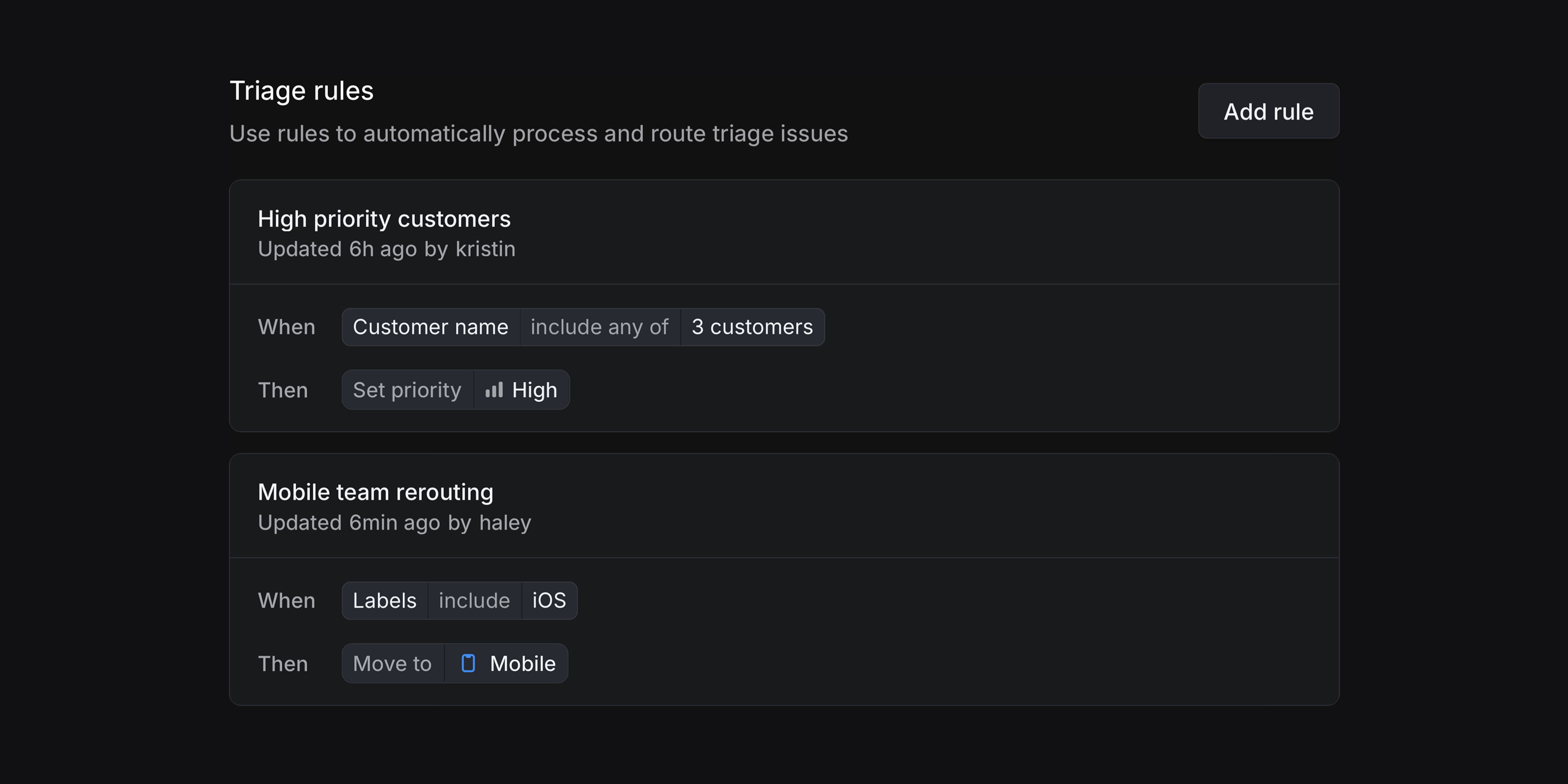
When combined, Asks fields and Triage routing eliminate manual work and help you scale intake workflows. Users fill out what they know and automations send the issue to the right team or assignee.
Asks is available on business and enterprise plans. Triage routing is available on enterprise plans. To try either of these features, start an enterprise trial.
ChatGPT Deep Research integration
Access your Linear data in ChatGPT. Ask questions, analyze trends, and get insights across your entire workspace when running deep research queries. Available for ChatGPT Plus and Pro subscribers.
Linear MCP server available in Cursor 1.0
Linear now supports Cursor's one-click MCP server installs with OAuth2 based authentication. Install Linear from Cursor's Tools directory or open Cursor directly.
Linear for Agents
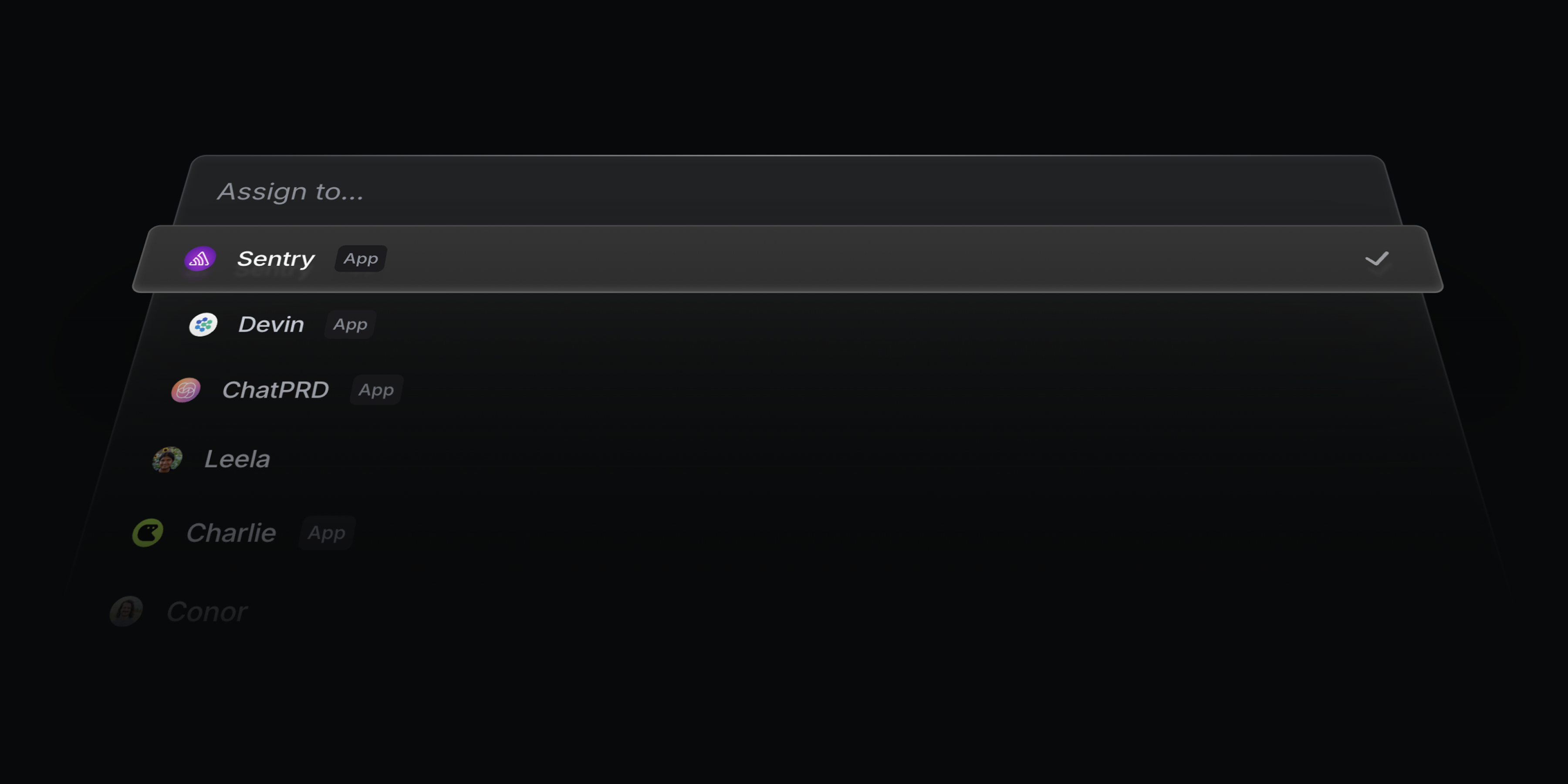
Build and deploy AI agents in Linear that work alongside you as teammates.
Agents are first-class users in Linear. Assign them to issues, add them to teams and projects, and @mention them in comments – just like any other member of your workspace. Each agent has a full user profile and is clearly identified as an app user, so you can see what they are working on and track their progress.
Today, we’re launching with a first set of agents, each designed to support a different part of the product development lifecycle:
- Devin scopes issues and drafts PRs
- ChatPRD writes requirements, manages issues, and gives feedback
- Codegen builds features, debugs issues, and answers codebase questions
For a full list of available agents, head over to our Linear for Agents page. We’ll continue adding more to our Integration Directory over time, including upcoming agents from partners like Sentry and Intercom, which will be available very soon.
In addition to deploying third-party agents, you can also build your own. Agents you create can be used privately within your own workspace or submitted to the Integration Directory to share with the broader Linear community. To get started, check out the new Agent API in our Developer Docs and join the #api-agents channel in our community Slack to connect with other developers building agents.
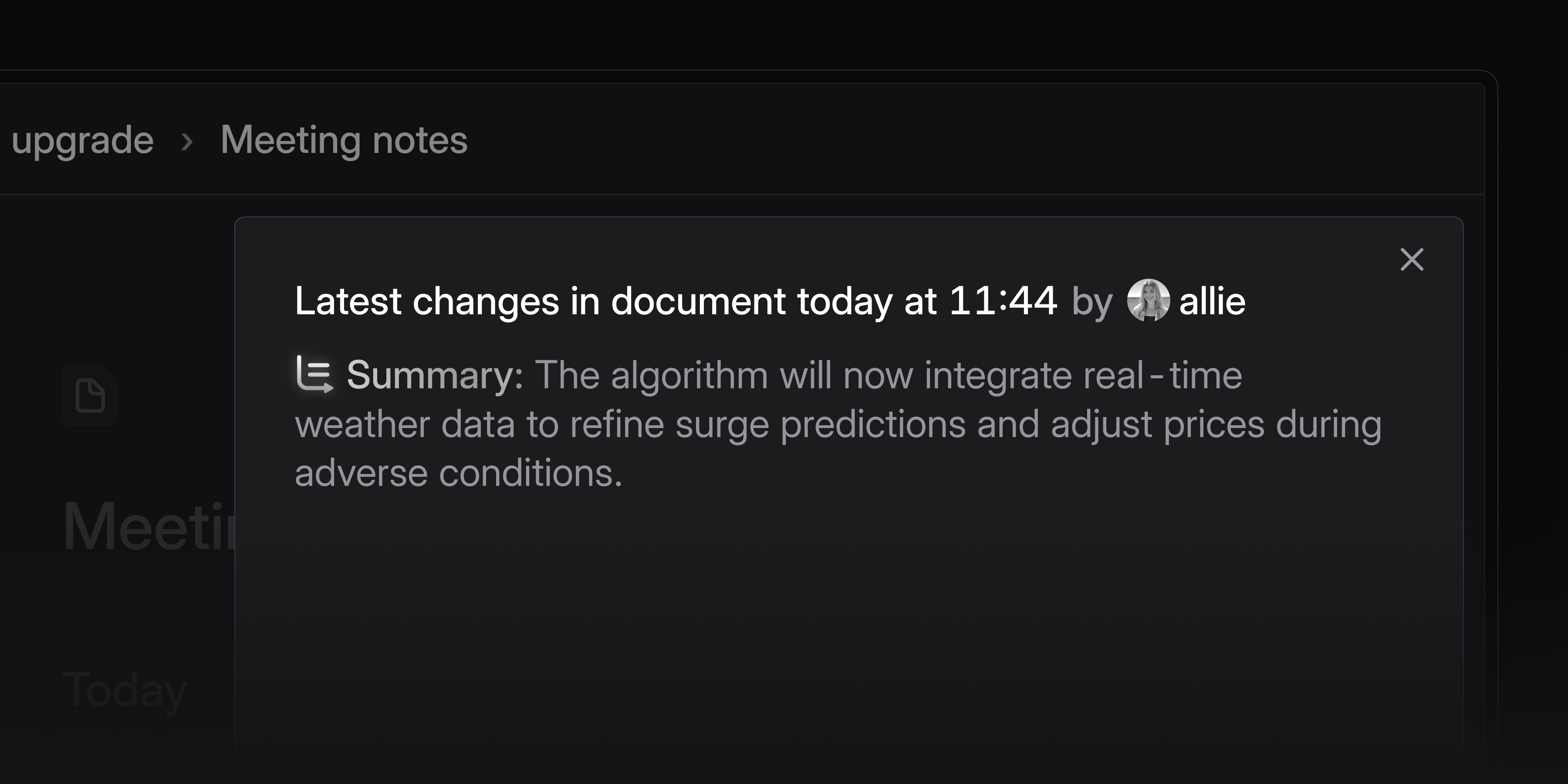
LLM summaries for document content changes
We now generate AI summaries for document changes, so you can quickly see what’s been updated. These summaries appear in inbox, email, and Slack notifications for document and project description changes. We automatically filter out minor changes that fix grammar, styling, or typos.
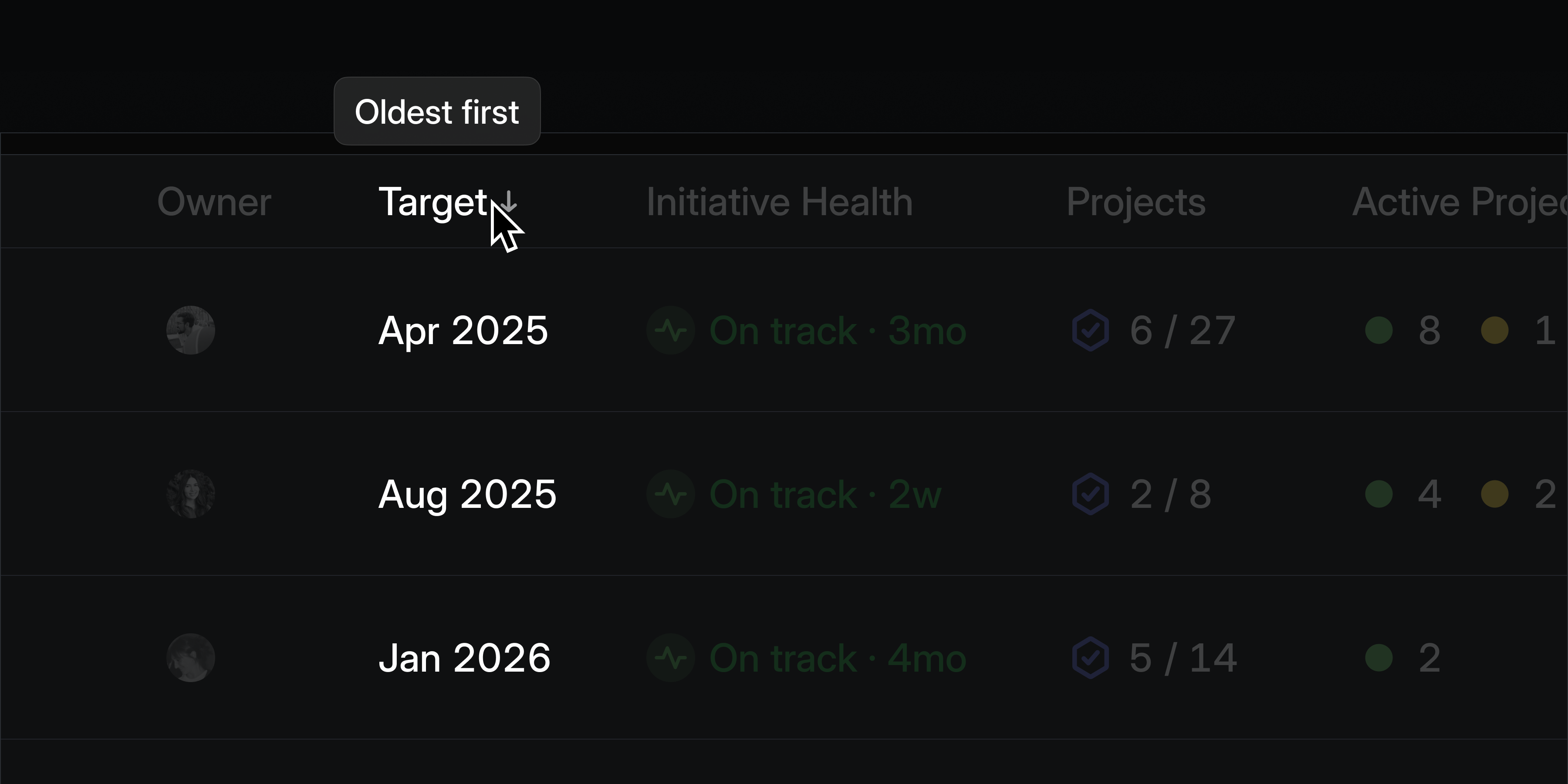
Sortable column headers
Click on a column header in any list view to re-order the list by that column. Click again on a sorted column header to update the sorting direction. This is supported on lists views such as projects, initiatives, and the members page in settings.
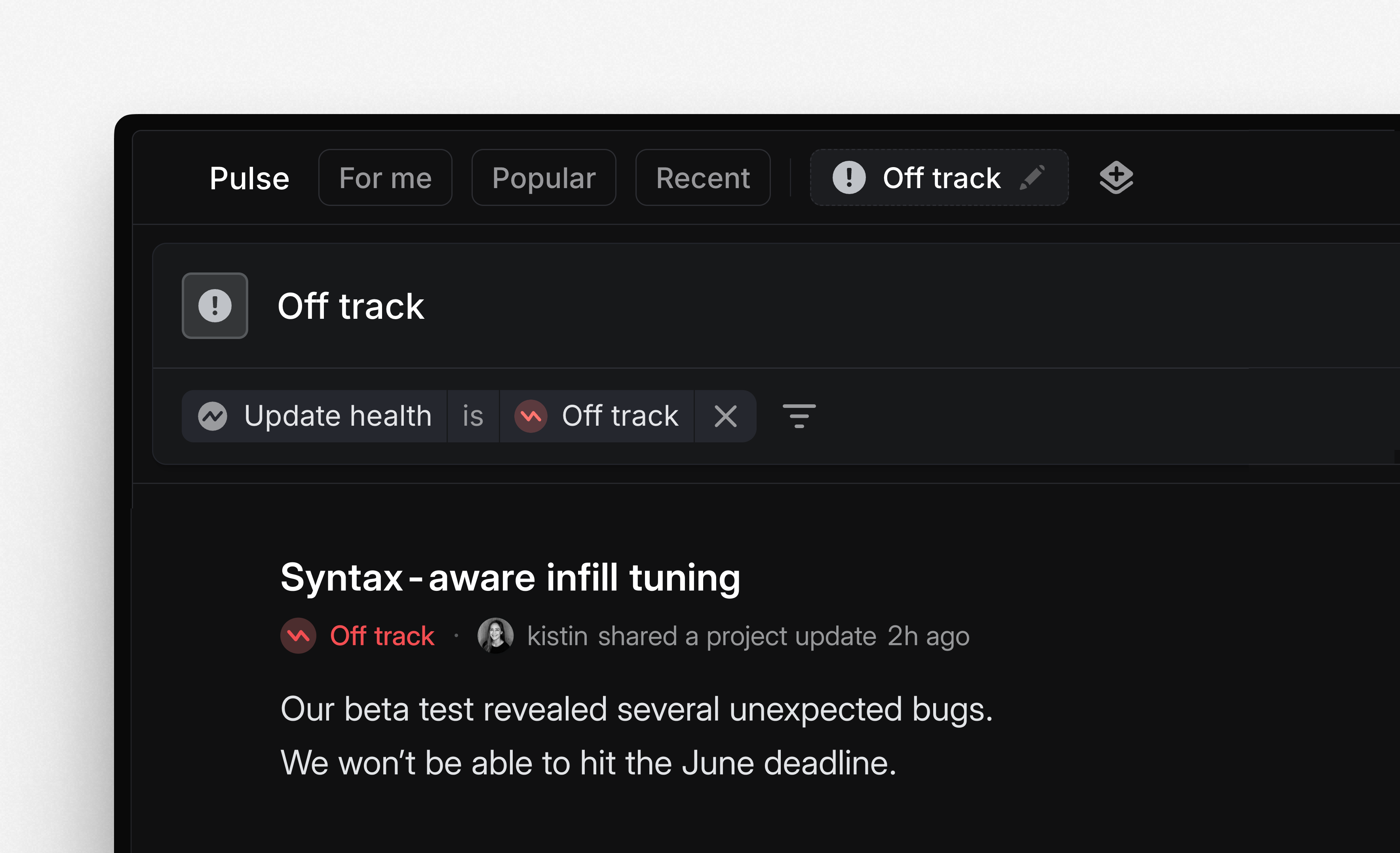
Custom feeds in Pulse

Create custom feeds in Pulse to focus on a targeted subset of updates. Filter recent updates by author, team, project, initiative, status, and more—then save as a personalized custom feed for future access. These custom feeds are only visible to you and not shared with others.
Projects in Google Sheets
Our Google Sheets integration now supports syncing project data in addition to issues. Projects sync to their own dedicated Google Sheet and include all key project properties like status, priority, target date, lead, customer request count, etc. Use this sheet to power external analysis and workflows.
To get started, enable the Linear Google Sheets integration from settings and toggle on Sync projects. To get an idea of how to use the synced sheet, see a basic example here.

New media players
We’ve redesigned our video player and added a new audio player to improve the media experience in Linear. Drop a video or audio file into an issue, document, or comment to try it out.
Both players support custom controls for adjusting the playback rate, changing volume, and downloading the file. Dozens of new keyboard shortcuts let you control the playback including:
- Seeking ←→ by percent 1234567890 and by frame ,.
- Volume ↑↓ and mute M
- Playback rate <>
- Fullscreen F and picture-in-picture P

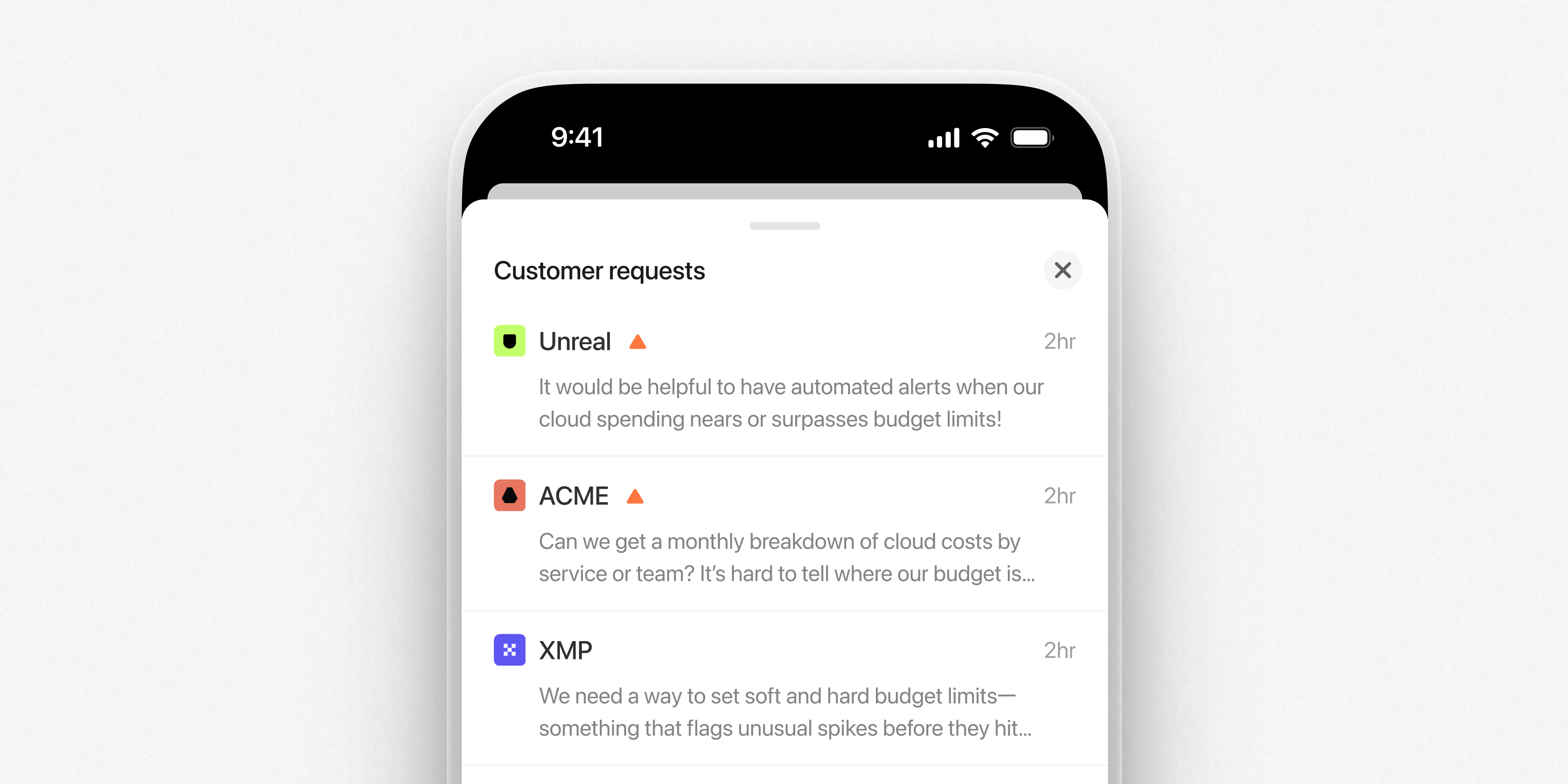
Mobile apps: Customer requests
The latest mobile release brings full support for viewing customer requests on the go. Browse requests linked to projects and issues, open customer pages to view all of their requests and mark them as favorites.
Also available on the Android app:
- You can now save drafts for project and initiative updates
- Pulse audio is now supported
Update now on iOS and Android.
Linear MCP server
Your AI models and agents can use our official MCP server to access your Linear data in a simple and secure way.
Connect to our MCP server natively as a new Claude Integration, or by using the mcp-remote module in Cursor, Windsurf, and other clients.
We're following the authenticated remote MCP spec, so the server is centrally hosted and managed. It has tools available for finding, creating, and updating objects in Linear like issues, projects, and comments — with more functionality on the way.
We're excited to see how you and your agents use Linear data to power your workflows. If you have questions, feedback, or requests for new MCP tools, please let us know.
We want to thank our partners at Cloudflare and Anthropic for helping us get up and running. For anyone in the community looking to build their own MCP server, Cloudflare provides excellent guides and hosting options.
Setup Instructions
Customer Requests on projects
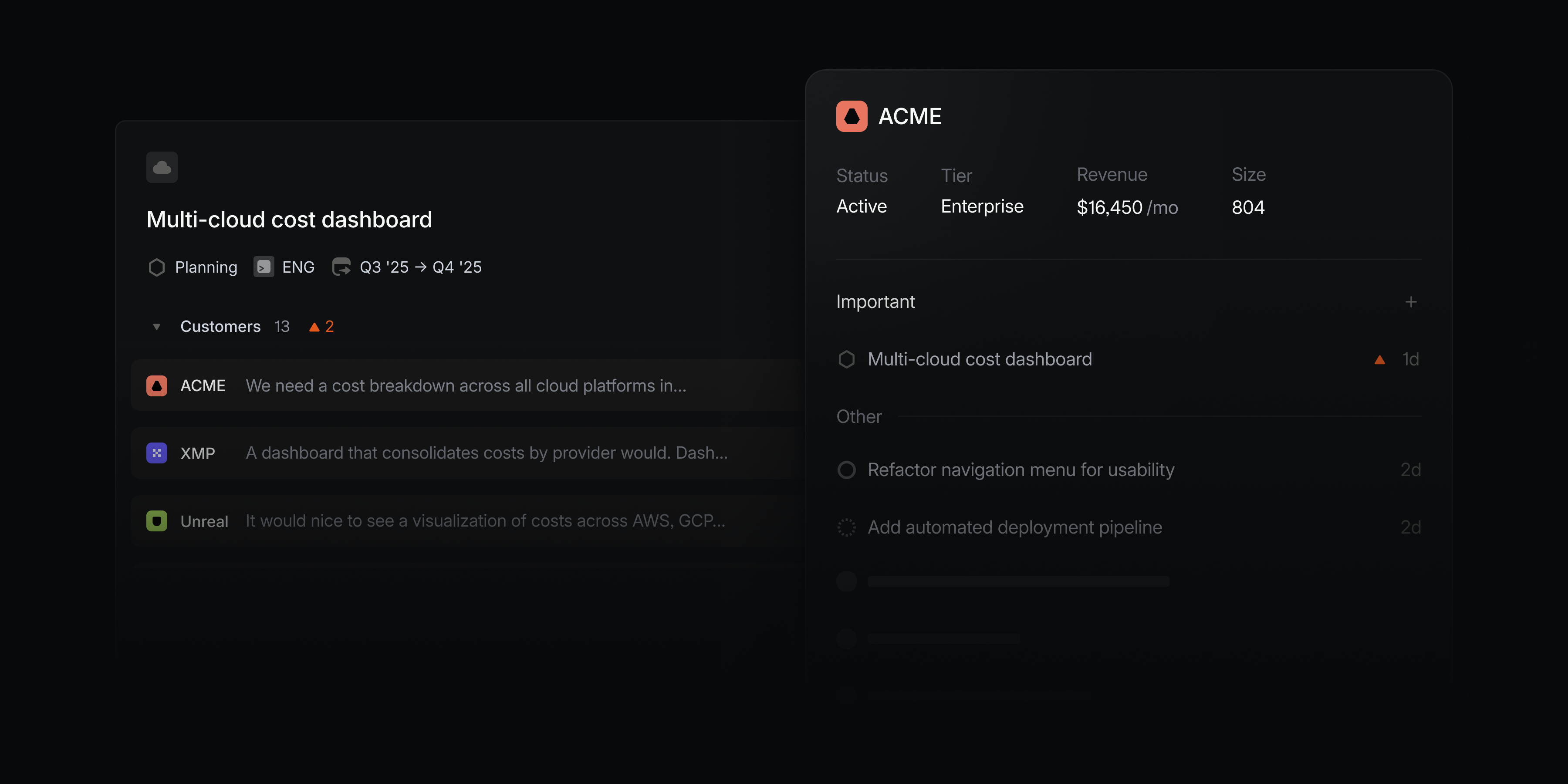
We recently introduced Customer Requests to allow you to bring the voice of your customer directly into your issues. Now customer requests can be added to projects as well, so you can capture product feedback and connect customer needs with your roadmap and planning processes.
Add a customer request from the project overview page and a new Customers tab will appear. In one consolidated view, you'll see requests captured at the project level as well as those related to issues within the project. Filter and sort these requests to focus on the most relevant feedback as you build features and make product decisions.
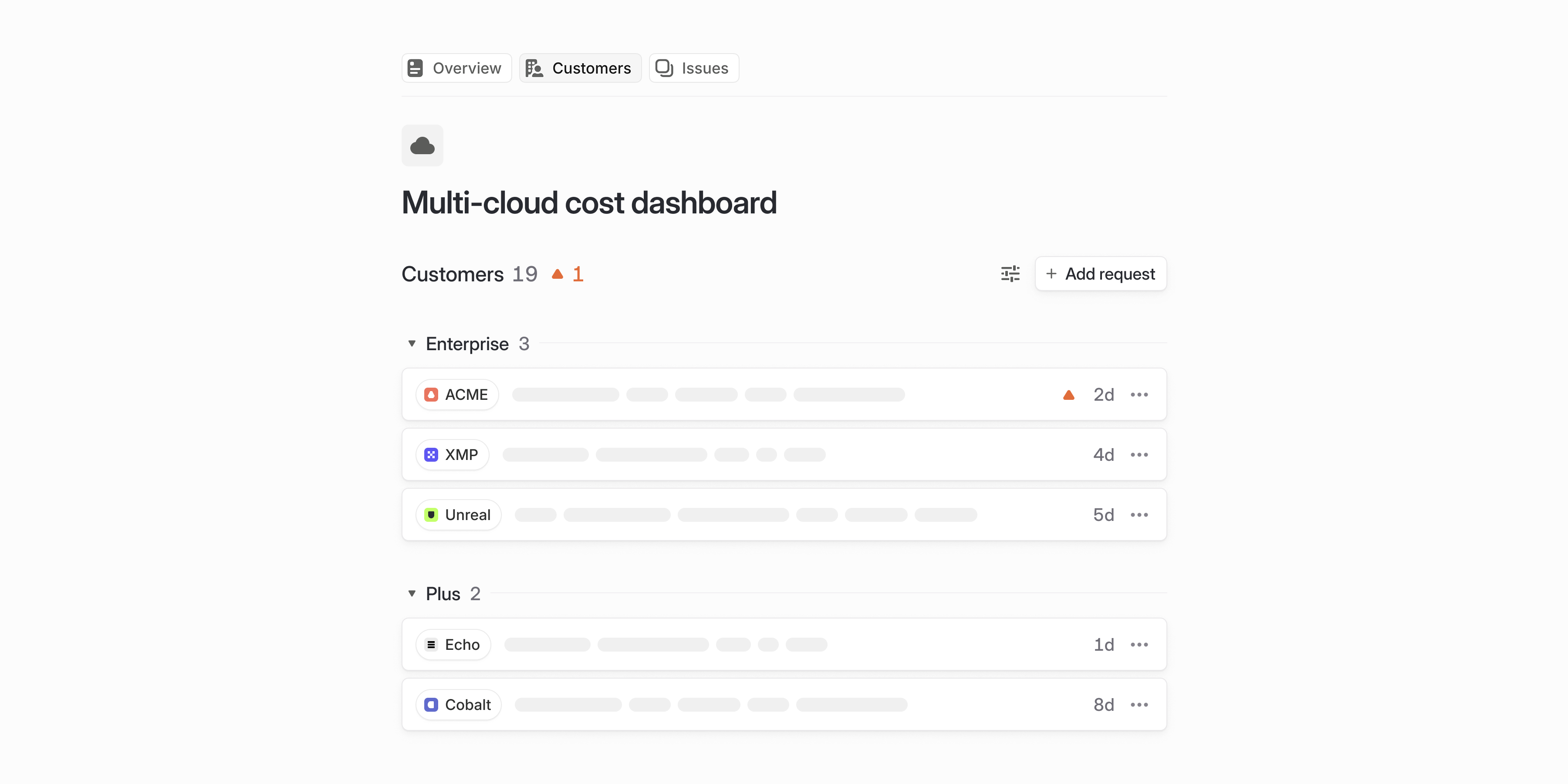
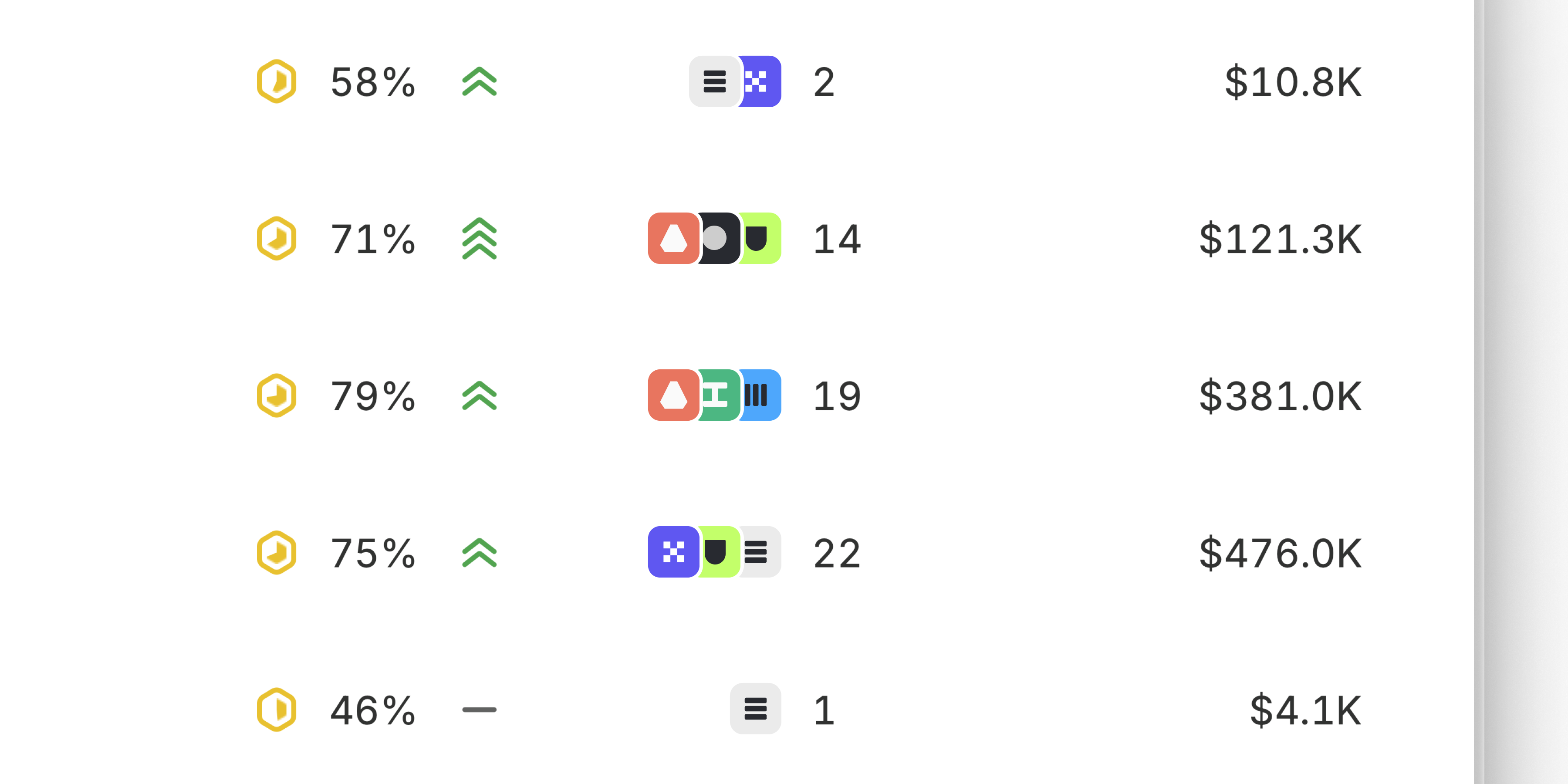
Use customer requests to align your planning process to real demand. In any project view, you can display and organize projects by customer count and revenue. To target a specific segment of customers, filter by attributes like customer size or status.
Customer subscriptions
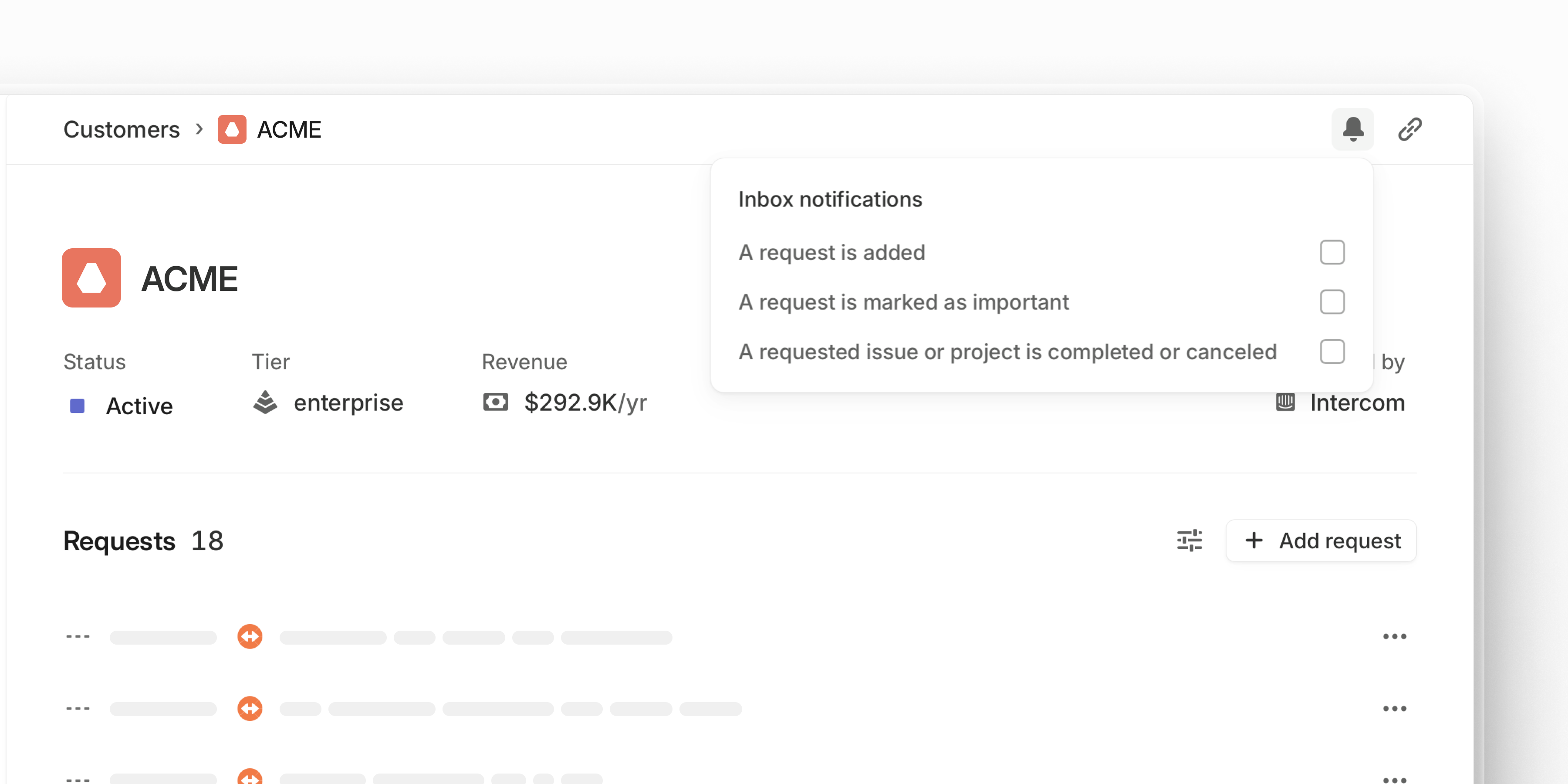
Stay informed about the customers you care about the most. Open a specific customer page and select the bell icon to subscribe to notifications.
You can be notified when the customer submits new requests, when one of their requests is marked as important, or when any of their requested issues and projects ships. Access notifications and review requests from desktop, iOS, and Android.