Customer Requests on projects
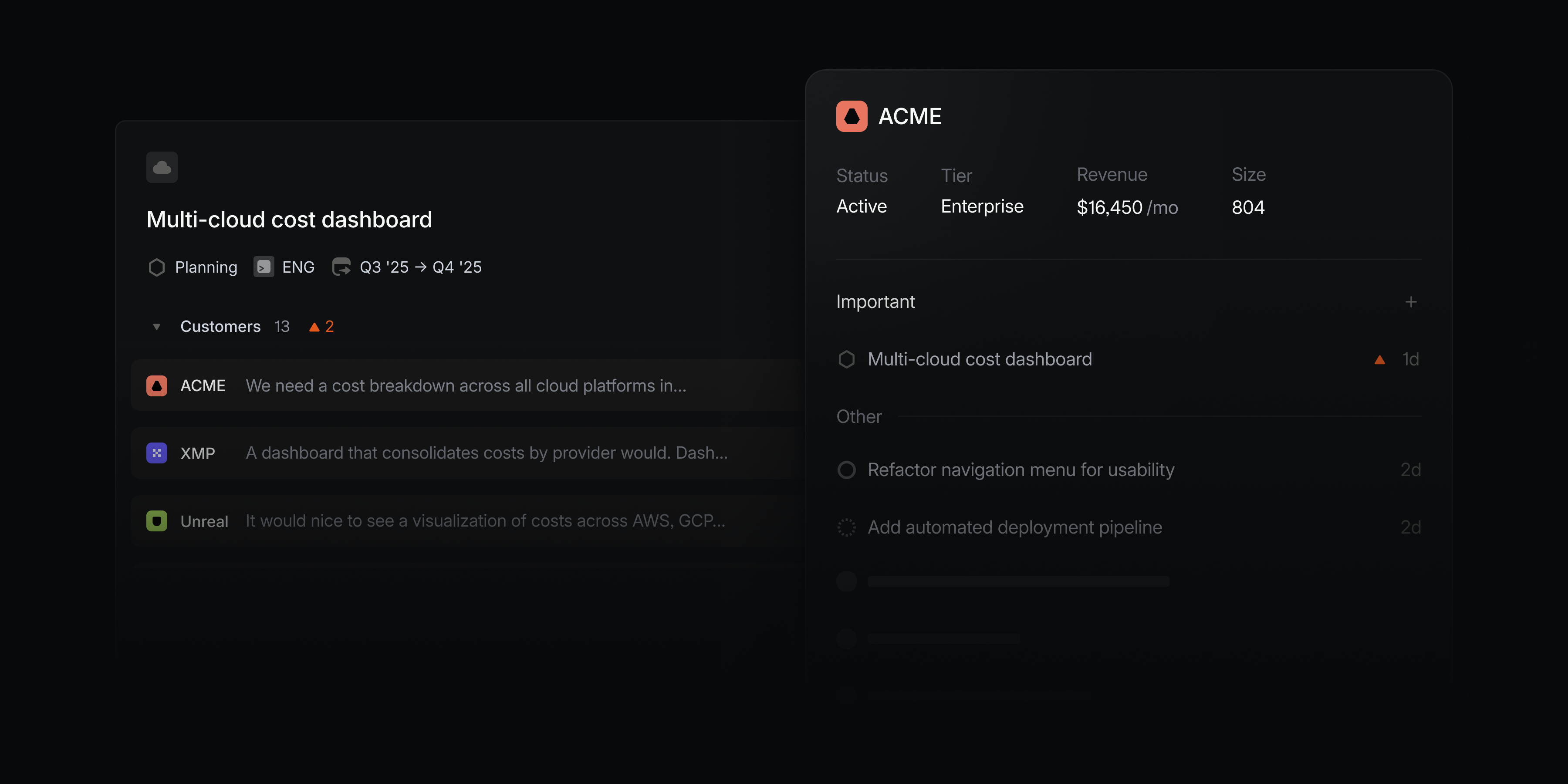
We recently introduced Customer Requests to allow you to bring the voice of your customer directly into your issues. Now customer requests can be added to projects as well, so you can capture product feedback and connect customer needs with your roadmap and planning processes.
Add a customer request from the project overview page and a new Customers tab will appear. In one consolidated view, you'll see requests captured at the project level as well as those related to issues within the project. Filter and sort these requests to focus on the most relevant feedback as you build features and make product decisions.
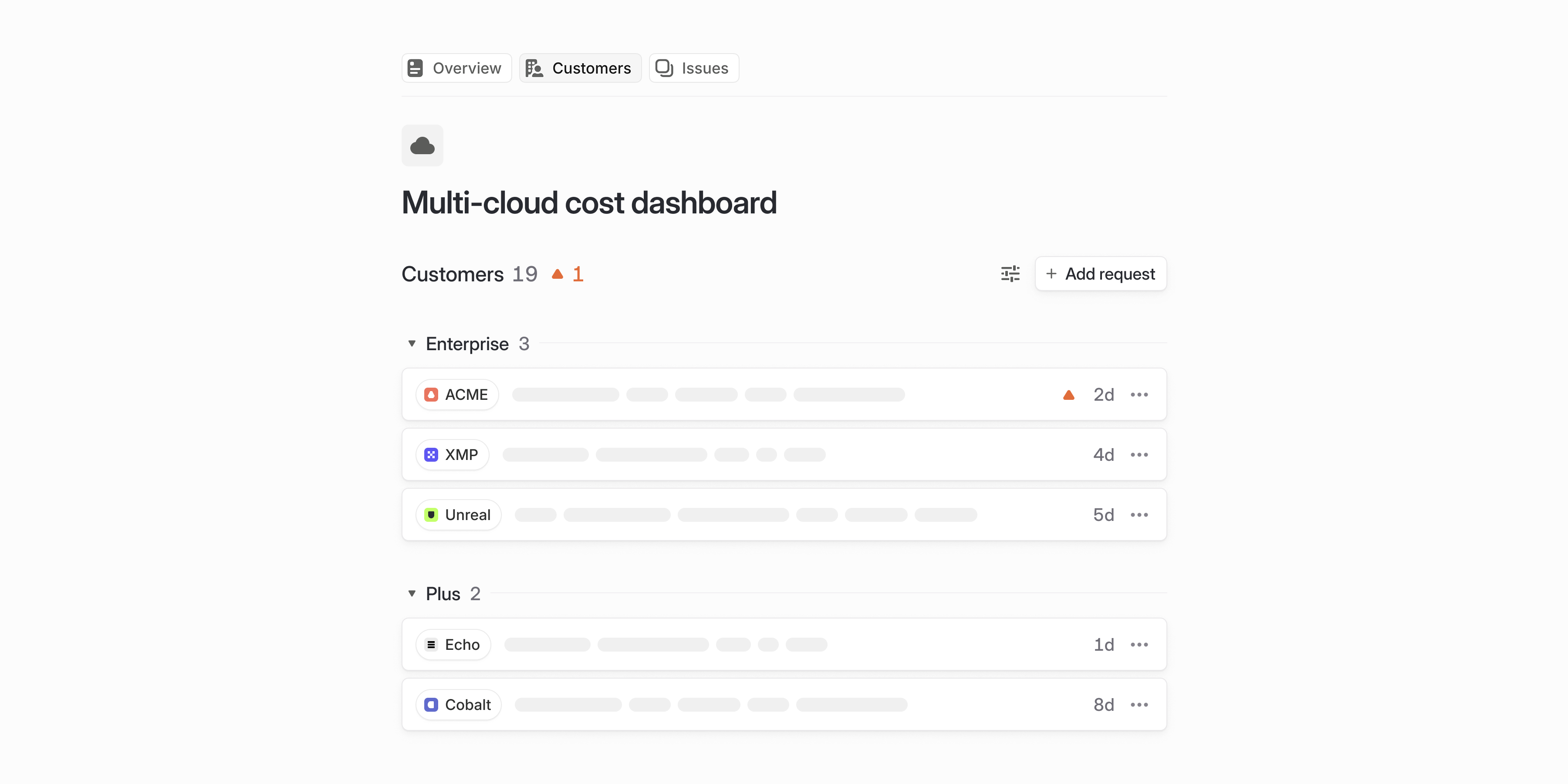
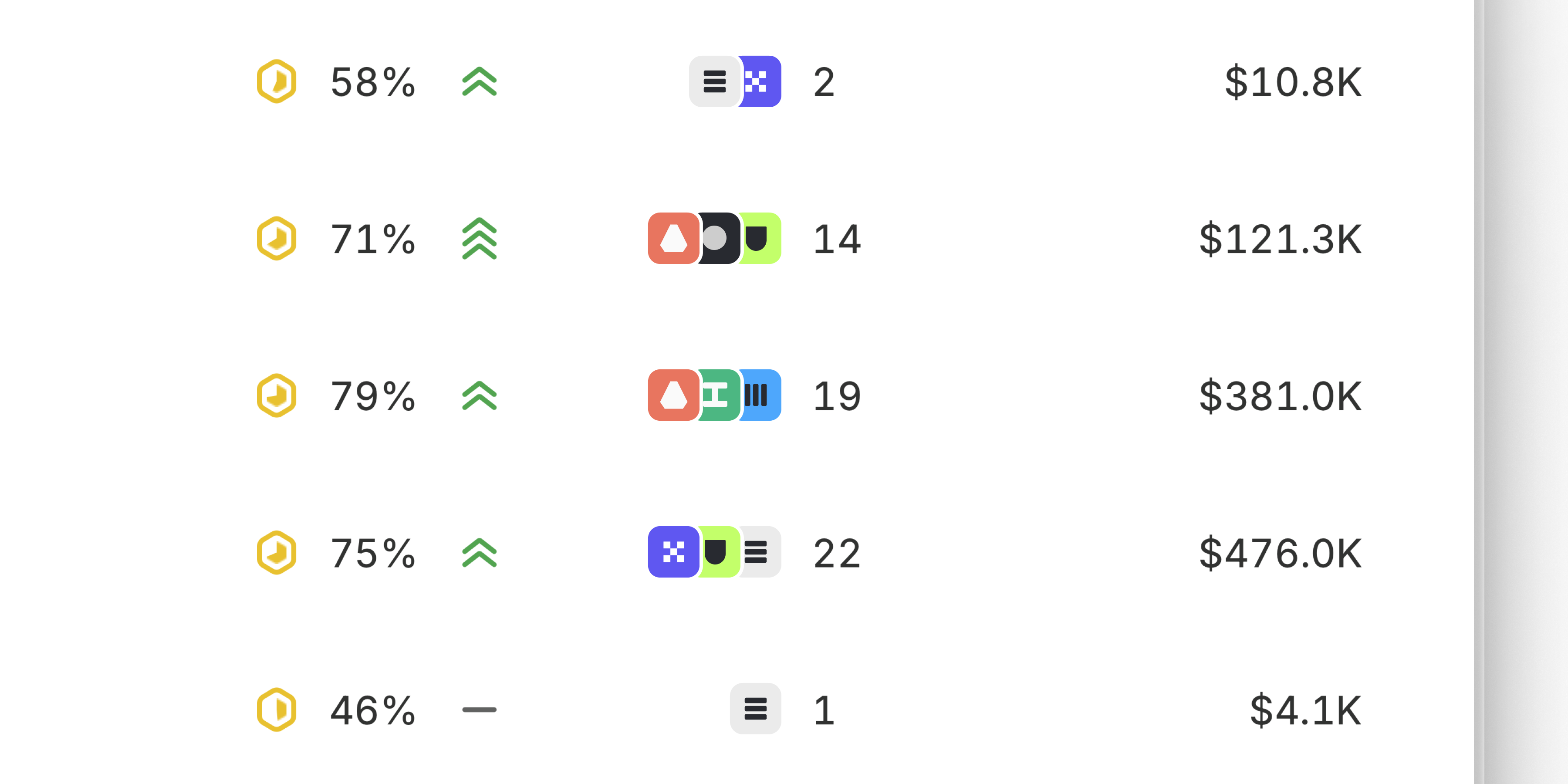
Use customer requests to align your planning process to real demand. In any project view, you can display and organize projects by customer count and revenue. To target a specific segment of customers, filter by attributes like customer size or status.
Customer subscriptions
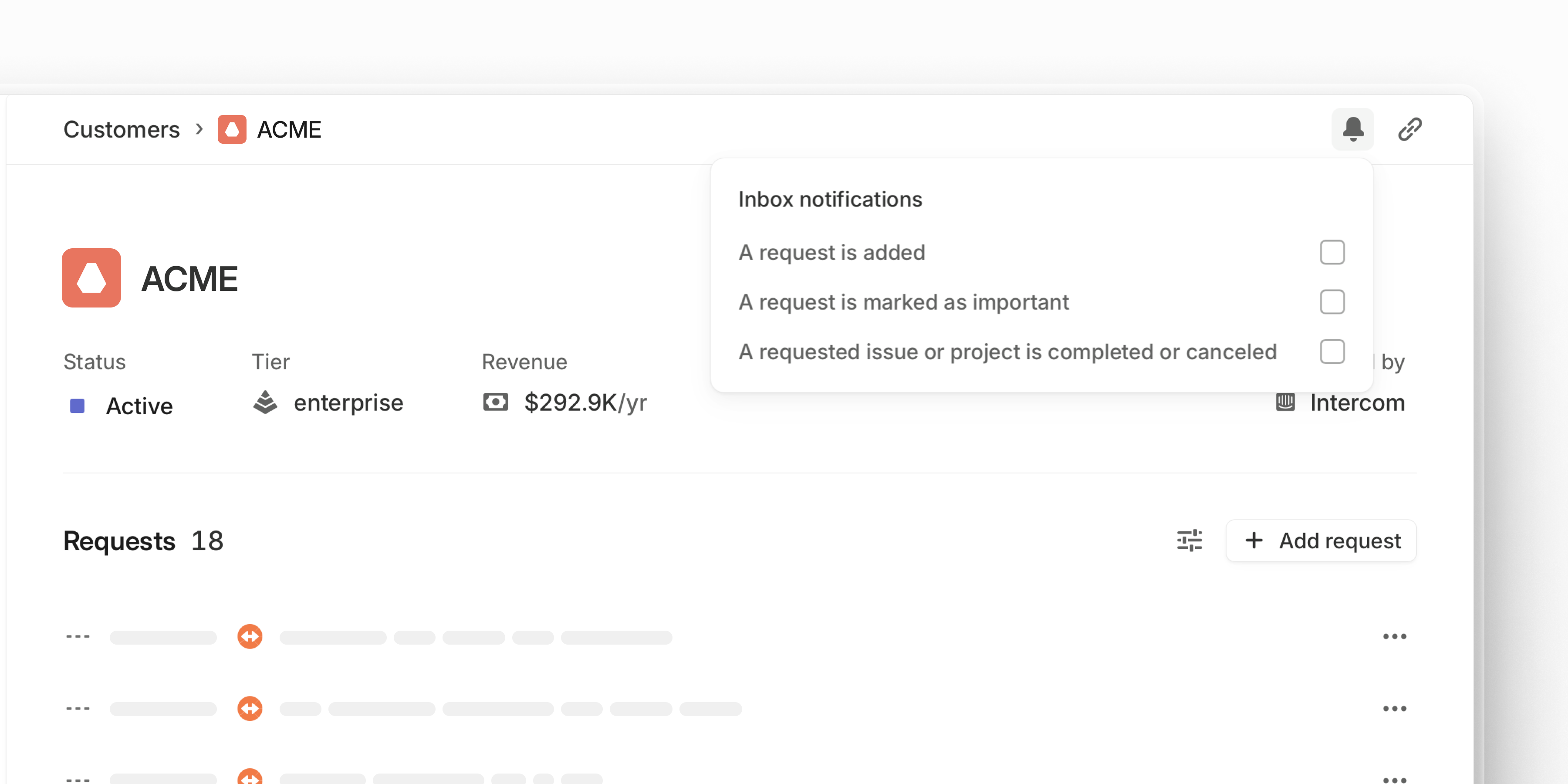
Stay informed about the customers you care about the most. Open a specific customer page and select the bell icon to subscribe to notifications.
You can be notified when the customer submits new requests, when one of their requests is marked as important, or when any of their requested issues and projects ships. Access notifications and review requests from desktop, iOS, and Android.
Introducing Pulse — your personalized feed for what’s happening across your company

Introducing Pulse — your personalized feed for what’s happening across your company
Today, we’re launching Pulse, a new way to stay in sync with your product organization through a personalized, realtime feed of updates and discussions.
As companies grow, answering the simple question “What’s happening right now?” becomes increasingly hard. Information is spread across tools, projects, and teams, making it difficult to get a clear, high-level view.
Pulse changes that by bringing relevant updates from across your Linear workspace into a single unified feed. It’s tailored to the workstreams that are most relevant to you, and makes it easy to dive deeper into the projects, initiatives, or teams behind each update.
Tailored for you
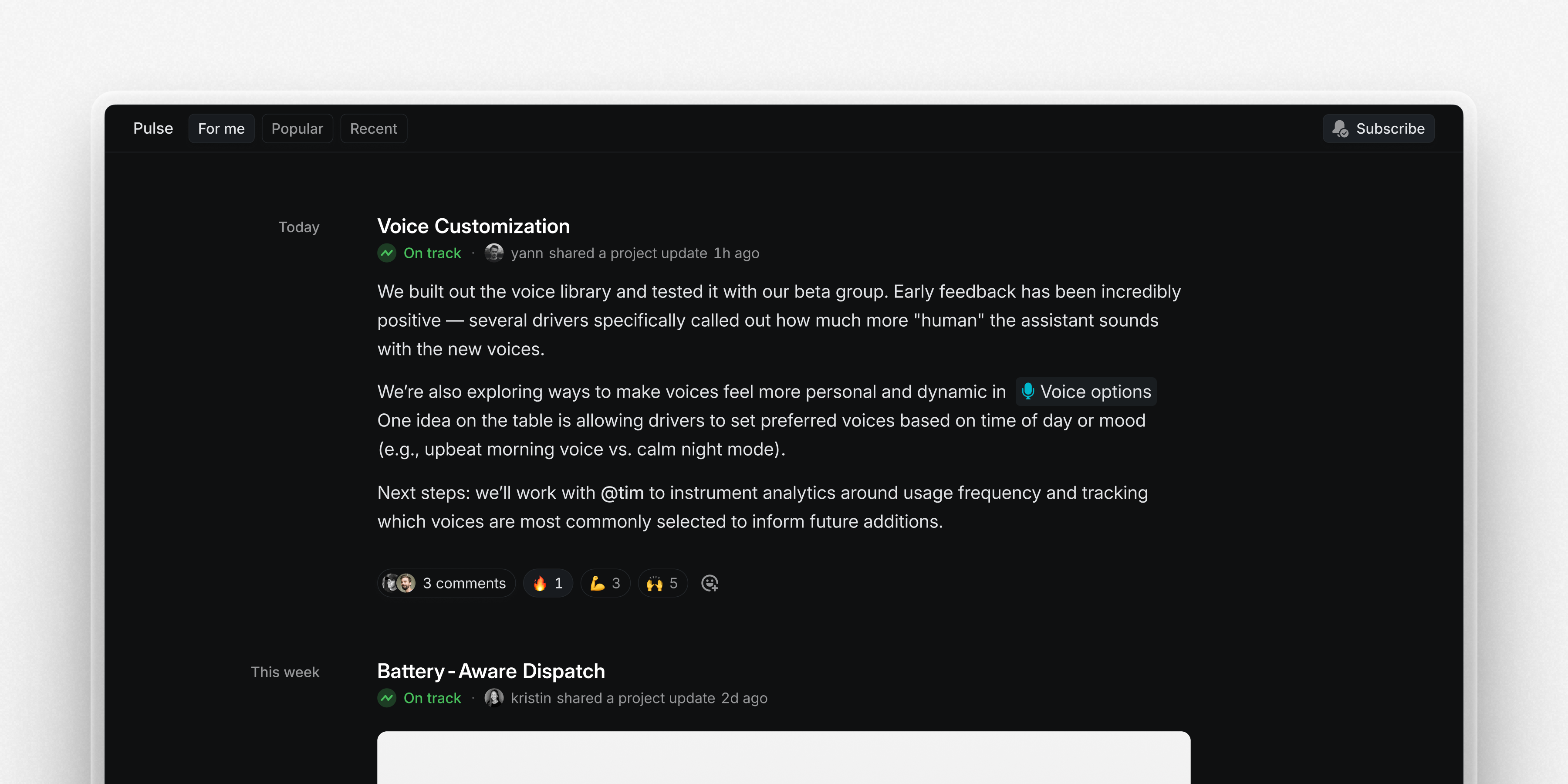
You'll see your own personalized feed inside Pulse called "For me", showing updates from projects and initiatives you are subscribed to or a member of. "Popular" and "Recent" show updates from across your entire company, providing a broader perspective and helping you stay informed about what's happening beyond your immediate focus.
A personal AI-generated summary of updates will be delivered daily or weekly to your Linear inbox. You can read it or listen to your Daily Pulse as a short audio digest for catching-up on the go. Audio is available on desktop and iOS, with Android support coming soon.

Pulse is available today on all plans. To enable it for your workspace and change the frequency of your inbox summaries, head to Pulse settings.
Pulse extends Linear’s vision of being the source of truth for your product organization by providing information that is timely, visible, and actionable.
New search

New search
We've completely overhauled Linear's search with a new engine built from scratch. Under the hood, we replaced the traditional keyword-based search index with a new hybrid semantic search, which combines AI vector embeddings with keyword-matching. Even if you don't use the exact phrasing from an issue title or description, the hybrid engine will infer what you mean and find the results you are looking for.
Search is also more comprehensive. When you look for an issue, for example, Linear search will pull in context from attached customer requests, comments, and linked support tickets.
New search will be rolling out to all Linear users over the coming weeks. You'll receive an in-app notification once it's available in your workspace.
Quick filters for search
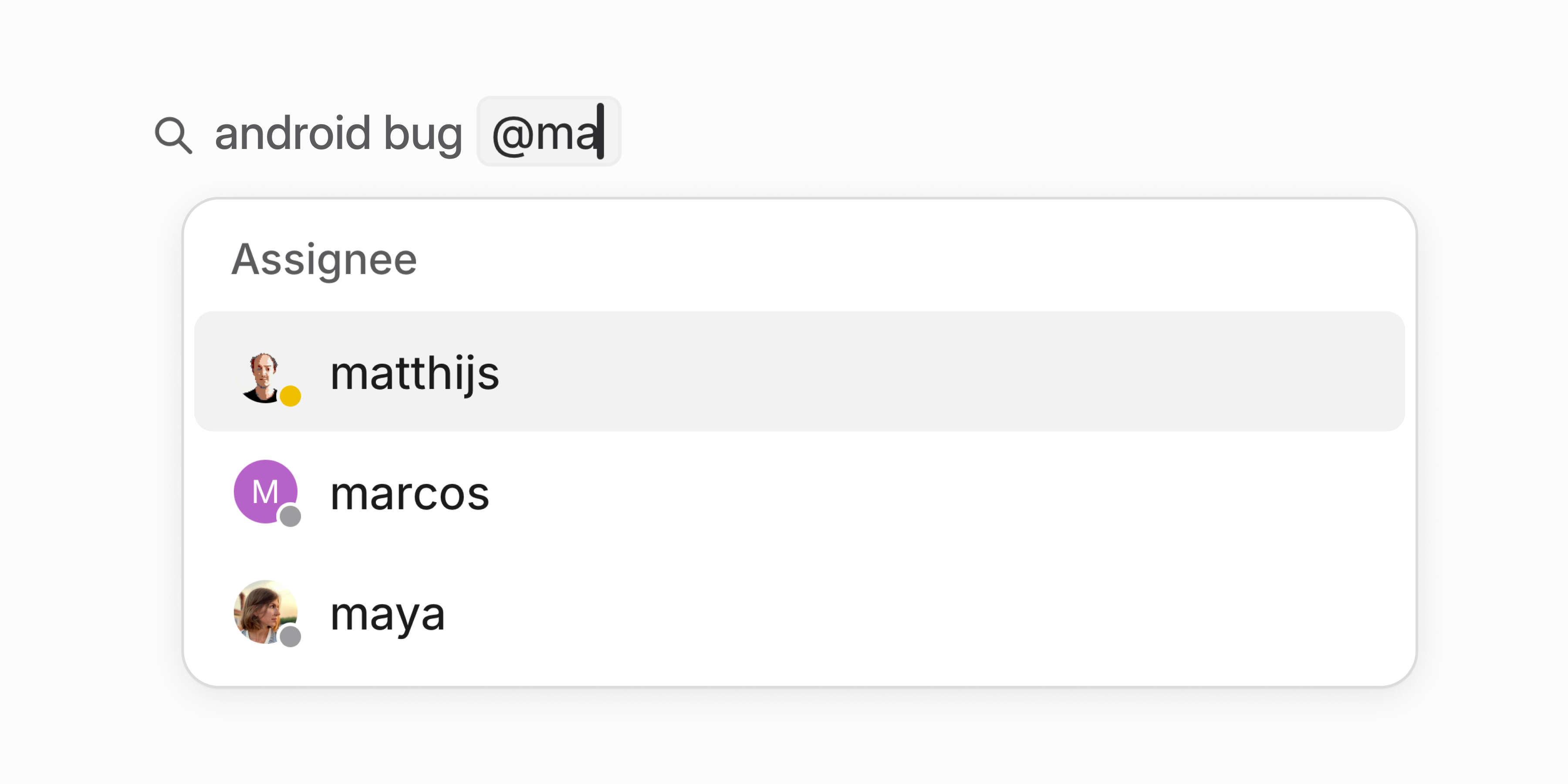
Available now: quickly narrow your search by @-mentioning teams, users, status, and other properties. This will automatically create and apply a filter to your search without your hands leaving the keyboard.
Granular permissions for API keys
Personal API keys now support fine-grained permission controls. Instead of keys inheriting all your permissions, you can tailor access to specific use cases.
- Restrict keys to individual teams you have access to (public or private)
- Set keys to read-only or write-only
- Limit permissions to specific actions such as creating issues
This is a more secure approach since it minimizes each key's access surface. Configure permissions when creating new API keys or manage existing ones in Settings > Account > Personal API Keys.
Collapsed issue history

Collapsed issue history
When there’s a lot of activity in an issue, it’s easy to lose track of important changes. To reduce clutter and keep the issue activity feed focused, we now group similar consecutive events and collapse older activity between comment threads.
Sub-issue display options
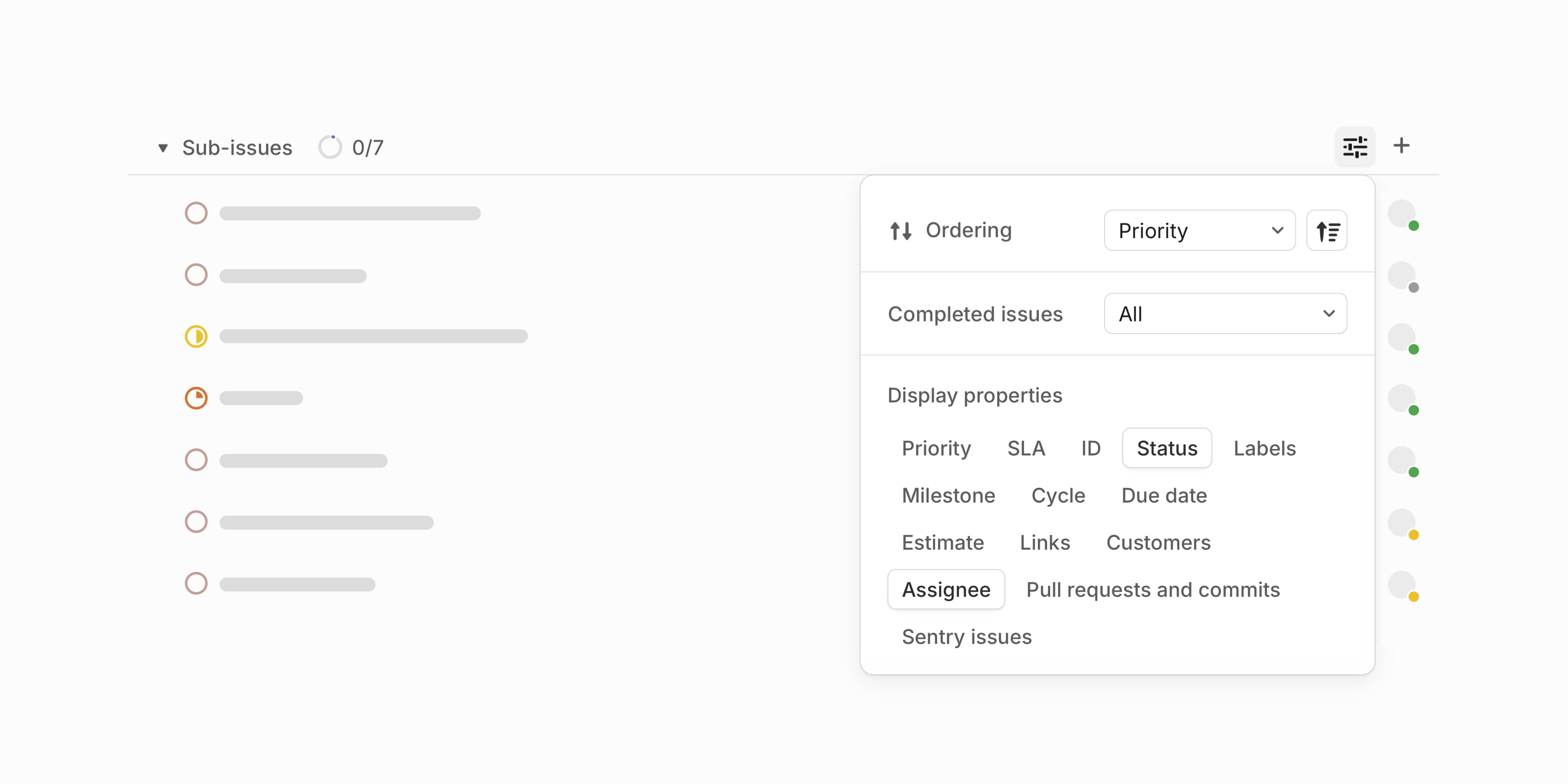
Customize how sub-issues appear when viewed from parent issues. For example, update the list to only show properties relevant to you or hide completed sub-issues to focus on remaining work. Your preferences will be applied across all issues you view.
Project group order
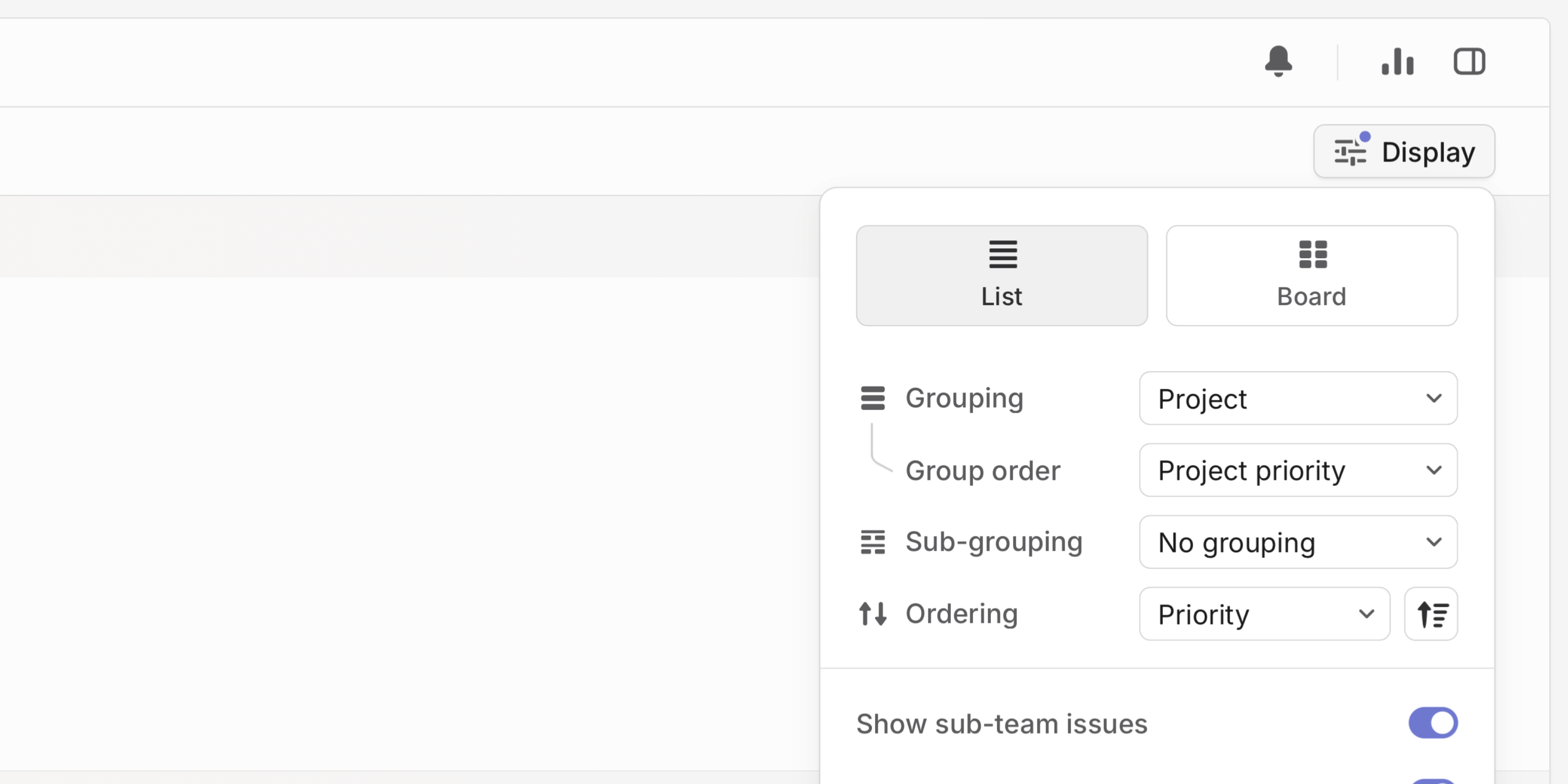
When viewing issue lists grouped by project, customize the order in which these groups are displayed.
Mobile improvements
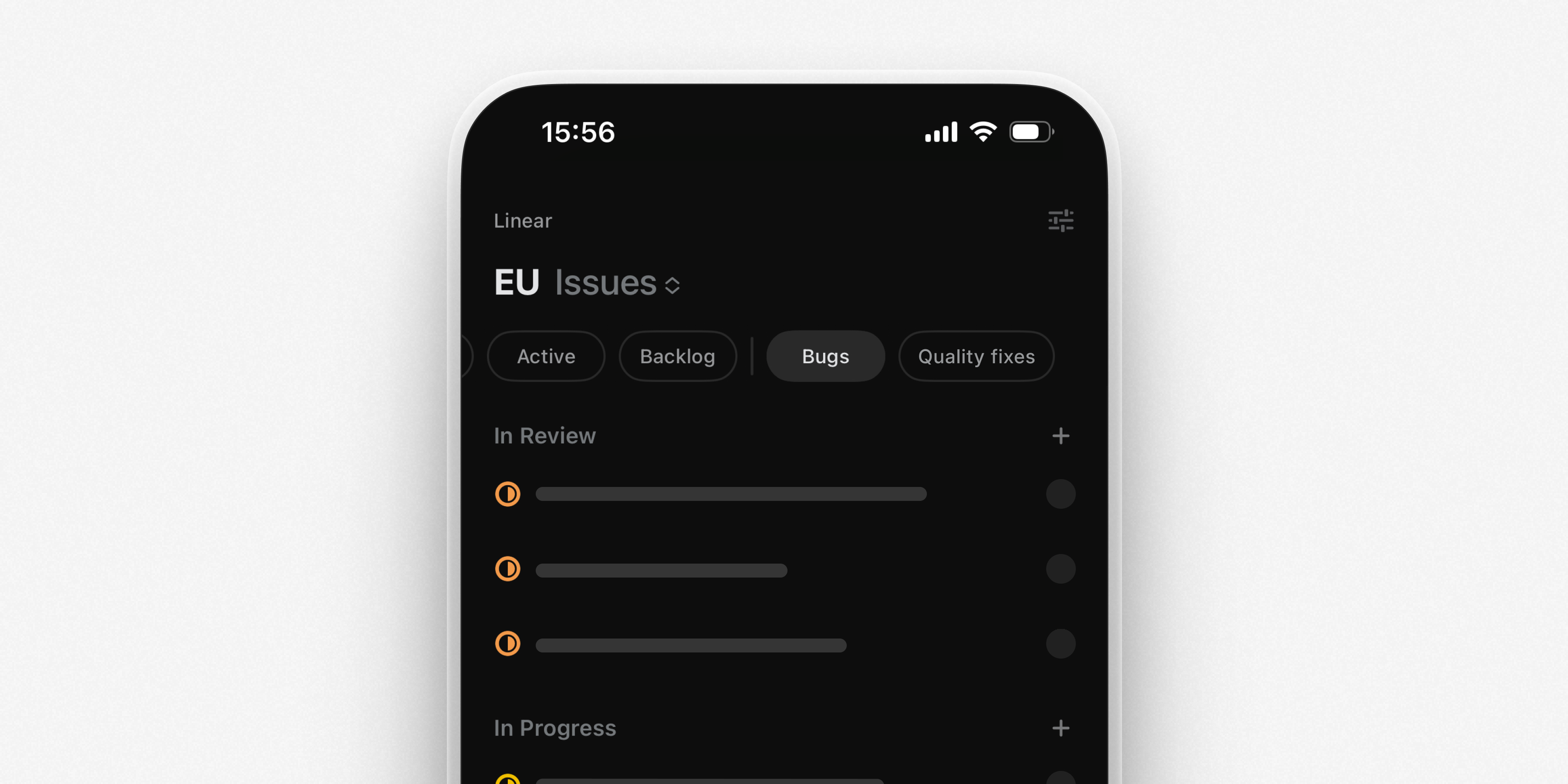
We've made several improvements to Linear on iOS and Android. Download the latest version from their respective app stores.
- Custom views attached to projects and teams appear as tabs, giving you quick access to your most important issues
- From a team's cycles view, easily navigate between current, upcoming, and all cycles for that team
- We've added native support for initiative updates from your Inbox. Comment or react to updates directly from the notification
- Long-press on reaction emojis to see who reacted to a comment, issue, or update
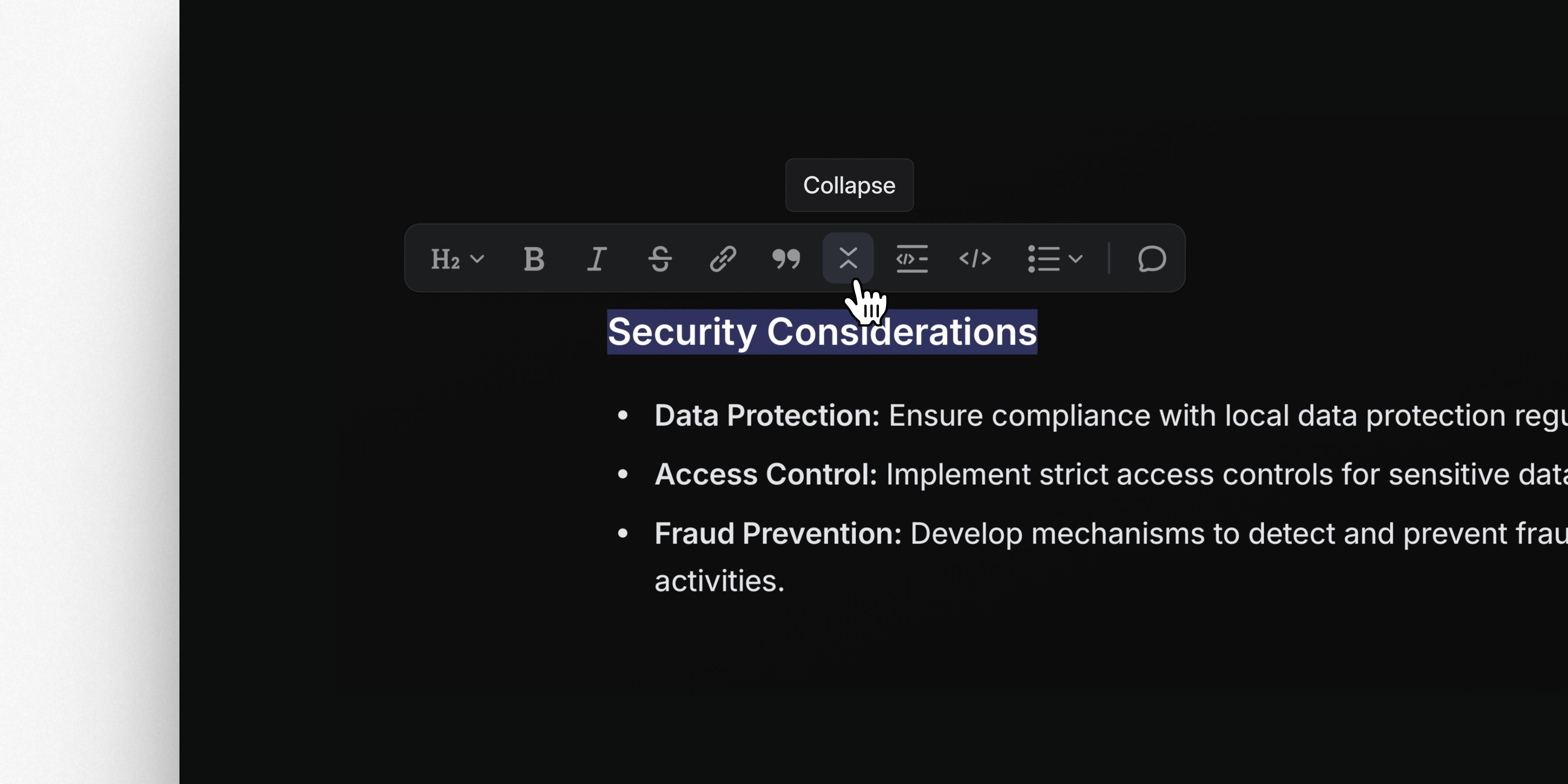
Collapsible sections
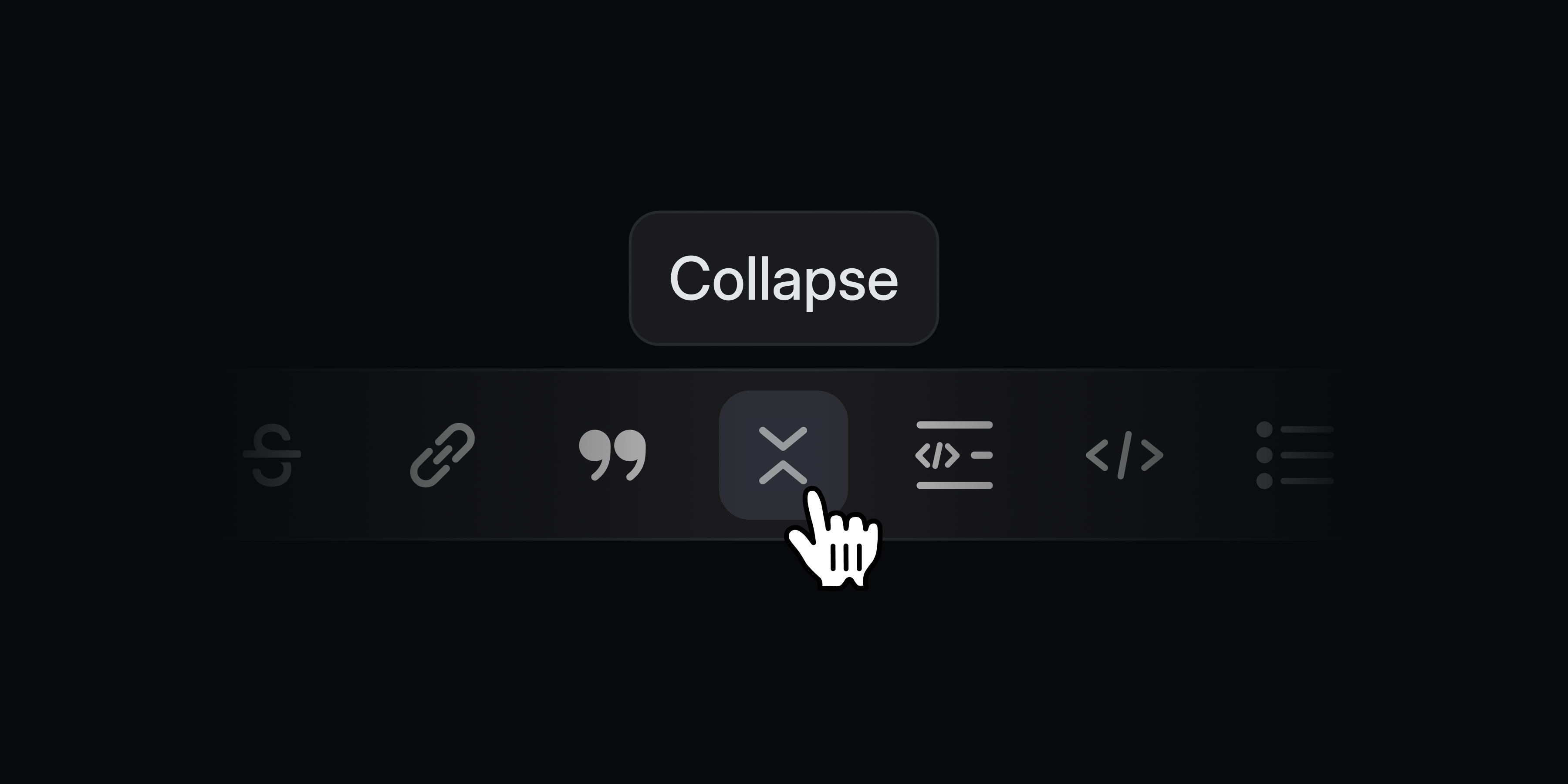
Collapsible sections
Keep long documents and descriptions tidy with collapsible sections. Conceal supporting details and notes so that they're hidden by default but available to anyone who wants to read them. Create a collapsible section by typing the command /collapsible, using the text shortcut >>>, or selecting text and applying formatting.
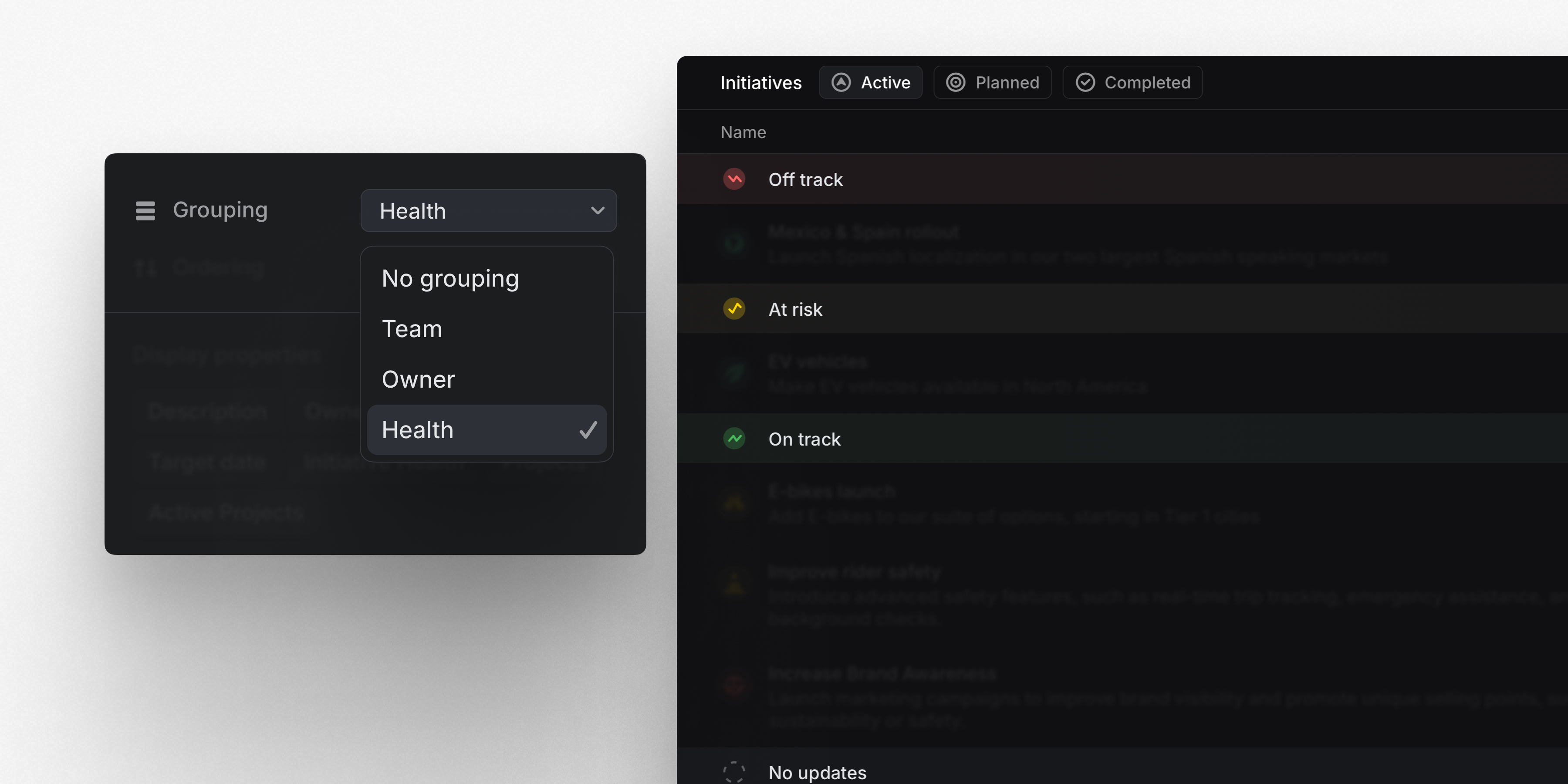
Initiative grouping
We’ve added new grouping options for Initiatives. Group initiatives by team, owner, and health to scan and navigate larger lists of product initiatives efficiently.
Graphite integration
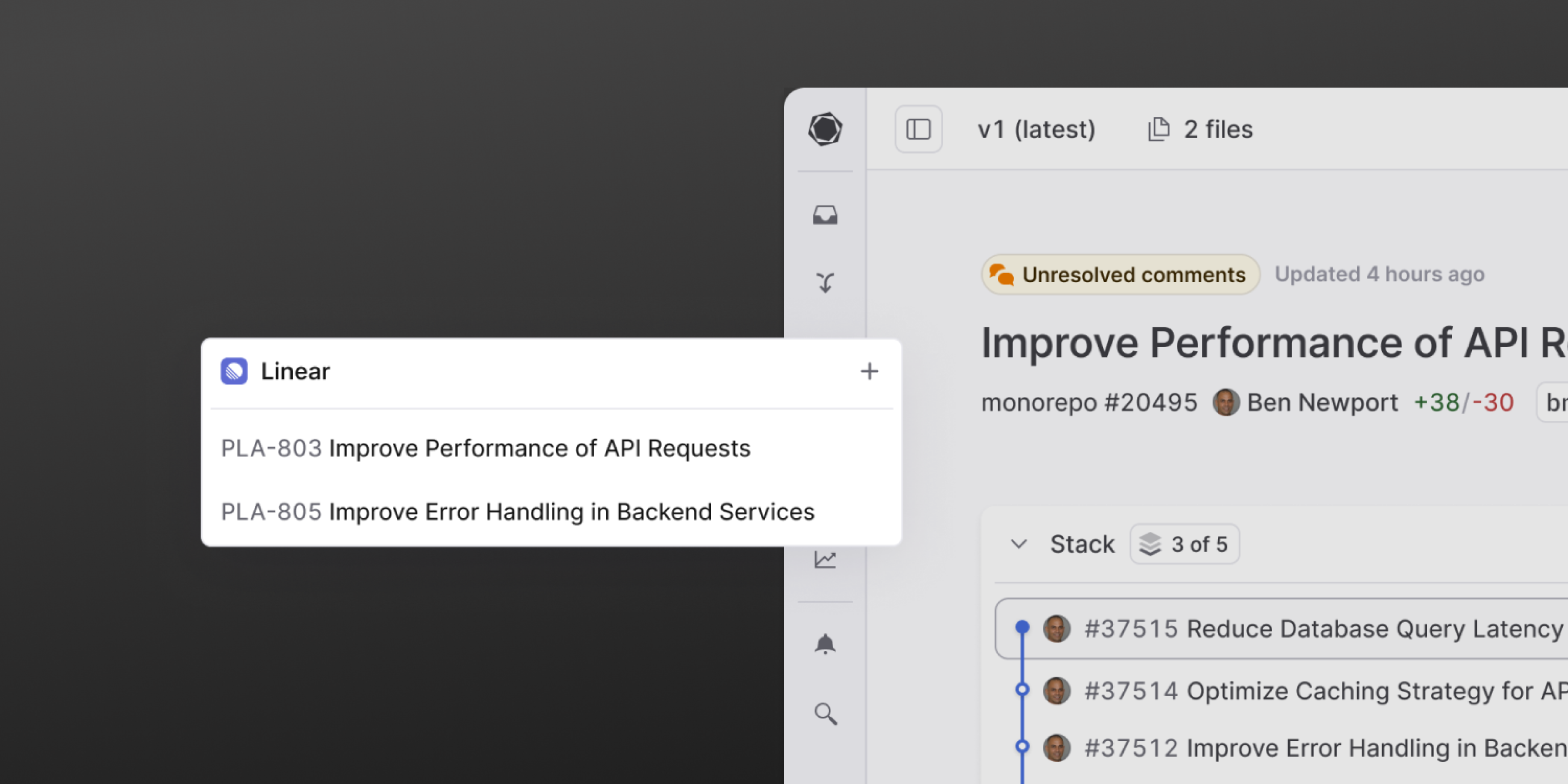
Graphite users can now connect Linear issues directly to pull requests. From Graphite, create new Linear issues, link existing ones, and view all Linear issues associated in the Graphite sidebar. Learn more
Sub-teams
Sub-teams
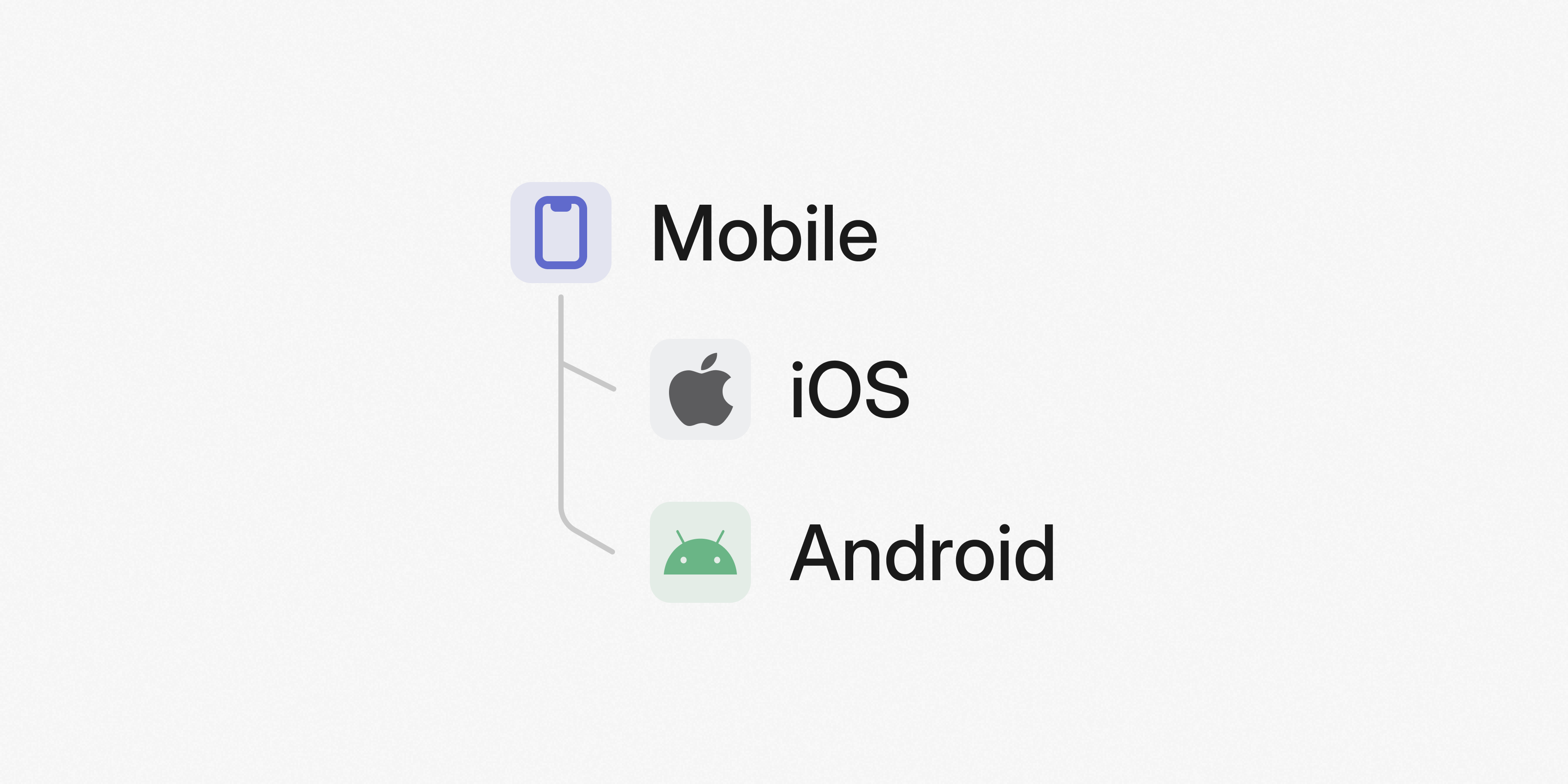
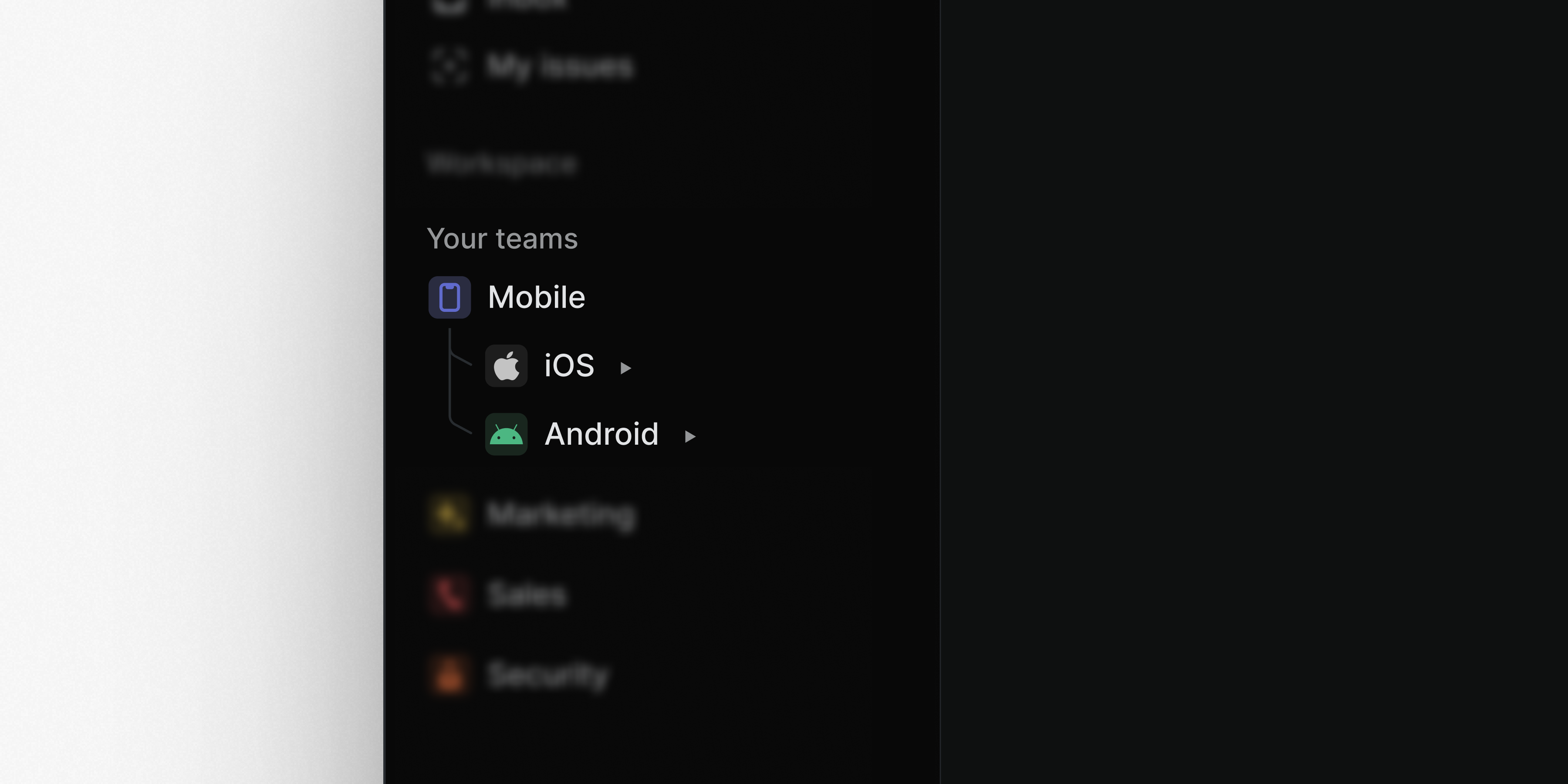
Sub-teams let you build a team hierarchy in Linear that mirrors your organizational structure, making team relationships clear and navigable to workspace members.
Define team hierarchies
Create parent teams and nest sub-teams under them to group teams by function, department, or product area. When a team grows large enough for specialized work to emerge, split it into sub-teams to provide focus without disrupting ongoing work or losing visibility.
Simplify administration
Standardize processes across multiple teams with shared settings. Sub-teams inherit workflows, cycles, and labels from their parent team. These settings are configured in a single place, reducing administrative overhead and enabling you to maintain consistent processes across teams as you grow.
View and manage work across multiple teams
Create views at the parent team level to see projects and issues from every sub-team. Members of any sub-team automatically have access to their parent team, enabling cross-team visibility. With shared workflows, cycles, and labels, teams can collaborate more effectively, understand dependencies, and coordinate timelines—all while maintaining their individual focus areas.
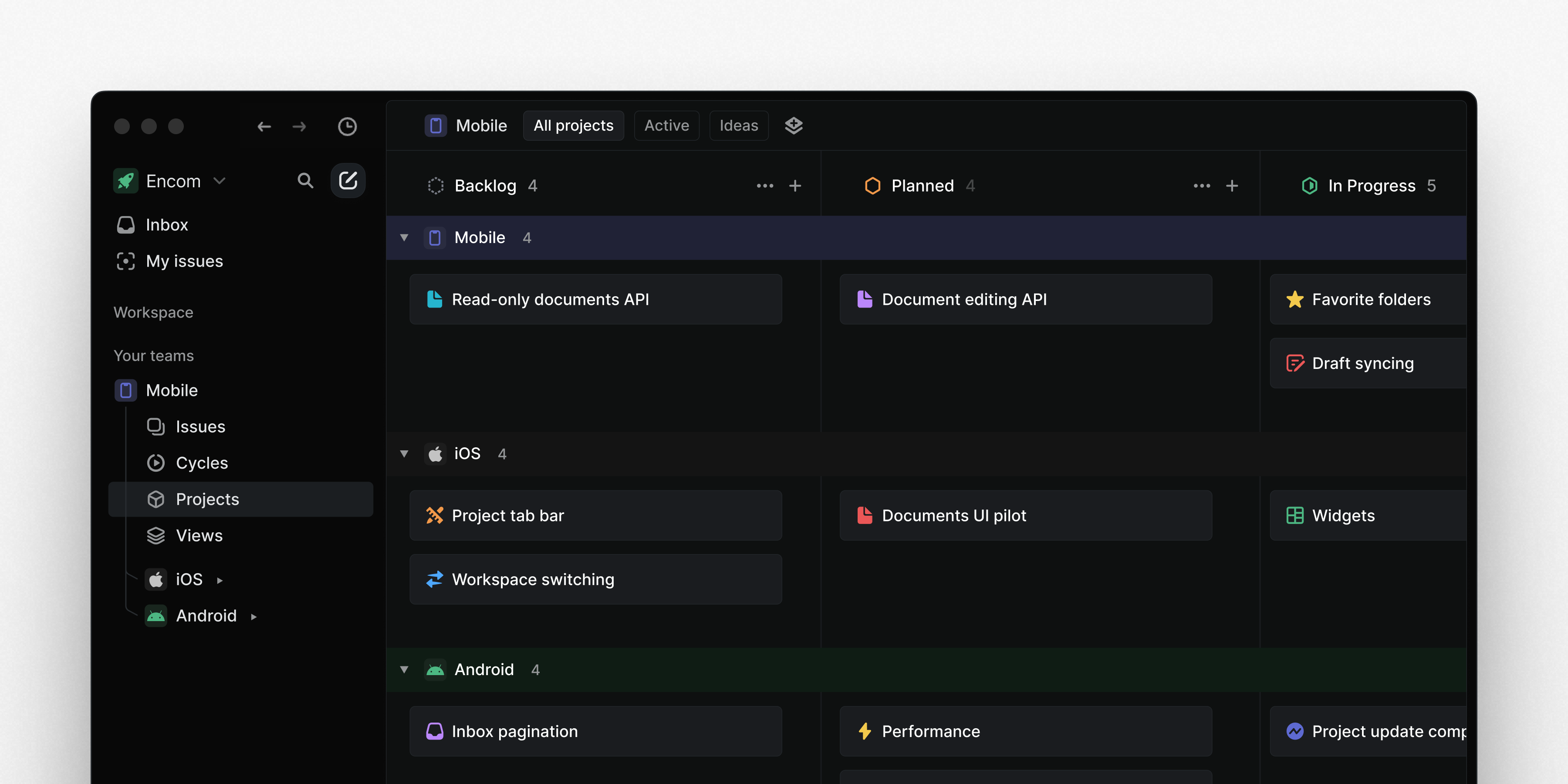
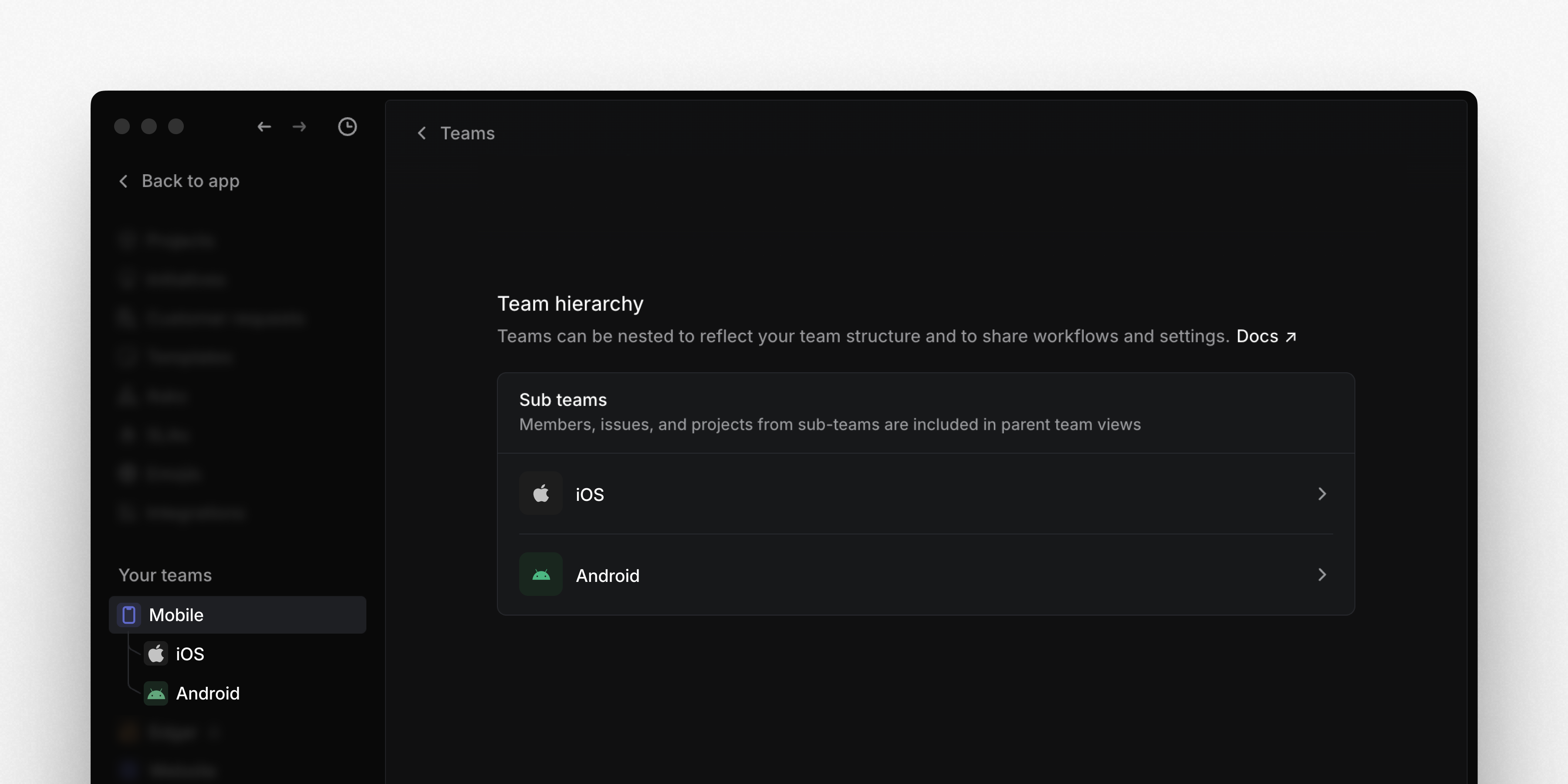
Sub-teams is available on Business and Enterprise plans. Go to Team settings > Team hierarchy to set up parent and sub-team relationships and learn more in the docs.
Reminders on projects, initiatives, and documents
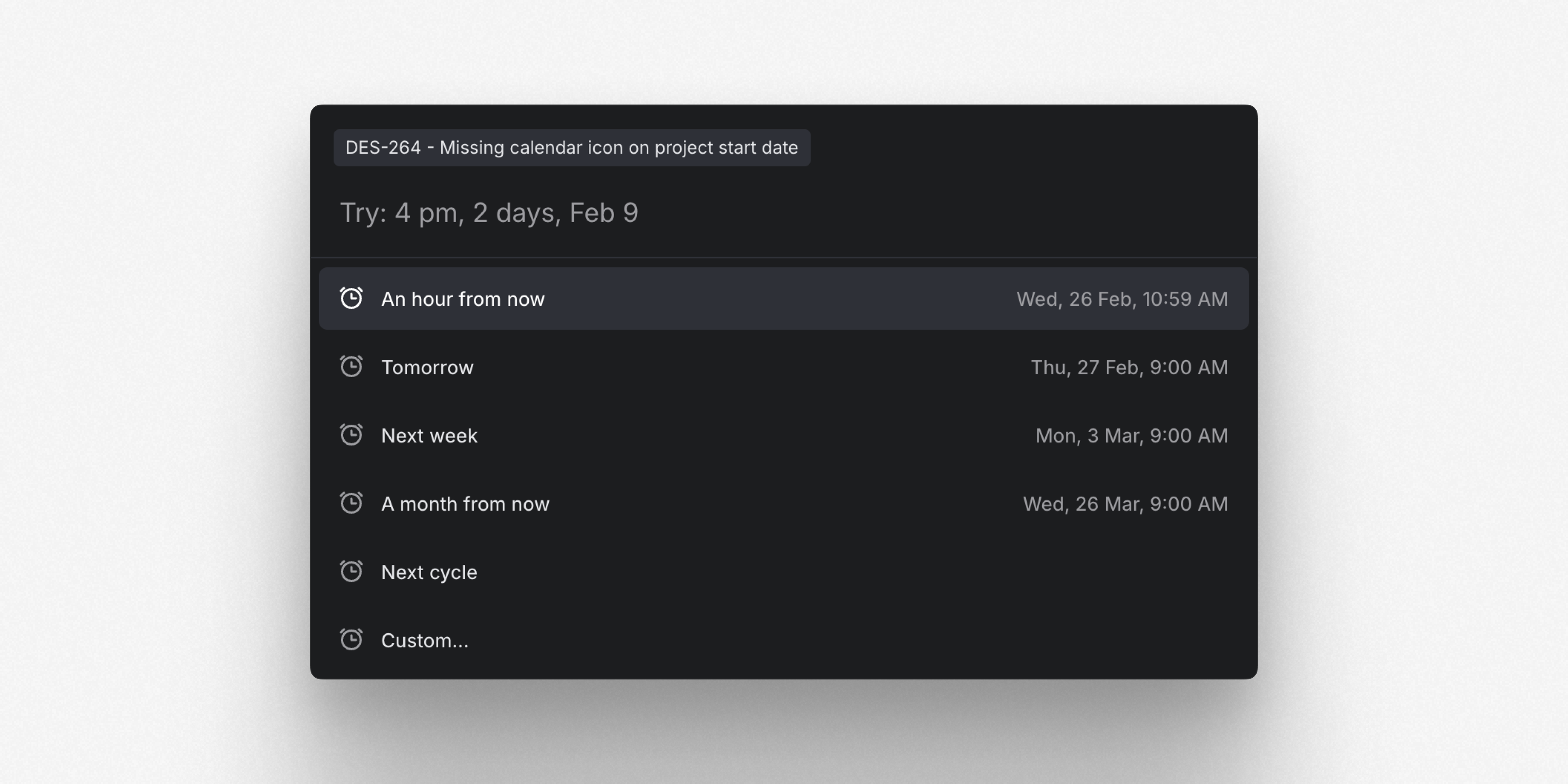
Set reminders on issues, projects, initiatives, or documents so you can revisit them at a later date. Schedule reminders from the contextual menu of each page or use the keyboard shortcut H. You'll receive reminder notifications in your Linear Inbox. Pending reminders are labeled at the top of their respective page, and they can be modified or canceled from there.
Mobile app: Team projects and navigation
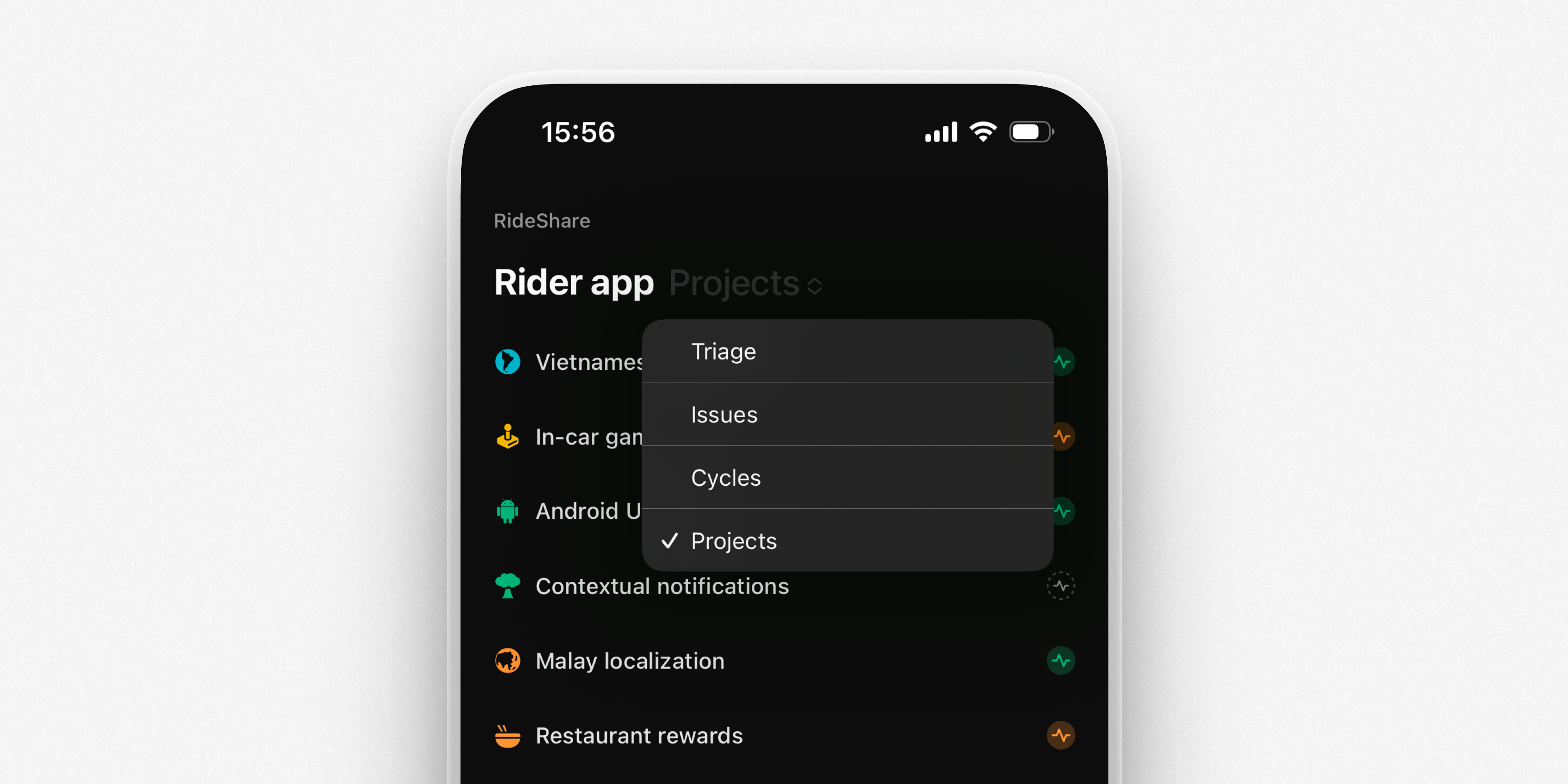
View and update your team's projects from the mobile app. Dive into a project to create issues, view and edit the project overview, or post updates. A new navigation menu lets you quickly switch between views of your team's projects, issues, cycles, and Triage.
Improved Billing Settings
We’ve updated the billing page to give you more visibility into your Linear subscription. See scheduled plan renewals, active discounts and trials (with their expiry dates), and a complete invoice history.
Initiative updates
Initiative updates
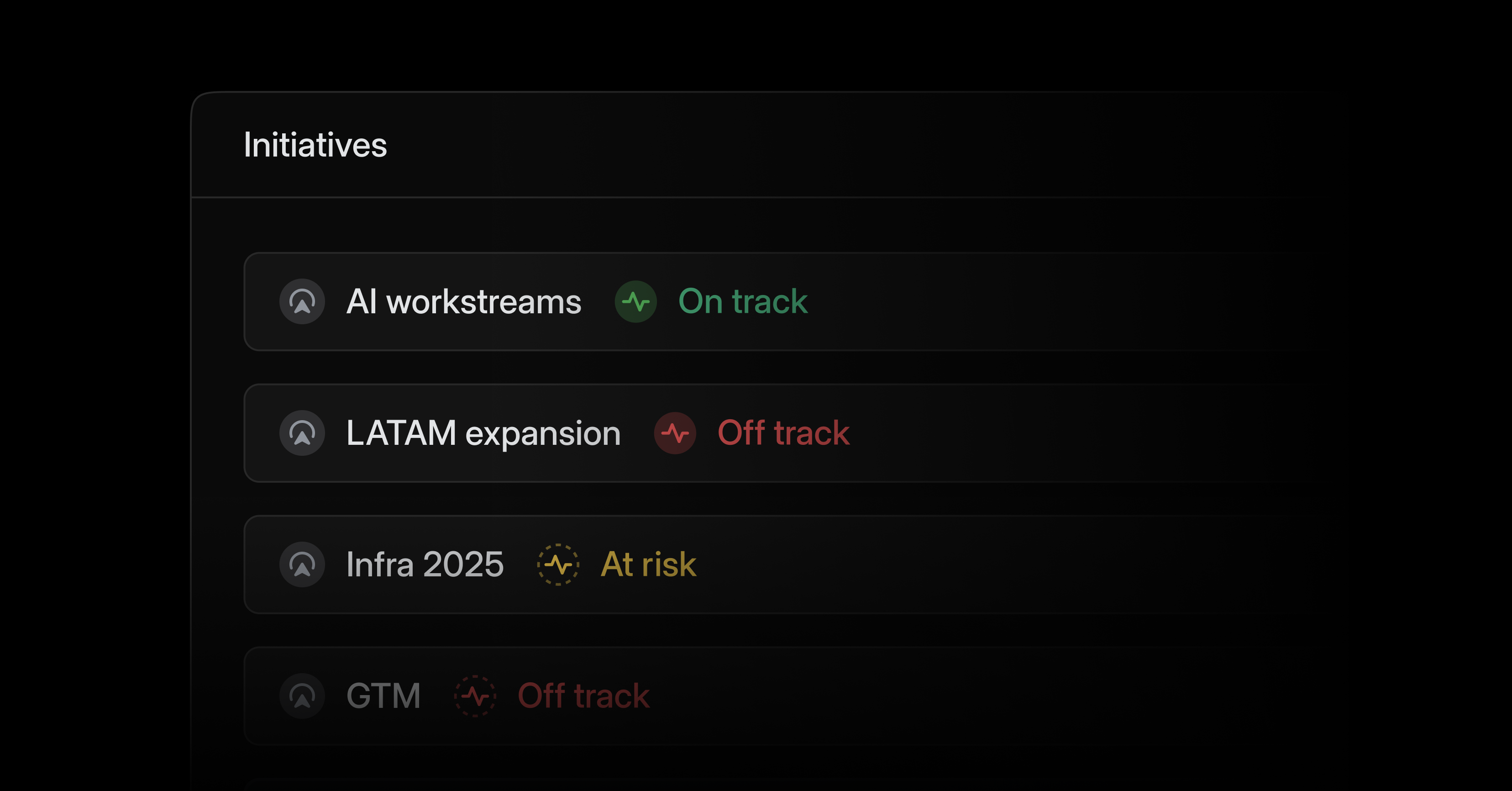
Keep up-to-date on strategic product work using initiative updates.
Write initiative updates to report on progress and summarize work across multiple projects. Important changes like revised target dates are automatically appended to updates. From the initiatives list, monitor health across all initiatives, quickly read individual updates, and leave feedback.
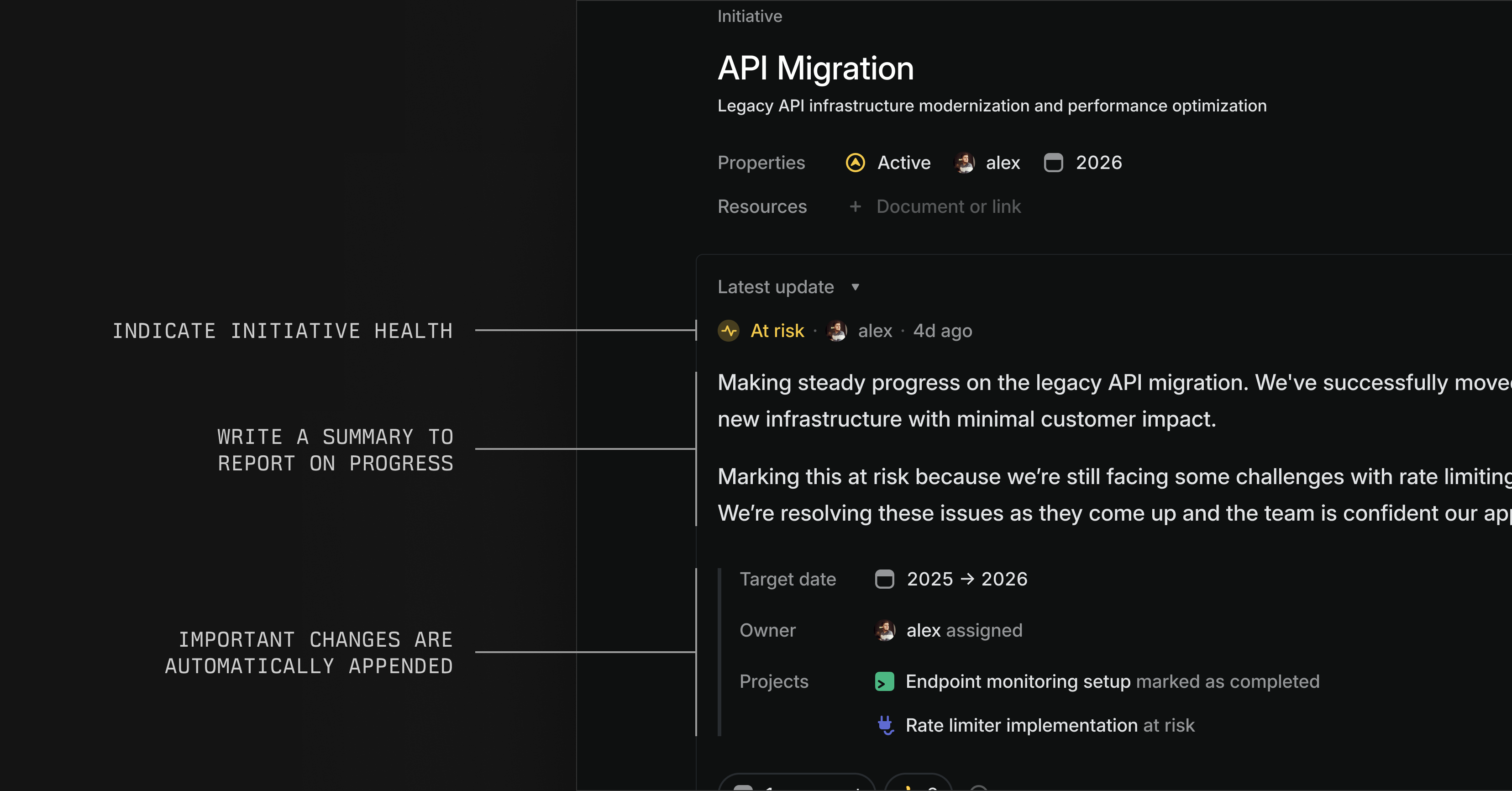
Configure initiative updates to cross-post to Slack for additional visibility. Comments and reactions sync bi-directionally and appear in both Linear and Slack.
The latest initiative and project updates now display in their respective overview tabs.
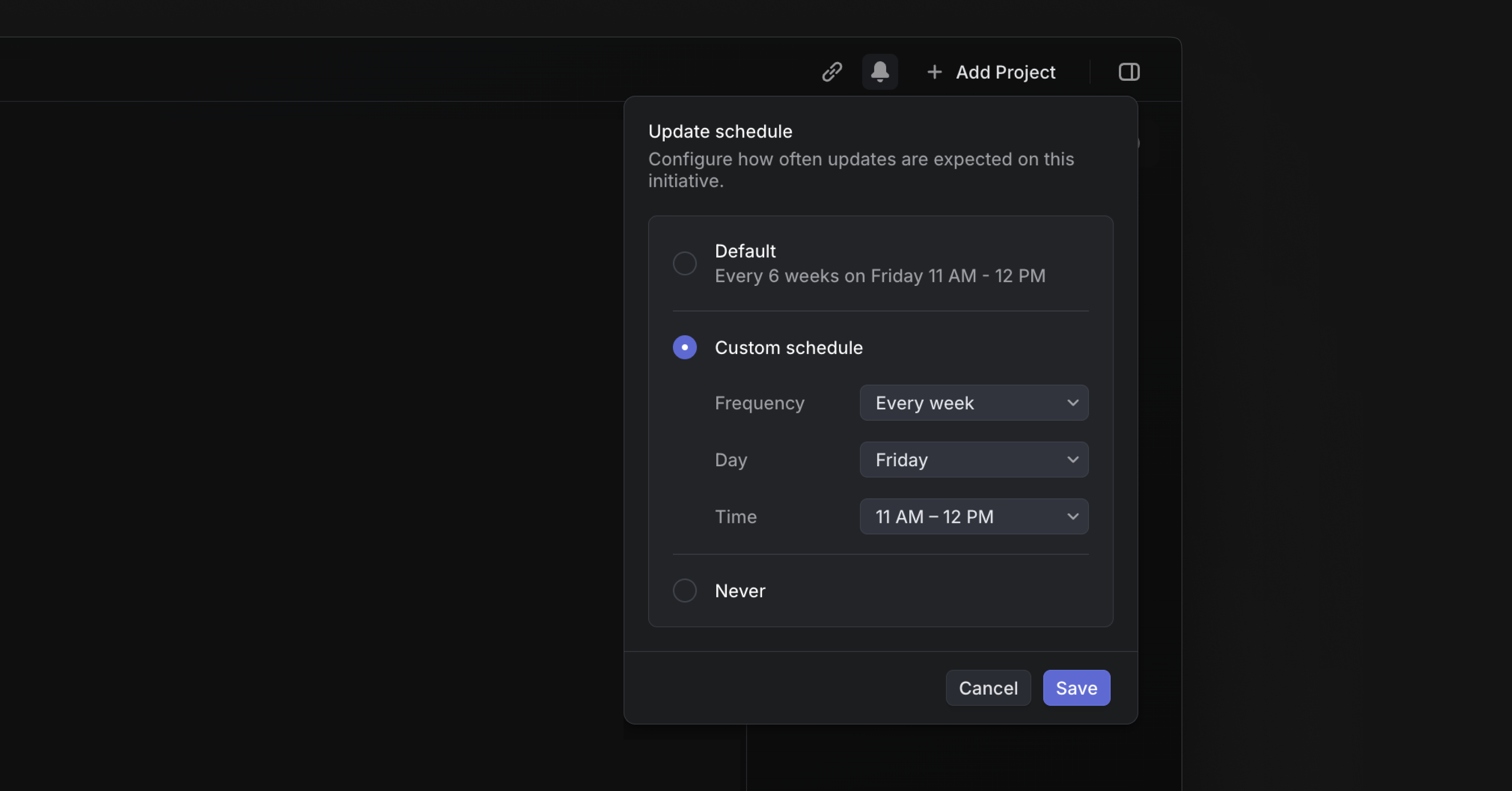
Schedules for project & initiative updates
Set expectations for how often project and initiative updates should be posted. Align updates with specific meetings or change the frequency of updates for individual projects and initiatives as needed.
Project leads and initiative owners will get a reminder in their Inbox when they need to share an update and follow-up reminders if the deadline has passed and the update is still missing.
Copy Issues as Markdown for LLMs
Copy issues and documents as Markdown with Cmd Opt C, or from the command menu. When copying an issue, this command captures its full context — including title, description, comments, and customer requests — in a structured format for use in AI chat tools.
Copy multiple issues at once by selecting them on a list or a board and using the same command.
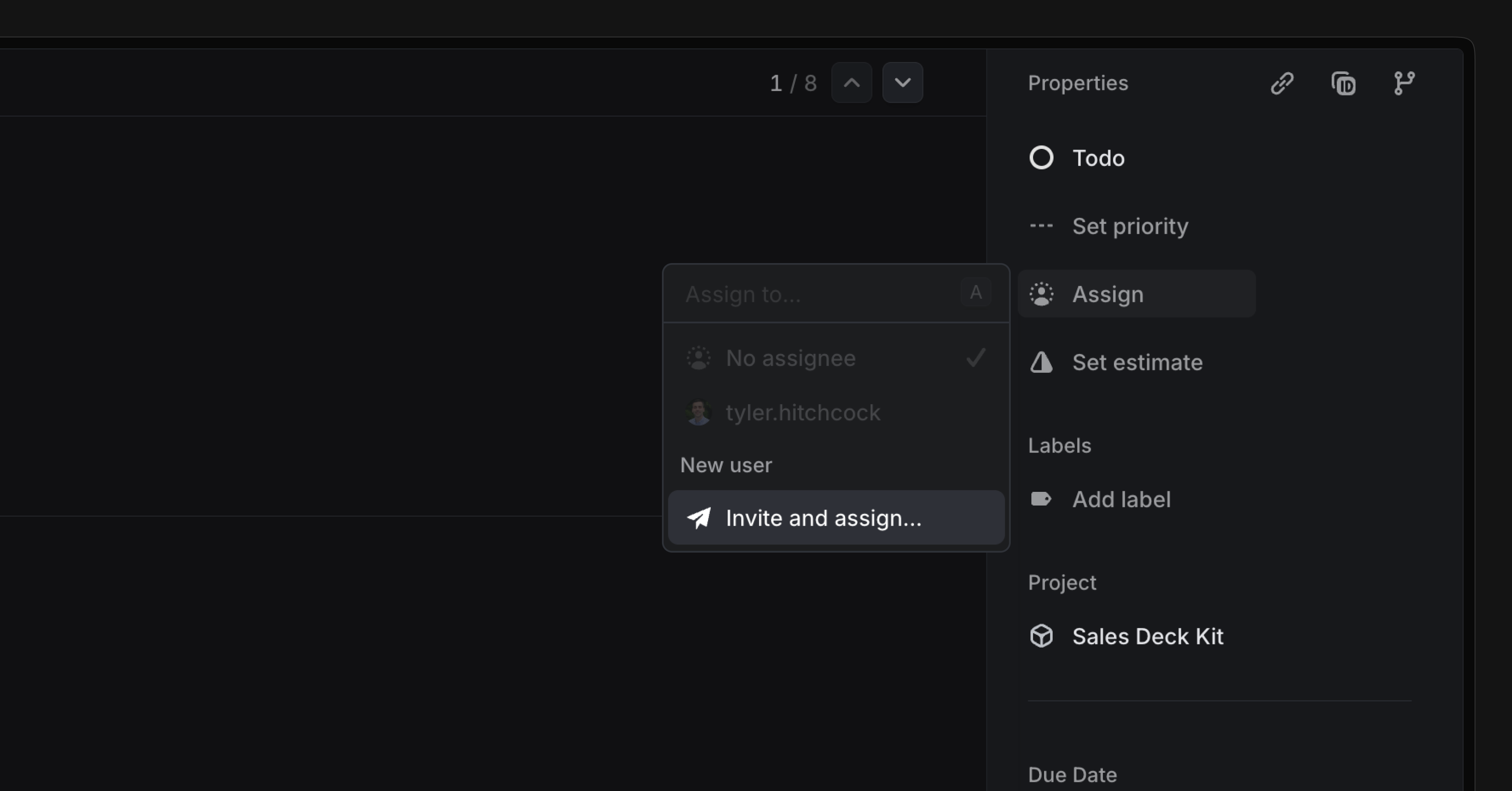
Invite and assign
You can invite team members to Linear and assign them to an issue at the same time. They'll see any assigned work in their Linear Inbox when they log in for the first time.
Pull Request reviews (alpha)
Pull Request reviews (alpha)
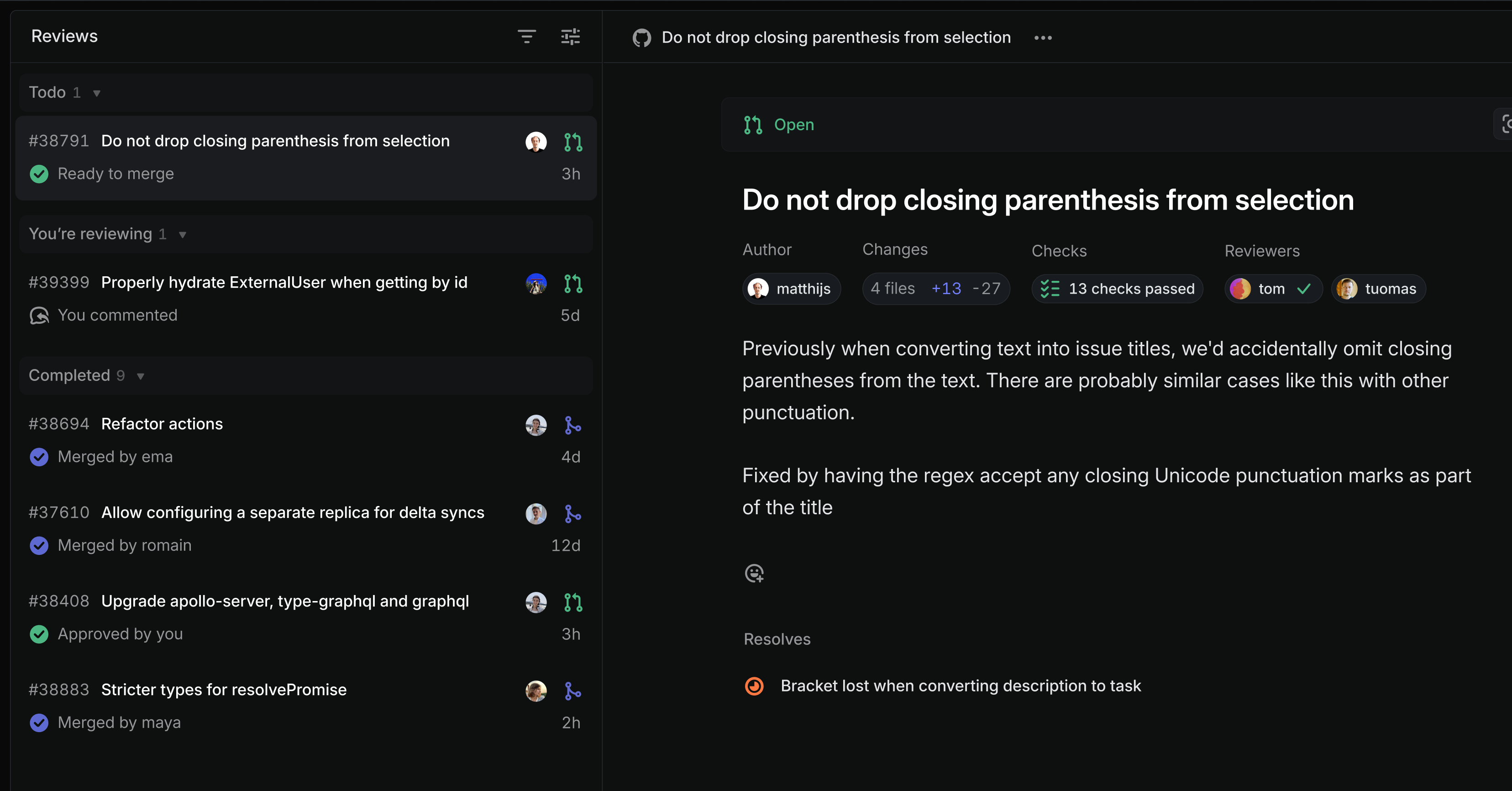
Your development speed can only be as fast as your code review cycle, yet the tools we use to manage pull request (PR) reviews are complicated and unreliable. It's hard to know which PRs need attention and easy to miss a request to review a PR.
We are making your PRs visible in Linear to streamline the review process. You'll receive notifications in your Linear Inbox whenever you are asked to review or need to take action on a PR. Get early access to this feature by joining the public alpha.
Reviews section
See all of your open PRs and PRs you need to review in a new Reviews section in the sidebar. Flip through the list to read descriptions, check status, see related issues, and add comments—all without leaving Linear. Comments sync bi-directionally, so they'll appear in both Linear and GitHub no matter where the comment is made.
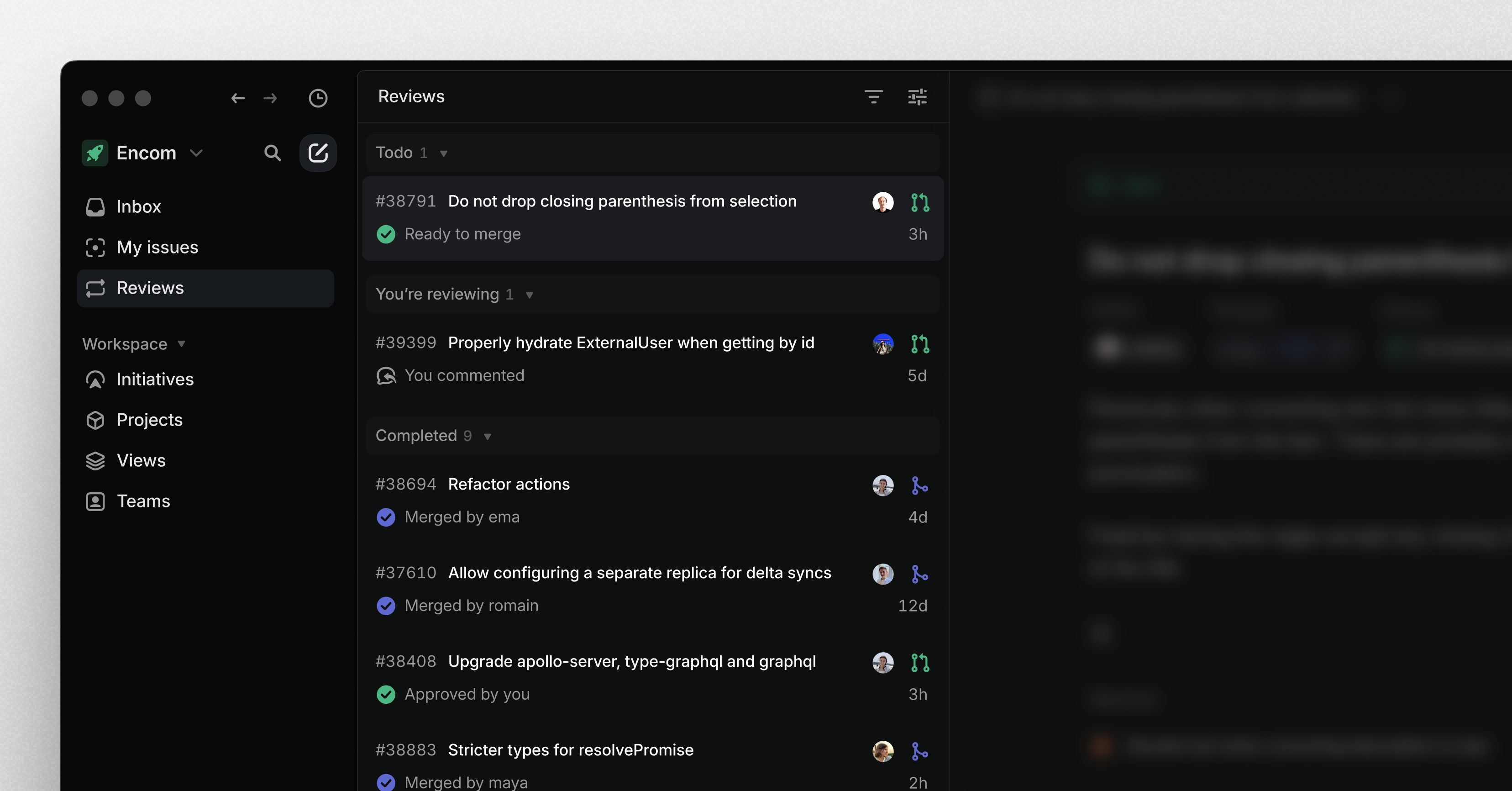
Notifications
Notifications appear in your Linear Inbox whenever you need to take action on a PR, so you don't have to juggle multiple notification streams across different tools.
- PR authors receive notifications for new comments, when builds fail, and when someone has left a review
- Reviewers receive notifications when someone requests their review and for comments in threads they're participating in
- Anyone mentioned in a PR comment within Linear will receive a corresponding mention in Github and vice versa
Join the alpha
Go to Settings > Account > Connected accounts to enable Pull Request reviews for your personal account. This is an open alpha release available on all workspaces that have enabled the GitHub integration.
This feature is still in development. We're seeking feedback early since pull request reviews are such a critical part of engineering workflows. Next, we're planning to add support for merging PRs from Linear, viewing code diffs, and to add the same functionality to the GitLab integration. Read more in the docs and share feedback in the #pr-reviews-alpha channel in the community Slack.
Sub-grouping in issue lists
Use sub-groups to organize a list of issues across two properties. For example, you can group your current cycle by assignee and then sub-group by status. This sub-grouping configuration allows you to see what everyone is working on and the progress they are making.
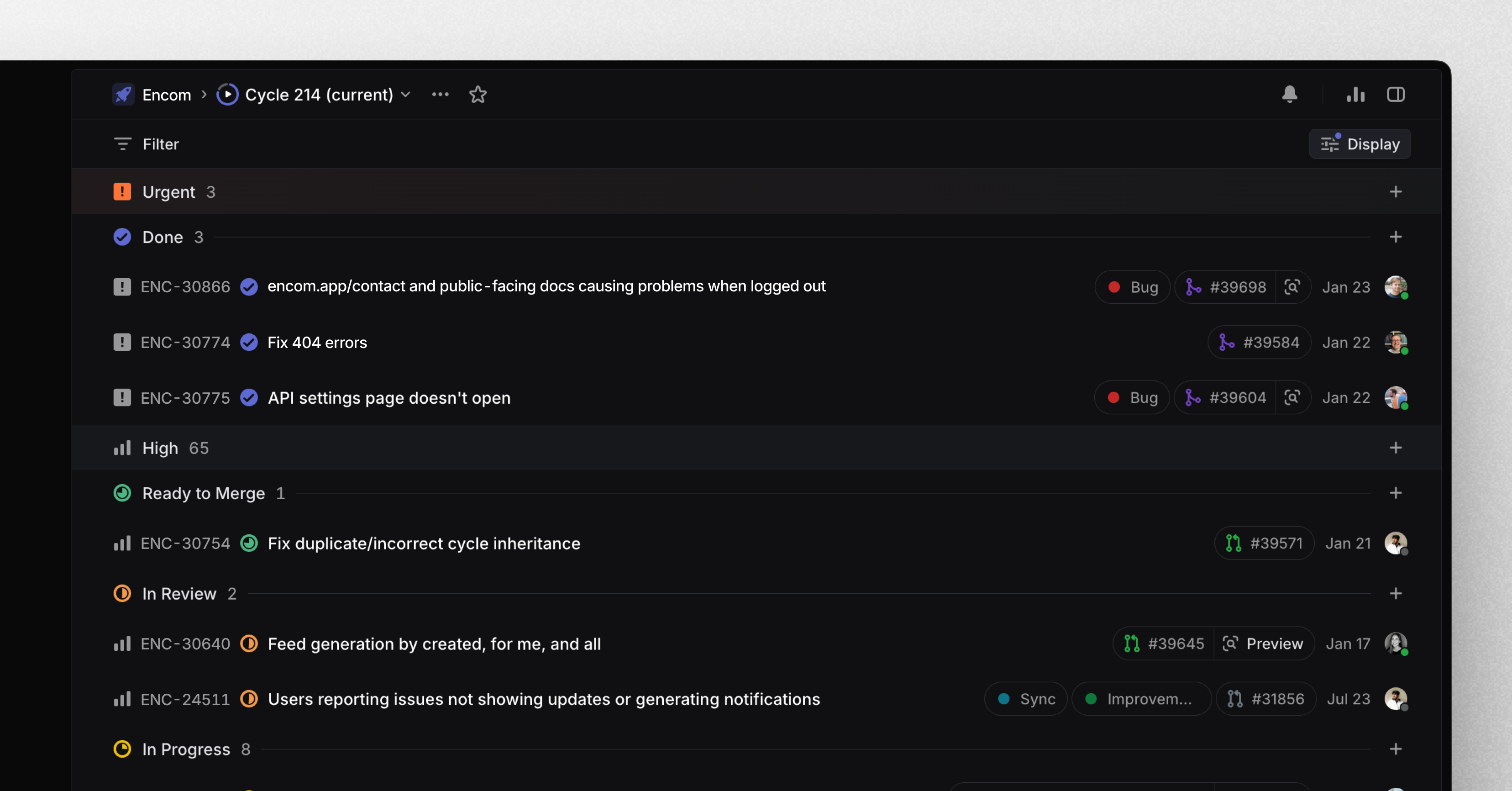
Table improvements
Tables in Linear got several upgrades. Here are some new functionalities we added:
- Add lists within table cells by pasting, converting text to a list, or using Markdown
- Rearrange table columns and rows with drag and drop
- Select table cells with
ShiftArrow
Personalized sidebar and new settings pages
Personalized sidebar
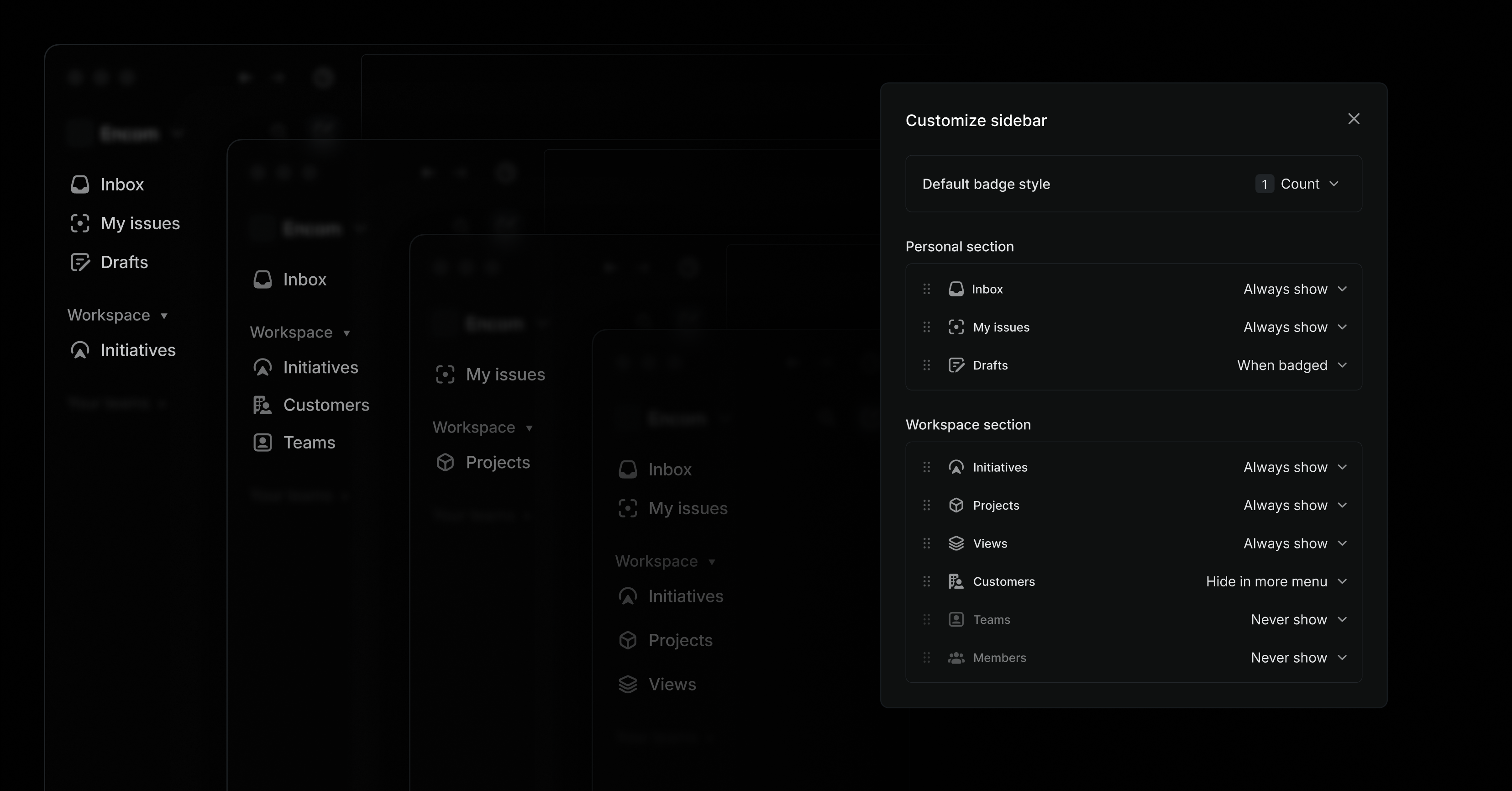
Linear's application sidebar now supports customization to better fit your personal workflows. You can reorder items, hide items you don't use often, and decide how unread notifications should be shown: with a count or dot.
The Workspace section includes new links to Teams and Customers (if you've enabled Customer requests). You can also hide items you don't need frequently behind a More menu.
To customize your sidebar, right-click on a specific item to update it or select Customize sidebar to show all options. You can also drag & drop to reorder items.
New Linear settings
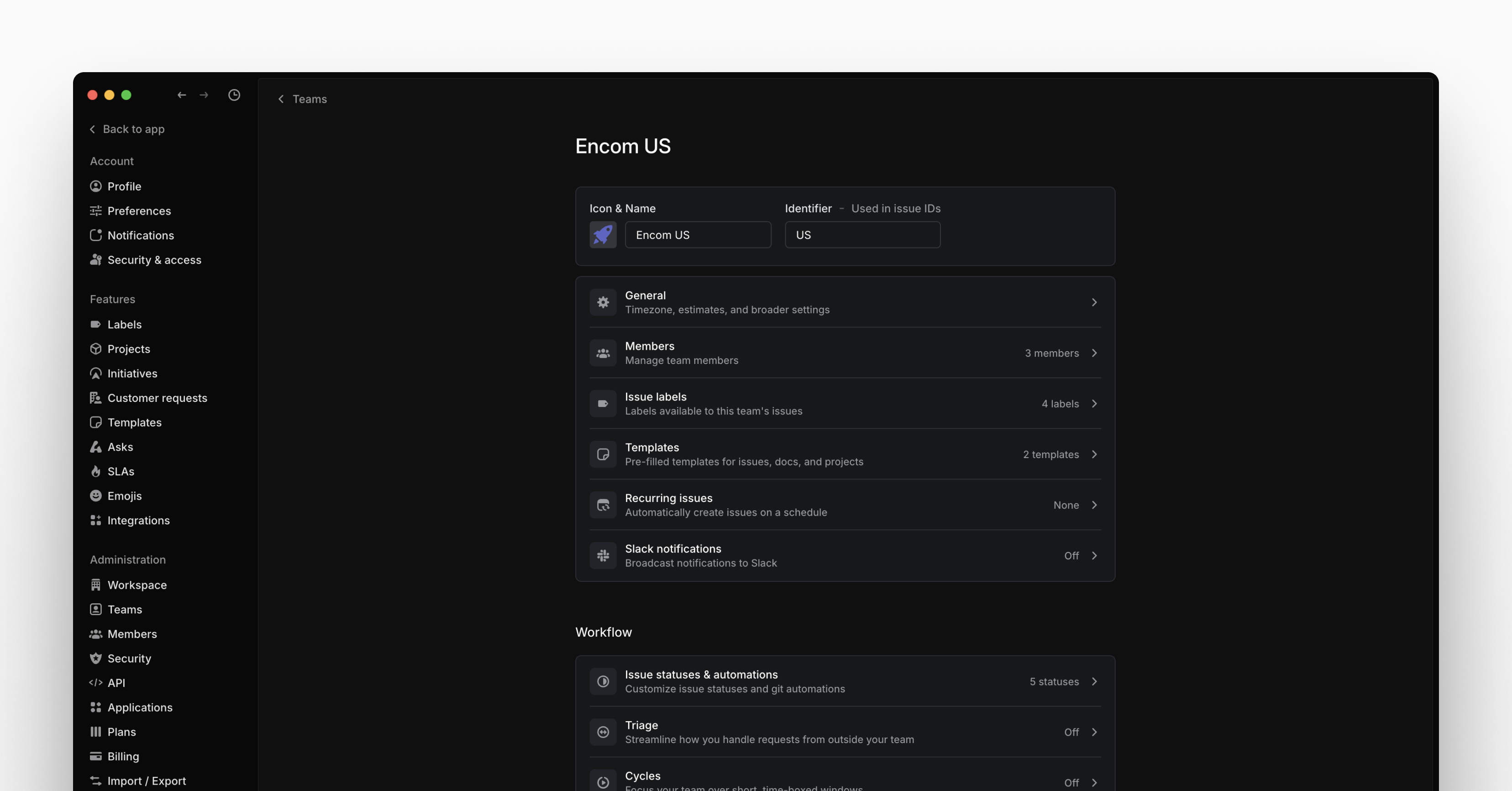
We redesigned Linear's settings pages from the ground up so they are easier to navigate and manage.
The new design includes separate sections for:
- Account — Personal settings, notifications, and preferences
- Features — Configuration for workspace-level features such as Initiatives, Customer requests, and SLAs
- Administration — Workspace settings and configuration (admins only)
- Your teams — A list of teams you're a member of and their settings
Team settings pages
We've consolidated all of a team's settings into a single view to make them easier to control and update. When you go to your team's settings page, you'll now see a summary of what features have been enabled and basic details about the configuration, such as the number of templates, team members, and your cycles schedule. Select the specific setting to view and update the full configuration.
Improved admin tools
To make managing your workspace easier, user and team lists have been converted into data-rich table layouts. This lets you filter and sort any column to find what you are looking for. We've also added more information to these views so you get a better sense of activity.
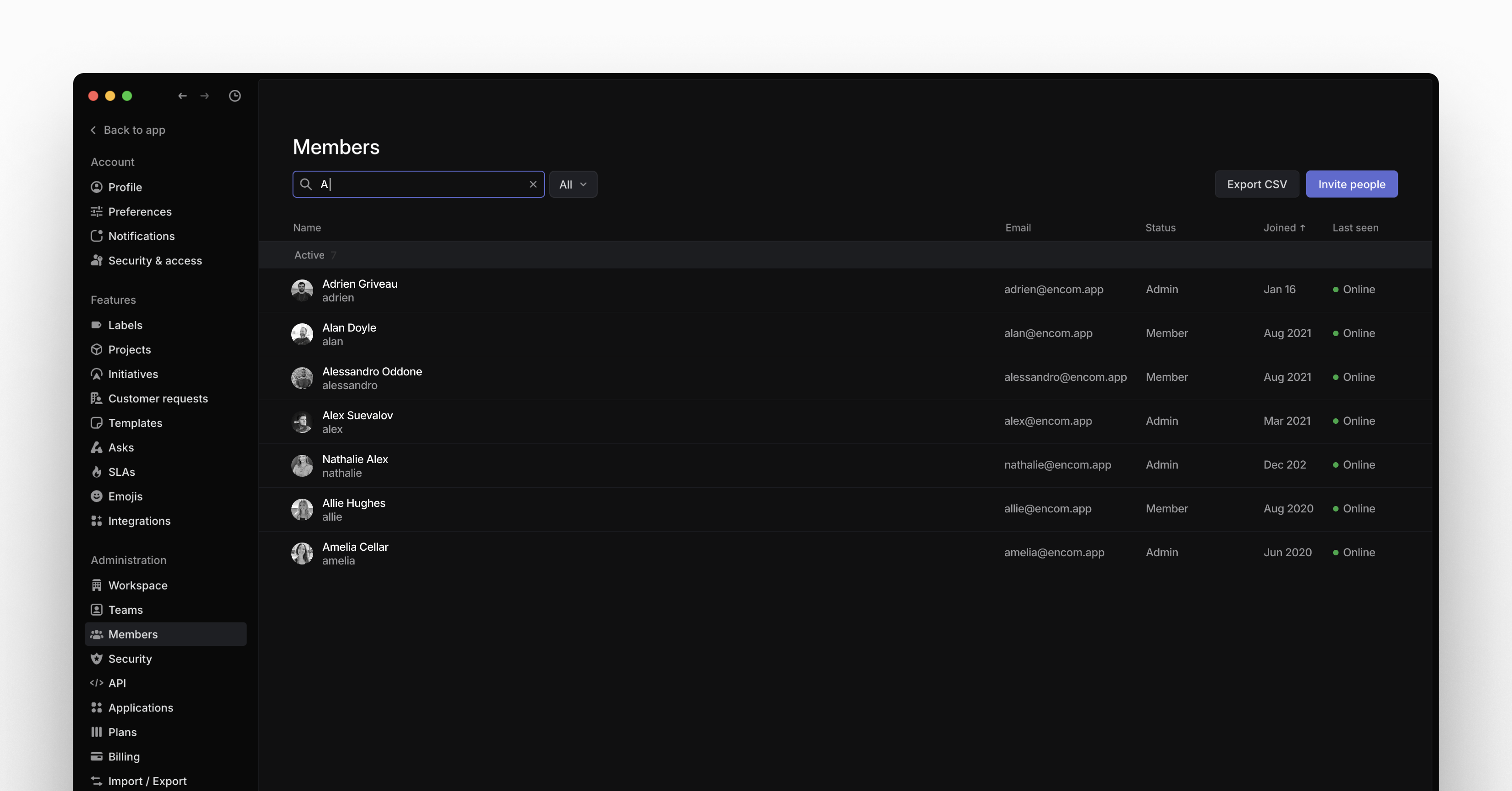
To improve access visibility, we've added an admin-only API section where you can view and control all OAuth applications and webhooks connected to your workspace.
Simplified notifications
We've also refined how Inbox notifications work. The Notifications page is now organized by channel: desktop, mobile, email, and Slack. For each notification channel, you'll be able to customize which types of messages you want to receive from a streamlined list of options. We also added these controls to mobile push notifications, so you'll have the ability to control your notification schedule from the desktop application.
See when issues were added to cycles
Get better at planning cycles by understanding whether issues were planned, added when a cycle was already underway, or added afterward during cooldown. Apply the Added to cycle filter to get a sense of scope creep or use Insights to see trends from past cycles.
Customer Requests
Customer Requests
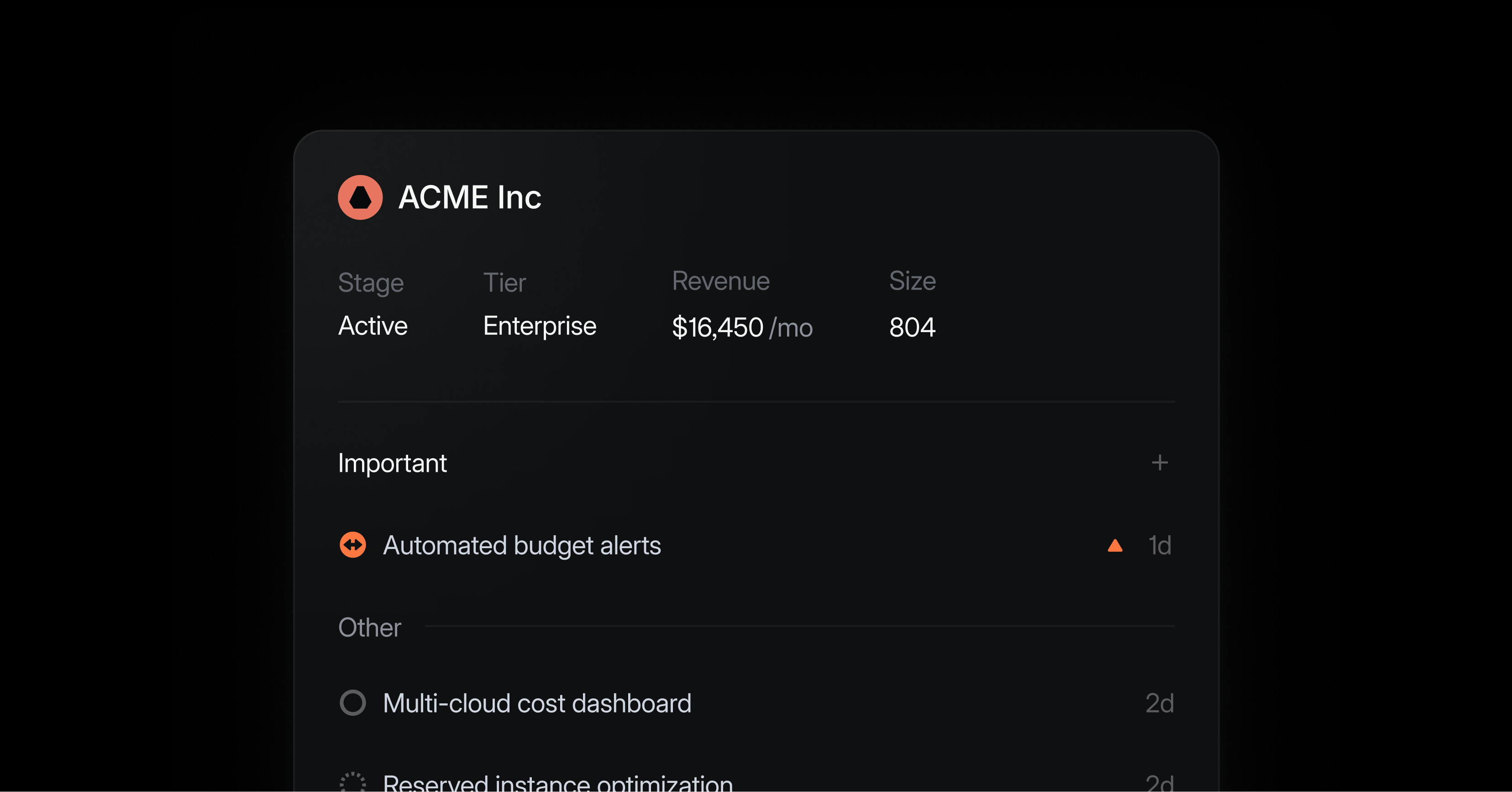
Customer feedback is often scattered across support tickets, Slack messages, and calls – outside the product team's workflow and sometimes entirely out of reach. This creates a disconnect between what gets built and what customers actually want.
We’ve built Customer Requests in Linear to close this gap and integrate the voice of the customer directly into the product development process.
Add customer requests to issues from the tools you already use, including Intercom, Zendesk, Front, Slack, and Linear Asks. Requests are visible and actionable for the engineers and designers working on these issues, and can be used by product managers to prioritize issues by customer attributes.
With Customer Requests, you can:
- Track feature demand across your customer base
- Filter requests by customer revenue, size, and tier
- See the features that specific customers have requested and what you've delivered for them
- Give your team full context about who needs each feature and why
Enable Customer Requests today to bring customer focus to all of your teams. Learn more ->
Recurring Issues
Recurring Issues
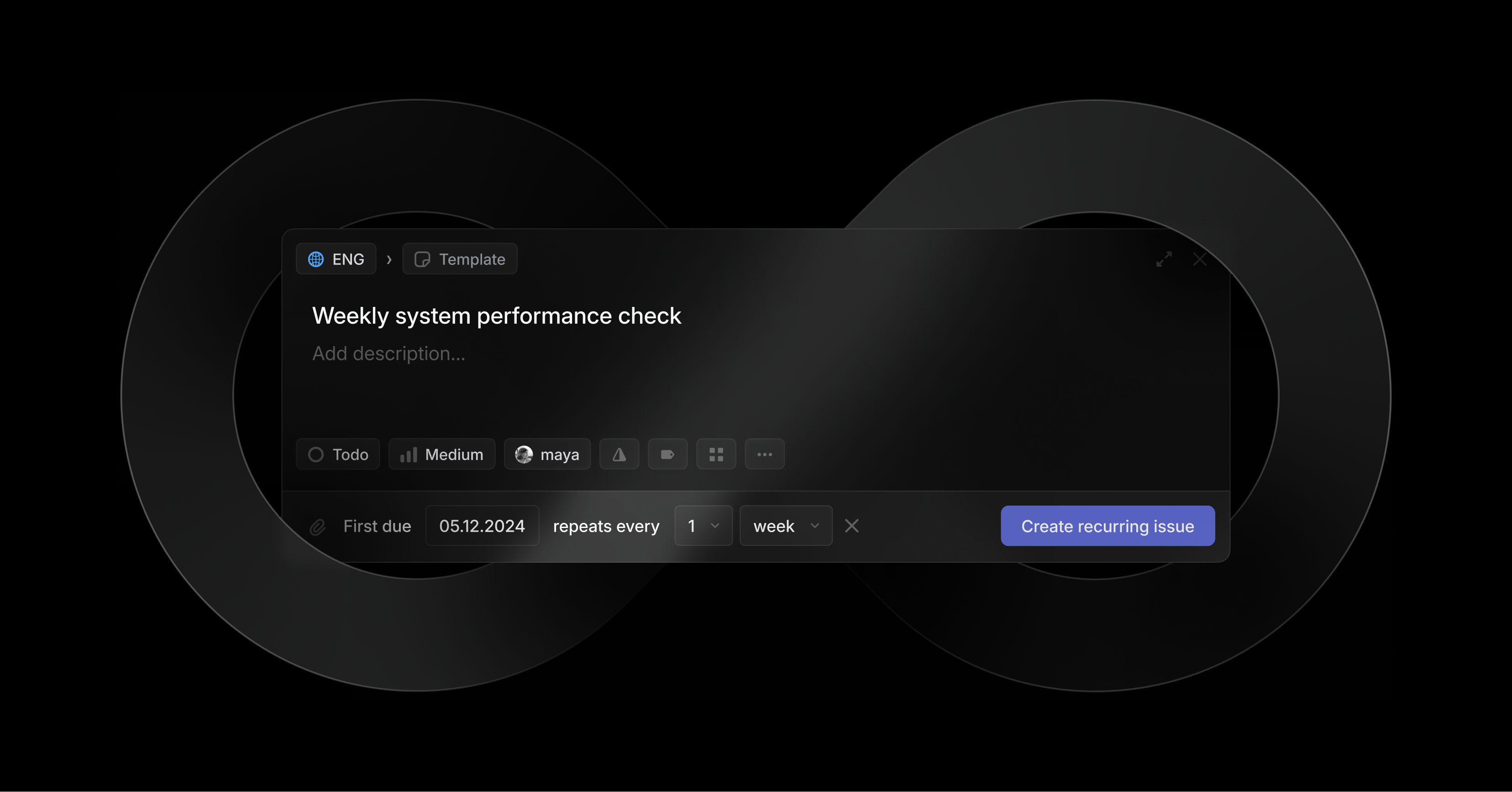
Create recurring issues for repeating tasks. Recurring issues can be set to a daily, monthly, weekly, or yearly schedule. Each new instance of the issue is automatically created when the previous one reaches its due date.
View and manage all of your recurring issues from team settings and learn more in the docs.