Recurring Issues
Recurring Issues
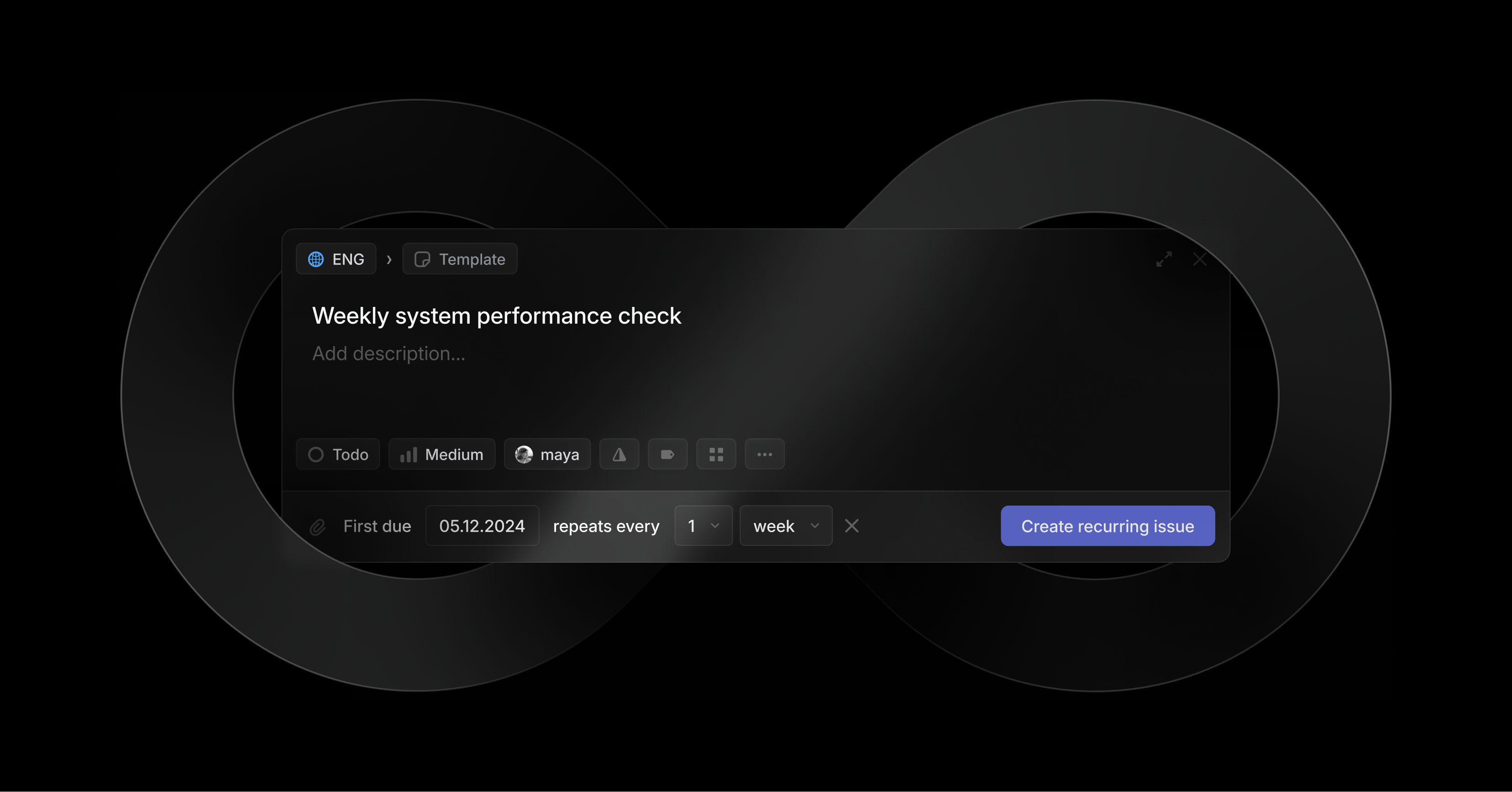
Create recurring issues for repeating tasks. Recurring issues can be set to a daily, monthly, weekly, or yearly schedule. Each new instance of the issue is automatically created when the previous one reaches its due date.
View and manage all of your recurring issues from team settings and learn more in the docs.
Improvements for SLAs, templates, and Jira & GitHub Issues Sync
Improvements for SLAs, templates, and Jira & GitHub Issues Sync
This week we improved a few features that weren't quite living up to their potential. They each had small limitations that were annoying and prevented some teams from using them well, or at all.
Business Day SLAs
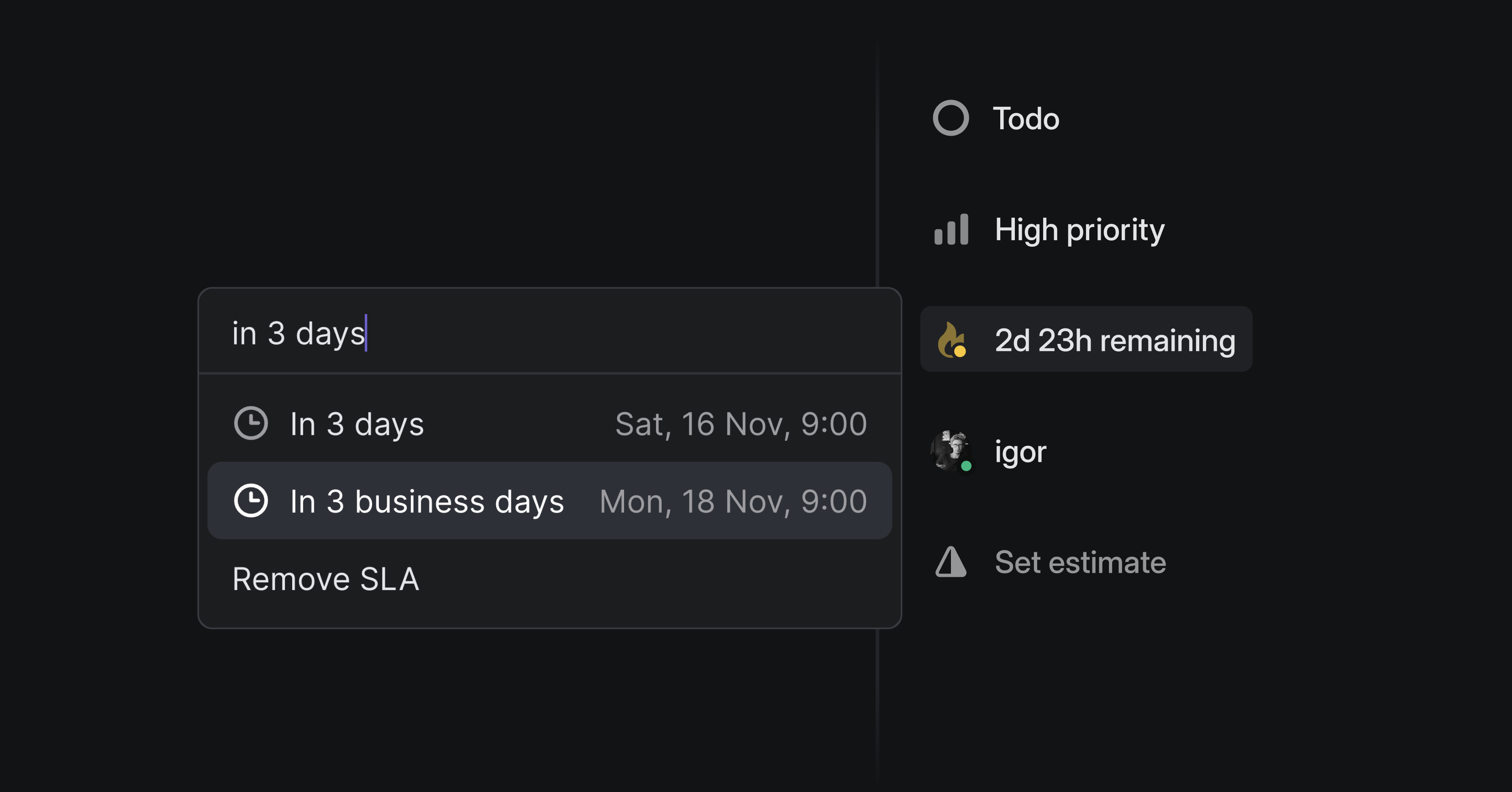
SLAs are a great way to ensure consistency in responding to issues and bug reports. Now you don't have to worry about SLA deadlines landing on a weekend or coming in on Monday morning with a bunch of broken SLAs. Confidently set SLA parameters and trust that they will behave the way that your team needs. Configure your SLAs to follow business days from settings or update individual issues by selecting the SLA and typing "n business days" in the custom option.
Nested sub-issues in Templates
Templates can help you standardize processes and automate issue creation. You can now add multiple layers of nesting in issue templates to create issues at the level and granularity you need. Spec out project templates in full detail by adding sub-issues to project tasks.
Improved notifications for Jira & GitHub Issues Sync
We now indicate when issues sync (or fail to sync) with Jira or Github Issues. You can bidirectionally sync Linear issues with Jira and GitHub Issues, for instance to manage open source projects from Linear. Previously it was hard to tell if a Linear issue you were looking at successfully synced or if there had been errors. This information is now clearly visible in banners on Linear issues.
New team issues page
New team issues page
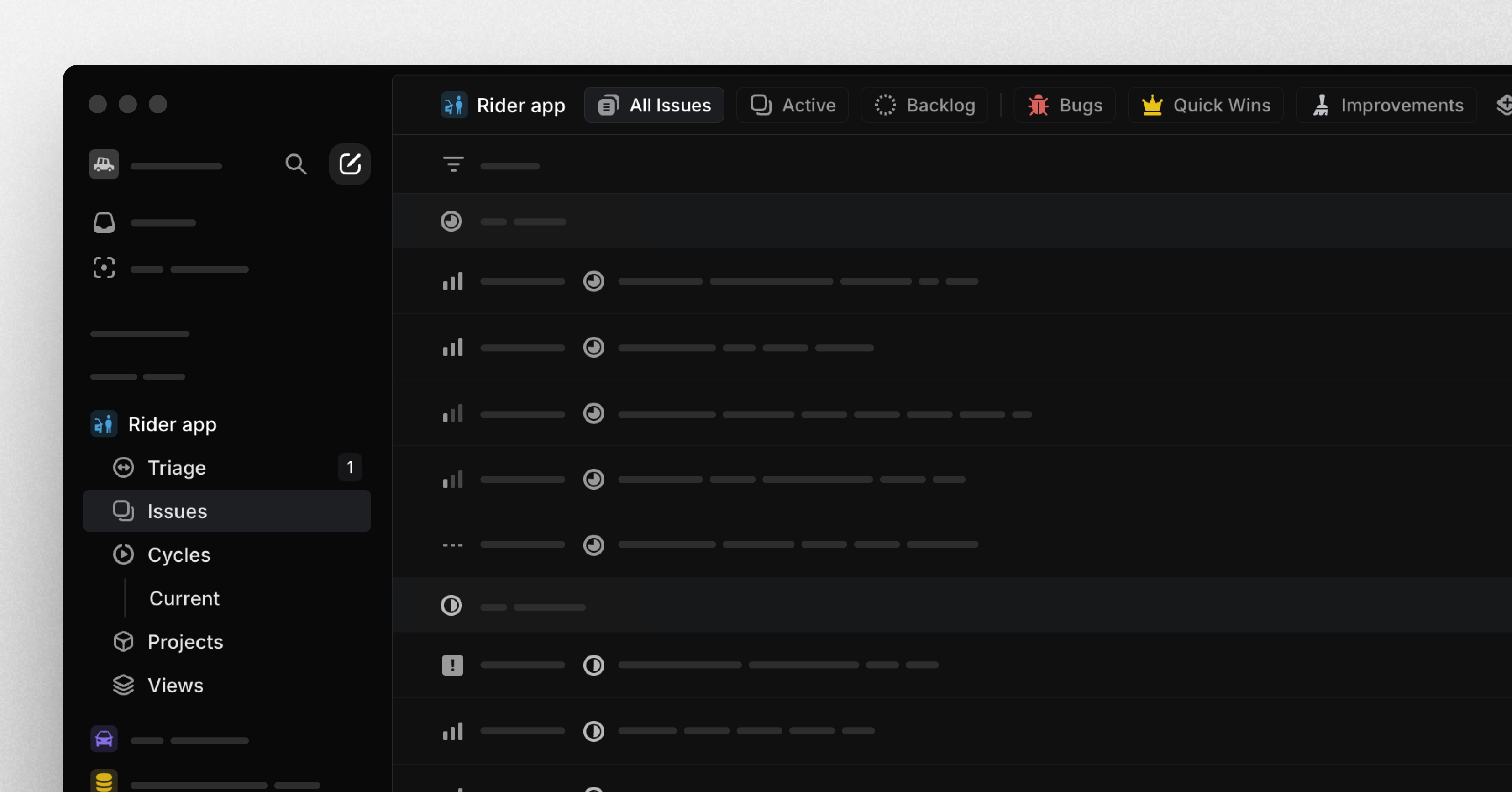
Team pages have been restructured to help you focus on your most important issues.
The main views — All Issues, Active, and Backlog — now appear as tabs at the top of your team issues page. You can also create and add custom views as tabs to support your team's specific workflows and build shared context.
For example, you can create custom views for high-priority bugs, quick wins, or quality improvements. Navigate between views quickly using keyboard shortcuts: press [1] for All Issues, [2] for Active, [3] for Backlog, and [4-9] for your custom views.
New Zapier integration: Instant triggers and new actions
We've rebuilt the Zapier integration for improved speed and reliability. Upgrade now to access instant triggers, which update immediately after actions are taken in Linear (previously, updates could take 1-5 minutes).
We've also added a trigger for project creation, support for templates during issue creation, and several brand new actions: create a project, add an attachment, and update existing issue.
With these updates, you can create automated workflows such as:
- A form that anyone can fill out to propose and create new projects
- Create a corresponding Google Doc for every new project
- Link an issue to every file posted into a Slack channel
To upgrade, go to Zapier and update each Zap to use the the latest Linear integration (v4.4 or above). Earlier versions of the integration will be deprecated on April 24, 2025 (in 6 months), so create an issue to upgrade before that date.
Document subscriptions
Document subscriptions
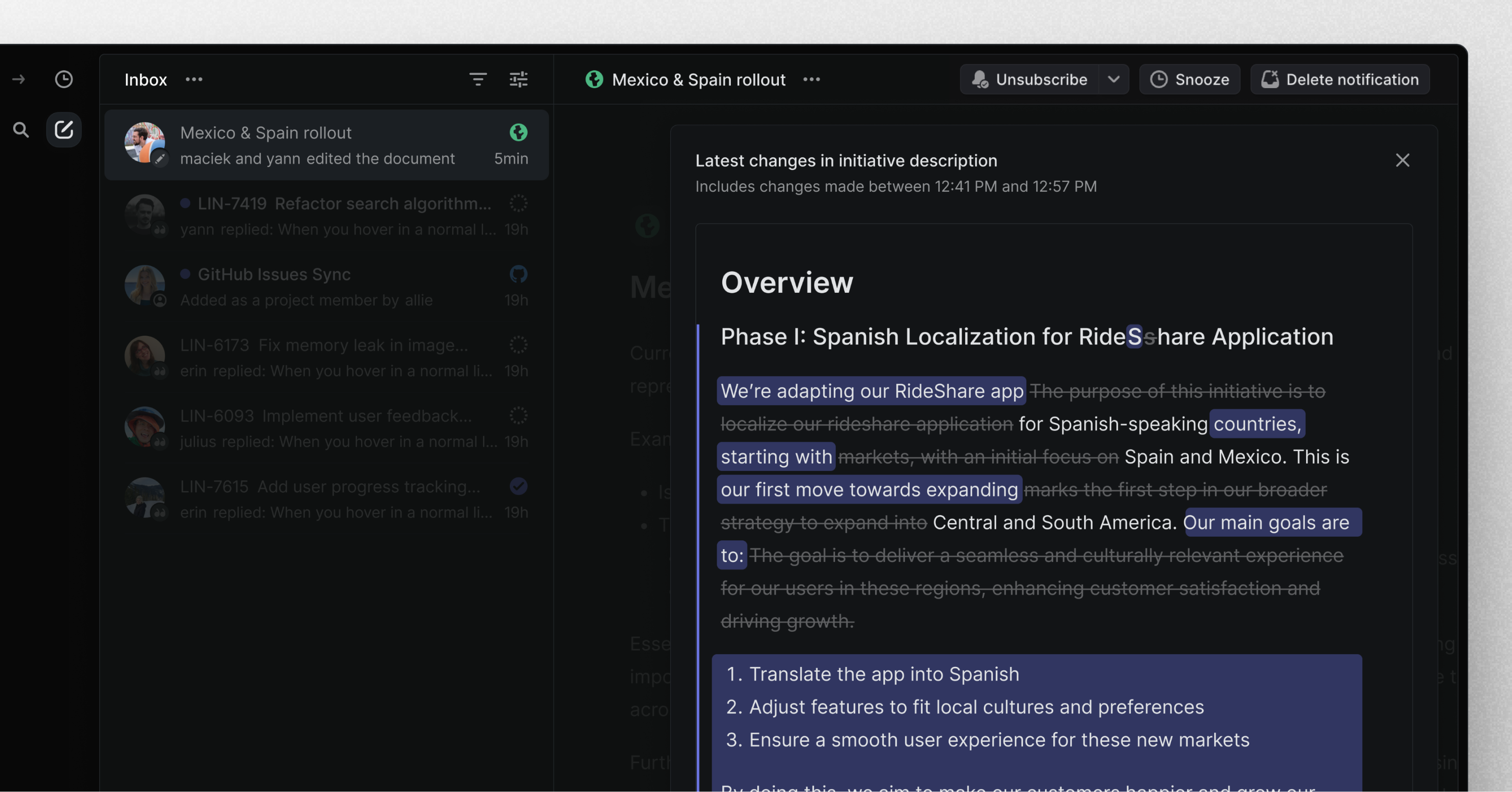
Never miss an important change with document subscriptions. Get notified about revisions to documents, project descriptions, and initiative descriptions including:
- New comments and replies
- Content changes
- Document moves or deletions
You'll be auto-subscribed to:
- Documents you create
- Project descriptions when you're a lead or member
- Initiative descriptions when you're the owner
For project documents, you can also subscribe team members. Manage subscriptions using the bell icon at the top of any document, project description, or initiative description.
Pull request preview links
Preview links associated with your pull requests are now accessible directly from Linear issues.
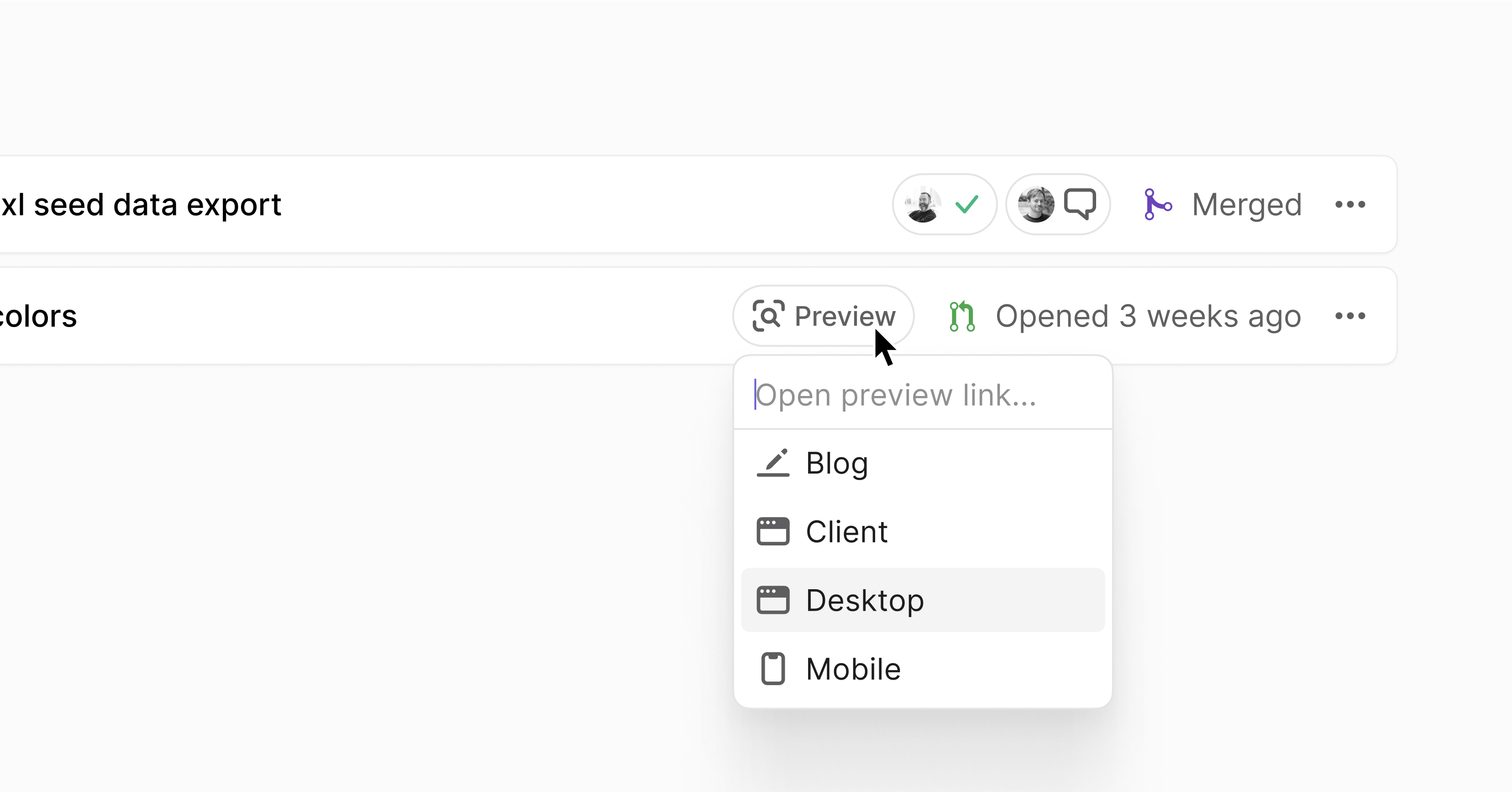
Preview links are automatically detected for popular platforms like Vercel and Netlify if you have connected Linear with your GitHub repository. We also support custom preview links: pull request descriptions and comments are parsed for any markdown links ending with "preview". Multiple previews for a single PR are available in a dropdown menu, with icons and customizable names for easy identification (e.g. mobile and desktop previews). Learn more in our documentation.
Introducing Linear Mobile
Introducing Linear Mobile

Linear Mobile has arrived.
Bring the speed and power of Linear to your pocket with our fast, compact, and fully native iOS and Android applications.
Use the app to stay informed about important updates, file issues on the go, and unblock your team whenever necessary. Linear Mobile is purpose-designed for “away from keyboard” workflows, so you can move product work forward, no matter where you are.
Read more and download it today for iOS and Android.
Auto-close parent and sub-issues

Auto-close parent and sub-issues
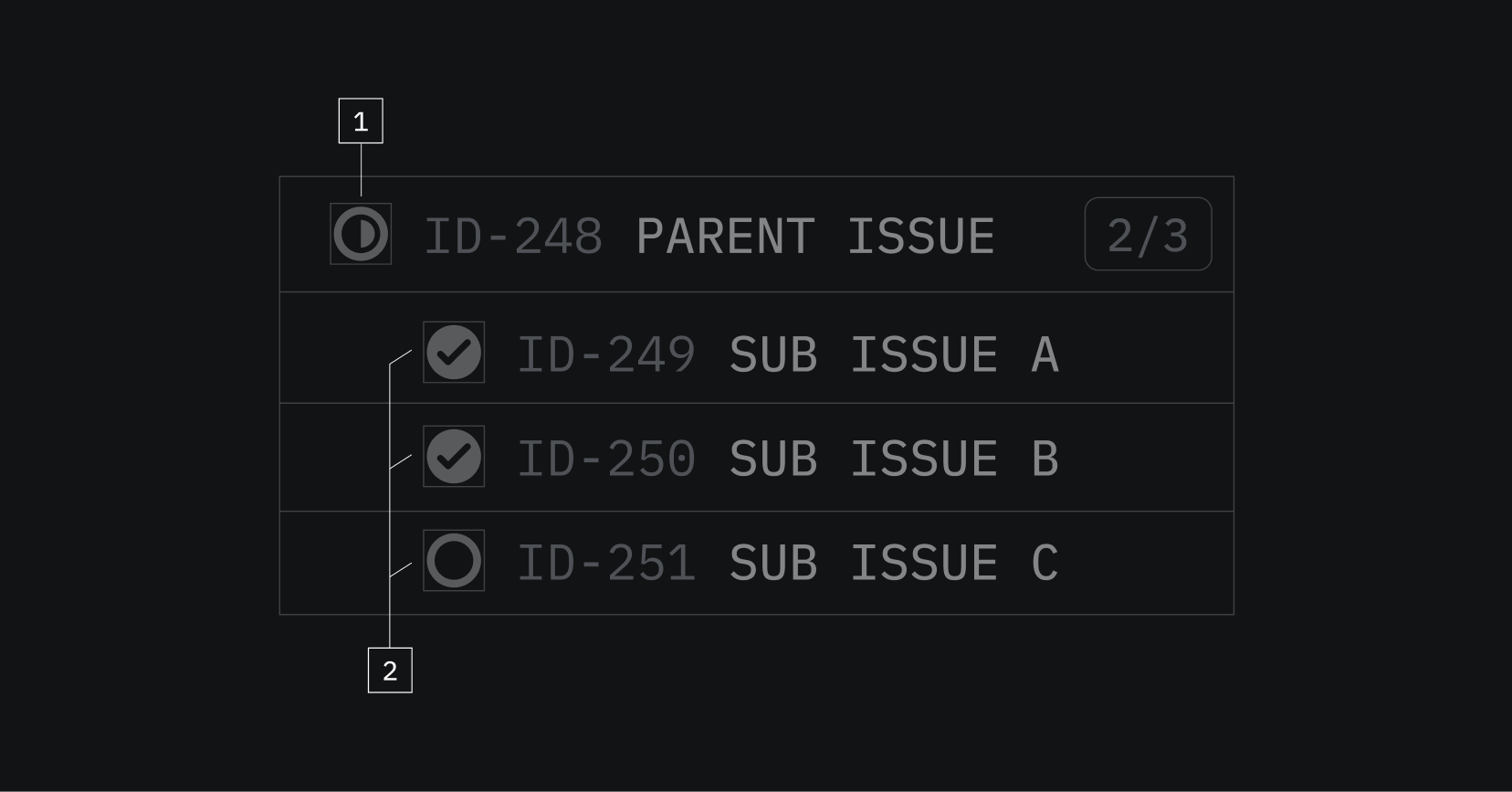
Streamline your issue workflow with auto-close for parent and sub-issues. This new automation can be enabled in two ways:
Parent auto-close
When all sub-issues [2] are marked as done, the parent issue [1] will also be marked as complete automatically.
Sub-issue auto-close
When the parent issue [1] is marked as done, all remaining sub-issues [2] will also be marked as complete.
These automations will work in tandem with your existing git workflow automations and can be enabled under Settings > Team > Workflow.
Reverse sort ordering
You can now reverse the sort order of issues or projects in Linear. Open the Display options on any view to change the ordering direction. Reverse sort order is available for all views except those ordered manually or by status.

Slack channel notifications for custom views
Slack channel notifications for custom views
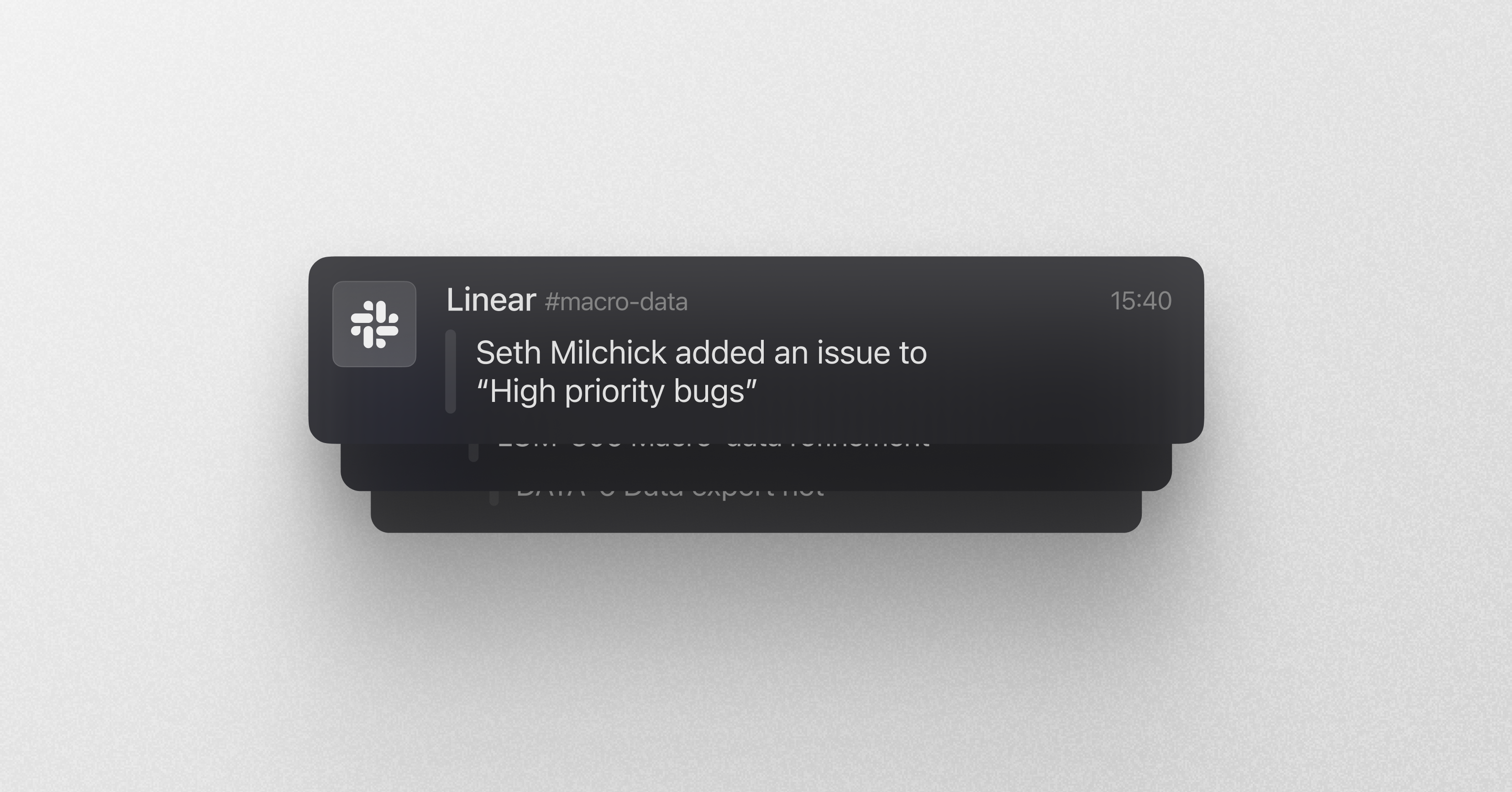
You can now receive Slack notifications for any custom issue view in Linear. Use custom views to select any subset of your issues that you're interested in, and then set up Slack notifications to keep your team up to date when issues are added to the view, marked closed, or canceled.
Examples include:
- High priority bugs
- Issues blocking other work
- Issues moved from one team to another
Learn more in the docs and configure notifications from the bell icon in the top right of any custom view.
HIPAA compliance
In addition to SOC2, Linear is now compliant with HIPAA. Request a BAA (Enterprise plans only).
New and noteworthy
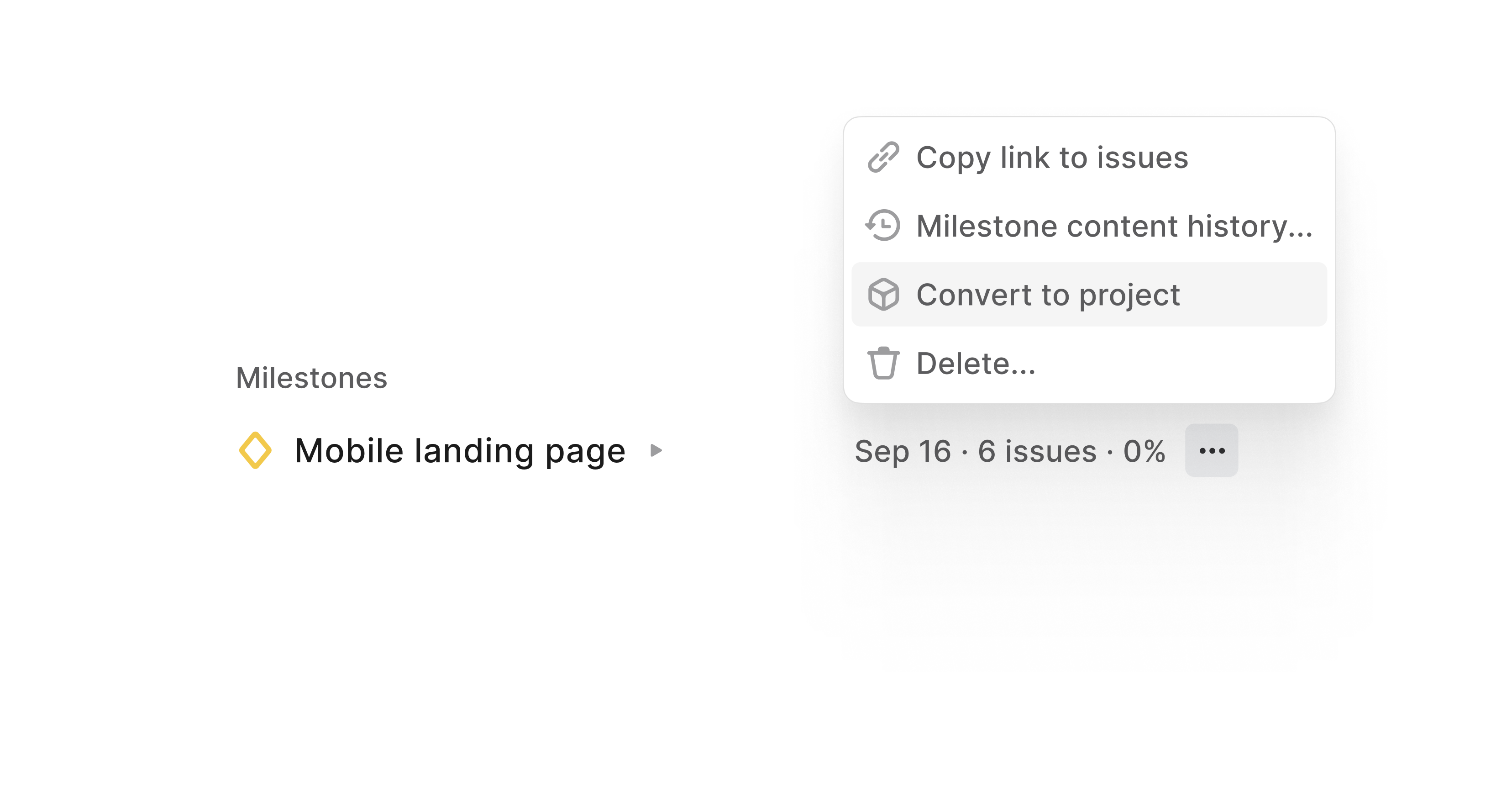
Convert milestones to projects
You can now convert milestones into projects. This will bring over the milestone description and inherit the properties of the parent project, including initiatives and project priority.
Auto-detection for links
We've simplified the process of linking to external resources. Just attach a URL and we will auto-detect if it matches an existing integration like Slack or Github.

Arm build for Windows
We now offer an Arm build of Linear for Windows. Make sure you’re running the correct architecture for the best performance – the new build is available on our download page.
Project dependencies
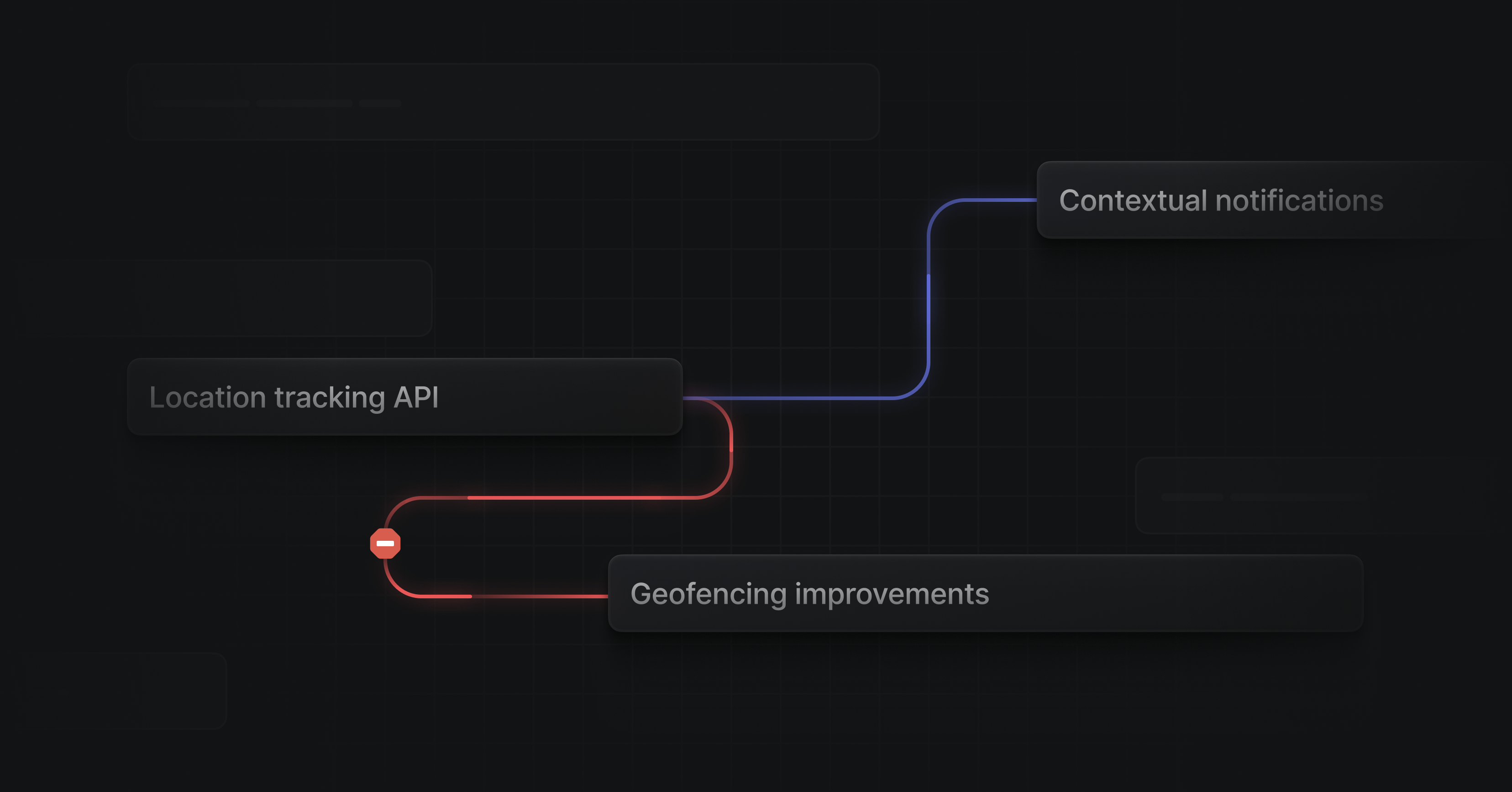
Project dependencies
You can now create and visualize dependencies between projects. Easily identify blockers and critical paths when planning out your work.
Add project dependencies directly from the timeline or from the project overview page. If a blocking project ends after its dependencies are set to start, the connecting line will turn red and receive an indicator badge.
When you move a project around on the timeline, its dependencies will automatically adjust to compensate.
- Projects that have already started will remain in place
- Hold Shift to shift the full dependency chain of projects
- Hold Cmd/Ctrl to ignore constraints and just move a single project
Persisted drafts
Drafts have a new home in Linear. You will now find any issues, comments, and project updates that you've started writing but haven't yet published in a dedicated drafts page, accessible from the sidebar (only when you have existing drafts). Drafts are saved across all clients, so you can start an issue or a comment on one device and finish it on another.
Search improvements
We redesigned search to make it much faster and easier to find results.
- By default, results will include all matching issues, projects, and documents which you can view at once or by content type
- Results now show up in a split view, so that you can jump through them without losing context
Priority for projects
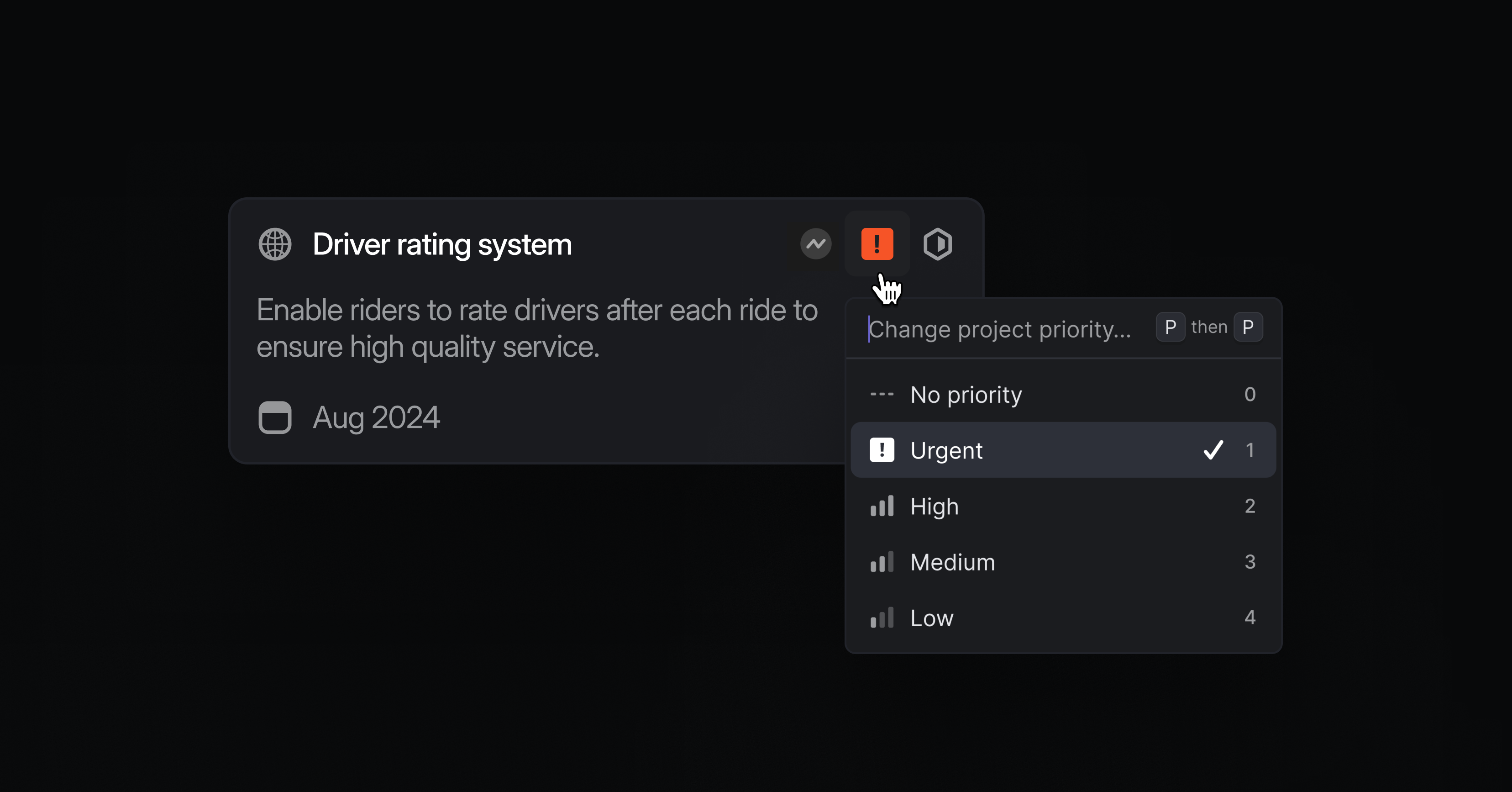
Priority for projects
We've improved how prioritization works in Linear. You can now give projects a priority level, ensuring the most important projects are always in focus. Project priorities use the same scale as issues (Urgent, High, Medium, Low, or No priority).
Micro-adjust priority
Sometimes you want to indicate that a specific piece of work is more important than another one, even if they share the same priority level. You can now do this by micro-adjusting the priority within a list of issues or projects.
On any view ordered by priority, simply drag & drop an issue or project above other ones to indicate it is more important. The exact position will be saved globally across your workspace, so that anyone else looking at a view ordered by priority will see these issues or projects in the same relative positions.
If the moved item is dragged above an issue or project with a different priority level, it will adopt the priority level of the item right below it. By default, items without an assigned priority level are now always sorted last. Learn more by visiting the docs or watch Sagan from our product team walk you through how to micro-adjust priority.
GitHub Enterprise Server
We've expanded Linear's pull request support to self-hosted GitHub Enterprise Server. You can now install the new integration to link Linear issues with a GitHub instance that's hosted in a custom URL. The integration doesn't require new firewall rules and is designed to fulfill the security requirements of our most demanding customers who decide to host GitHub themselves.
GitHub Enterprise Server will support the majority of the functionality of our existing GitHub integration with the exception of issue syncing and commit linking. GitHub.com and Enterprise Cloud users should use our existing GitHub integration and the new one is only meant for Enterprise Server customers.
Introducing Initiatives

Introducing Initiatives
Today, we are launching a new feature called Initiatives. With Initiatives, you can align projects with larger, strategic product efforts and monitor their progress at scale. Initiatives provide a canonical entry point for your company's most important streams of work.
Initiatives are an evolution of what we set out to achieve with Roadmaps and will directly replace them. All of your roadmap data, views, and favorites will be replaced 1:1, so that none of your workflows will be affected.
One place for your most important product work
When you navigate to Initiatives, you'll find a list of all active initiatives in your workspace. Use initiatives to plan and manage strategic streams of work that span multiple projects and longer timelines, such as major launches, product goals, or company-wide objectives.
From the Active view, you'll access key details for each initiative, including status, target date, associated teams, and owners. Additionally, you'll see a health column with indicators that summarize project health, highlighting any efforts that may need attention.
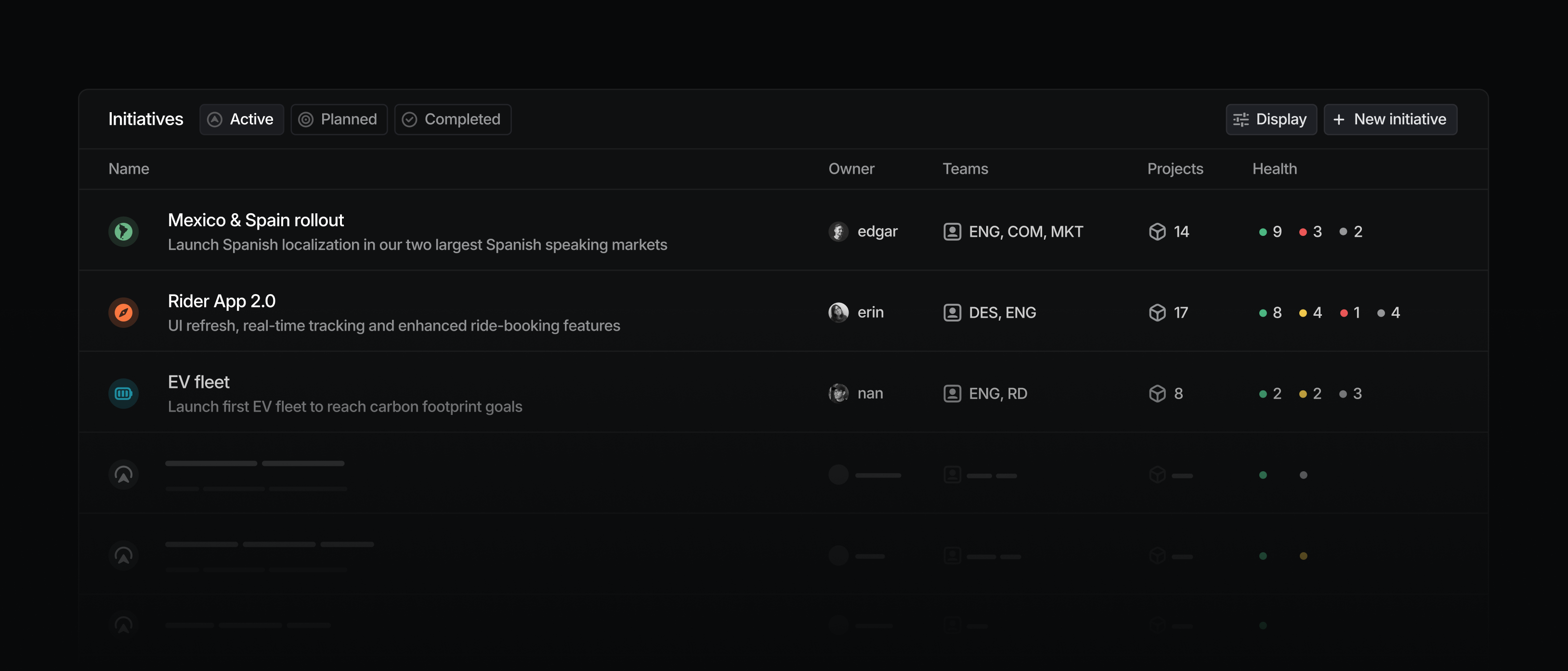
Health indicators show the status of projects: on track (green), at risk (yellow), and off track (red). A gray indicator appears in the health column when a project within the Initiative lacks an update. Select a health indicator to view and discuss related project updates.
Plan strategically
During your planning process, utilize the Planned section to capture ideas and develop strategic plans. When you're ready to advance an initiative, update its status from Planned to Active.
Each initiative has a dedicated overview page where you can link to resources, create related documents, and provide a detailed summary including notes, research, and GTM ideas. At the bottom of the overview page, you can add and view projects associated with the initiative. Navigate to the Projects tab to display the projects in your initiative on a timeline, board, or list view. You can also create custom project views and pin them to the top of the Initiative page.
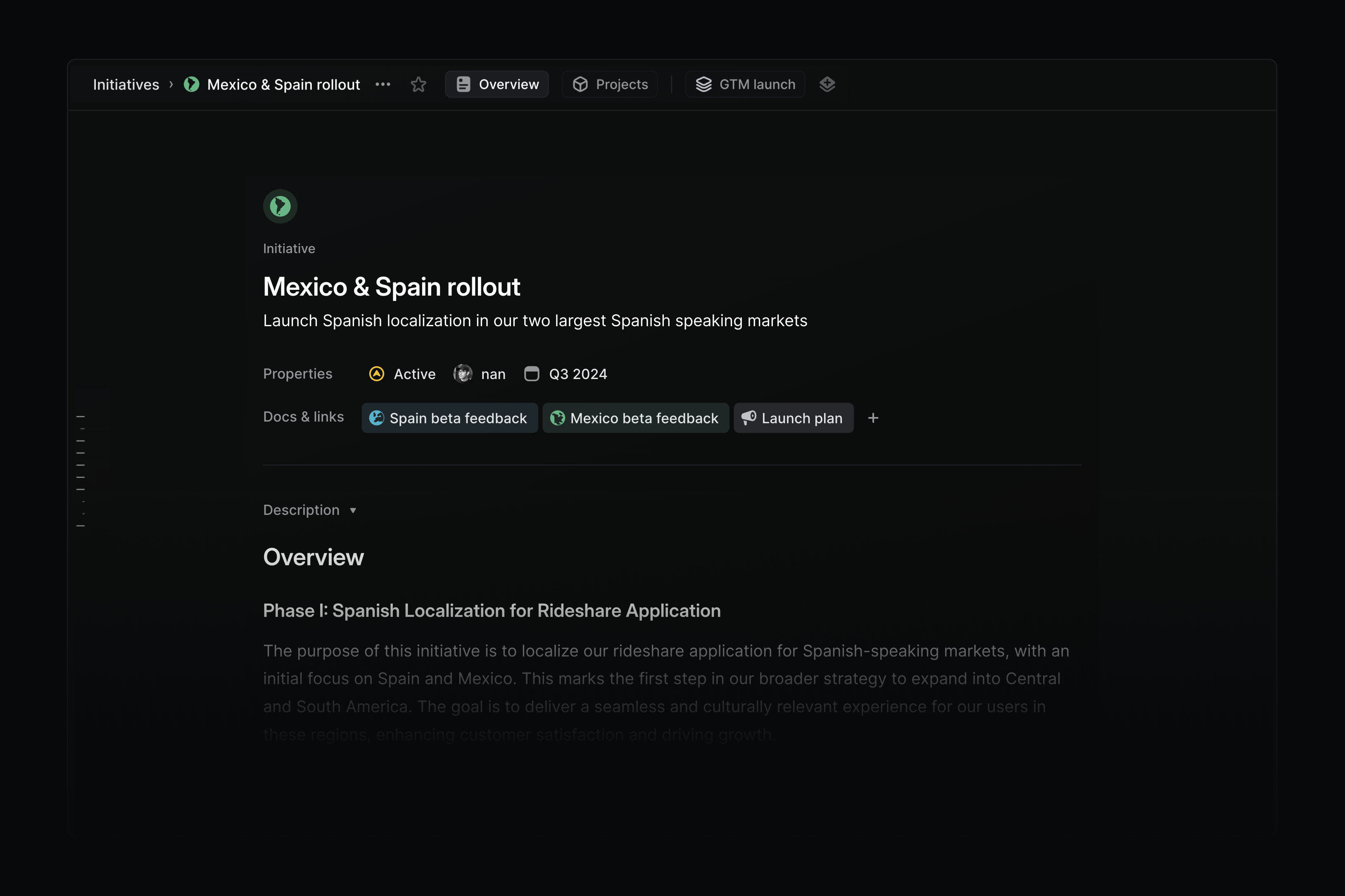
Plan and build in a single, purpose-built system
With the addition of Initiatives, you can now plan and track your entire product development process in a single system, where all details of your work remain current and consistent. Trace the impact of a single issue up to company-level initiatives and understand the realtime progress of your plans.
A new home for your projects
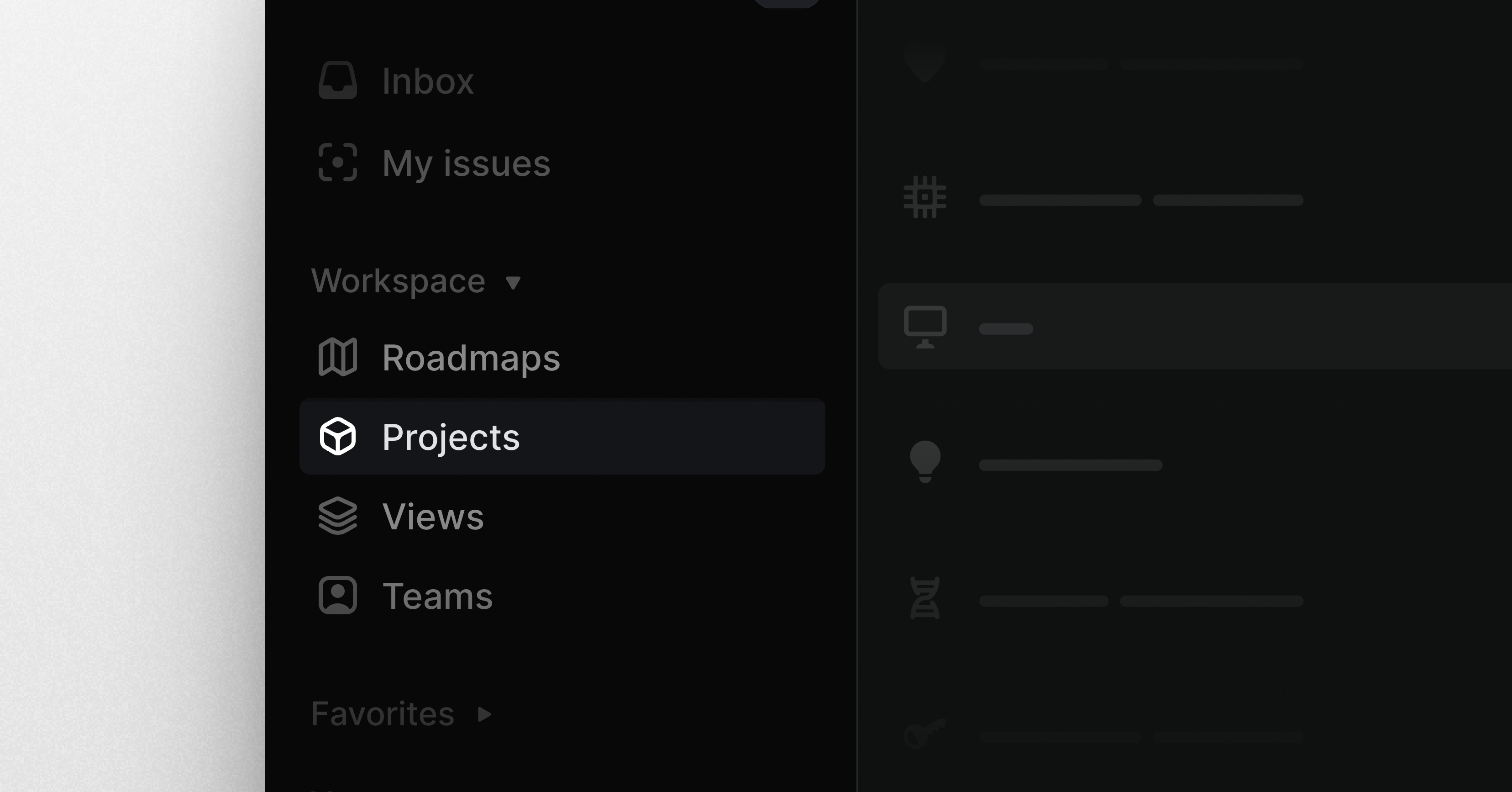
A new home for your projects
We added a new Projects page that acts as a single home and entry point for all of your projects. It is easy to access from the sidebar and by default shows you a view of all of the projects in your workspace.
If you have a specific slice or view of your projects that everyone should be looking at, you can create and save that view right from this page. It will be pinned to the top of the Projects page, making it easier to share important views with others and keep everyone aligned. You can now create and attach views to team Projects pages, too.
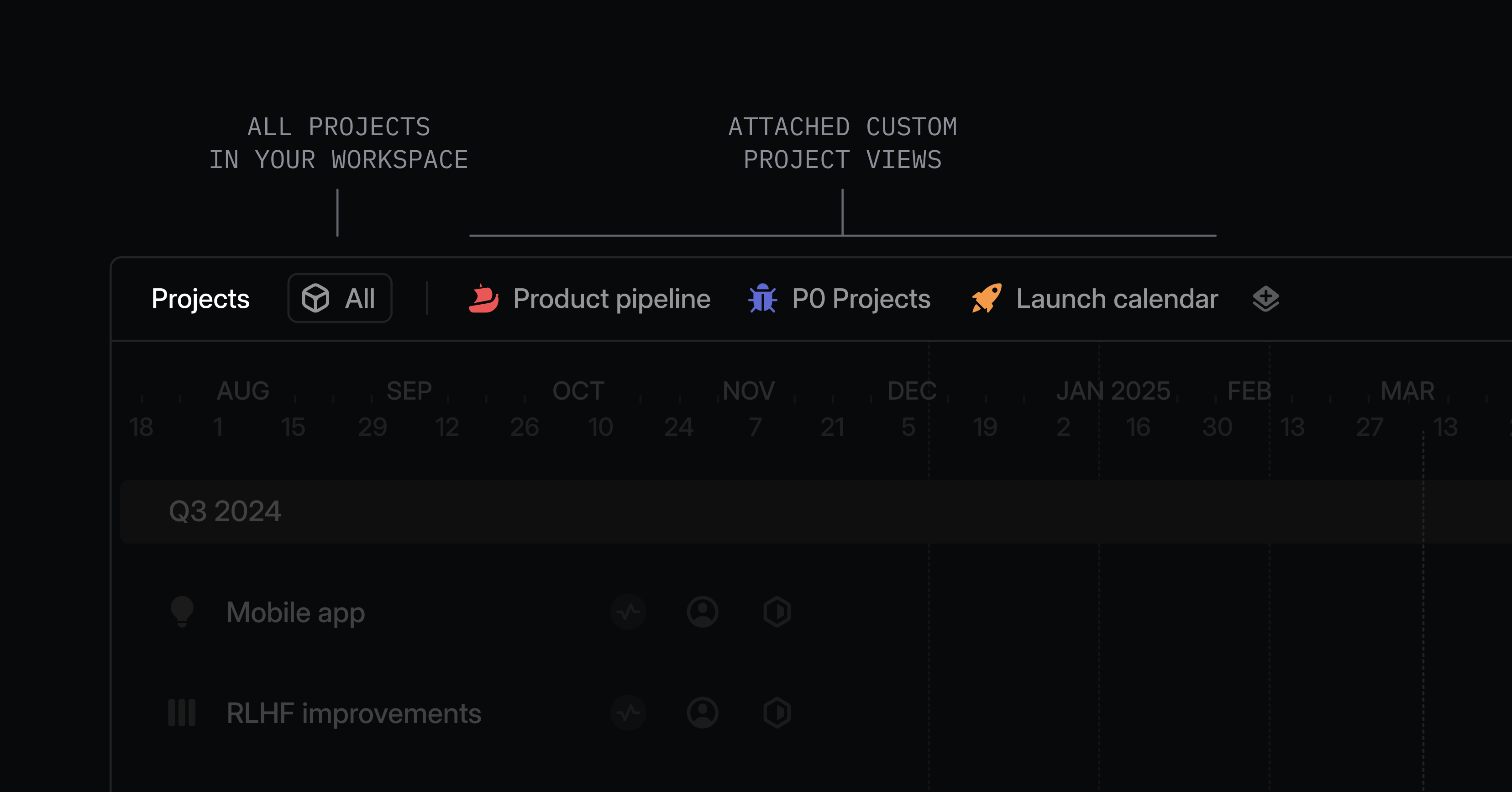
Here are some examples of views you may want to attach to Projects pages:
- Product pipeline: Show all projects by status on a board view
- In progress: List out active projects for a single team or across multiple teams
- Launch calendar: Highlight major marketing releases on a timeline
Asks for Enterprise
We've made improvements to Linear Asks to better support different customer use cases.
On the Enterprise plan, we support granular channel-specific controls. Enterprise users can now also connect multiple Slack workspaces to the same Linear workspace for both the Asks and Slack integrations. This lets you use Asks to manage requests in your internal Slack workspace while also using Asks to triage customer requests from a public or community Slack workspace.
On the Business plan, we added support for a streamlined offering that lets you enable Asks for all public channels. Anyone can create an Ask by selecting a template or reacting to a message with the ticket emoji 🎫.
⌘F for desktop app
You can now press Cmd/Ctrl F to search for text within issues, documents, and projects.