AI Credits
How AI credits work
Linear's coding sessions and Loops features are billed based on actual usage, not a fixed per-seat fee. Charges are deducted from a prepaid, workspace-level balance.
- Your balance is shown in US dollars
- The balance is pooled across the workspace and shared across AI features that use it
- You add funds to your balance before they are spent by topping up your credit balance
Using AI credits is opt-in. If your workspace never adds funds, you will not have access to these additional features, and you will never be charged for them.
How AI credits are used
| Feature | Available on | How it's billed |
|---|---|---|
| Coding sessions | Basic, Business, and Enterprise | Per session. Cost includes model tokens at provider-published rates, with no markup, and sandbox runtime at $0.25 per 20-minute block. |
| Loops | Business and Enterprise | Per loop run. Typical runs without a coding session cost $0.07–$0.20. Costs vary based on the work the loop performs; runs that start a coding session also incur the applicable coding-session costs. |
AI credits are currently used by:
- Coding sessions, when Linear Agent writes code and creates pull requests
- Agent loops, when a loop runs agent work in the background
Other Linear AI features are included in your plan and do not draw from your AI credits balance.
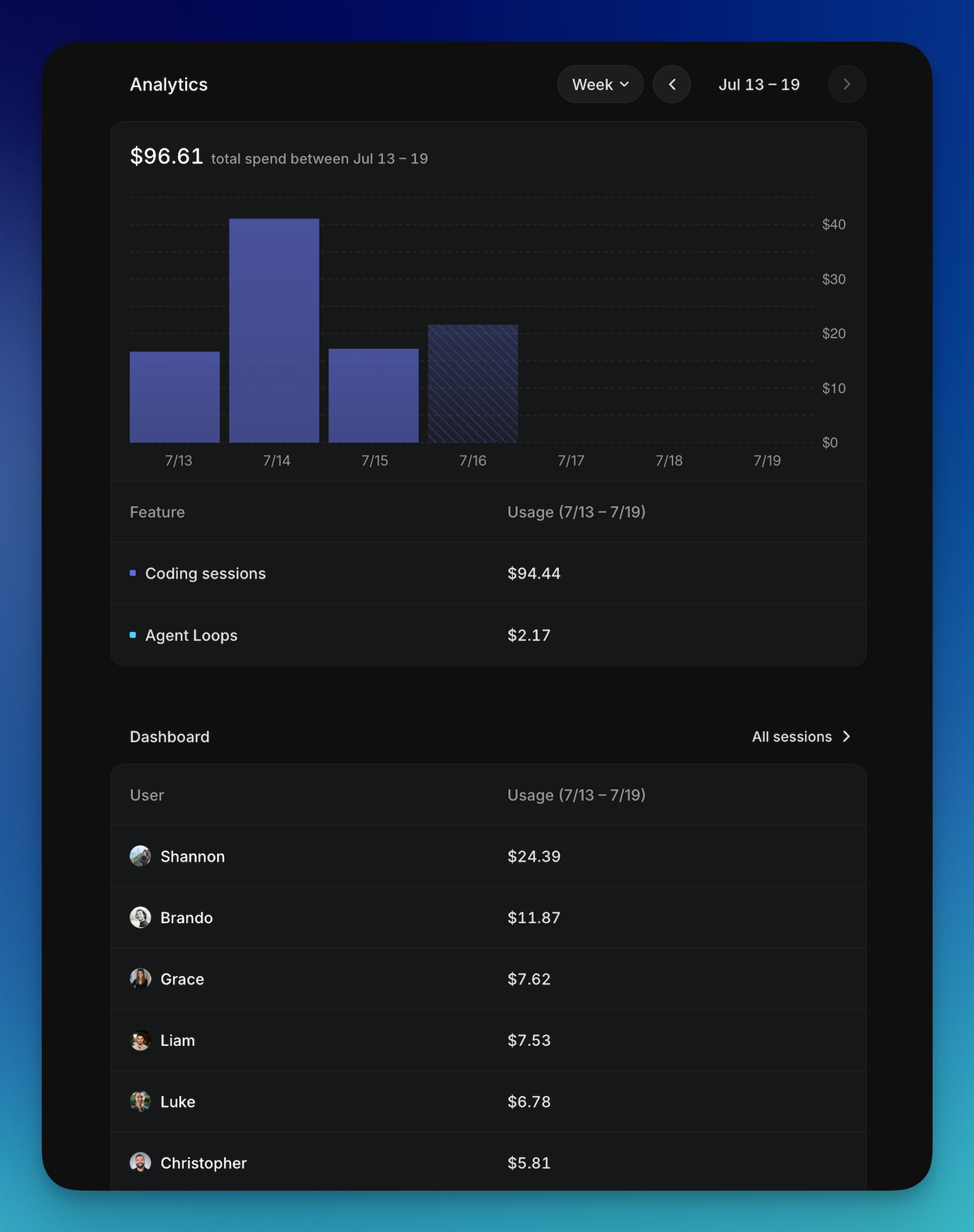
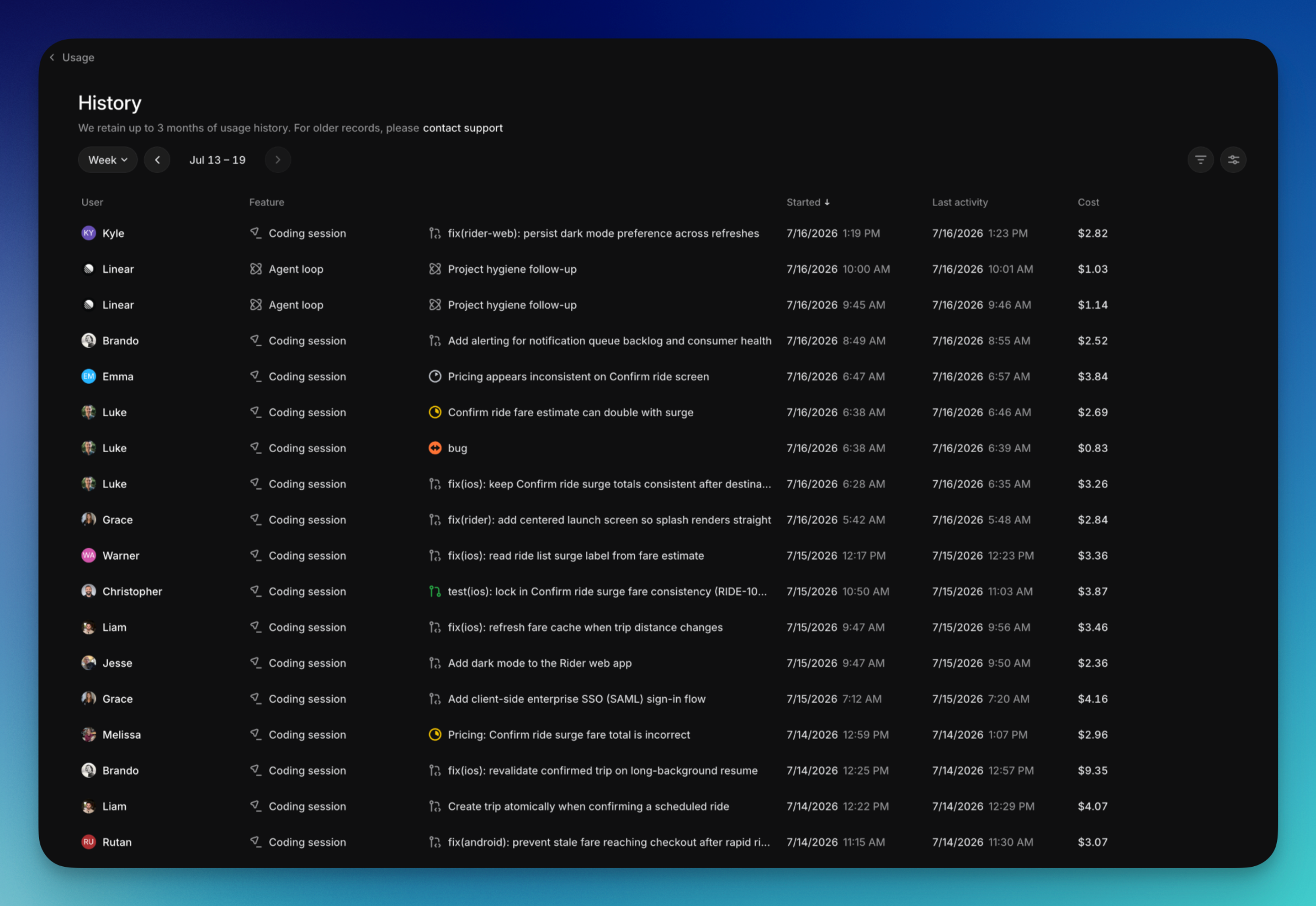
You can review AI credit usage in Settings → Usage & limits. For coding sessions, hover over a session's cost to see token cost by model, compute cost, and total cost.
Choosing a coding session model
By default, coding sessions use the latest zero-data-retention models. You have the option to select from a number of available models here, which affects the quality and cost of code changes - more on this in our coding sessions docs.
Adding credits to your balance
Adding credits is restricted to Workspace admins (Owners on Enterprise workspaces). You can add credits from Settings → Workspace → Billing → AI Usage and credits.
Ad-hoc credits
To add credits on an ad-hoc basis, click the Add credits button at the top of the page. Select the amount or select Other to input an amount of your choosing - minimum top up is $10 USD.
Automatic Reload
To add credits on an automatic basis, you can set up Automatic Reload. You can choose a balance that you don't want to go below, and then set the amount that you want automatically added when you reach the threshold - minimum auto top-up is $50 USD.

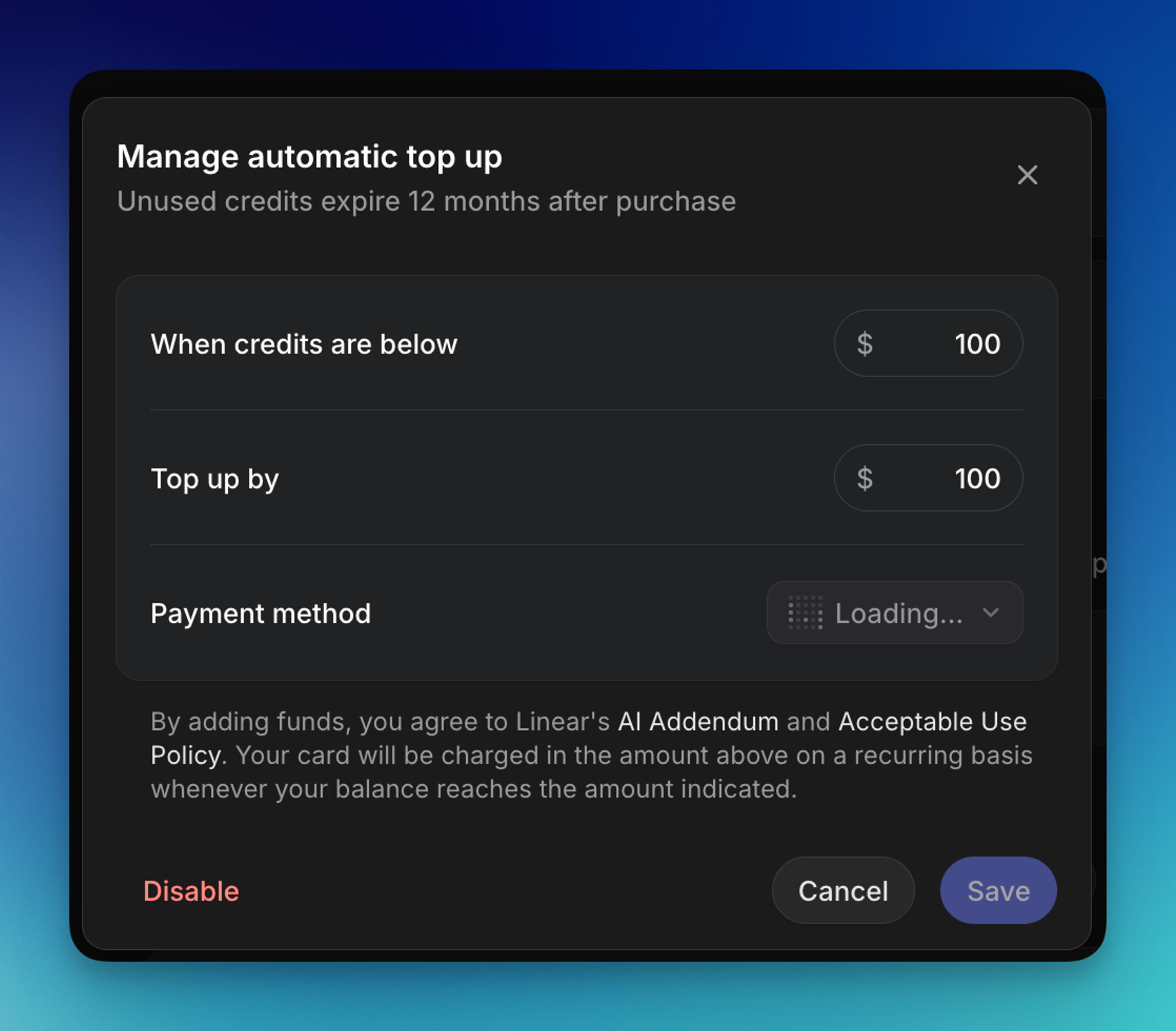
Top-ups are processed by Stripe and produce a separate invoice from your regular Linear subscription invoice.
Payment methods
- Credit cards are the only accepted payment method for buying credits in billing settings
- AI usage can use a different card than your core Linear subscription if desired
Currency and tax
Top-ups are processed in USD and sales tax is applied where applicable based on your billing address.
Expiration
- Funds you add expire 12 months after the purchase date
- Promotional balances will have their own expiration dates, visible in the Usage and credits dashboard
- Unused balance rolls over across subscription billing cycles. It is independent of your Linear subscription period
- Expired balances cannot be refunded, transferred between workspaces, or restored
Order of use
When your workspace has multiple types of credits at the same time (for example, promotional credits alongside a top-up you added), they are consumed in this order:
- Promotional credits (one-time grants when turning on a feature)
- Credits issued by Linear support
- Credits you added yourself
Within each group, credits closest to expiry are consumed first. A single task may draw from more than one balance.
Running out of credits
If your workspace runs out of credits, features that require a balance will not be able to begin new work. You’ll receive low-balance and expiration alerts in advance.
Balances are not updated in exact real time, so your workspace may briefly go slightly negative (e.g. multiple tasks running at the same time), typically by only a few dollars. Your next top-up will first cover any outstanding amount, then add the remaining funds to your balance. For example, if your workspace credit balance is -$1 and you add $50, your new balance will be $49.
View and manage your usage
Owners and admins with access to billing settings can manage everything related to usage-based billing from Settings → Usage & limits . From there, you can:
- View your current workspace credit balance
- Add credits
- Review credit usage by feature and user
- View recent transactions and upcoming expirations
- Set limits per workspace, per user and per loop
Usage history is retained for 3 months.
Spend Limits
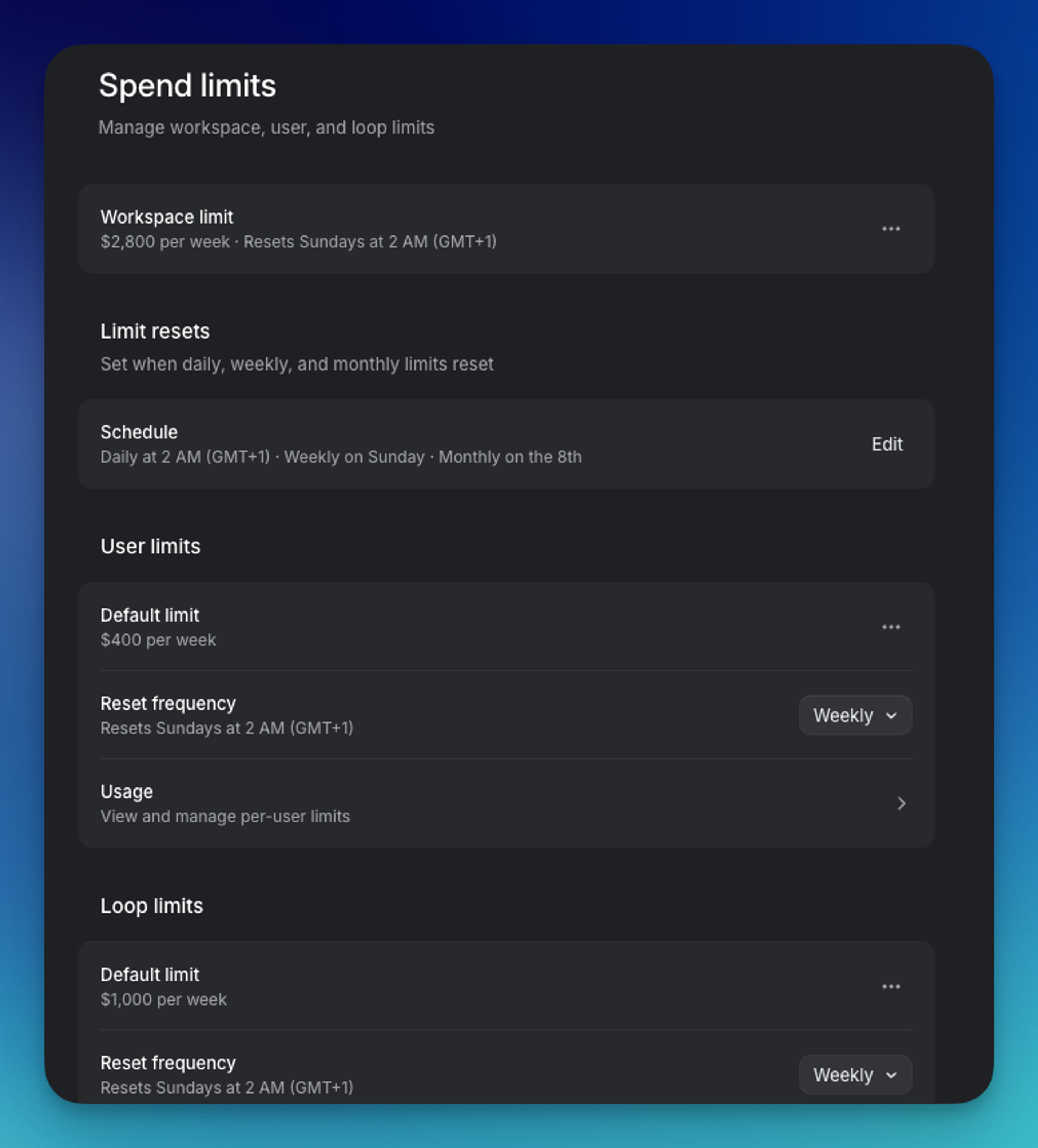
Spend limits let admins cap how much a workspace spends on usage-based AI features. You can set limits at three levels - the whole workspace, per user, each loop - and choose when those limits reset. Spend limits apply to usage-based features: coding sessions and loops.
Find them in Settings → Usage & limits → Spend limits. You can also create, update, or remove limits and view usage by chatting with the agent in Linear or Slack. This access is limited to workspace owners for Enterprise workspaces, and admins for Basic and Business workspaces.
Different types of limits
You can set three different types of spend limits:
- Workspace limit - one cap for all usage across the workspace. This can be set per day, per week, or per month.
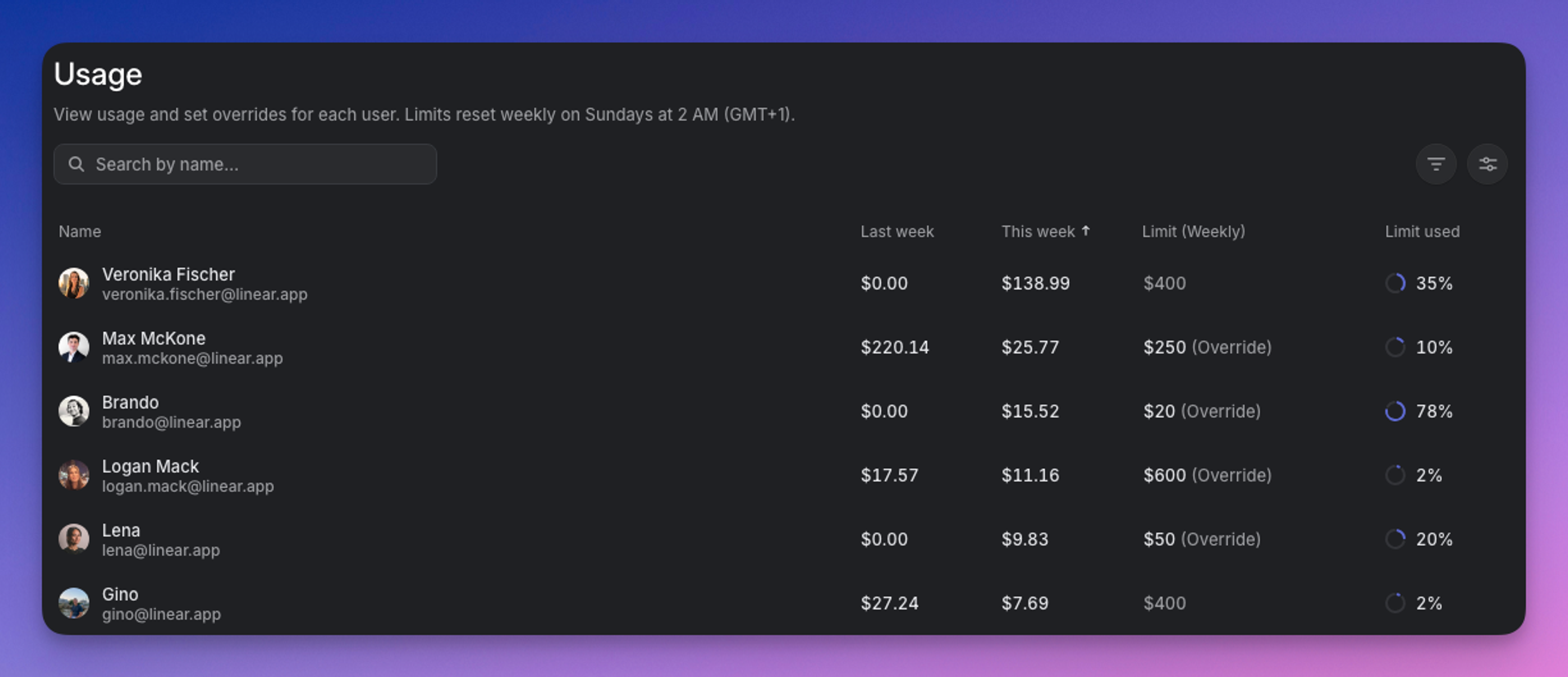
- User limits - a default cap that applies to every user, plus there is the option to have limit overrides for individual users
- Loop limits - a default cap that applies to all loops in the workspace, plus the ability to have limit overrides for individual loops
Each of these is independent. An individual user's usage counts toward both the user's own limit and the workspace limit, so the first limit to be reached is the one that will apply. Loop runs count toward the individual loop's limit and the workspace limit, not toward any user's limit.
Limit overrides per user and per loop
You can override the default for a single user or a single loop by setting a limit override for that specific user or loop. To set individual limits, go to User/Loop limits → Overrides. If there is a default limit set here you can override it.
Once you set an override, that user or loop uses it instead of the default. You can set these one at a time, or select several rows and set them in bulk.
Manage reset cadence
Each limit type has a reset frequency: Daily, Weekly, or Monthly. The limit is the amount that can be spent within one period. When the period ends, spending resets to zero.
When you change the cadence (e.g. from daily to monthly), the amount scales up or down to match the new period. A $10 daily limit becomes $300 when you switch it to monthly, and a monthly limit divides back down when you switch it to daily. Review the scaled amount after you change the cadence and adjust it if you want a different value.
Manage reset schedule
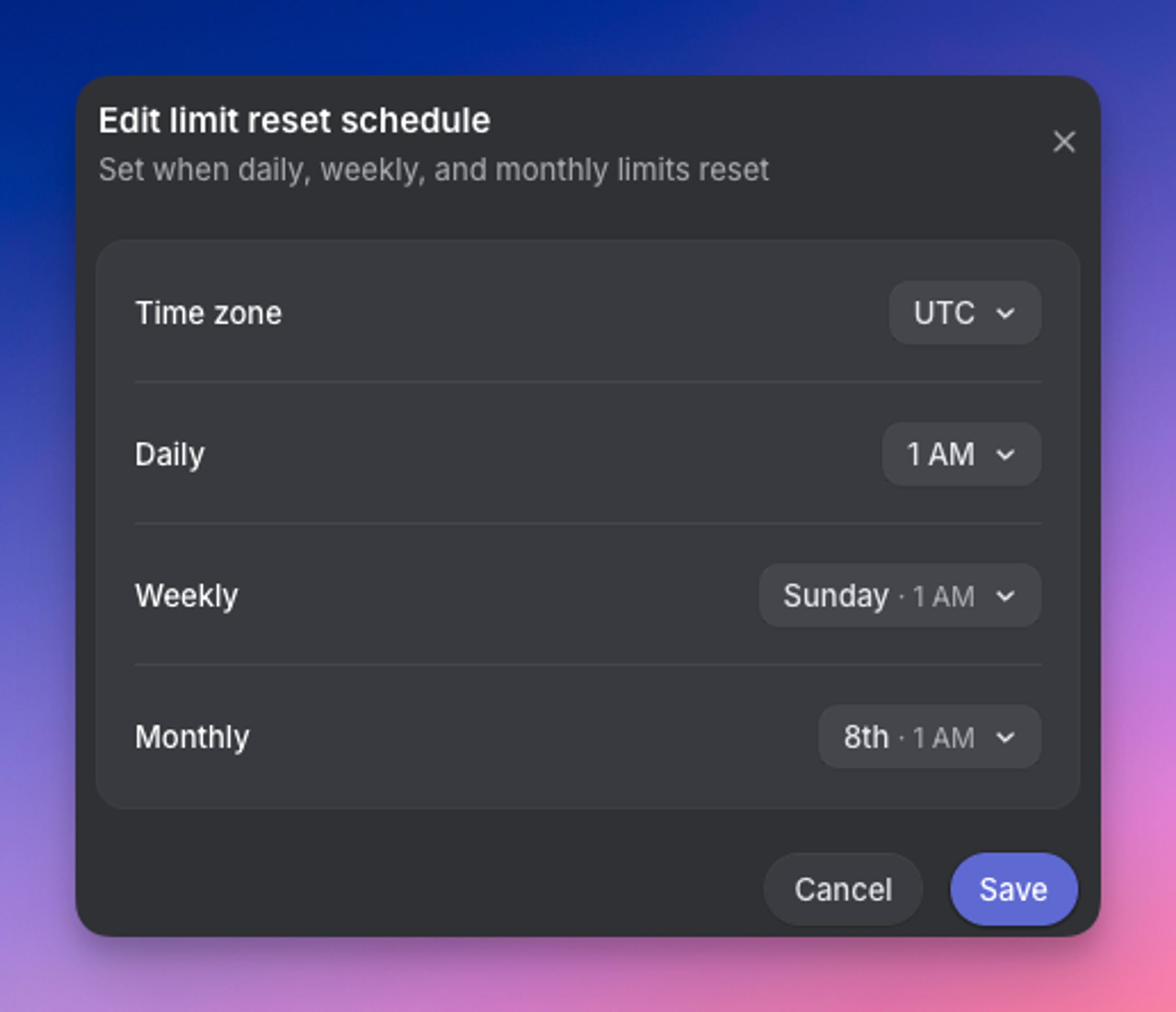
Choose exactly when limits reset in Settings → Usage → Spend limits → Reset schedule. You have the option to set the following.
- Daily - the hour of the day when daily limits reset
- Weekly - the day of the week when weekly limits reset (it will use the time of day that is assigned to the daily limit)
- Monthly - the day of the month when monthly limits reset (it will use the time of day that is assigned to the daily limit)
- Time zone - the time zone used for all reset times
If you set the monthly reset to the 29th, 30th, or 31st, months with fewer days reset on the last day of the month.
When a limit is reached
When usage reaches a limit, the block applies to whatever the limit covers. A workspace limit blocks everyone, a user limit blocks only that user, and a loop limit stops only that loop. Anything outside that scope keeps running. Blocked work resumes when the limit resets or an admin or owner raises it.
To unblock work before the next reset, an admin/owner can raise the limit or set an override that gives more room. Coding sessions and loops do not resume on their own once a limit is lifted, you will need to start them again manually.
To restart a coding session that did not start, open the issue, select the failed session, then choose Retry beside Agent didn’t start.
To re-run a scheduled loop, open the loop and select Run loop now from the three dot menu at the top of the page. To re-run a loop on an issue, you can either run it directly on the issue from the three dot menu, or from the loop itself you will have the option to input the issue you want it to re-run on.
Adjustments
- If a task fails because of a Linear platform issue, please contact support so we can investigate and adjust where appropriate
- Failed runs, retries, or partial completions are billable for the resources used
- Funds you’ve added are non-refundable and non-transferable