SAML
Customers can opt to enable SAML for their workspace to manage logins through an Identity Provider.
Overview
We support most identity providers (Okta, Entra, OneLogin, LastPass, Auth0, Bitum, etc.)
Once SAML is enabled, members on SAML-approved domains will be required to login via SAML by default, while you can allow other login types for users on other domains.
User sessions won't be logged out or notified at the time of enabling, but affected users will need to sign in with SAML from that point on.
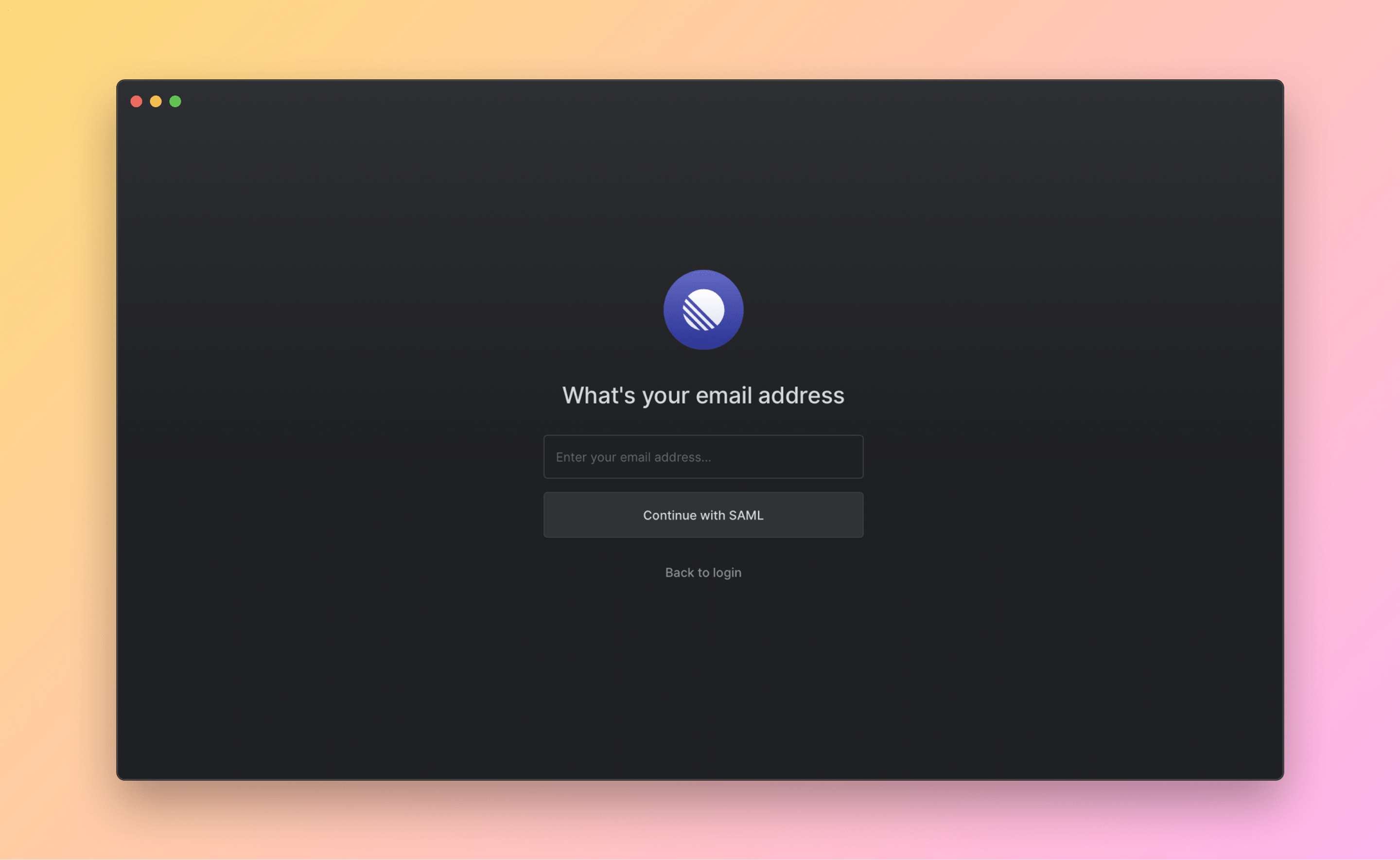
Members can login via your identity provider's website or by clicking the option to Continue with SAML SSO on the login page.
Guests who are invited directly to a workspace can sign in using email or another authentication method available to them. Authentication requirements differ for guests managed through an identity provider. Guests provisioned through SCIM must sign in using that provider; they cannot use email-based authentication to access the workspace.
Login method restrictions do not apply to guests invited directly to the workspace. Guests managed through an identity provider remain subject to that provider's authentication requirements.
Configure
- Navigate to Settings > Administration > Security.
- Under the "Authentication methods" section, click Configure next to "SAML & SCIM".
- Enter the requested details from Linear into your IdP and press "Continue"
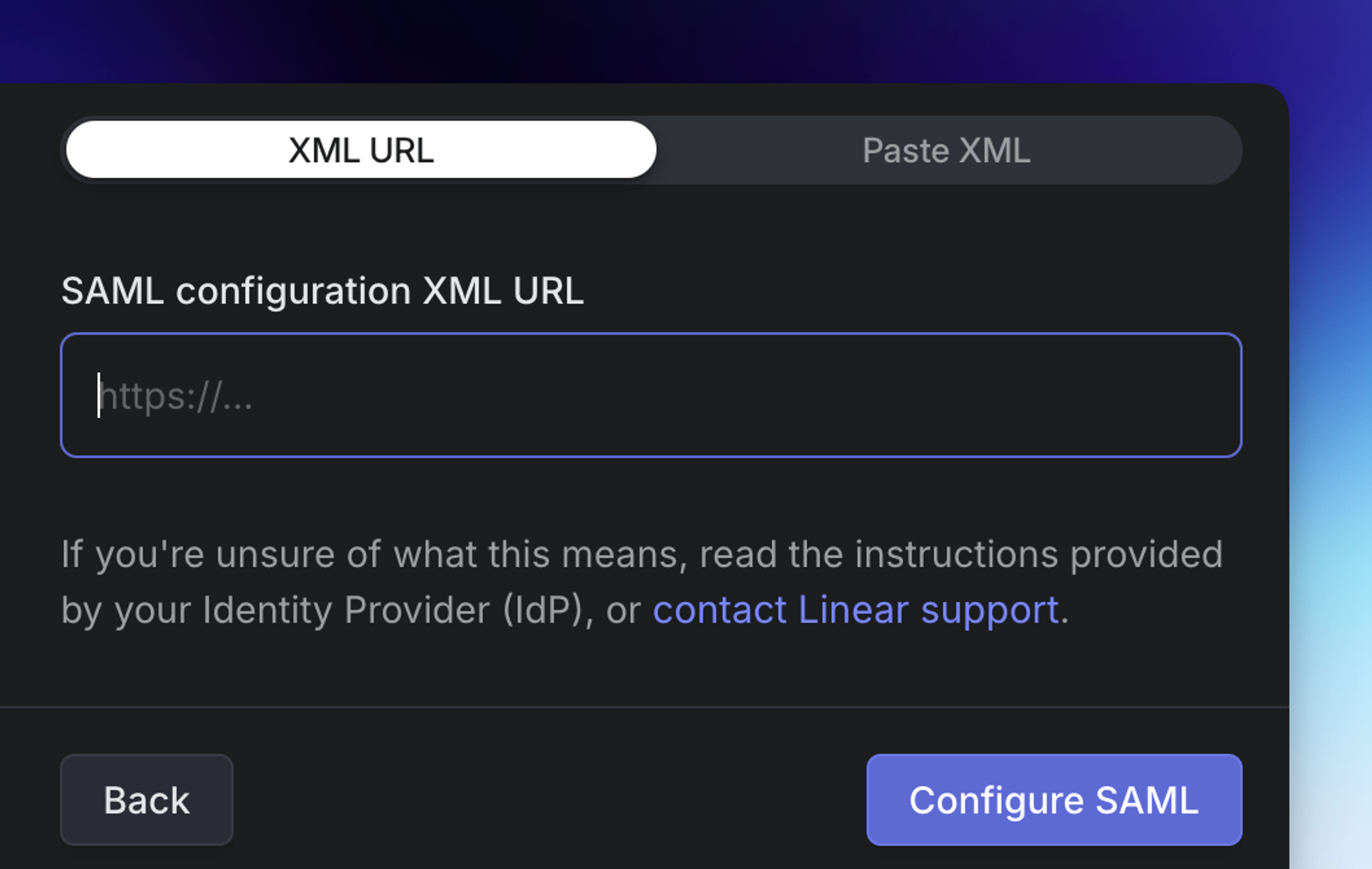
- You can paste in an XML URL or the raw XML text to complete the configuration with your identity provider. If you're not sure where to find this in your identity provider, take a look at their documentation or reach out to us for help.
You can make changes to your configuration later on from ... > Edit Configuration within the SAML authentication & SCIM provisioning settings page.
If you need to update the XML URL or metadata from your IdP, just press Continue past the Linear-side configuration details to reach this page.
If you want to add our logo in your Identity Provider, our Brand Assets are available for download here.
Custom Integration for SAML + SCIM
This is our recommended setup for most workspaces at present:
- Okta Documentation
- In the Okta Admin page, navigate to Applications > Create App Integration > SAML 2.0 and enter the name and optional logo for your Linear application.
- Ensure to enter the ACS URL from Linear as the Single sign-on URL in Okta - this URL ends with /acs
- Copy Metadata URL from the Sign on settings to paste into Linear’s metadata URL field
OIN integration for SAML
This integration is required for MCP Enterprise-managed authentication as detailed here, but currently requires a separate custom app for SCIM support
- In the Okta "Applications" admin page, choose Browse App Catalog
- Search for Linear, click "Add Integration"
- Enter your Integration ID copied from Linear’s SAML Setup menu and click "Done"
- Copy Metadata URL from the "Sign On" tab and paste into Linear’s metadata URL field
Multi-SAML Setup
If you're working with multiple IdPs, you can add additional configurations from the + Icon beside Connected identity providers in your SAML settings. Each IdP can be associated with one or more domains to determine which IdP each user needs to authenticate with.
Just-in-Time Provisioning
When a new user signs in via SAML for the first time, Linear creates the account using the data provided by your IdP. After the account exists, later SAML logins won't overwrite profile details.
The following properties are set during account creation:
- Name: taken from
nameattribute if it exists. If not, created fromfirstNameandlastNameattributes combined or else drawn fromdisplayName. - Email: taken from the SAML
NameIDwhich must be a valid email address - Avatar (profile image): taken from any of
avatarurl || photo || picture || profilepicture || profilephoto - Username: Generated from the supplied Name (as detailed above) or email address if no name is provided. This value must be unique and numbers will be appended if an existing user has this username already.
Domain Management
Allowed domains
Once you have configured your settings for an IdP, you'll need to add approved domains for this IdP under the settings for SAML-approved email domains. You will need to add a TXT code to your DNS record to claim this domain.
Please reach out to support@linear.app if you have any trouble claiming a domain, or if you are working across multiple workspaces.
Other auth methods for other domains
You can choose to allow non-SAML logins only for other email domains, if you are working with contractors or other members that don't have accounts in your IdP.
Disable new workspace creation
Once SAML is enabled, you have the option to prevent non-admins from creating new Linear workspaces with their email credential from the domain you claimed during setup. This can be useful to make sure all work is consolidated in a single Linear workspace.